


![What is MIDI? Understanding MIDI Message Structure [Part 1]](https://i.ytimg.com/vi_webp/0VWHnVJI0Ec/maxresdefault.webp)
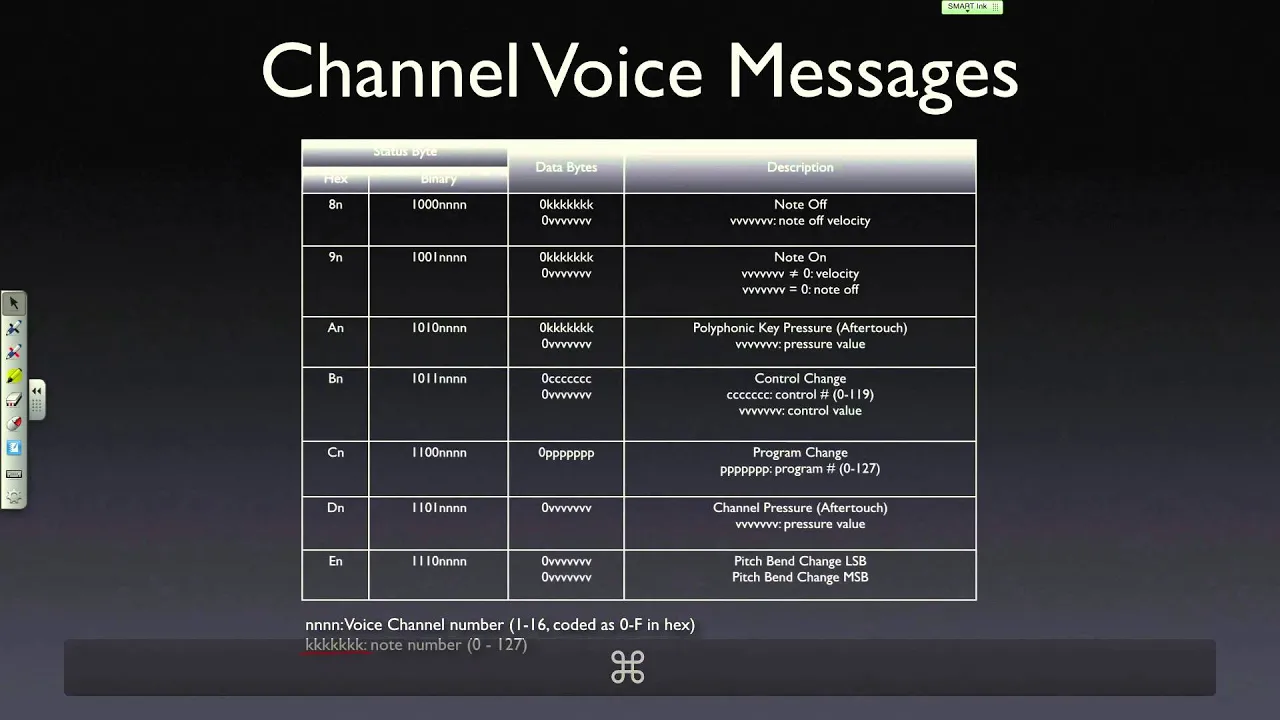












The Web MIDI API enables web applications to connect to and communicate with MIDI devices through JavaScript by using the navigator.requestMidiAccess() method, which returns a MIDIAccess object containing inputs, outputs, and event listeners for state changes and MIDI messages; each MIDI message contains a command (such as 144 for note on or 128 for note off), a note number (where middle C is 60), and a velocity value (0-127 indicating how hard the key was pressed), allowing developers to create interactive synthesizers that respond to keyboard input.
JavaScript MIDI Synth Tutorial: Accessing MIDI in the Browser | Web Audio API Integration
Added:Intermediate JavaScript proficiency, including event listeners, callback functions, and handling asynchronous operations using Promises and async/await.
Fundamental concepts of the MIDI protocol, such as how MIDI data is structured (status bytes, data bytes, Note On/Off commands, and velocity).
Basic familiarity with the Web Audio API, specifically the concept of the AudioContext, audio nodes, and how to route audio signals (e.g., connecting oscillators to speakers).
Knowledge of binary and hexadecimal number systems, as MIDI messages are typically processed as raw byte arrays (Uint8Array) in the browser.
Implementing polyphony in your synthesizer to allow multiple MIDI notes and chords to be played simultaneously without cutting off active voices.
Designing dynamic sound shaping using ADSR (Attack, Decay, Sustain, Release) envelopes to control gain and filter parameters over time.
Exploring advanced Web Audio components, such as BiquadFilterNodes for tone control and AnalyserNodes to create real-time visualizers of the audio signal.
Enabling bi-directional MIDI communication to send MIDI output messages from the browser back to external hardware controllers or software instruments.
Integrating MIDI clock synchronization to align browser-based sequencers and effects with external hardware tempo.
13.3K views282likes22:55Original Release: 2021-09-30
[Music] hey guys i just found out during editing that i forgot to make a little intro for this video so you don't know what it's about but this video is about how you can get midi access in the browser so you can connect a midi keyboard to your computer and through the browser and javascript play sounds so we're going to be making a little simple synthesizer i hope you enjoy it see ya okay so here i opened up my text editor visual studio code and i set up some basic html where i link to a javascript file that i have here as well and this one is totally empty so this should hopefully work i also have in my visual studio code i have the live server installed which you can install as well somewhere it's here you can yeah you can search for this live server then install it that makes it really easy and nice to just right click on index file and just open with live server and then i will get it right here in my browser and i'm using chrome right now i'm going to start by opening up the the console here and then i'm going to have a look at the navigator object that lives on on the global object on the window so i can just type in navigator and uh you get this object here and you probably or you maybe have worked with this before this is where you get a lot of information about the hardware on the computer about the browser about yeah what languages have you installed on it and what kind of plugins do you have so this is um if you have a midi device or any hardware connected to your computer that the browser can access then this is where you will find that and that is where we are going to be looking for this midi access object as well so if we go back to the code and we go to our app.js then the first thing i want to check is if it actually exists if the browser supports this get midi access that we want to uh to find so let's just have an if statement so if on the navigator object here if we have request midi access if that exists then we want to do something we just want to take the navigator object and then we want to request it and that's a function so we run this one and then after we have checked if this actually exists in our browser if the browser is capable of using this then we want to do something so we're just tagging on this returns a promise so we can uh tag on and then and what we want to do here we have we're going to pass two arguments to this and the first one is success so this is a function that will run if we have access to that to the media in the browser and another one if we do not so let's let's call it failure okay so this is the basic setup this is like here we check do we actually have this does this even exist and then if it exists then we want on if it's connected um we want to run the success function and if not we're going to run the failure so let's just make the failure first oh gonna be a function and that is just going to console lock let's say could not connect midi okay um so hopefully that will not run ever but you never know and then we need the success so function success and that is going to uh do something as well we're going to take in the midi axis because this is what we get if this one up here is a success then it'll automatically pass in a parameter to our function here and that is a midi access parameter just let's have a look at what that looks like so console block and that's the media access okay let's try and go to the browser and i'm gonna open up this one right here and i can see i get the media access here so i open this one up and i can see i have an inputs i have an output i have an on state change and i have some sysex enabled so the first thing i want to talk about is the input so this actually shows this just shows that it has a size of two that means we have two inputs on my particular midi keyboard there are two inputs and there is one output as you can see here as well we can't really get much of this here but it has a prototype and we can um we can run it for each on it so we can like take all of the different midi inputs that we have and then we can run it for each and that and do something to to every single input and output if that's uh necessary but in this tutorial we are only going to be focusing on the inputs because we only want to we're not going to output anything from the browser to immediate device we're just going to take the input from immediate device into the browser and then play around with that as you noticed it's also has this on state change and this is an event listener so whenever something happens here you could this one will fire so let's just try and put that in here just to check out what it does so we can take the media access and you can actually just go ahead and use the on state change and just set it equal to uh to a function so let's say that here we want to check how many devices are connected and what devices are connected to our computer so let's just call it update devices and this will be a function so we have to create this function as well down here so let me just do that uh-huh and it will pass in an event so let's get that event here and see what happens here so initially when i save this this is gonna run so uh the state has been changed when you save it um or when you load it in the browser but let me just try i'm gonna take my keyboard and i'm gonna unplug it so so that is three different events of the type state change and the reason that we have three events firing here is because i have two inputs and one output on my midi device so that could be different for your midi device maybe there's only one input or several outputs i don't know but let me try to reconnect it so i'm gonna plug it in and then i get this one as well so i can see it's of the type state change if i open up one of the when i connected it here i actually i would have used the input and then i can get some information about what is this stuff on the port property here i get some information about is it open is it closed it has an id and then you can see the manufacturer of my midi keyboard and the model the name of the model and yeah things like that so basically what you could use this for is if someone if you want to display a list maybe a drop down list or something like that with the different midi devices that are connected to your computer so that that will update for every time every time someone connects a new one then that that is what you want to do here actually you can also listen to the event in the old fashioned way if you want to do that and then add event listener and the event listener we want to add is the state change and then we just want to do the up date devices that will also work and maybe you like that better so i'm just going to comment this one out and test if this one works so i'm gonna unplug my midi device and you know as you can see it still works so now we know how to fire an event every time that something happens to our midi list the list of midi devices that we have connected to our computer i'm just going to delete this line first so we can continue i'm going to keep this one here because this is this explains a bit more what we're actually doing we're listening for an event so i like that better um so so to make it a little bit more interesting we could have a look at the port or we could just like uh let me just console log something else maybe we want a console log um the name of it and that would be the events that we're getting and then the port that we looked at before and then we have a property called name on this one here that's awesome so maybe we want to get the brand and that would be that would be also event port and then manufacturer like that and let's get the state that would be also event port and state funnily enough oops if i could spell like that and let's get the type that is going to be the type so event port type let's just see what happens if i go back to the browser and i disconnect it well as you can see we're getting the name that's the model so se25 midi 1 and the brand is nectar and the state is disconnected and the type is output you can see it's an input and actually you can see i have midi 1 midi 2 and midi 1 here because this is an output and you as we talked about before i have two different inputs so we have midi one and media two let me just reconnect it again we're not going to be using this a lot i just wanted to show you that this is how you can update a list of connected devices if that's what you want to do but let's get back to the code and try something else let me delete this one here and let's just keep this one here for good measures then up here then up here in our success we want to continue doing stuff here um i'm just going to keep this all the way at the top here and then we want to test we want to get our inputs so i'm going to make a constant call it input and that is going to be equal to the midi access dot input remember we had two inputs so if i console log my inputs here let's try that go back to the browser i just get this midi map midi input map uh with the size of two and uh there's not really anything on it but we have a prototype and we can loop over it so that's what we're gonna do because we want to listen on all of our different midi input devices if you know that you're only going to be using the first one then you can just select that but i like i'm not sure actually which input my midi device is using or sending to so i'm just going to listen on all of them so i'm going to take inputs and then i'm going to run for each on it and for every single input that we have we want to do something and first let's just console log it right so that would be the input so we get these two and we also get something called on midi message just like we got um up here before we got on um on state change we got another one we can listen for and that functions kind of the same way we want to listen for we want to listen for when something happens when somebody sends a midi message to the browser we want to do something so we can do that here by adding event listeners to it so one way of doing that is exactly what we did before we can go ahead and we can say in put on midi message and then set it equal to the function that we want to run every time so i'm just going to call that handle input and then we can down here we can have another one called handle input actually i want to put it up here i think so function handle input that will also take an event that is sent to this and then let's try and console log the event let's see what happens here so when i oh something happened here on midi message okay maybe i should not have this right here okay let me try to save that again and now i'm gonna try to play my keyboard oh and every time i press a key something happens on the screen when i hold down one key i get this midi message here event will fire and when i let go of the key another event fires when i press down i get an event firing and when i let go i get an event firing let's try and open one of them let's have a look at this one the most interesting thing and what we're going to be using here is the data property this is just an array of three different numbers the first one is the command what do you want this is a midi command what do you want the computer to do when you get this command here from the keyboard and this one here is the midi number so that means that i press down middle c because middle c on a keyboard the note middle c is equal to 60 when it comes to midi numbers and zero that is the velocity so that is how hard i uh i hammer it down because but because this is when i let go of the key it has a velocity of zero but i can try again let me just clear this and that just so i started very gently and i get a velocity of 46 here i get the next let's open up this one maybe i get a velocity of 0 because that's 93 here and it goes all the way up to let's see here this is not it but this is it right here um i get 127 and that is maximum so that is full power so we're going to be playing around with all this stuff this is what we need let's go back to the code but just like i did with this one i want to use add event listener instead of this one here i like that better so i'm going to take input and i'm going to add event listener and the event that we're going to listen for is midi message and then we're just going to fire the handle input like so i'm going to delete this one here and maybe i should remove this then i'm going to go and see if it still works and it does so that's awesome we're still getting all of this information so yeah so in our handle input let's separate these three different variables we're getting we're getting the command the note and the velocity so let's start by taking the command and we're going to set that equal to event but actually i'm going to change that to input because that's a little bit more descriptive and then on the data property we have this array and we want to get the first index of that array and then we're gonna i'm just gonna copy this and paste it in a couple of times because this one in the middle that's gonna be the note and that is gonna be the second item and then we need the velocity how hard you hit the key and that is going to be the third item here so let's just try and console lock those um command note and velocity so now they should be separated into um into different variables so yeah this is exactly what i want when i when i hit a key i get 144 i get 60 as the note and i get 127 as how hard i hit it i'm going to try another key now and this is like key number 55 and i only hit it with the 111 miles per hour or a velocity of 111 so so yeah that makes sense this command called 144 that means note on so that means that the note is down is being played right now so it's on you're probably wondering how come it doesn't have another when we're releasing the note how come it doesn't have another number here another command because the note should not be on anymore if you release the the key right but um there are different ways uh different midi devices do this in different ways my media device does it like it just you're gonna have to use the velocity because if the velocity is zero you can be pretty sure that this note is not playing anymore so it doesn't bother changing the command right here but some midi devices use 128 for note off and in that case you will not have the third zero here because you don't need that because you already know that 127 means the note is off so in that case when you release the note you will only get an array with two items in it the command and then what key should be turned off what note should be shut off so now that we know that we can um we can make a little statement here we can go ahead and um let's write a switch statement and we're gonna pass in the command here because that's what we are going to have a look at so in the case that this is 144 let me just add a comment that note is on and in the case of that we just want to add an if statement here because we need some other information so if the velocity is greater than zero then we know that it's actually on right i have to spell this correctly then the node is on i'm just going to put this in in here node is on and i'm missing a colon up here like that so then we know that the node is on if that is not the case then we write an else statement we know that is off note is off right so that's the first one let's try the next one here we want to break out of it of course we don't want to continue here so let's take the next case and that's what i talked about before in case it is 128 um we know that that is the note of command so here we can just go ahead and we can make sure that the note is off and then we break out of it here so that doesn't do anything here but we know that the node is on here so instead i'm just going to call a function that i haven't yet written so i'm going to take note on and we're going to pass in the note that we want to play and the velocity of that node and then we are pretty sure that the node is off here so we're gonna write another function called node off and we don't have to pass anything into that one and of course this is also our second case if your midi device doesn't send 144 with the velocity of zero for off then it will send a 128 instead and we just want to do the same thing we just want to turn off the note so i hope this makes sense we can go ahead and write our functions now so note on is going to be a function and it's going to take well we can see the node and the velocity so node velocity okay and i'm not going to do anything right now i'm just going to console log note and velocity all right and i'm gonna make a note off as well and we don't need anything here actually we do need to pass the note into this one because we want to know what which note we want to turn off i don't know why i forgot that but of course we want to do that so down here in node off we're gonna take the note but we're not gonna take the velocity because we know that either it's missing or it's zero so that is basically what it is here so let's try and i think i have a lot of do i have a lot of console logs here i do uh so node on node off is fine this one is also okay i'm just gonna delete all of these here so we don't get too confused okay let's save that go back to the browser and see what happens when i uh when i play on my keyboard so as you see when the note is on i get the the key that is played this case it's 55 and i pressed really hard so it's 127 when i let go of the key i should get 55 because that is the note that we want to turn off okay so that works now we just need to add some sound to this and we're going to try and do that in the next video where we're going to be using the web audio api to create a little synthesizer or actually just a simple little oscillator node that will play for every time that you uh hit the key on the on your keyboard so yeah see you in the next video
Up Next

22:31
The Evolution of Altruism: Science, Biology, and Human Kindness
@TEDx
25.3K views•2010-12-12

12:54
Triumph of Orthodoxy Icon: Byzantine Art & History Explained
@BenCallan
2.1K views•2024-08-06

4:46
Web Audio API Tutorial: Introduction and Core Concepts
@MusicandCoding
11.8K views•2022-06-16

1:42
Game of Thrones Opening Credits: A Cinematic Analysis
@gameofthrones
46.3M views•2011-04-18
Related Study Plans & Knowledge Roadmaps
Structured learning paths in General & Interdisciplinary Studies
general-studies
Elevator Engineering: History, Physics & Cities
01From Hoists to Safety Brakes: The Dawn of Vertical Lift
02Hydraulic vs. Traction: The Engineering Physics of Elevators
03Modern Speed, Safety, and Algorithms
+ 2 more learning modules
12h5 modules
Explore Roadmap
general-studies
Rubber: Material Science, History & Geopolitics
01Origins of Natural Rubber & Mesoamerican History
02The Chemistry of Natural Rubber & Vulcanization
03The Geopolitics of the Rubber Boom & Colonization
+ 2 more learning modules
12h5 modules
Explore Roadmap
general-studies
Containerization: Evolution, Logistics & Trade
01Ancient Trade & Bulk Cargo: Amphorae to Barrels
02The Industrial Revolution & Cardboard Packaging
03The Containerization Revolution: Malcom McLean
+ 2 more learning modules
12h5 modules
Explore Roadmap
general-studies
Textile Tech: Evolution, Labor & Global Impact
01Pre-Industrial Textiles: Handloom & Cottage Industry
02Mechanization: The Spinning Jenny to the Power Loom
03The Factory System & Global Labor Transformation
+ 2 more learning modules
10h5 modules
Explore Roadmap