![Google Ads For Beginners Guide [Full Course]](https://i.ytimg.com/vi/C-WWqU5Tk08/maxresdefault.jpg)




![CPC Alto no Google Ads? Como REDUZIR Custo Por Clique [GUIA SUPREMO]](https://i.ytimg.com/vi/OpycB7re2y4/maxresdefault.jpg)
















Google Maps local search ads (also called location extensions) appear in three positions: top of the map pack, above the map area, and as promoted pins within the Google Maps app. These ads can be set up by connecting a Google My Business account to Google AdWords, which automatically pulls in business information like hours and location. The ads offer multiple user interaction options including click-to-call, directions, and website visits, with Google tracking conversions through the knowledge panel. Performance can be analyzed using segmentation tools in AdWords to understand how users interact with different extension elements, helping businesses optimize their local advertising campaigns.
Google Maps Advertising Tutorial: Optimize Local Search Ads with Location Extensions
Added:Fundamental understanding of the Google Ads ecosystem, including campaign structures, ad groups, and keyword targeting.
Familiarity with Google Business Profile (formerly Google My Business) and how local listings function in Google Search.
Basic knowledge of Pay-Per-Click (PPC) marketing concepts such as Cost Per Click (CPC), Click-Through Rate (CTR), and Quality Score.
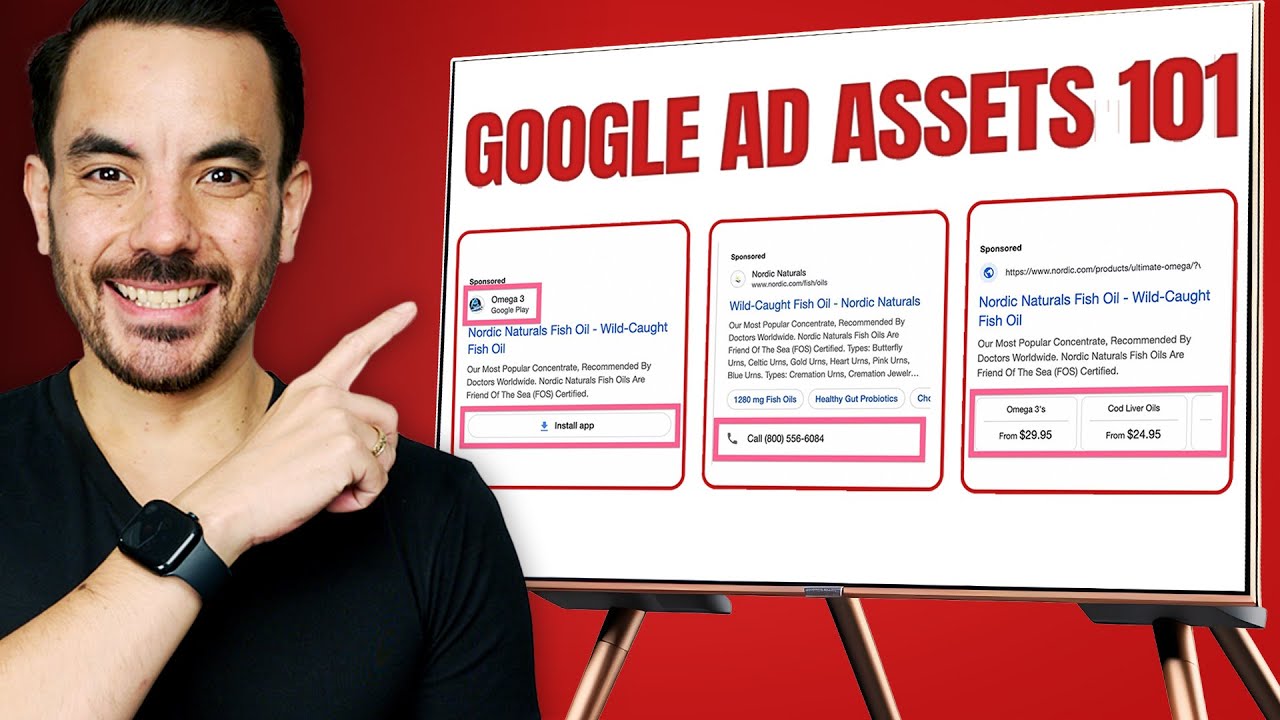
Understanding of the purpose of ad assets (formerly extensions) in enhancing standard search engine results page (SERP) listings.
Advanced tracking and attribution methods for offline conversions, including store visits, phone calls, and driving direction requests.
Strategies for setting up and optimizing Local Inventory Ads (LIAs) to showcase real-time in-store products.
Methods for scaling and managing hyper-local ad campaigns for multi-location brands and franchises.
Integration of location-based advertising with programmatic geofencing and mobile display ad strategies.
47.8K views563likes17:38Original Release: 2018-12-18
hey guys this is Ryan in this video we're gonna go over running a Google map advertising campaign you may have noticed these in the Google map pack area they're also known as local search ads and they came out with this about a year and a half ago I believe but as you may imagine these are prime real estate and really effective for driving low cost leads for local businesses whether that's for your own or for clients I'm gonna go over the nuances of these ads as well as how to set them up and also how to track their performance so there's three different areas in which these ads show and then also different ways in which the user can interact with them that I want to first go over the first one you may already be aware of it's the positioning at the top of the Google Maps area what you're seeing right here is the mobile view there's slight differences between the desktop and the mobile those would be that little icon area to the right of that red box that doesn't show on the desktop version on the desktop you're gonna see a link for directions as well as to the website the other thing that the person can do is click on that headline where they have the headline that add the star reading a little bit of information on their type of service and then also where they're located and the miles from their location when they click this is going to open up that knowledge panel that you see on the right that's your GMB information and it's important to note that that click to that information is counted as it click this is kind of suspect that Google is charging you money for a click to their own landing page however it may be overcome with the fact that these ads performed quite well plus you get the power of getting that click to call feature on both the knowledge panel as well as in the map area so that just makes it very easy for viewers to click straight to your phone line and this can be tracked as well by the way by a tracking number and we'll go into that later on in this video but for now just know that that is a powerful feature the other thing to note about that click-to-call is that that's not a phone extension so it's being registered by Google differently then an extension is same with the one that you're seeing on this knowledge panel that's also being registered differently so when they click over to this knowledge panel and then they click any of those features they're not you're not paying for those clicks but you are paying for the first one so that's important to note so if they were to click to the knowledge panel then go to your website you only pay once or clicked in a knowledge panel click the call you only pay once so the second placement of these location extensions is gonna be on your ads above the map area and they're gonna look like this on mobile the desktop version is gonna look slightly different but in general they're both clickable and what they're gonna do when you click these is open up that same exact knowledge panel that you saw before the main thing to note on these location extensions above the map pack is that that icon that you're seeing on the right of the phone is actually a phone extension it's not the location extension click to call so there's a difference there that's very nuanced and it's hard to understand and this has taken me a while to dig into all this and to be honest I'm not completely sure if I'm right on this I've talked to Google and it seems to be murky waters just because this is all brand new the third position you're going to see these ads in are promoted pins so within an actual Google Maps app on a phone so on a phone device or a tablet etc you have this app where you can open it up and get directions to anywhere where you're going I use this as a GPS pretty much indefinitely I don't have a GPS anymore and this is gonna be most important for stores of course where people are trying to get driving directions there and the usefulness and viability of these is still unknown to me because I haven't run this very often but it's still an interesting feature to understand and could potentially have a ton of value for some businesses and I'll show you how to track this information as well the major thing to note about these ads is you can't control when they show up because as you'll see in a second they're simply just a location extension so any campaign that you have a location extension associated with is going to show these ads you're going to be able to show these ads in the map area and Google does that programmatically and you can't control whether it's showing or not at this point in time I don't believe you can choose to show it in one position or the other you can't exclude the map area or exclude the search above the map area which is unfortunate but it looks like since this is brand new Google is still making moves to change it and improve it and maybe we'll see that in the near future okay so I'm going to show you how to set up one of these location extensions it's really easy if you don't already know how to do this but you're going to need a Google AdWords account of course but also you're gonna need a Google my business so when you go into your AdWords the new dashboard you can click all your campaigns a single campaign or ad groups and go to the ads and extension right here as you can see that's highlighted and then you can click the blue button to add an extension and the one you want is the location extension as mentioned earlier just press the plus button for that and it's going to open up this screen that indicates that you can either connect to an existing Google my business or request access to one already existing if your email for your GMB is the same for your Google AdWords this will show up automatically as you see here and if that's the case all you have to do is press Continue otherwise you just want to send a request to your Giambi's email address you can find that email address in the settings section of your Google my business account but for now let's press continue and what that will do is link up to your existing GMB and it's going to pull in all that location information as well as your hours of operation pretty much all your your GMB information and then finalizing that and pressing finish then you'll see this where it's actually linked to your campaign and that's as simple as it is guys so once you have this ready and connected to your account this extension can be associated with different campaigns so an entire campaign or an ad group in particular and let's say you have multiple locations you can pull in from Google my business and you'll pull in all those different locations and what you can do is just set up a campaign for each one of your locations and associate that with the appropriate GMB location lastly I want to mention this area where you can set up a tracking number in your Google my business from what I've believed from all my research into this I think this is what is showing on the desktop view only because with your location extension it will also show the phone number of your business so instead of showing your actual phone number you can plug in a tracking number here and that's what will actually show and people will call that so you can track those as a phone call conversion as well once you connect your location extension you're gonna see these Google hosted conversion actions start to show up in your Google Dashboard area specifically the conversion panel these may take up to a day or two to start showing up but these are uneditable conversions that Google is measuring mainly from the knowledge panel area that we showed early on in this video you'll see clicks to calls local actions for directions websites visits and other engagements so let's just go over what these are and what Google is actually counting in these the first conversion actually we want to look at is clicks to call so this is different from your call extension conversions in the sense that this is set up for businesses that don't necessarily have advanced tracking if you look at the mobile version as we looked at early on in this video you're gonna see this little knowledge panel area as well as the map area and with little links for calling those would be considered clicks to call so a click to that phone on the left side they're in the map area so click the call and that's gonna show up in your all conversions and not under your conversion specifically further if they click over to your knowledge panel area and then click the call icon it's the same thing it's a click to call conversion labeled under your all conversions further the next one we want to look at is directions so whenever they click that Direction button right there that's going to be considered a conversion for getting directions and then other engagements is save reviews photos or sharing that's still a little bit unknown pretty much all of this is still in murky waters because from what I've found Google themselves don't even quite know exactly what is being measured here but either way the last one is the clicks to website so that clicks the website would be once they clicked to open up this knowledge panel and then click that website feature right there or alternatively they click the website button on the desktop version in the map pack area next up let's go over how to analyze the performance of your Google map ads you can do this by going to either the campaign or ad group level and then clicking the extensions tab as you usually would in Google AdWords but instead go up to the top where that filter tool is you can see that with the horizontal line in also the vertical lines click the horizontal lines and you're gonna pull up the segmentation tool and what this is gonna do is while you're looking at your extensions normally you can see like the the normal column information and data such as clicks impressions conversions click-through rates etc but this segmentation what it's going to do is actually split that up by click type so how they actually clicked your ad so when you click this you're going to see all these different metrics now underlying or basically under your your location extension so the first one to look at is the headline which is actually the most tricky in my opinion I first couldn't realize why they were showing this because why would you be showing clicks on a headline when I'm looking at the location extension that's all I really care about but what I'm understanding this is showing is when you when you show an ad to someone above the mat pack area I believe this is counting the clicks to the headline every time your location extension was attached to that ad why is this important I'm not quite sure although perhaps your location extension being on your ad makes it more prominent and you could see if that reflects and the click-through rates to your headline or maybe somehow that improves the conversion rates on your headline I'm not quite sure but either way the headline clicked a call for specifically the location extension isn't too useful to me I don't look at it that often however knowing this segmentation you can do this with your other extensions and this is quite useful to see our most of my conversions coming from headline clicks or are they coming from site link clicks it's really important information to know and this is kind of hidden data that most people don't know about the other thing in the looking at is mobile click stack all this is really important because unless you have the tracking setup then this is gonna be labeled under your all conversions so it's kind of hidden data you're not sure how many phone calls are actually produced from your location extension so you want to pull this up just so you can see how many people are actually clicking the mobile click to call feature of your location extension because that's quite important for a local business site link similar to the headline this is just showing whenever your extension was shown on an ad how many times does someone click the site link same thing with the headline it's not super useful for the location extension mainly what I look for are the specific location or the local actions mobile clicks the call driving directions get location details and show near bought by locations so get location details is pretty much every time someone opens up that knowledge panel like it's when they click that box under the the mobile ad they click that and then it opens up the knowledge panel so you're paying for that like as mentioned early on in this video which kind of sucks but basically one important thing to look for is if you're getting a ton of clicks to that get location details but no conversions are coming from it then you want to analyze this of course on on the entire scale of your campaign and account to make a judgment call whether you should turn on or off your location extensions then of course driving directions which are quite useful for most businesses so the main important ones that I look at our mobile clicks to call in driving directions in this click type segmentation lastly you can also check in segments by conversion action so if you click that same horizontal bar tool that we did before for a click type you'll see conversions and then the pull out will come out and then you'll see a conversion action click that and it will break down your reports whether it's your campaign level like we're at right now or within the extension view you'll see it to see basically how people are interacting and converting off your extensions or your campaigns and as you can see we have clicked the call up here that is labeling is labeled into all conversions for us so this is only the case by the way and I edited this in early on in the video but this is only gonna register like this if you don't have call extensions set up currently we don't want to set these up because this for a dentist and we're just unsure at this point in time whether we are HIPAA compliant and until I do that research fully I don't want to risk that with this client either way this is really interesting because you get to see basically our people converting now from these and I prefer to look at this segmentation when I'm in the campaign view so you can see that we're not in extensions anymore but we're actually looking at campaigns and yeah this is just a cooler way to break down your data a little bit further and see basically how people are interacting with your location extensions I understand that location extensions are they're a little weird because all you do is you set this up and now you have you have ads in the map pack area it's that simple but when it comes to actually seeing how they're being interacted with it seems that Google doesn't have it all figured out at this point in time so it's a bit tricky but either way use these segmentation tools on your campaigns and while looking at the extension itself to better analyze like how people are interacting with that extension and that's gonna help you judge whether it's actually benefiting your company or not because don't just assume that it will benefit your company we are testing right now at least with dentists campaigns without the location extensions so I would highly suggest running in experiments if you know how to do that I'll either way I'll make a video on how to do that pretty soon here actually and yeah running experiment with potentially even no site links do no site links do no location extension and then see if that decreases the amount of clicks that go to those things increases the amount of clicks their headlines increases conversions lowers cost per conversion it's all about analysis it's all looking at this data and seeing oh where are we getting a lot of clicks but no conversions and that's generally what I'm doing and pretty much all my campaigns so hopefully this was helpful for you guys I know this is a little bit uncharted waters a little bit murky a little bit confusing but if you can get down location extensions for most industries this is gonna really turn up your campaigns and produce a lot more flow of leads for your business or your clients and this is a really great tool and I'm really excited to explore this further so let me know in the comments below any questions that you might have anything that I may have got wrong in this video because I'm not claiming to know everything about this and then if you liked the video click like if you want more of this content subscribe and share it with anybody you think needs to serve or wants to see it so until then guys I'm gonna see you in the next video and cheers have a good night you
Up Next
11:43
Facebook Awareness Ads Setup Tutorial 2024 | Step-by-Step Guide
@StuartMacadam
2.5K views•2024-04-01

12:54
Triumph of Orthodoxy Icon: Byzantine Art & History Explained
@BenCallan
2.1K views•2024-08-06

9:49
FastAPI vs Flask vs Django: Choosing the Right Python Web Framework
@TechWithTim
302.5K views•2024-05-26

1:42
Game of Thrones Opening Credits: A Cinematic Analysis
@gameofthrones
46.3M views•2011-04-18
Related Study Plans & Knowledge Roadmaps
Structured learning paths in General & Interdisciplinary Studies
general-studies
Elevator Engineering: History, Physics & Cities
01From Hoists to Safety Brakes: The Dawn of Vertical Lift
02Hydraulic vs. Traction: The Engineering Physics of Elevators
03Modern Speed, Safety, and Algorithms
+ 2 more learning modules
12h5 modules
Explore Roadmap
general-studies
Rubber: Material Science, History & Geopolitics
01Origins of Natural Rubber & Mesoamerican History
02The Chemistry of Natural Rubber & Vulcanization
03The Geopolitics of the Rubber Boom & Colonization
+ 2 more learning modules
12h5 modules
Explore Roadmap
general-studies
Containerization: Evolution, Logistics & Trade
01Ancient Trade & Bulk Cargo: Amphorae to Barrels
02The Industrial Revolution & Cardboard Packaging
03The Containerization Revolution: Malcom McLean
+ 2 more learning modules
12h5 modules
Explore Roadmap
general-studies
Textile Tech: Evolution, Labor & Global Impact
01Pre-Industrial Textiles: Handloom & Cottage Industry
02Mechanization: The Spinning Jenny to the Power Loom
03The Factory System & Global Labor Transformation
+ 2 more learning modules
10h5 modules
Explore Roadmap