









![Stripe Recurring Payments With Stripe API & PHP [Part 1]](https://i.ytimg.com/vi_webp/oESOtH1cEZM/maxresdefault.webp)





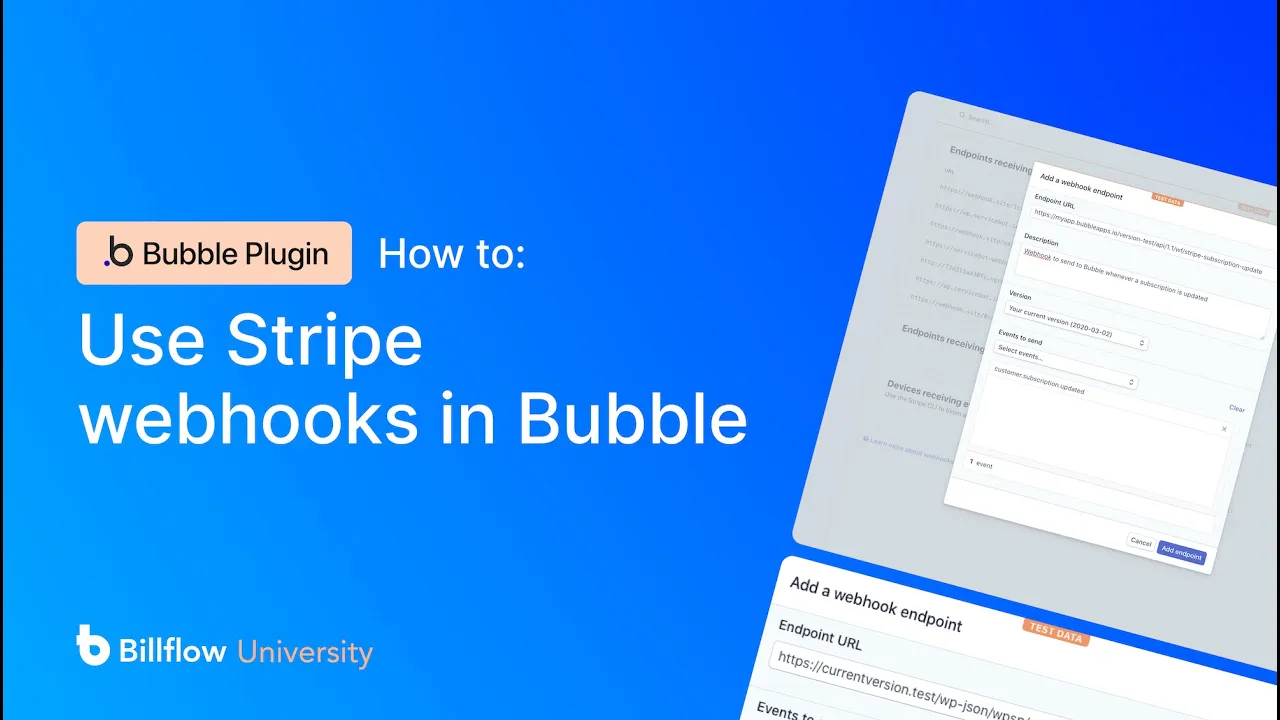








This video demonstrates how to secure Stripe webhook endpoints using IP address validation and manage the complete subscription lifecycle in Bubble, including handling subscription updates, deletions, invoice payments, and failed payments through Stripe's Dunning system. The process involves storing Stripe's IP addresses in an Option Set, implementing IP matching logic in backend workflows, and configuring Stripe's built-in Dunning tools to automatically retry failed payments and communicate with customers about subscription issues.
Bubble SaaS Payments: Stripe Subscription Management in Bubble.io
Added:Understanding of Bubble.io backend workflows, API endpoints, and database structure.
Basic concepts of APIs, HTTP request-response cycles, and how webhooks function to transmit asynchronous real-time data.
Familiarity with Stripe's core data model, specifically the relationship between Customers, Products, Prices, and Subscriptions.
Knowledge of basic security practices in web development, such as API key management and payload verification.
Implementing Bubble Privacy Rules to restrict or grant app features dynamically based on a user's current Stripe subscription status.
Configuring the Stripe Customer Portal to allow secure, self-service billing management and invoice downloads for users.
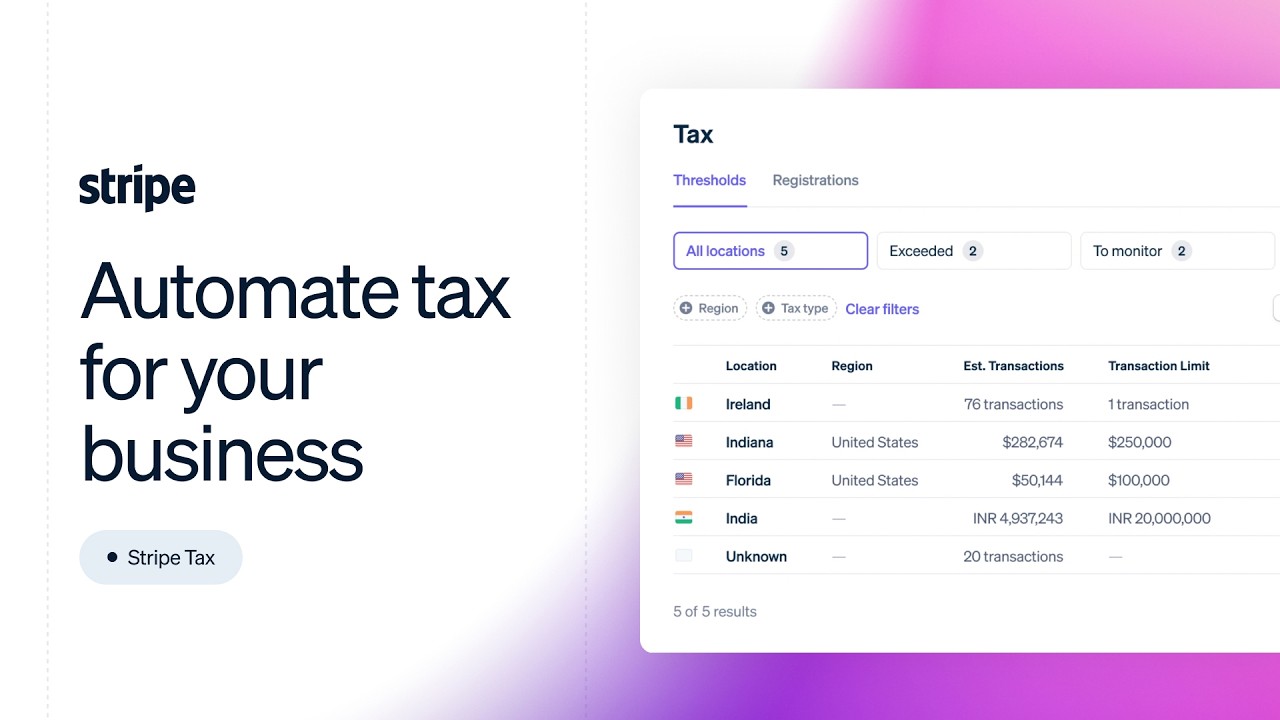
Setting up automated tax compliance, handling regional VAT/GST, and generating compliant invoices using Stripe Tax integrations within Bubble.
Designing advanced dunning and user-retention workflows, including custom email alerts and gradual feature-degradation logic when payments fail.
Tracking and calculating key SaaS metrics like Monthly Recurring Revenue (MRR), Churn, and LTV using Stripe webhook data in Bubble's database.
9.2K views182likes1:15:15Original Release: 2024-07-26
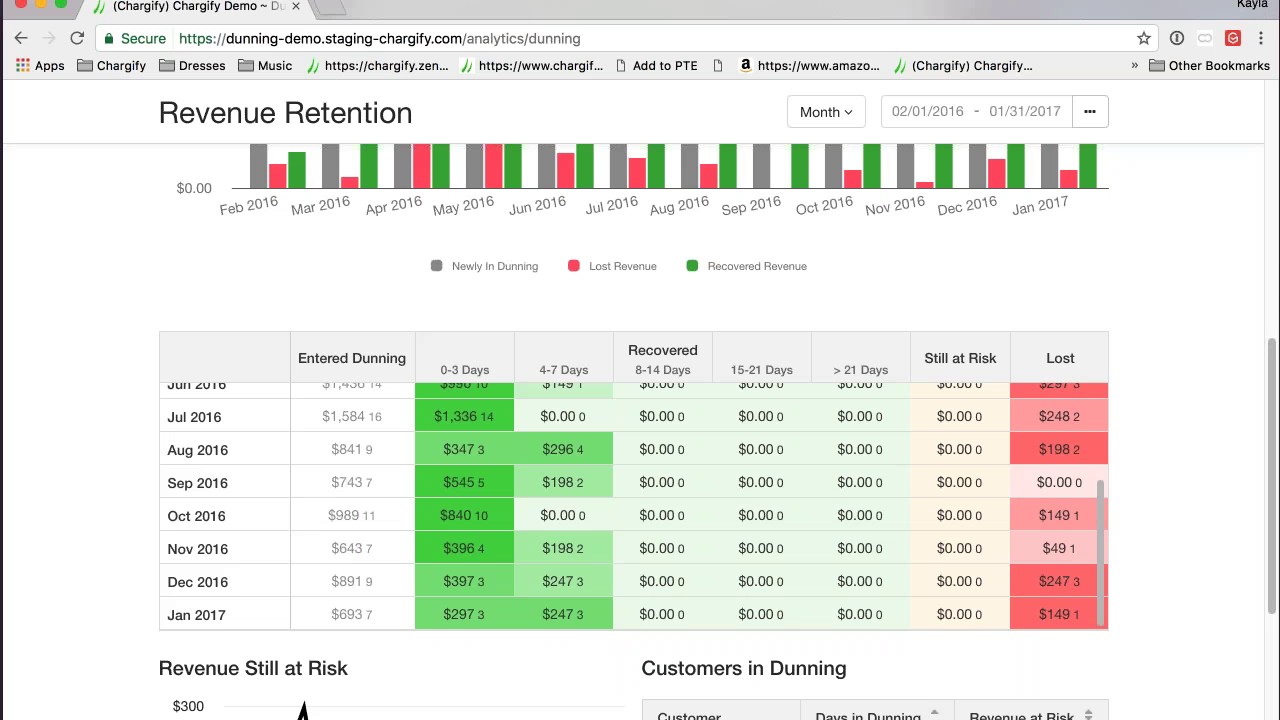
[Music] so there are multiple ways to secure our web hook endpoints and I want to show you a really secure way that's also one of the most straightforward ways and that is using a predefined list of IP addresses that stripe gives us okay let's jump in and have a look so head over to docs. stripe.com and what you want search for is domains and IP addresses so if I copy that and paste it into the search bar it should come up first domains and IP addresses so the subtitle says ensure your integration is always communicating with stripe and that's exactly what we need to do because we needed to make our endpoints public so stripe could communicate with our app but it does mean that someone using an external program like Postman can actually send data to our back end and populate our database with data okay so we just need to secure that and using and in terms of stripe security I feel like IP addresses is a good middle ground between being really secure and also quite straightforward to implement so if we scroll down on this page if we head to the bottom we have one 2 3 4 5 6 we have 12 IP addresses so web hook notifications that's exactly how we are communicating with stripe the full list of IP addresses that whereb notifications may come from so every time stripe sends an event web hook to our Bubble app in the header section will be an IP address and all we need to do is match that IP address to this list so we're going to save this list of IP addresses to our option set and then we're just going to do little um piece of matching logic okay so I want you to copy the first one and we're going to have to come back and do all 12 of these I'm going to show you the process and then I'm going to let you get on with doing this yourself but let's copy the first one 318 1263 I'm going to jump back into bubble and I'm going to go to data and then option sets I'm going to create a new Option set called stripe and now I'm going to create an option called allow IPS like so and now I'm going to create a new attribute this one will be called IPS this is going to be a list of text okay so checklist multiple entries because we've got 12 to implement here and actually let's just change allowed IPS just to allow like so now I'd like you to modify attributes and simply paste in the first IP address and add let's go back to stripe go to the next row and need to do it for all of these okay copy back to bubble and paste okay so I'm going to fast forward the section I'm going to get all of my IP addresses in please do the same they're need to be in cuz bubble because strip will send these um from a just a random IP from this list okay okay guys nice so hopefully you got all of those in without a hitch now let's look at how we can implement this logic in our backhand endpoints so let's head over to the backend workflows please and remember when we first created this backend workflow or this endpoint I should say remember when I asked you to include headers in detect data check that is where one of these IP addresses from the list is going to come down and that's where we can access it to build this matching logic let's first see if we can identify this IP address I'm going to click on modify types I'm going to just quickly scroll right to the bottom let's actually show raw data this will be easier to read okay so here we have the headers so we check that box and now all of this data comes down second in the list CF connecting IP here we have an IP address 52151 18338 okay so ends in 18338 now your IP address will be different or it might be the same you have a 1 and 12 chance but it might be different so don't worry if it doesn't match mine let's just make sure that one of this IP address is in the list of IP addresses that we copied across so mine ends in 18338 yours might be different so 183 38 here you go 18338 middle of the list for me 52 50 15 1 18338 perfect so this is how we do it I'm going to click on this API workflow event and I'm going to go to the only when let me bring this up here now I'm going to grab the option set we've just created get an option stripe allowed and close and then I'm going to choose IPS okay so now that's pointing to the list so here we have a list of IP addresses then I'm going to say contains and then I'm going to try get to that header IP address Quest data when you type the word head that brings up the headers and here we have the CF connecting IP and that's it so allow IPS is a list of texts and connecting IP is a text I know it's a bunch of numbers but there are dots in between as well so it's a text and that's it guys we're now secured you don't need to worry about things like IP spoofing some people have questioned me in the past about IP spoofing yes that's a thing stripe is a multi-billion dollar company that deals with banks okay they have uh Security in place to mitigate all of these problems and they are offering a list of IP addresses uh which they wouldn't offer if it wasn't secure so it is secure let's do it to this one now subscription updated on my break I actually updated just the title of this in set of subscription updates to subscription updated okay so all I'm going to do is copy this expression go to the next block paste expression and we're done and if you aren't receiving your web hooks if they're not being delivered to Bubble this is probably the reason you might have made a mistake or you might have left out one of those 12 IP addresses in the option set all right guys so we've secured that process now these two endpoints are secure and from here on whenever we create this backend endpoint we're going to be using this matching logic to make sure that the endpoint is secure [Music] now we're going to deal with deleting a subscription and what I mean by that is at the end of the bilding cycle that subscription now comes to an end so we've dealt with the cancellation process but now obviously um 30 days after that is that workflows run then stripe actually needs to decommission that subscription in stripe which means that user won't be charged anymore okay so we now need to change some data in bubble to reflect that has happened on stripe okay so we're going to deal with um basically another endpoint that we're going to create we're going to go request detect request data and go through the same process of setting up the other two so let's jump in so this is the workflow for deleting a subscription at the end of the billing period stripe is going to send us this event customer subscription deleted and that when it's time for us to change a subscription where the field active which is currently yes now we'll change to know so let's jump into bubble and set up this backend endpoint okay so we're in the backend workflows we're going to create a new backend workflow this one will be called subscription deleted we're going to check all three boxes we're going to set this to detect request data and remember we need to include the headers let's change up the colors here so this is a deletion web hook I'm going to make this red and the one to the left is subscription updated why don't we changes to Blue so we've got cyan blue and red and what I normally do is just put this in Brackets just so it's more legible now when we um were in our API connector we created the cancellation API workflow so that we can so that the user Lucy can then cancel their subscription when they would like to when we initialize the call where she made the call to stripe and we'll notice in I'll stripe down dashboard that Lucy subscription is set to cancel okay so that the wheels are in motion um and we're going to actually force that subscription to cancel straight away to initialize this endpoint but let me show you in the stripe dashboard what I mean okay so if I go down to subscriptions here I can see here is Lucy's email and it says canceling on the 28th of July but what we can actually do is choose to cancel the subscription immediately so we're going to use this action to basically create the custom subscription deleted event to send to Bubble to initialize our endpoint okay so let's jump back into bubble and click on detect data for your subscription deleted endpoint and then click on the E for initialize it copies all of it and now let's go into stripe and set up this endpoint I'm going to click on developers head down to web Hooks and we're going to create a new endpoint and I'm going to scroll down to customer and I'm going to look for customer subscription deleted here we go here occurs whenever a subscription a customer subscription ends check that box and then continue going to paste in the initialization web hook remember afterwards we need to delete initialize let's just type a message here when a users subscription is cancelled at the end of the billing period okay let's create that destination and let me find it on the left hand side here we go here perfect okay so there is no way for Lucy to actually delete her subscription straight away it's currently set to cancel at the end of the building period so let's just jump in and and manually do this all right I'm going to minimize my workbench and you want to head into subscriptions find Lucy's subscription and click on the X and we're going to do this immediately okay cancel there you go that's been canceled now let's head back to bubble and look at our endpoint here we go and this is a pretty simple one all we need is the body object ID which is the subscription it's all we need so I'm going to save that okay now that it's been initialized before we go any further let's just go back to stripe and remove initialize from the web hook URL developers web Hooks and here it is here with initialize now that's been done so I'm going to edit and remove everything including the forward slash and then save okay so this process we still need to do it a few more times but this is the process and by the end of this course you'll be so used to it all right so now we can build our workflow the first thing I'm going to do is secure this endpoint by copying this logic copy expression and paste expression if it turns blue you know that everything is good to go so what do we want to do here let's just look at the data so in data types when a subscription is active we have this yes no field so basically all we need to do is change active from yes to no so first we need to find the subscription to make a change to so make changes to thing and let's do a search for subscriptions and let's say the first item and now we just need to match the ID because the ID is brought down via the web hook and it's request datas body object ID simple as that remember let me click back here and just show you and modify types body object ID starts with a subcore that means it's a subscription ID so we found the subscription now let's just change from active yes to active no and guys that's all we need to do now there multiple um additions you can um Implement here obviously if they're subscribed to your SAS software well then you need to build logic to make sure that they can't access you know the the the subscribed portion of the software you can send them an email to let them know that it's been cancelled you can send yourself an email you can let stripe deal with that if you'd like and we're going to have a look at that um but for now that's it so that is initialized after user hits cancel it will cancel at the end of the billing period then this event will be fired to bubble and it will downgrade uh via the web books nice and neat so I think that's it for deleting a subscription and we'll move on to the next section now we have a data type called payments and we have a data type called subscriptions and every month a payment towards a subscription will be made or to keep the subscription active we need to record every time a payment is made in our bubble in our Bubble app and we also need to manage a process called Dunning which is communication with a customer to let them know that their card is failed the payment has failed for another reason Bank declined the transaction and so forth and now what we're going to look at is another endpoint while we're on the topics of endpoints to be able to track when an invoice is successfully paid but then also leverage some stripe logic because I think they do this really well to be able to manage uh failed payments but let's first deal with the um successful payment in bubble so when the subscription is first created we have an endpoint and bubble that creates a subscription and also creates a payment so that is basically how we set up the subscription and from next month basically stripe will charge the card automatically okay it's a SAS product it's a recurring subscription now we do need to create data in the bubble database for whenever a payment is made so for that we're going to use invoice paid okay so we need to create another endpoint in stripe and go through this process again there's something I first want to show you in in the backend workflows though so here is our checkout session endpoint and a payment is made to set up the subscription so we create the subscription when a successful payment has been made on the stripe hosted checkout page and then after that we create a new payment okay now did you notice that we have a field called billing reason and the billing reason is subscription create because now we have another endpoint we need to create for recurring payments this is the payment for setting up the subscription what about next month and the month after and for that we have another billing reason and that is um a subscription cycle basically so we need another endpoint to be able to deal with this we can't use this endpoint because this is the endpoint for setting up the subscription initially so we're going to create another one guys another API workflow here going to call this invoice paid okay just going to put brackets around this here we go let's make this green green for the color of money we're getting paid guys this is great business is booming make sure to check all of these remember we're using IP addresses down here some logic to secure this endpoint okay and of course we're going to detect request data and include headers so we've just been through the subscription deleted web hook initialization while this fresh in our minds let's do the same now for invoice paid so I'm going to detect data and I'm going to copy this endpoint then going to pop into stripe head over to developers web hooks I'm here already in stripe workbench going to create a new endpoint going filter by typing invoice and I'm looking for invoice. paid okay now there are other ways to do this some of you that are quite proficient with stripe might say oh Greg why not we're using this particular event and many events share similar data this is the way I do it this is the way I think that's the cleanest um and it gets the job done so invoice. paid occurs whenever an invoice payment attempt succeeds or an invoice is marked as paid out of band So Paid a different way so let's click on invoice. paid and continue paste in that endpoint the bubble one make sure initialized is spelled correctly when is successful payment is made going to create that destination okay and I'm just checking Yep this looks good so in order to initialize this where she going to sign up as a new person because we've lost Lucy as a customer um she she didn't like the software she decided to cancel and then she asked us SK just cancel immediately I'm not interested so we did that and that's how we initialized our subscription uh deletion endpoint so to initialize the invoice paid we're basically going to sign up a new person and have them sign up to a new subscription so let's do that so let's go back to Bubble I want you to keep this tab open there guys let's go back to Bubble going to cancel this for a moment and what I'd like to do is head over to test and then preview the page all right we're going to log out perfect now we're going to go back to the or page and let's sign up as a new user okay let's just sign up as someone let's call this P person um Nathan right email address you know what to do here guys make sure to include Nathan in this email address so it's easier to track and actually use what we're building here properly let's sign up fantastic I'm going to do the starter plan please do the same we are going to get around to upgrades and downgrades later on in the course okay so just stop here a second because remember we're trying to initialize a web hook endpoint so after a successful subscription is made stripe is going to send the event back to Bubble we need to be ready to capture that event to initialize the call so before we go any further let's go back to bubble head over to your backend workflows click on invoice paid and then detect data okay let's now make this payment so I've got my stripe test card information saved into Chrome please type in Nathan's full name as a card holder name here otherwise it will show up incorrectly in the stripe dashboard all right folks let's go ahead your subscription was successful you can manage your plan from your account page beautiful now I'm going to go to account and here we go started and renews and here we go guys here is my invoice that I can download let let's uh check out the backend detect data okay this has all come through and one thing I want to point you to is is the billing reason so we got subscription create here okay because this is the first time a payment was made next month the billing reason will be subscription cycle let's save this and now we need to create a new thing we're going to create a payment going to add all field here let's work top to bottom so we've done this before we just going to start with request data here for these ones going to filter by typing amount and amount paid that comes down as sents so we need to divide by 100 done charge ID ah so the billing reason we're just going to typee this out subscription undor cycle all lowercase Spell correctly or it won't work so the charge request data body object charge customer request data body object customer invoice is basically the body objects ID now we have to find the plan what plan was this for so we go get all plans first in bubble okay grab all the plans here's a plan plan all options close that now let's set up some filtering to make sure that we're getting the correct plan now the plan is a little bit buried here let me actually show you first I modify types let me scroll right to the bottom you don't need to do this you can just look at what I'm doing ah here it is here okay so I thought this was the end um so it's under lines here okay okay and lines is basically a list what we're looking for is a plan ID here is the plan here is the ID here is the price so that's what we're trying to get to okay so let's do this let's click back on filtered let's first set up path to what I've just showed you so request data can you type in lines so object lines here it's a list so I'm going to choose the first item and then plan ID here it is here okay now that needs to match to our option set so I'm going to say is this plans ID price test because the ID price test for stter is this ends in odh yeah odh that is a match okay and because it's a list of plans I'm going to choose the first option so the subscription we're going to do a search for subscriptions and then match the IDS because we need to track um for which subscription is this is this payment made for okay so there's the ID of the subscription and that needs to equal request data body object subscription that's an ID that's returned the first item that is returned this will only be one and lastly the user and I'm going to use the customer email for this here it is here customer email ah clear that we need to do a search for and then match do a search for users where the email equals request datas customer email and then close first item please because it say list of users okay so there's one small little puzzle now we need to figure out um because the endpoint we've just initialized the invoice. paid uh I only want to collect this particular payment where it's where the billing reason is subscription cycle I only want to capture this next month I don't want to create it the first time because the billing reason for the first time is subscription create so we need a bit of conditional logic here to make sure that this is only created um this is created according to the the correct payment not the setting up of the subscription but the recurring payment so I'm going to do this I'm going to say only create this payment when the billing reason is subscription cycle so when the request dat is there we go I typed in reason and I got billing reason when it is and I'm going to type with my keyboard subscription uncore cycle or lowercase only when this equals true then create this payment because if we go back to the checkout session well we have have this payment as well now when we initialize this web hook it was for a different reason it was for a checkout session not an invoice. paid so we have to get to the invoice via a different route so what we'll do is this we'll say get data from an external API we're going to retrieve the invoice and do it this way we have the invoice that is sent down through the checkout session Point web hook this request datas invoice now that we at the invoice we have a billing reason there it is there billing reason when that is subscription create all lowercase okay so that's the only time this particular payment is made so that is this the slight Quirk um stripe gives us so much information to work with so it's really up to us to architect the logic and bubble how we see fit okay so with that done the last thing we can do here is on invoice paid we can copy across the the matching Logic for the IP addresses so we're just going to go to checkout session copy expression paste expression all right guys fantastic we're doing really really well so we have a checkout session for when a subscription is first created we have an invoice paid this one deals with recurring payments we tracking that in bubble that gives us lots of flexibility to communicate back to a customer and to track Revenue coming into to our SAS product we have a subscription deleted which takes care of the end of a building cycle after the cancel workflow has started and we have a subscription updated and over here we are tracking when a person first runs the cancel workflow we're making sure that we're communicating back to a user that the subscription will be downgraded at the end of the billing period so one more thing we need to do is jump back into stripe remove the initialize from the stripe web hook okay make sure you've chosen the latest one which is invoice paid initialize edit that and from the D onwards backspace and then save so it needs to end on invoice paid [Music] part of running a successful SAS business is the ability to reduce churn which is the ability to keep users subscribed for as long as possible and a key component of this is called Dunning and Dunning refers to the process of communicating with customers to collect overdue payments on failed subscription renewals and this involves a series of automated reminders um actions such as sending email notifications retrying p payment methods and potentially suspending or canceling the service if the payment uh is not resolved so in essence Dunning aims to reduce churn and recover lost Revenue let's look at the built-in tools that stripe offers us to help handle this process I'm currently in my stripe dashboard and let's have a look at what tools we have at our disposal so I'm going to go across these settings and then and along the top we have some submenu options one of them is subscriptions and emails let's have a look and in the first section we have free trial messaging now we didn't Implement a trial but if we did we have the option to for instance send a reminder that in 7 Days the free trial ends Etc I want talk about Dunning specifically we have a way to prevent failed payments such as sending customers emails about upand cominging renewals and also send emails about expiring CS so you can see that there are a lot of reasons why payments can fail not just that a user um doesn't want to subscribe to the software but maybe they don't know that their card is about to expire before the next billing cycle um and so forth maybe they don't have enough money in that particular account there's so many reasons for this so we can mitigate these problems by utilizing Stripes built-in Dunning tools here and I would suggest that you do use Stripes tools the emails that stripe sends you can preview these emails and basically we haven't set up any branding but if you go to the bottom here you can see that we have customized design and also send it from our own domain what about failed payments for subscriptions Okay so we've covered up andc coming renewals and expiring cards stripe will send your customers and email you don't have to do anything you can just focus on your business while stripe handles as for us so in terms of card payments use the smart retry policy for subscriptions and if I hover over this icon it says retry failed payments at the optimal times powered by Stripes machine learning now this is interesting because what they're essentially saying is stripe has to charge a user's bank and there are thousands of banks around the world okay all of these banks have different policies these Banks don't care if payments are being requested by stripe you know they have their own policies in place to prevent fraud sometimes banks will decline recurring payments if it's a UK bank trying to charge or extract money from a US Bank or Brazilian bank these things just happen stripe through machine learning have found out really smart ways to know when to retry a payment and to basically work with these particular banks around when is the best time or the highest possibility of a payment being successful and when is the worst time to try um take payment from a card so again this is why we're using Stripes tools right they have a lot of R&D behind their product and they know about the global banking system so in this option we have that if a card payment fails stripe will automatically try to recharge the card up to eight times within a twoe period okay for each time this card payment fails we can send uh the user and email to let them know we can also build our own custom policy here we've got a payment retries and this is quite important this next section it says subscription status if all of these eight I can change this to four and actually most of the time I use four within a month if all of these retry payments fail what do we do what do we do and now suggest at that point then you cancel the subscription when you cancel the subscription we know what's going to happen stripe is going to send bubble a web hook we're going to catch that web hook through subscription deleted and then we're going to downgrade this subcription within our Bubble app then also what do we do in terms of the invoice status do we leave it overdue or do we Market is uncollectible I'd say Market is uncollectible and have a user have resubscribe to a new plan okay there's some other options down here I'll let you have a look at those and there's some options down here about manual invoicing as well but basically that is how we deal with Dunning now have also rolled out what's called automations this is a brand new feature and it says automate subscription and invoice workflows use automations to create Dunning flows notify your team when invoices become overdue Etc so we already have that up and running but you can get more granular with how you'd like this to work let's try set one up so click on get started this one will be called Dunning and the tri trigger to kick off this workflow is when the subscription payment fails okay you could also do an invoices overdue but I'm going to choose subscription fails payment fails all right we have more conditions so we can get more granular with the first option I showed you which is basically we're toggling something on or off now we're getting more granula and applying multiple conditions to build our flow I'm going to leave this one I don't want this one so I'm going to click continue here we can add time delays how many days between sort of each workflow step so when the subscription fails what I can say is wait 2 days before I start um taking action if I don't do that it says start retry policy default retry policy up to eight retries in 14 days um and I can basically adapt this and I can add a new one here I change it to four times in one month we could do eight times in one month as well and then what happens after these 14 days and eight retries have failed well it's going to cancel the subscription you can keep adding actions here such as email a team member and mark the invoices uncollectible okay I'm not going to publish this I'm just going to click back because in essence we already have this configured but it was just to show you the option that we can get more granular with these automations so I remember when I missed a payment to bubble and I got an email straight away and that email had a link to update my card details because my card had expired click the button and off we go so I feel like email communication is far more effective um and easier to implement with stripe than try to build in um a warning message on a user's account page which you can do through the same logic that we've been using so far with web hooks to Mark a payment has failed and then show a message but I tend to use the stripe way I think it's a better way not everyone is logging into your software every day maybe they are but most times they aren't and I don't go to my bubble account every day and I would know that a subscription has failed unless I had an email so in terms of Dunning and failed payments this is the route we're going to use in this course and it's only it only requires us to um toggle on a few options and configure the amount of retries over a given period okay so that is the Dunning section I wanted to just go back to the home option because in order to continue with the rest of this course where should you have to activate our account there is an amazing feature that I want to be able to utilize for upgrading and down grading plans as well as card management because card management is really tricky to build yourself and I feel like stripe do a fantastic job with this the stripe customer portal exists under settings billing and then customer portal see we've got test mode here now this is a stripe hosted page much like our checkout session I want to use the stripe hosted page for upgrading downgrading as well whe there's updating card details like I just mentioned in order to use this feature though you need an activated account on stripe so it's a bit of a process you have to go through to prove that you are a human it's a bit of a sensitive process because you do have to put in Bank details Etc if you're watching this course if you've got this far then you're probably building a SAS product you'll have to go through this anyway okay so you can either uh choose not to activate your stripe account and put in all of your personal details uh and just watch the next few parts of this course or you can go through the process activate your account and that means you can follow along and we can actually work through the customer portal which is a fantastic no code product by stripe okay so I'm going to go through now and activate my account and I'll see you on the other [Music] side well hopefully that was a successful activation it took me about 2 minutes I did have to give my real Bank details um that's just the way stripe wants this to work okay my stripe account is activated let's jump in so I've got this big check mark your account is now active that lifts all the limits in place and allows me to continue building on one of the things I want to build is stripe customer portal now before we look at the product let's just review where we are with this overall bu build so looking at subscription Management on the left so far in bubble we've built the ability to create the subscription update customer details download invoices and cancel a subscription on the stripe side we've let stripe deal with deleting a subscription to then send us a web hook at the end of the billing cycle and for us to then cancel a user subscription on the bubble side we talked about Dunning we used the built-in options by stripe to manage the Dunning process stripe are far better at this process than we would be now we've got two more to do so update card details kind of a tricky one to deal with so we're going to use stripe customer portal for that purpose as well as upgrading and downgrading a subscription also fairly tricky stripe handle this really eloquently let's use their product for this purpose okay so back in the stripe dashboard let type in Portal that takes me straight to customer portal now I have a little button over here where I'm hovering I've already clicked it basically says create the link because that's all it is it's a link so I'm going to copy that this link that I've just created please do the same now we need to go back to bubble and add this link to the manage plan button on the account page so I'm going to head to account jump into the design tab going to filter with manage to look for the link and here we go manage plan so once they click that link they take takeen to stripe customer portal now make sure guys make sure in stripe that you're on you've toggled to be in test mode okay so because we'll have two versions of this link a live mode and a test mode we're going to use this strategy isn't live mode to determine which link to use depending on if the user is in version test or a deployed bubble application I'm going to say format it as text and then I'm going to paste this link in you use format is yes for this test link you'll see the word test once you ready ready to go live in stripe you need to grab the new live link and paste that into this section here where it says no okay that's all we need to do so how this process works is stripe actually uses magic link so stripe is going to email the user a link to click and then that user just logs in with the email address so let's make sure that we are logged in okay we want to be logged in as Nathan I'm currently logged in as Nathan so I'm going to preview the account page give that a refresh and let's see what happens when I click on manage plan okay so I have to type in my email address and now I need to go check my email and find the link okay so I clicked the link and that logged me in to customer portal so Nathan is logged into customer portal and we have a few options here but not all of the options I'm looking for so first of all let's have a look at payment method because I've currently got a card here with the expiry date okay and I can add a new payment method so here I can add a backup payment method now if a card is expiring stripe deals with Dunning they will email the customer a link that brings them to customer portal to add a new card or update their card details okay so that's the the card details dealt with in customer portal now we have to go back to the stripe customer portal dashboard to configure which features we' like to enable and we don't want these features to overlap with what we've built and what we've built is the ability see for a customer to update their details their personal details to download invoices and for customer to cancel their plan now it's better ux to only enable this in one part so we don't want any overlap what we want to now enable is for a customer to be able to update the car details we just looked at that tick in the box but more importantly upgrade and downgrade so we need to enable that so we're back in the customer portal on the right hand side is a preview of what you've just seen when Nathan was logged in okay so currently we can only cancel a plan and update card details so you need to do this I actually did this ahead of time I was just testing some functionality this is where we can toggle on and off the invoice history we've already built this so we don't want to repeat this turn it off customer information turn that off as well payment methods we do want this now this is pretty cool I'm going to hit manage here to look at other acceptable payment methods and this is why I love customer portal because you actually cannot build this in bubble so businesses have seen a 27% increase in sales when they let customers pay in installments that's interesting buy now pay later and that is available to us guys but if I scroll down I can see country specific and demographic specific payment options and wallets such as Al pay Apple pay Google pay PayPal massive so PayPal button can appear here in the checkout page um or as an option for recurring payments as well in uh stripe customer portal you can turn these on on the right hand side there's no configuration needed and then all of these specific banking options such as options in Austria Germany Netherlands Bal pay later with clear pay and cl direct debits all sorts this is why I absolutely love this product okay so we are at o payment methods cancellations we're handling this I'm going to toggle this off because we are handling this in bubble we built this workflow subscriptions okay customers can switch plans yes let's turn this on and let's choose the plans that they can change to so we've got the yearly plan growth plan star a plan okay now I've got a toggle to say PR rate subscription updates we do need to do that so we just need to think about this logically now if a user is on a starter plan in the middle of the month if they change to a growth plan there's going to be a payment difference that they need to pay straight away to be able to update to the growth plan another reason why I love using stripe customer portal stripe works this out for us we just have to toggle it on we've also got an option to allow Pro promo codes we're not covering that in this version of the course but I suspect this will be included in future versions and we've got other business information that we're not dealing with okay I'm going to save changes don't forget in the settings area you can also add your logo you can add your primary color and your accent color so it looks very very similar to your own brand okay so I've refreshed the page now I to choose update plan it's saying great Nathan you're currently on the starter plan here we go and that's all synced up with bubble as well now if I want to change to the growth plan or I want to change to a yearly plan well we need to provision those changes in bubble yes stripe web hooks sending data to our endpoint let's have a look at that okay back in bubble I'm going to go to backend workflows and we've already created one for subscription updated now now the subscription updated API endpoint actually handles a lot of things currently we're using it for when a customer cancels a plan let's have a look so when when a customer cancels a plan the the customer. subscription.
updated event is being sent to bubble and it's going to include data about when to cancel this plan or when or the date this is been cancelled so you can show it back to a user and basically a yes or no if we should be canc in this at period end but this particular end point we're also going to use to allow user to change their plan now there's a bit of logic involved in this that we need to do because we're using this endpoint for multiple reasons first thing we're going to do is create a custom event we're going to call this custom event update plan I'm going to change this color to purple easier to identify and we're going to add three parameters here the first being the subscription that is of type subscription because if a user is changing their plan well we need to reflect that on the user subscription with the new information we're also going to send through ID price that is just going to be text and also ID invoice that's going to be text and the action we're going to run here is that when a user updates their plan let's make changes to a thing we're making changes to the subscription and the plan that we're changing to is being sent by the ID price that's how we're going to identify the plan okay we've done this a few times before so to find which one of these plans the person is changing to we have to say get an option first of all get all of the plans all options let's do a matching process here so the user is changing to one of these plans and we're going to identify that through the ID price is this plans price test okay obviously we sending through the price test I've already shown you how to use the dynamic path for test and live here and then the first option or first item so that deals with changing the plan on the subscription so if they've moved from starter to growth or starter to the yearly plan now that we've done that now you can adapt their access okay now they have access to more stuff or or more volume or whatever it is that just ascept does but we also need to capture a payment okay a payment will be made because there is a difference between the plans so we're going to create a new thing create a new payment add all fields and we just have to get through these options here so I'm currently sending through an invoice ID so I'm just going to use that to pull the amount so we're going to say get data from external API we're going to use this particular get call and we're just going to feed through ID invoice now we can tap into the amount paid and then divide it by 100 so this is the difference between the two plans that they need to pay immediately to upgrade their plan we don't need billing reason for this I'm going to just copy this expression and then use it in these other fields so paste expression this is going to be the charge ID customer we can get from the script the subscriptions ID customer ID invoice is coming from the parameter the plan we can pull from the result of Step One the subscription is coming from the parameter subscription and I think we can get to the user from the subscriptions user perfect so that's our custom event so we only want this to run when an upgrade or downg is happening not all the time and to do that to understand if a change of plan is happening stripe don't really make this easy for us so we need to build our own logic and what I'm going to do is I'm going to look at the new plan coming down through the subscription updated endpoint and I'm going to compare it to user's current plan if it's different then obviously there's a change being made and we're going to trigger this custom event so we need to go to subscription updated and here I'm going to say custom events trigger a custom event we only have one so bubble has set this for us we need to feed through these parameters so we need to send a subscription to this custom event well here we have a subscription in step one so we must be dealing with this subscription so the result is step one so the ID price is the price coming through this web hook so we need to use request data because this is new data coming down going to type plan and I'm going to get the plan ID fantastic so that ID price is basically the starter growth or the yearly plan invoice is also going to be fresh need to grab that from the request data's invoice we can use a latest invoice okay now we don't want to this to trigger all the time because sometimes all we doing sometimes a user is not upgr or downgrading sometimes they are just canceling so we need a condition here so this is where I had to figure out my own logic to trigger this custom event what I'm doing is I'm saying that when the result of Step ones plans ID price test okay this subscription is attached to a plan for instance the starter plan when it's when the starter plan's ID is not the request data price ID or plan ID that must mean that they are changing their plan because this subscription exists it has a fixed price ID over here option sets here it is here now if a user upgrades or downgrades they're going to be sending down a new plan that we need to then adapt a user subscription to that plan so that's what I'm using the trigger for so if this is true this is true then we're going to run step one to make changes to the subscription to then match what's on stripe with bubble then also record the payment that was made because it's going to be a difference in price specifically for an upgrade Okay so we've already initialized this way hook we've got our IP address for security so we can go ahead and test this process without having to initialize okay guys so here we are still in stripe customer portal and I'm going to change to the growth plan okay so we're Jumping Up by $30 from 20 to 50 I'm going to select this and click continue and this is what I love about stripe just giving as much detail as possible so growth plan what you'll pay monthly starting from one month's time is going to be 50 bucks but amount due today is going to be 29.95 and this is when we toggled the pro prata uh toggle switch in the dashboard under stripe customer portal stripe is now handling this process for us okay so subscribe and pay okay so on stripe we have confirmation that it is now the growth plan for Nathan let's jump into the stripe dashboard and let's click on customers here we have Nathan Wright Nathan W is now on the growth plan and look at these payments so the first payment was for 20 bucks now is $29.95 so Nathan used the start a plan just for a few hours and then immediately upgraded to the growth plan and we've let strip handle the logic behind pration if I scroll down I can see recent activity change subscription from this price to this price so this was the clue that I used to define the logic in the backend workflows of when to trigger the custom event I knew from this recent activity from trial and error that there would be a mismatch in the pricing plans because we're changing and here we can see that an invoice was paid and lots of good data here so now we need to jump to Bubble to make sure that the data is correct on the bubble side all right so let's jump into the data app data and let's go down to users here is Nathan we didn't actually check this data earlier but it all looks good to me let's go to subscriptions and here we go guys Nathan is now on the growth plan I'm going to click on the pencil icon and let's review this data so still active Nathan decided not to cancel he's now on the growth plan here is his subscription we can search stripe with that ID and so forth what about the payment of 29.95 here it is here 29.95 it's in relation to this subscription okay here is the invoice that's the ID charge for this particular amount and that was in terms of the growth plan and a actal fact we could have added billing reason here our own custom billing reason being an upgrade subscription upgrade why don't we go ahead and do that I'm I'm just going to type that in here for a second so this is our own custom one this doesn't exist in stripe but it's nice for us to know what these payments are for so I'm going to go back into the back in workflows and this trigger was triggered this customer work this custom event did run upgrade plan we made a change to the subscription to growth and we captured the payment amount of $29.95 I'm going to add in billing reason here this will allow us to create logic and display reasons why certain payments are made we can look at we can filter them by subscription was created it was part of a cycle or it was [Music] upgraded okay now let's deal with downgrades because we have a starter plan and a growth plan if a user is on a growth plan they can then downgrade back to the starter plan uh if they take out a yearly plan well they can't downgrade a yearly plan because you've already paid for that plan okay so can't downgrade from a yearly but you can upgrade to a yearly there's a small change I want to make um in our workflows before we get going with this so let's just adjust that quickly so in your backend workflows please pop in there for a second on our custom event for step two create a payment it just only change the subscription to instead of upgrade change this to update change this to update okay then in the database I'm also going to change this to update I'm just following the stripe documentation for this okay great I wanted to jump into the stripe customer portal dashboard in stripe to look at some of the options available to us so we chose to prate a subscription when it's updated okay and this makes sense to invoice someone immediately when they are upgrading they want immediate access to the new plan in bubble so we have to charge them for that immediate access as well we also have the option to issue invoice at the end of the billing period when it comes to downgrade that kind of makes more sense keep them on the growth plan if they want to downgrade well they've already paid for the um for the month uh and you want to downgrade them at the end of the month the only problem is that stripe only offers us one or the other they don't offer us to select invoice immediately upgrading and invoice at the end of the bilding period for downgrading they just don't do that so we have to select one so I just wanted to point out the difference here and that this invoice immediately is great for upgrades this is better for downgrades but we can't distinguish between the two so we're just going to use invoice immediately now let me take you to the stripe documentation a second because if someone has paid for a growth plan and we immediately downgrade them which we're going to have to do we're going to have to immediately downgrade them through the middle of the month but what will happen is that they will have credits applied to the next invoice okay so even though we downgrading them straight away uh next month's invoice will be discounted because I didn't finish the full month on an upgraded plan but they've already play paid for that upgraded plan but we need to downgrade them straight away okay so let's go to the backend workflows let's look at this workflow again so we the subscription updated is going to fire this one here on step one we are going to look to see if there's any data around cancelling which there won't be so we'll move on to step two step two will only fire if there's discrepancy between a users's ID price test and the plan ID coming from stripe there will be much like on the upgrade there's a discrep see therefore this custom event is going to fire okay so in step one we're basically going to capture the new plan which will be starter it's currently growth now is going to be starter and in terms of creating a payment a payment doesn't actually need to be made stripe is not going to charge them but they will give them credits towards next month's payment so what we need is is a conditional statement over here to basically only run step two if a payment has been made otherwise this will run and just create some useless data so what we'll do we'll use this one here copy this expression for the amount paid I'm going to paste the expression and say that if the amount paid it's going to delete 100 and delete divided by if the amount paid and I just need to make sure that all it is a number if the amount paid is greater than zero that's when you run the step if it is zero do nothing okay let's jump back and stripe customer portal logged in as Nathan okay so let's change Nathan's Plan update plan where growth we paid the full $50 and we're going to downgrade now and receive credits for next month let's continue and here's some information for Nathan to read just to make sure so going back to starter what you'll pay monthly starting from next month because it's currently the 3rd of July for me will be 20 bucks amount due today nothing subscribe okay let's have a look update plan currently on the starter fantastic let's head to the stripe dashboard next heading to subscriptions and here we can see that Nathan is now on the starter plan let's head into bubble and let's go check out the data going to refresh we can see that no payments have been made okay after refreshing fantastic go to subscriptions and we can now see that Nathan is on the starter plan but no further payments were [Music] made okay guys big exhale that was a lot to take in subscription life cycle handling Dunning failed payments successful payments provisioning through web hooks that's a lot of information but this is a really really solid integration it's secure with stripe IPS so congrats for getting this far um there are a few more things we need to tidy up and talk about so let's just underscore that and then you've completed the course so one of the things I wanted to make sure that we did was on the backend workflows make sure that you have allowed IPS contains request datas connecting IP okay securing with IP addresses on all of them obviously not an update plan because that is a custom event it's internal wanted you to make sure that also under data privacy that you have privacy rules applied for all of these guys otherwise some of your data might be public and also in the settings area make sure that currently I have everyone can view but make sure you're set to a private app okay private app otherwise users can gain access to your editor and therefore they can gain access to both your test and your live databases I'm going to leave this open everyone can view so that you can jump in and take a look around and fix any problems that you potentially have okay guys so hopefully you are now comfort able in communicating with stripe there's a lot more we can do we've just done the basics but we've done the main subscription management the main life cycle of a SAS app we have configured that nice and securely please leave me some feedback in the comment section let me know how you got on how far you got hopefully you did manage to finish and you have successfully implemented this um into your own app and also stick around with the channel make sure to like And subscribe this basically enables me directly to be able to create more content for you and I've got a big content plan but that content plan will only be executed if this channel grows so please do me a favor just takes one second to do that and I will see you in the next course [Music]
Up Next
6:52
Build a SaaS Cancellation Page: Reduce Churn Framework
@danmartell
34.3K views•2020-02-10
46:36
Retention Habits of Top DTC Ecommerce Brands Revealed
@SendItPodcast
44K views•2026-03-03

15:23
Decoy Effect: How Pricing Psychology Influences Consumer Spending
@bobinvestsUS
90K views•2026-01-05

17:30
The Planned Obsolescence of Light Bulbs and Tech
@veritasium
25.3M views•2021-03-26
Related Study Plans & Knowledge Roadmaps
Structured learning paths in Business
business
Pop-Up Retail: Strategy, Design & Execution
01Introduction to Pop-Up Retail & Strategic Goal Setting
02Budgeting, Site Selection, and Legal Essentials
03Experiential Retail Design & Visual Merchandising
+ 2 more learning modules
15h5 modules
Explore Roadmap
business
Reg CF: Startup Funding, Marketing & Launch
01Introduction to Equity Crowdfunding & Reg CF
02Platform Selection & Legal Preparation
03Crafting High-Converting Campaign Assets
+ 2 more learning modules
14h5 modules
Explore Roadmap
business
Productized Services: Scaling Solo Freelance
01Foundations of Productized Services
02Packaging and Scope Definition
03Pricing and Subscription Models
+ 2 more learning modules
15h5 modules
Explore Roadmap
business
Gov Procurement: Find, Bid & Win Contracts
01Introduction to Government Procurement & Business Setup
02Small Business Certifications & Set-Asides
03Finding and Analyzing Contract Opportunities
+ 2 more learning modules
14h5 modules
Explore Roadmap