





![[GUIA COMPLETO] Como usar o LinkedIn (com Caroline Rech) | BNE Webinar](https://i.ytimg.com/vi/2F2iysWsN9I/maxresdefault.jpg)

















![Salesforce integration with HubSpot: How to show HubSpot info on Salesforce [Full Tutorial]](https://i.ytimg.com/vi_webp/Adys--6A-1o/maxresdefault.webp)
![HubSpot mit Salesforce verbinden: Die ultimative Anleitung [Deutsch | 2026]](https://i.ytimg.com/vi/ReSIImnosIo/maxresdefault.jpg)




![Jak sprzedawać na LinkedIn? Tomasz Kolasiński [Strategiczne Piątki]](https://i.ytimg.com/vi/JYtQSiVWPNY/maxresdefault.jpg)


LinkedIn Sales Navigator is a powerful tool that sifts through nearly a billion LinkedIn profiles to help sales professionals find and manage ideal prospects through advanced filtering options including company attributes, job titles, industries, locations, and connection degrees, with features for saving searches, creating lead lists, messaging prospects via inMail credits, and setting up alerts for lead activities.
LinkedIn Sales Navigator Tutorial: Lead Generation for 2026
Added:Fundamental understanding of the B2B sales funnel, lead generation lifecycle, and sales qualification criteria.
Familiarity with the standard LinkedIn platform, personal profile optimization, and professional networking etiquette.
The concept of defining an Ideal Customer Profile (ICP) and identifying key buyer personas.
Basic knowledge of Customer Relationship Management (CRM) software and its role in pipeline management.
Advanced cold outreach strategies and copywriting techniques for writing high-converting InMail messages.
Multi-channel prospecting methodologies that integrate LinkedIn outreach with email and phone campaigns.
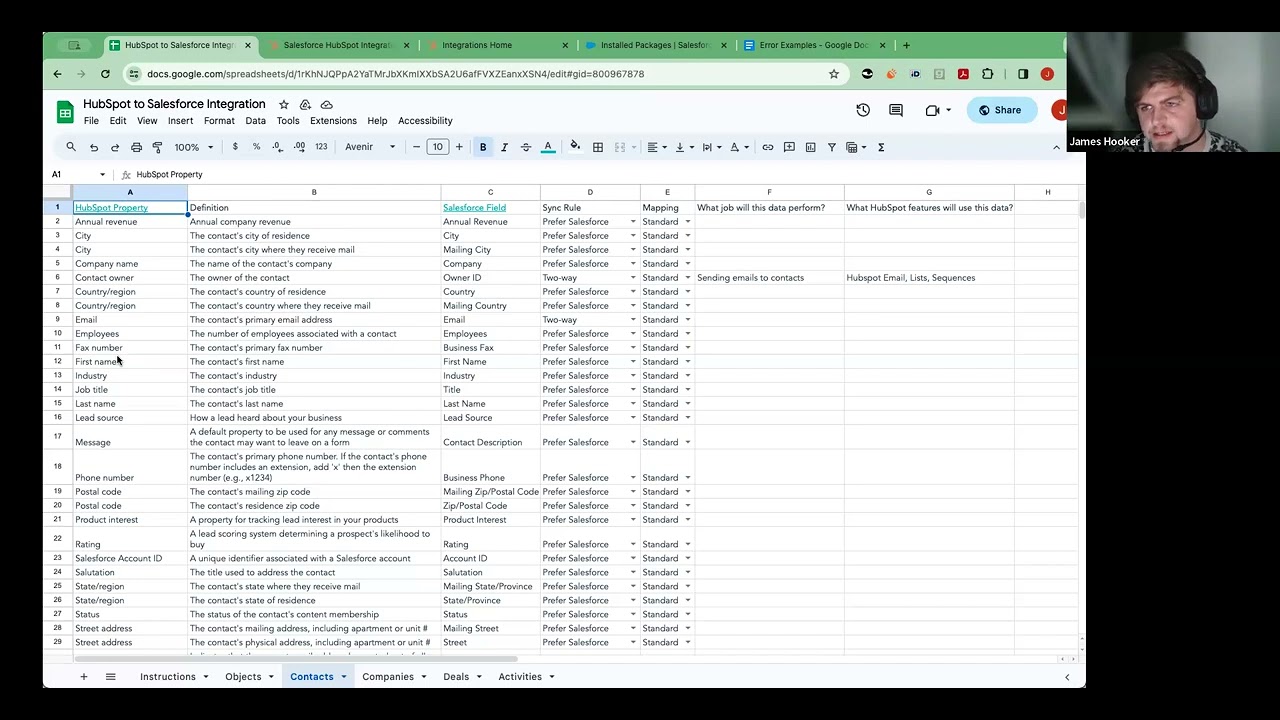
Data hygiene and the technical configuration of automated data syncing between Sales Navigator and CRMs like Salesforce or HubSpot.
Social selling strategies to nurture leads and build brand authority within target industries over time.
Analytics and KPI tracking to measure the return on investment (ROI) of LinkedIn prospecting activities.
56.2K views782likes6:44Original Release: 2024-05-23
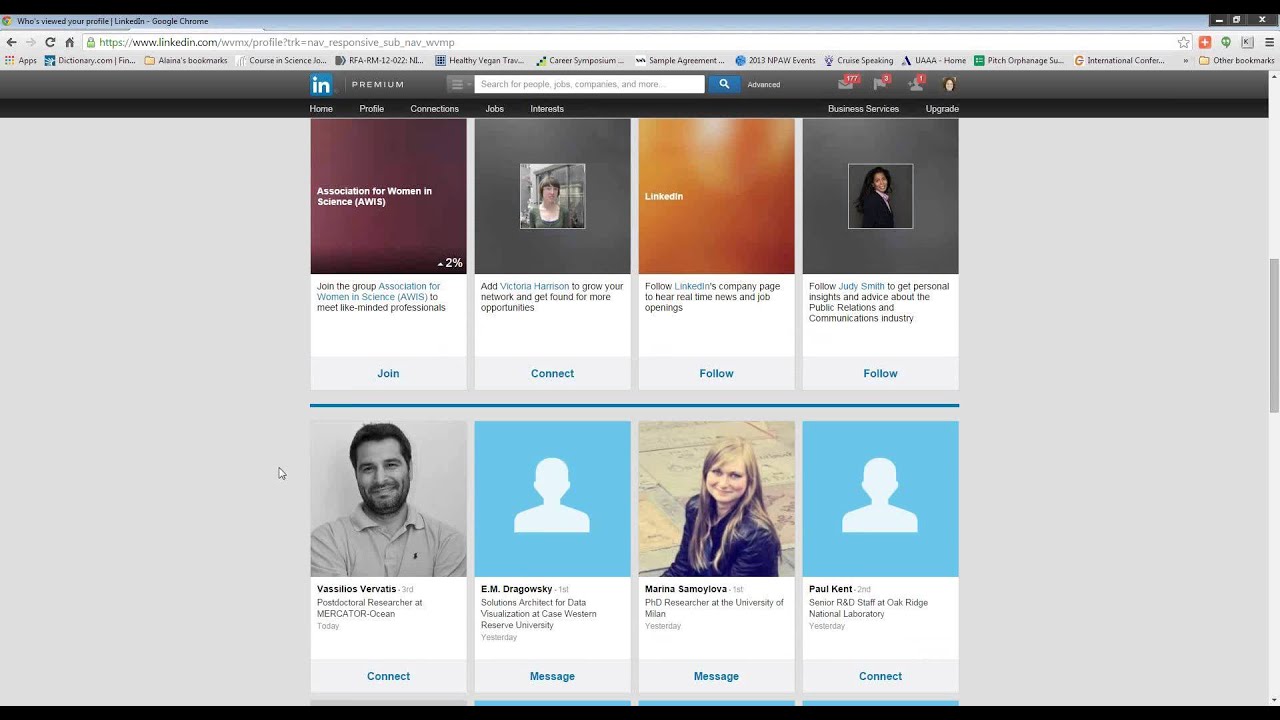
in this video we're going to do a full master class on how to leverage LinkedIn sales navigator to the fullest and help you reach your goals whether it's for sales Business Development or recruiting sales Navigator is a powerful tool that sifts through nearly a billion LinkedIn profiles to find your perfect prospects in this video I'll show you how to search for your ideal leads build lead list save your searches message your leads create and manage alerts and cover a ton of hidden features that most people don't even know about if there's something that I didn't cover or you have some questions about just drop them in the comments and I'll respond to as many as I can okay so let's just get right into it so if you haven't already you'll need to create an account and sign up for one of the sales Navigator plans or start your free 30-day trial once you're on a plan and you're logged in you'll be brought to the homepage this is where you'll get alerts from people previously added to your lists we'll come back to this later after we've done our search and there's two main types of searches you can do lead searches for prospects and account searches for companies depending on your goals one might be more beneficial than the other but let's just get started with a lead search if you just click on the search bar you'll see recent searches in all of your save searches this will be handy for you when you come back to it later and of course you could also use a search bar to just search for a specific person or company but let's create a larger list by creating a lead search so click on lead filters to get to the search filters you'll see a few different filter options grouped together by company roles personal buyer intent best path in recent updates and workflow within each of these sections there are specific filters that you can apply for example under company you can include or exclude specific companies filter by headcount include or exclude past companies that your leads worked at company types whether you specifically want to search for public private nonprofit or even self-employed companies and the company HQ location in this example I'm going to search for sales directors at software companies and then I'll filter further from there I'm going to go to current job title and search for sales directors you can select to either include or exclude any of these Search terms maybe you want to exclude director of sales operations for example okay next let's head to Industry under the personal section and search for software companies and here's a little trick if you just search for software you won't get the results you're probably looking for Instead try adding technology information and internet to this filter okay so we have a ton of people in the search result we're going to want to filter this down even further so let's add some location filters I'll add a couple major cities that I want to Target first next let's find our best path in with these people by adding a connection filter you can go all the way up to a third degree connection but you might have a better chance with a second degree connection next you want to find people who are likely going to be most active on LinkedIn and actually engage with you so you can go down to the recent update section and toggle on change jobs or post it on LinkedIn now this is great but you can always play around with some even more filters you can filter down to certain company sizes with the company headcount filter if you're looking for specific company sizes or you can even exclude nonprofits and self-employed companies if you want but by now you should have a pretty extremely targeted list of leads that you can reach out to but before we message them or do anything else let's just save the search so you don't need to remember all of these filters that you selected if you ever want to come back to the search later just click on this save search toggle at the top to save your list if you want to rename or delete the search go to save searches then click on the pencil icon next to your save search now now you can always come back to the search and even modify it later on if you want okay so let's move on to saving our leads so here's our lead list and there's a few things that you can do here of course you can save your lead to a list or create a new lead list once you save a lead sales Navigator will suggest similar people so that you can also save them if you'd like once you've created your list and saved the lead you'll find them in your lead list up in the leads tab you can also click on the three dots to connect with these leads on LinkedIn and view their profile to learn more about them next let's talk about messaging your leads you'll see a message icon next to the save button each sales Navigator plan comes with inmail credits that allow you to directly message people outside of your connections this means that you don't need to connect with them first in order to send them a message and the cool thing about this is that those inmail messages actually get featured in their messages inbox on LinkedIn so it's pretty hard for them to miss your message and here's a little hack for every response that you get from inmail messages you'll get an additional credit towards more inails so this means if you send 20 inails and 20 people respond you'll actually get 10 more inails so you want to optimize your messages for responses from your prospects so this means that sending personalized open-ended questions would be the best way to reach out through inmail you can easily get to all of your messages by heading up to the messaging tab at the top of the page there's another tab at the top of your page for your account list this is generated by sales Navigator and includes all of your saved accounts you'll get a list of companies connection paths alerts and a space to write notes as well as lead recommendations at their company as I mentioned earlier you can also do an account search by using the account filters button in the search bar this is where you can filter by company attributes like annual revenue company headcount location industry and more and you can also use a spotlights to filter by recent activities okay let's head back to the homepage to check out the alerts from our new leads think of the sales Navigator homepage as your news feed just for your leads this is where you'll see when a lead accepts your connection request engages with yours or your company's posts or when they start a new position these are all great reasons to engage with your leads by commenting on their posts or messaging them directly about one of their updates you can bookmark or remove alerts sort and filter your alerts and you can also manage your alert preferences by hitting that gear icon you can also integrate sales navigator to most crms this turns sales Navigator into an extension of your CRM and turns all of LinkedIn into your business development database but unfortunately you're going to need to be on the most expensive plan to enable this integration with your CRF but luckily there is a less expensive and super easy way to connect all of your leads to your CRM without having to upgrade your account first in fact this even works on the free trial of sales Navigator there's a very simple way to not only connect your sales Navigator leads to your CRM but it'll also find all of their verified phone numbers and email addresses and then export all of that contact information to your CRM a spreadsheet and you can even send that data to thousand of other tools using zapier I made a full guide on how to export your sales Navigator leads using wizza for free in this video right here have a magical day and I'll see you in that next video
Up Next
34:24
LinkedIn Sales Navigator: Advanced Lead Generation Techniques
@RaviAbuvala
304.9K views•2020-04-07

12:54
Triumph of Orthodoxy Icon: Byzantine Art & History Explained
@BenCallan
2.1K views•2024-08-06

9:49
FastAPI vs Flask vs Django: Choosing the Right Python Web Framework
@TechWithTim
302.5K views•2024-05-26

1:42
Game of Thrones Opening Credits: A Cinematic Analysis
@gameofthrones
46.3M views•2011-04-18
Related Study Plans & Knowledge Roadmaps
Structured learning paths in General & Interdisciplinary Studies
general-studies
Elevator Engineering: History, Physics & Cities
01From Hoists to Safety Brakes: The Dawn of Vertical Lift
02Hydraulic vs. Traction: The Engineering Physics of Elevators
03Modern Speed, Safety, and Algorithms
+ 2 more learning modules
12h5 modules
Explore Roadmap
general-studies
Rubber: Material Science, History & Geopolitics
01Origins of Natural Rubber & Mesoamerican History
02The Chemistry of Natural Rubber & Vulcanization
03The Geopolitics of the Rubber Boom & Colonization
+ 2 more learning modules
12h5 modules
Explore Roadmap
general-studies
Containerization: Evolution, Logistics & Trade
01Ancient Trade & Bulk Cargo: Amphorae to Barrels
02The Industrial Revolution & Cardboard Packaging
03The Containerization Revolution: Malcom McLean
+ 2 more learning modules
12h5 modules
Explore Roadmap
general-studies
Textile Tech: Evolution, Labor & Global Impact
01Pre-Industrial Textiles: Handloom & Cottage Industry
02Mechanization: The Spinning Jenny to the Power Loom
03The Factory System & Global Labor Transformation
+ 2 more learning modules
10h5 modules
Explore Roadmap