












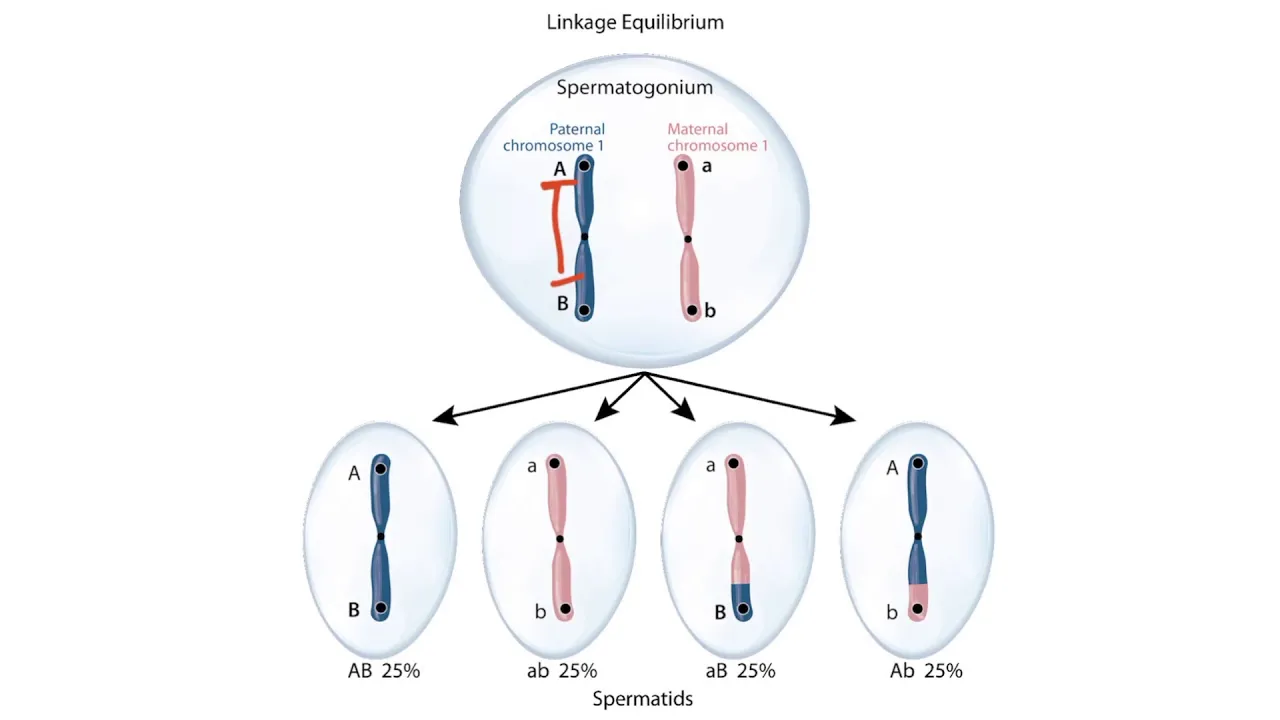






The AlleleA1 program is a population genetics simulation tool used in Bio 202L at Duke University that allows students to model allele frequency changes over generations by setting parameters such as starting allele frequency, number of generations, and fitness values, then running simulations to visualize and analyze evolutionary dynamics through graphing and tabular data displays.
AlleleA1 Tutorial: Population Genetics Simulation | Bio 202L
Added:Basic understanding of Mendelian genetics, including core concepts like alleles, genotypes, phenotypes, dominance, and recessiveness.
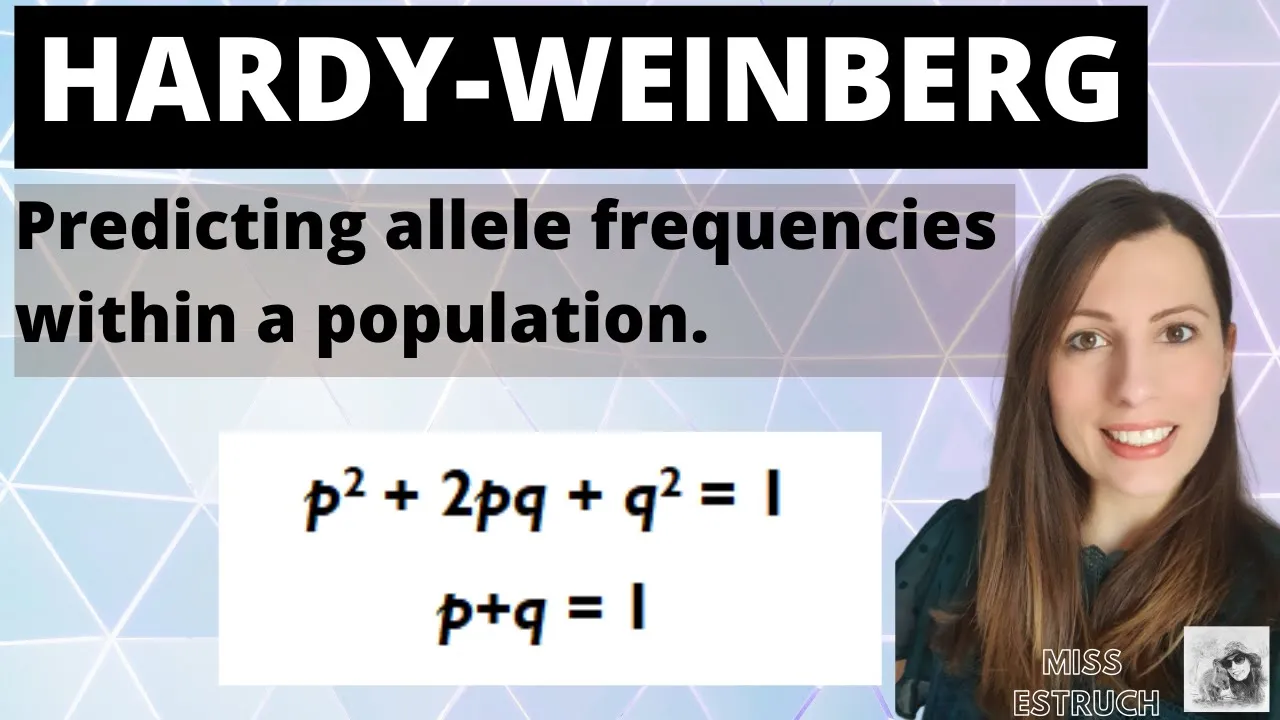
The Hardy-Weinberg Principle and its mathematical formulation (p + q = 1 and p² + 2pq + q² = 1) as a baseline model for non-evolving populations.
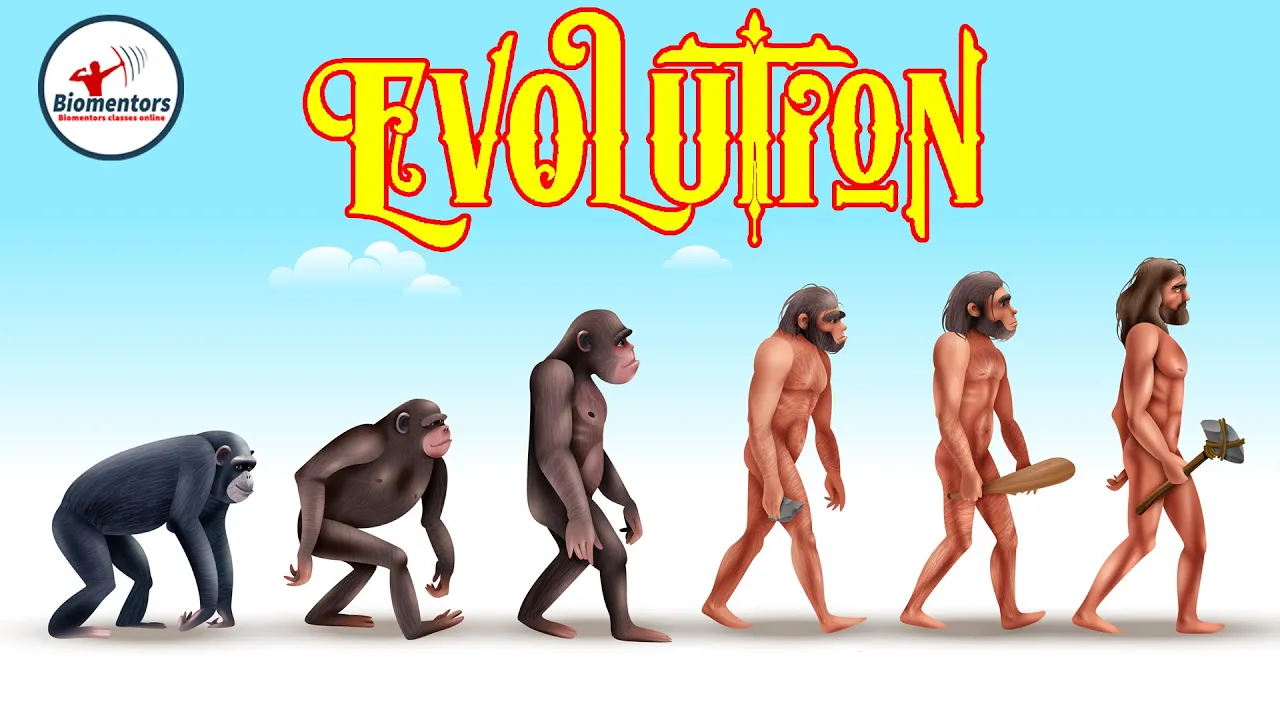
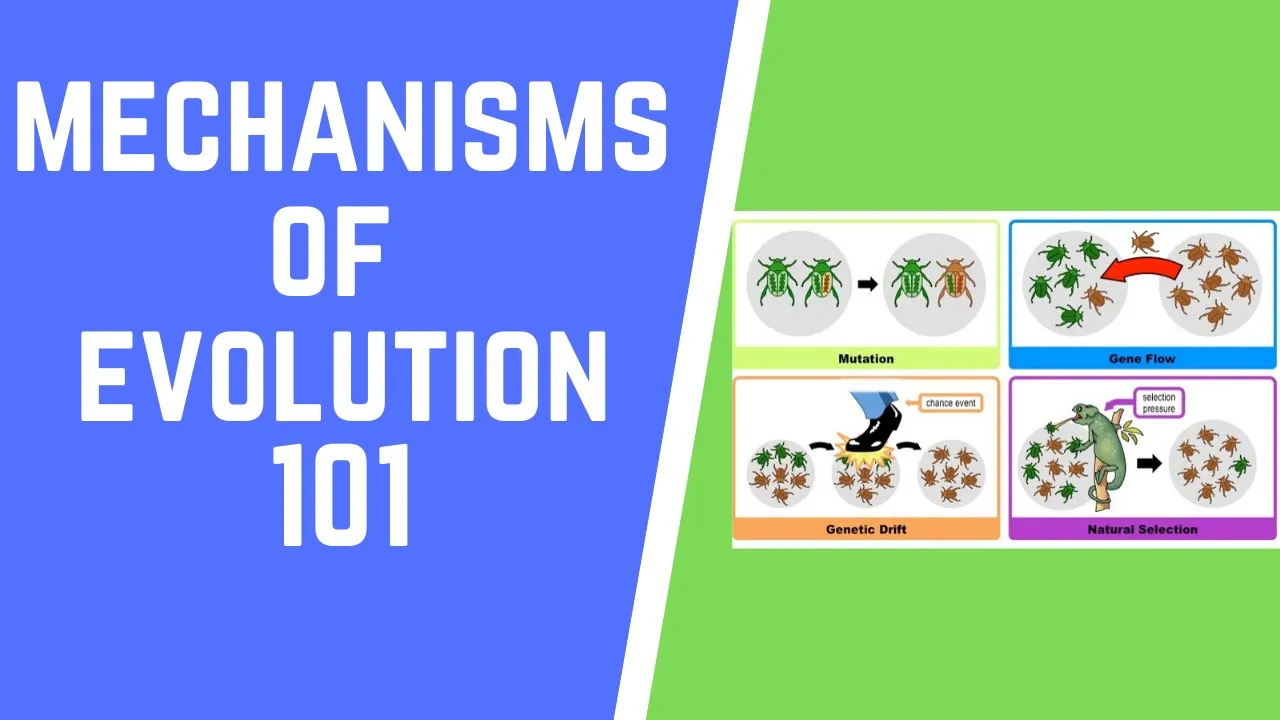
An introductory conceptual grasp of the primary mechanisms of evolution, specifically natural selection, genetic drift, mutation, and gene flow.
Familiarity with basic graphical data interpretation, particularly reading line graphs that track changes in variables over time (generations).
Analyzing the interactive and competing effects of evolutionary forces, such as selection opposing mutation, or genetic drift acting in small vs. large populations.
Exploring advanced population genetics topics, including linkage disequilibrium, multi-locus selection models, and quantitative genetics.
Applying simulation concepts to real-world conservation biology, such as calculating extinction vortex risks and managing genetic diversity in endangered species.
Transitioning from theoretical models to empirical research by comparing simulation outputs with real genomic data (e.g., SNP frequencies) from natural populations.
12.3K views40likes5:02Original Release: 2012-10-05
This video is a demonstration of how to use the program AL A1 for population genetics problems in the bio 202 course at Duke University. So here's the AL A1 screen that pops up when you start the program. Uh it contains a space for a graph um for the simulation and it graphs the frequency of the A1 alil over the course of a number of generations.
And there's a lot of population genetic parameters here that you can set to whatever you need to. In order to change uh one of these parameters from the default setting, you simply select it and change that parameter. So I just change the starting frequency of the A1 alil from 0.5 to 0.01. Once you've set all the parameters the way either the problem tells you to or the way that you've decided you need to to figure something out, you click the run button down in the left hand corner and it gra it simulates uh and graphs the results of the frequency of A1 over the course of all those generations. and you set all of the parameters that way except for the number of generations to change the number of generations that um are simulated. There's a little tiny triangle arrow button um at the bottom right hand corner of the graph. So in this case by 500. Click on that and you get a range of generations from 15 to 100,000 to choose from.
And once you've run the simulation on the right hand side is a table of final frequencies that gives you the final frequency of the A1 al of the A2 al and of all three genotypes. Uh and this is for the most part uh a useful way to run these simulations.
However, uh there will be times when um what it's doing now, every time I click run, the graph is cleared and a single red line is drawn. Sometimes it's more useful to see multiple simulations all on a single graph. You can change how it's being graphed that way uh with these graph line choices down in the bottom right hand corner. Clicking multiple, multiple lines will be drawn, but they'll still all be the one color that is chosen here in the big box. It's more often useful to have the line change color with every simulation.
That's what happens if you choose auto under graph lines. Every time you click run, the color of the line will change, cycling through these color choices down here automatically. All right. Um, now if I'm done seeing these graphs, but I don't want to change my parameters, clicking clears the graph, but leaves the parameters alone. So if it just got messy or you forgot to click auto and you wanted to go back so you can change see the color changing with each run um you can just click clear your parameters are retained um but the graph is cleared. On the other hand, if you're moving to another problem and so you want to go back to all the default parameters um before you start changing other individual parameters, you want to make sure that you don't forget anything.
Reset both clears the graph and resets all of the parameters to their default values.
And the final thing that can be useful is there's another cryptic little triangle arrow in this case in the upper right hand corner of the screen.
Clicking that expands the screen and gives you some more information. So that if I've actually run a simulation, it gives the exact frequency of A1 for each individual generation for in this case all 500 generations that were run in the simulation. It also shows you the mean fitness for each frequency of A1.
And if that's distracting, you don't want to see it, clicking on that um little triangle arrow again will make that go away. And that's how you use the program. I hope this video was helpful.
See you in class.
Up Next
51:53
PyTorch U-Net Image Segmentation Tutorial: From Scratch Implementation
@AladdinPersson
252.1K views•2021-02-02

12:54
Triumph of Orthodoxy Icon: Byzantine Art & History Explained
@BenCallan
2.1K views•2024-08-06

9:49
FastAPI vs Flask vs Django: Choosing the Right Python Web Framework
@TechWithTim
302.5K views•2024-05-26

1:42
Game of Thrones Opening Credits: A Cinematic Analysis
@gameofthrones
46.3M views•2011-04-18
Related Study Plans & Knowledge Roadmaps
Structured learning paths in General & Interdisciplinary Studies
general-studies
Elevator Engineering: History, Physics & Cities
01From Hoists to Safety Brakes: The Dawn of Vertical Lift
02Hydraulic vs. Traction: The Engineering Physics of Elevators
03Modern Speed, Safety, and Algorithms
+ 2 more learning modules
12h5 modules
Explore Roadmap
general-studies
Rubber: Material Science, History & Geopolitics
01Origins of Natural Rubber & Mesoamerican History
02The Chemistry of Natural Rubber & Vulcanization
03The Geopolitics of the Rubber Boom & Colonization
+ 2 more learning modules
12h5 modules
Explore Roadmap
general-studies
Containerization: Evolution, Logistics & Trade
01Ancient Trade & Bulk Cargo: Amphorae to Barrels
02The Industrial Revolution & Cardboard Packaging
03The Containerization Revolution: Malcom McLean
+ 2 more learning modules
12h5 modules
Explore Roadmap
general-studies
Textile Tech: Evolution, Labor & Global Impact
01Pre-Industrial Textiles: Handloom & Cottage Industry
02Mechanization: The Spinning Jenny to the Power Loom
03The Factory System & Global Labor Transformation
+ 2 more learning modules
10h5 modules
Explore Roadmap