







![Claude 3.5 Crash Course for Developers: Code 10x Faster in 2024 [Claude 3.5 artifacts]](https://i.ytimg.com/vi/fMa2zQIkQwM/maxresdefault.jpg)










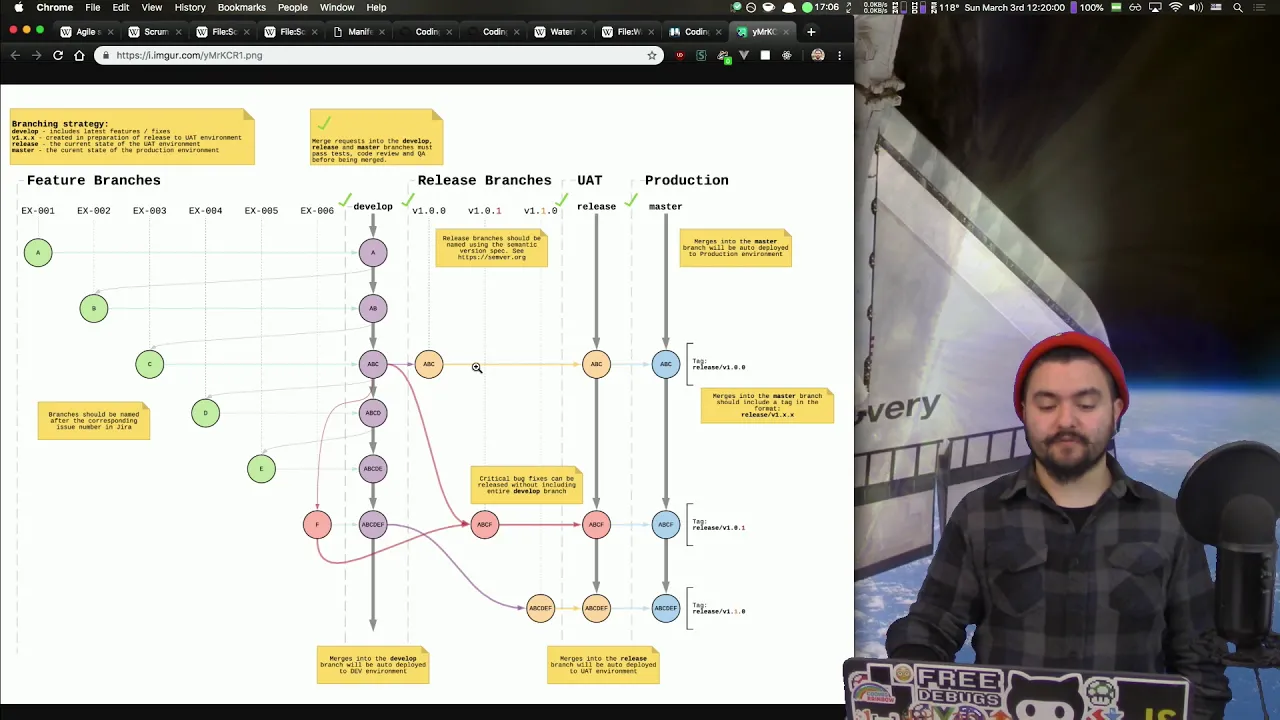


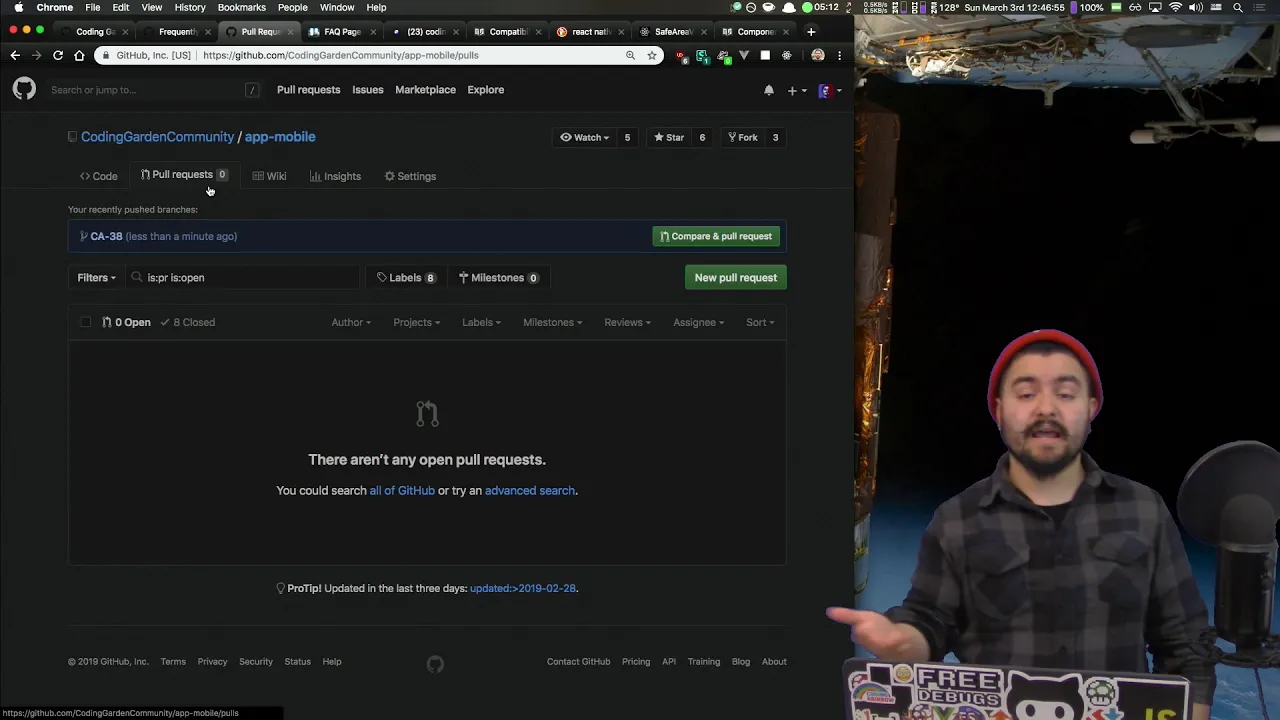
Git is a version control system that uses a directed acyclic graph (DAG) structure where commits are immutable objects identified by checksums, and the basic workflow involves branching (creating new labels), adding files to the staging area, committing changes, and merging branches together. The key commands include add (writes files to the repository), commit (creates commit objects with IDs), branch (creates new labels), checkout (switches between branches), merge (combines branches), push (sends changes to remote repositories), and pull (fetches and merges changes from remote repositories). Understanding that commits are immutable and identified by checksums is crucial, as this design makes git efficient for network communication and ensures data integrity.
Git for Ages 4 and Up: Visual Guide to Version Control Basics
Added:get for ages four and up so if you are under the age of four please leave the room trying toate more space um Michael Schwan Michael Schwan has got a copy of pearl six I remember a talk on Pearl six at the deden conference in 2006 you know yeah okay um he lets Larry wall borrow it and take notes he once sneezed into a microphone and a text to speech conversion was um was a Rex that turns crap into gold very good these are great skills I think I am going I am going to unlike most bios I am going to read most of this one out because this one's actually funny Damen Conway and schw want had an arm wrestling contest the super position hasn't collapsed schw was the keynote speaker at the first um epic Mars um when schw run to spoke test the fire department is notified Dan Brown analyzed a jph schw wrote and discovered that it contained the Bible oh schw writes PO Code that makes make files that WR shell scripts on VMS that's true that's good schw does not commit to master master commits to schw setti broadcast some of schw pearl code into space eight years later they got a reply thanking him for the improved hyperdrive plans schr once accidentally typed get pull hard and trade get server room across the street there are no free name spaces on cpan there are just modules schw has not yet written scher's tears are said to cure the cancer un fortunately his Pearl code gives it right back um on that basis on on the basis of that introduction uh can we all give a very warm welcome to Michael SCH doing get for ages 4 and up thank you very much never I never actually had that bio right out loud um so hello uh this is uh get for ages 4 and up I'm Michael schwar LCA has graciously flown me in from the Wilds of Portland Oregon um and I'd like to thank first off uh the AV people for dealing with my special requirements and uh my Panic um um so this is a double session so we're going to be in here for a while uh and um this so this session is for if you've never used Version Control before and you've never used git before probably is a step one step past this is for people so sorry about that this is for people who have been using it you have some issues with it uh you you you've used it but you don't really understand it you don't feel confident you kind of learned it by rot you know it's just a pile of commands to you you uh if you get into trouble there's some git expert that you call to to get out or maybe you learn like the one command to reset everything thing so you can add you can commit maybe you can branch and merge maybe you can push and pull on a good day um but it all kind of goes pair shaped when you know uh so this is what this is the set of commands that I expect you to have a familiarity with uh AIT add commit Branch merge push and pull those are the important things um so people are just coming in um you if you want to you can settle down in the front row I can pull this thing back a little bit uh there may be a little bit more remov here get get comfortable actually people can sit over here if they want you'll be able to see what's going on you may not be able to see this but you'll be able to see this which is a fun part actually to jump to jump in here and say you know that these rooms do actually have fire regulations and quantities of people so um maybe we're about right no more yeah no room at the end no room at the end sorry watch it on YouTube later okay yeah this is the first time this will be fully recorded and you're seeing the upgraded best version of it all right so um why is git so darn complicated now first off it's not you git is really complicated like I it took me a year or two to figure it out and I've used probably six different version Control Systems um so I have a hypothesis git was written by kernel Developers for for Linux development now are there any kernel developers in the room one two okay well you might be mobbed um and problem is Kernel developers are very comfortable with complexity that's the actual uh Network flow through the L kernel they're not known for their stunning user interface design and it was written by some guy in 3 weeks and he said I really really designed to come coming at the problem from the Viewpoint of a file system person I have absolutely zero interest in creating a traditional Source control management system how many file system developers are there in the audience right now raise your hand yeah thanks lonus so so the the commands don't really make sense unless you understand what is going on under the hood um and what is going on internally normally this is a huge red flag do not use this software if you have to understand uh the internals but turns out the the the it's easier to understand get from the inside out this is because the interface is so bad but it's also because the internals are so good they're really really good and they're really really simple problem is whenever anybody starts to starts to talk about the get internals they start talking about the dag um and that means directed a cyclic graph and they start talking about nodes and trees and commit objects and check sums and not doing it for me right how many people here understand what a directed ayc graph is all right more than I thought okay um but still less than half um so it's really very simple and I know that when a programmer says it's really very simple it's time to clear the room but it's really very simple uh git only knows a handful of tricks and the commands really just recombine these four or five tricks over and over again uh the unfortunate part is that the commands give you no real indication as to what they're actually doing from The Man pages or from the name or anything like that so uh once you know them everything makes much more sense and I can teach them to you using these children's toys they're wonderful Advanced Computer Science uh tools so let's begin so in order to do anything in get first thing you've got to do is you've got to enable um uh and uh get commands there's a lot of good commands there's dozens and dozens and dozen of them but they can basically be broken down into a handful of categories um so a knit and clone are how you start a repository and let me get set up here to uh start switching back and forth oh dear um H pardon the AV issues there we go great okay so when you init a repository get says initialize empty G repository in blah blah blah blah blah here is our repository um and what G has done is has created a dogit directory and inside that that that dogit directory is uh whole bun of junk um actually there a whole lot of nothing right now cuz it's an empty git repository now the important thing to realize is that this is the entire repository there's no server there's no Damon there's no uh uh talking to anybody else you type get in it and you have a complete git repository sitting right there in your directory which means that you can shove anything you want to get I do it all the time this talk is in git um uh so it's very very easy so we can't that's not very useful so let's move on to um where is my co okay uh talk with do directory so here are the two commands for getting stuff done add and commit let's illustrate them uh oh I need a minion have a minion to push a button yep okay minion what your name minion oh dear Julius Julius Julius you will be the button Pusher there's lots of buttons uh you're going to switch between the document camera and the laptop so switch to the document camera please oh oh okay okay great so let's do an ad and um you'll just have to oh switch back to the laptop please sorry about that all right so um let's write a file is that too low can people everybody see that down that raise up a little bit just in case there we go so we write a file this is a line in my file save that now uh first thing you have to do is tell git hey this add this file now what add does is add wrs to the repository it's at that moment it has written your file to its repository and a thing called a binary object um that's very important to understand we'll talk about more of that later add writes things to the repository second thing we have to do backy what's that there good Lighty yeah um is commit so it's weird because we've already written to the repository so commit isn't actually writing the repository what commit is doing and now commit ask hey what are you doing uh just added food to the repository here's what commit has done commit has taken what it's already written in the repository and created created a commit object for that which has an ID and then it put labels on it head and master so commit does add does add writes things to the repository commit creates a commit object and sticks labels on it this is the branch this is where you currently have checked out you just seen like 80% of git but we'll do it again so uh let's um let's change this file all right now the interesting thing is at this point get uh uh has not looked at this file at all so if I do a status it tells me uh that food has been modified but it doesn't it hasn't actually written this thing so G when you add stuff actually writes the file yes too full you have to ask people to leave yeah ah way too full can people please stairwells please exit the room I'm sorry but I did raise this we are taping we are taping you can see it on YouTube afterwards I did mention that forever and ever you will see us sad I'm I'm very sorry about this but you know we do actually have to follow the ru the rules concerning fire you would be really upset if you all died in a fire I I will I will happily do Encore presentation outside on Friday or something goes on both sides as well thanks if you haven't got a if you don't aren't sitting in a chair you have to leave except for speakers obviously yeah you're all [Music] right all right so we've edited Fu and now we have to tell git that we've edited so we add it and that um tells git all right uh take a new copy of this file my brain just brok already so ad has already written a new copy of Fu to get right um but all of our our labels are still down here so now we're going to commit and you know my terrible commit messages and now it's told me uh that we have created a commit object and moved painful created a commit object out of that ad and we've moved the labels that's it that's what ad and commit do want to see it one more time what do you think yes what did the ads do the ad I mean which St did it put the object in there so uh let's run through it one more time it's a little difficult we're switching um so right now what git has stored is the copy is is this file and when I edit it and save it git still has that original file in there when I do a diff the diff is between um diff is between what's on the dis and what's in the uh repository so when I do an add now switch please now that's when get [Music] rights so with that getting hung up with differences with every other version control system the add is different from the commands are all different from what you understand in other Version Control Systems yeah ad is AD doesn't really do what doesn't subversion commit doesn't really do what doesn't subversion just kind of have to throw that all at the window add so uh uh let's let's uh let's Commit This just show this one more time uh get commit um illustrating add again so now that I've committed switch um this has already been written so g g attaches a commit object to it that's what I'm representing by turning it around now it has an ID and it moves your current branch and your head which is what you have checked out forward that's it this is a remarkably accurate model of what is going on inside git I am only taking things away I'm not making this up this is nodes and trees and and everything else yes question I was just going to say what so the those are notes yes commit object commit object commit object references in the git par Lance um so we this what's strangely enough this will become more obvious when we start branching let's Branch so um how many people here are terrified of branching raise your hand yeah a good number okay branching and get uh is super easy compare it so I was saying explaining before um the git model you know looks like this and we'll see uh what branching looks like um if you have uh ever you oh I made a mistake never have the same ID twice sorry about that um uh if you're us subversion or CVS you might think of their model as like a big stack of pancakes right you're just kind of building up and building up and building up and building up and how do you uh think about branching in a big stack of pancakes you don't yeah you don't it just sucks um so so let's make a branch and let's call it feature get Branch feature so switch here is branching in git Branch that's it just stuck a new label on it uh now um when we check out and I'll leave leave it there I'm just I'm typing get checkout feature what checkout does is checkout now switches which branch it's going to advance when I commit so now I've told it by checking out feature I've told it all right when I commit move the feature label also if they were in different places it would you know get the files and everything so now switch when I um let's say I add a new file so I'll add oops I'll add switch and stick in another ad right because ad writes the file to the disc at that point and then we'll commit um so if I do get status it'll tell me you know I have a new file and uh to commit it [Music] uh so now before you switch what G has told me here is there's a lot of information in here uh it's told me I'm I'm on the feature Branch now and it's also told me that uh I'm using this is the commit ID that it's that it's just committed that's just made uh and we'll talk about IDs in a moment switch so that commit just like before um it takes what I've written by with the ad turns creates a commit object out of it moves the feature label moves head that's it that's branching so head always points at what you currently got checked out yes head always points at what you currently got checked out so um I'm going to pause here for a moment and uh go back switch to the uh to the presentation are these objects directory not just file what about this this these a w and and yes they're actual directly not just particular files they different files oh no these are uh these are these are commit let's talk about IDs uh uh so um Let's see we uh kind of skipped ahead a little bit um here we are IDs so uh a really important concept we can get is is the ID is the commit ID and what this thing represents this ID this identifier here which I'm representing is just ABW K but in get it's you know A4 29864 blah blah blah blah blah this is a check sum of and a check sum is uh where you take um a whole bunch of data and you do some cryptographic magic on it and you create a small string that uniquely identifies that so that if you change the data even in the slightest the check sum completely changes so this is a very easy way to to know whether or not uh you have the same data you just you take their check sums and then you compare them so get you relies very very heavily on this anybody need that explained again okay so the ID is actually a check sum of a bunch of things it's the content of the commit so the files and everything it's the author the date the log message and the previous commit yes you said previous commit even previous commit yes previous commit ID uh and that gets very important later um but what it means is that uh every ID is unique but I made that goof earlier um every commit is is unique can't have the same commit twice in get ever in in the same repository uh commits never change because if they were to change the content was change the ID would change and everything would go pair shaped all these are all completely immutable they never change so when you've heard about get rewriting history that's a lie and we'll get into that later um so that's why I want to say about IDs Pard me about flipping a little out of order so these so these things are they're commit objects that point at the files that are stored in get they have all sorts of stuff on if you want to know more about that I'm not going to get into how get stores files because I don't have time um I'll have some books at the end that explain tree objects and everything else but all you need to know is that this holds on to the content the author the date and the previous commit and the log message so could that content could be any number of files yeah yeah that content can be any number of files uh at all and in fact this one is in fact the content of bar and food yeah um so uh I also want to talk talk to you about the staging area um or the index or the cache depending upon what part of the documentation you're reading I like to call it the staging area because it kind of explains what it does it's where you prepare things to be written it's this you know you stage them it's like a staging server um so the staging area is that when I say when you add something I'm not going to to flip um when you add something when I when I illustrate it as this this is actually get writing to what is known as a staging area um and you might see that all over the documentation staging area index everything else uh and then when you commit get takes the content of the staging area and adds an ID the staging area is interesting because it allows you to build up commits it allows you to you know say I've changed six files um but these three changes are really one thing and these three changes are really another thing so I can add a little bit of it commit that add a little bit of it and commit that I'll illustrate that later I'm getting a little bit off track let's get back to branching uh merging where are we at here we are um so we talked about branching which is uh just adding a label and we talked about checkout we didn't talk about check out checkout is basically saying um hey check out this other label and move head down to there uh get get pull this out of the repository on dis um so the basic git workflow looks something oh it's not useful to you looks something like that you Branch you check out you edit your Cod edit you test you add you commit um and then you pull into some updates from master and you test so let's let's do an illustration of that um and actually this is a little bit easier to understand like that you isolate your work from everybody else's work or your own work you do your work you pull in updates from other people and you share it that's the basic gate workflow that appears everywhere um where are we at merge okay so let's uh let's do a merge let's do a few merges uh so let's say that our feature is complete we only need to really do one thing uh so the uh what we can do is we can say get checkout master so now we switch to master that means that the head moves down to here this becomes inactive this becomes active and I can see if I do an LS bar is gone it has p this onto dis now if we say get merge feature all right G has performed the merge it has told us that from from it is updating from this commit to this commit that's what that Gog do do gbly means and it's told us that the way it sun merg is by a fast forward so git has realized that hey feature is right above parent I don't need to do a merge all I need to do is this done that's a fast forward you'll see fast forwards uh uh often times no merge necessary pretty cool um but so let's do a more interesting uh merge this time yes I don't get how the it's I didn't get how Master andure go back together okay let's let's back up um let's uh okay I just did a fun little command that allows you reset is basically all about moving labels around arbitrarily so what I basically said is hey G um move the current uh uh um label Master to head minus one and hard means uh also do a checkout and so everything is back normal so we're back where we were before before we did the merge that's the important thing I'll talk a little bit about reset later um and uh let's let's show you this graph uh pretty all okay no that's not what I want um let me check my notes decorate this is a handy little command graph get log graph decorate all that shows you looks a bit like that don't it um so you see you see here uh these are uh down the left hand side is my line um they've got each of them have a commit and an ID so this is d51 CD Vol law this is B 08 this is 8 948 and this is uh Fe f3e they have their labels you see headen Master here uh they headen Master on b08 this feature here this feature on uh d51 so when I say this is a remarkably accurate model of what G is doing under the hood I mean it um so Master is here feature is here uh when we do our merge get merge feature um switch so what's going to happen is git goes all right I need to merge this and this it looks to this and says well this commit is right below here there's no there's no change there's no no uh it's an ancestor and it says all right well I can just merge merge these two things by doing that follow and then head moves up as well because that's what checked out and that's it that's fast forward switch okay so let's do a more interesting uh more interesting thing um let's switch to uh back to feature check out feature and this does ABS well that and that and then let's edit let's edit food a little bit um right let's add oops so that creates a new node excuse me and then we'll commit that um on so that's been committed and switch so we're working on feature so feature moves up with the commit head moves up and now switch let's go to let's check out master so Master is now active our head moves down here and we can see um we can see that bar does not have our new feature so let's let's do let's say that like you know somebody's working on the feature or you're working on a feature and then somebody comes along and they're like ah do this thing right now so you would check out your master you would add your you know uh um I don't want to get into a conflict yet this is a bug fix in master is Fe just active no we checked out master so oh thank you ah yes there we go you do this on the computer so uh So speaking of the staging area um when I've do done a status here because I've edited this file G tells me these are changes not stage for commit they're not in the staging area they're just sitting on disk um once I add bar status will tell me uh changes to be committed which is to say these are changes that were in the staging area um so that's his way that's his way of again confusingly explaining to you that stuff is in the staging area and stuff is not so now now that we've added here's where G's beautiful branching model comes into play how does get Branch all like that remarkably looks remarkably like a branch um and then uh just as before if we if we commit um our Quick Fix to the bar and again it tells us it's committed to master so just like before staging area gets committed get gets an ID head moves forward Master moves forward so now we've got a more interesting merging situation because they diverged they're doing two different things and now it can't just you know move one over to the other again yes um so one switch uh so now we want to merge the feature into master so we'd say get merge feature just like before Masters already checked out so so what what's happened here at this point is G's asking us for a commit message because it is actually making a commit um git has uh uh basically noticed that these two things are are are different I'm just going to I'm going to do it right now we'll switch over to the thing um they've noticed that they're different and that they can't just do a fast forward and it's now uh uh merge Them Together written new files stored them in the repository and committed them just like any other commit um and it's told us this merge made by the recursive strategy um on the command line switch so what has happened is did my trigonometry wrong here there we go uh I think that's still wrong oh well so what's happened is git has written a yes um git has written a new commit that merges the contents of the two previous ones sticks them together and into a new thing writes that to the repository gives it a commit ID and then moves Master for that no should not move feature and it needs to be another commit because it's neither of the two It's a combination it's because it's new content and because a commit is it's content it's log it's author it's date everything else it cannot be it cannot change this it's a totally new thing it needs to be a new commit um switch so uh looking at that at our git log we can see it mirrored here um here's uh here's d143 at the top with his head and master and then it shows it branching uh into 141 which has feature still on it feature doesn't move um and uh 8 whatever yes so just after I've done the merge I want to do some unit tests that I don't necessarily want a commit or anything in history until that's been done is that possible oh she wants to do some unit test my working copy then do some tests before yeah yeah yeah let's uh let's let's illustrate that so the question is um basically if I want to do the test before the merge on my on my on my feature yes let's let's let's illustrate that because that's the proper way to do it um so uh let's back up a little bit so now interestingly uh because when I merge all the original commits are still here right it hasn't thrown it away it hasn't smashed them together they're still all there I can just say hey get uh let's see so uh the commit 8B 899 that was what where master was at before I merged so I can use reset which is the arbitrary move labels around command and say um hard means after you do the the switch also check it out I can say hey move uh to what was that again 8B nobody remembered 8 B8 get reset hard 8 B8 whoops 8899 yes so what I've just done is that so we're back to where we were before interestingly enough this is still here I could move this back forward again to it if I wanted to by its identifier git doesn't throw things away well it throw things away after about two weeks uh but you can always get back to where you were before that's the very important thing yes um when you're moving let's say you're trying to debug a a problem that that has been introduced into the code some number of commits ago is the correct way to move around within labels by doing a g reset or by checking out the specific commit um that uh the specific commit that you want to have a look at hold that question it's a little bit Advanced at this point okay um it's a good question though uh the shenanigans I'm doing with moving labels around uh they're a little bit a little bit dangerous uh it's for Illustrated purposes and also for Illustrated purposes I'm going to pretend like this never happened okay so we're back to this situation the important thing we're back to the situation where features changed Masters changed and now we want to do uh what I Illustrated before as the um the basic workflow which is in here somewhere there we are isolate work update share so we've already isolated we branched we've done some work now we want to update our feature from Master we want to make sure that our Feature work still works with the changes in master before we merge it in so that means instead of merging feature into Master we want to M merge Master into feature so we can do that just the same way you can say uh um get checkout feature so we're using feature now and switch and so feature becomes active Master becomes inactive and head moves there switch back the camera up a little bit so oh are we are we sure there you go um this this is a continuous problem uh I may have to start to yeah doesn't help because it's all still still all be there um right so uh switch back please so uh the workflow I Illustrated is um right Branch you check out you edit you test you add you commit and then you can simply say merge in from master all you changes in for master so we're going to do that at this point we're going to say get merge master and again we've got a merge commit just like before except now we're merging Master into feature um and we can just save that and switch and it did basically exactly the same thing as before for um except in this case it moved feature little yeah dubious yeah yeah um so there's a risk at this point it doesn't build right so if you if you but my instinct is that anything in the commit history is something that builds ah well see that's the whole point of a feature Branch the whole point of a feature branch is that for first off you haven't shared this with anybody this is all just sitting on your disc unlike subversion in CVS commit does not mean share or as I like to say inflict you get does no network until you tell it to and the only way you tell it to is pushing pole there's still a point in the history that's no Ed to anybody what do you mean tast oh okay so there's a all right so the question is what if this screwed up what if you you do this merge and everything goes par shaped well there's two ways to do it the traditional uh Version Control way to do it and it works quite well into get in get is to just fix it and commit that um and the but some people would say oh no that leaves a bad commit in the history oh no what do I do um uh so so when you're starting so the problem is is when you when uh a lot of G people feel this is extremely important to have a very very clean history to the point where when you're starting git they overload you with this sort of uh information about how to rebase and have clean histories and everything else without really explaining to you how the damn thing works in the first place so uh what I would say as beginners don't worry about it uh and for God's sakes don't rebase um until until you understand this all down path rebase is really fun and really powerful to get you in bad places um because what you can do is at this point is you can you can rebase or rewrite this Comm now I'm going to show you how to how to rebase in I'm going to show you the safe is way to rebase so rebase can get you into a lot of trouble because rebase can basically change everything here so but let's say that this uh that this was a a bad merge and it didn't work and everything else now um there's a few things that you can do um you well cuz it's a merge is a little bit weird um we can simply reset uh and just like I did before and just pretend the merge didn't happen um but then it's kind of weird to have to test the test the merge you can you can try and fix it in master and then re and then remerge quite honestly if you've got a if you've got a bad merge um this is getting off topic Absolutely I'll come back I'll come back to it because this this is this is not the ideal uh spot to to teach rebase um right so uh so now that we've the important thing here though is that we have um in this workflow switch in this workflow we are at um we're at this point we merged in for master we got our updates we got our bug fixes and everything else and let's say that the our test pass and everything works we can at this point choose to continue working on our feature um you know maybe there's a bug fix and master that we needed that was important maybe we just want to make sure our feature our feature branch has been open for a while so we just want to make sure that everything still works um uh or at this point we can decide we're done we're ready we've already merged everything in with Master uh we know it's been tested so now we want to share it with everybody else we want to commit our feature into master so let's do that so you do the same thing we do we did before um you check out master and you merge feature and it did a fast forward switch because get looked at this and I went hm it looked at this and it went well Master is a direct uh ancestor of of of feature so all I have to do there's no merge necessary again we already did it is do that now it's great because it means that oh sorry we checked out checked out Master which is great because it means that you tested this as feature and that's exactly what Master is now there is no absolutely no difference so your tests have to work it has to be the same the commit ID is the same your test ran that commit ID everything's the same I gu I see a few nods of heads I see a few yes good good good get it great that's excellent um so uh there's um I just switch back um we'll do some more merging later but I want to move on uh how much time do we have oh great we're we're in good shape so uh um G one of the interesting things that git does is that git has like n million different ways to do a merge and git will try its damnest to do a merge with such a way that doesn't conflict um and this is it doesn't always get it right uh sometimes you can tell it to use in explicit type of merge strategy especially if you're merging like three different things and it's a big mess and but I really just say this because there's one called merge there's one called octopus merge and that's uh yeah some o octopus porn for your enjoyment um okay so so far everything that we've been doing is on our own local disc it's on our own local repository and even though by merging our feature Branch into master um we've you know I've been calling it sharing we're not sharing with anybody but ourselves all the isolation and coordination is for our own purposes when you want to work with others now you start to get into remote repositories and the uh three critical commands are push Fetch and pull uh how many people here raise your hand if you've used remotes and push okay um WR the hands down uh how many people here will raise their hand when I ask them to raise your hand okay so but by but calibrated that it means just about everybody's used remotes okay uh so uh this this is where the trouble starts I think for Mo for most people um everything kind of goes to hell now uh first of all the main difference between um uh the way I've done it done this repository with a nit is that normally you clone an existing repository right you cloning it from GitHub or something else you're getting a copy of it so I'm going to need another Minion to be my remote volunteer yep hands onward yeah yep still done good here right all right so what I'm going to do is I'm going to turn this if I do this correctly um oh I didn't do it correctly um so uh impromptu lesson here one of the interesting nice things about git is that because everything just sort of lives in the directory I can do something like this um uh remote no that's going to be the uh work I can make a directory called work and I can just move everything into it and then that all works it doesn't care um you know everything is still there great because I made a mistake uh so I'm going to fake um uh turning this into uh a remote repository great yes okay so what I've just done is I've told I've told G hey uh make a copy of this but um uh but only if you look inside remote this only contains the contents of the dogit directory there's no checkout this is what a remote git repository looks like and uh and I'll show you in here if we look at uh the this the stuff that's in here you can see um in this objects directory contains a whole bunch of files and those probably look a littleit familiar they are the hashes of the things we're working on there's 8899 which I think is that um and that's how git stores everything git just uses the file system as a really dumb robust database um and it's pretty transparent in there but point is I now have a remote repository so what's been done I'm going to get rid of work to do the Clone okay so normally when you clone you say get clone and then a location now interestingly enough git doesn't really care about how what the network is and in this case the network is a file system so I can actually use a just another directory as a remote repository in this case it could be going over it could be going over htb it could be going over the special git protocol it doesn't care um so I'm going to clone remote and that could just as easily be a URL or anything else I could write you know file colon SL SL that makes it easier and I'm going to clone it into work great so now I have two directories and if I take a look at work there's all our stuff there's all our things there's commit 8b8 99 so you are going to be our remote repository and we are going to what effectively we did is copied all of these things probably should have made the things smaller before I did this oh well it can be exciting B and then we have a w and then what's next okay right thank you and then um an O and an m m goes mhm and then uh right the O is on the side of yep every single one of these objects gets copied exactly the same and how do we know they're the same because they have the same IDs also our that's all right lost my question yes um when you did the clone of remote into work yes work was now an empty directory right or did already have it was an empty it was it didn't even exist okay just like you're doing a regular clone um the uh the labels also get moved over head so there we go there's also okay so uh we're going to call you now when you have a remote the remote has a name uh my clone the remote has no name of itself but my clone if I ask it hey what are your remotes it says I have a remote it name is origin and it's located here in this directory um the remote and he's going to be the remote doesn't know its name the remote is totally about work so you sir whatever your name may have been before yep you're now origin that's our remote this is now work work our working directory two different things separate right okay now the important thing to to understand is that these are again two completely different oh right completely different things uh so something else has happened here if we look at our our git log um with all the fancy stuff on you'll notice there's some new stuff here origin Master origin head these are what's called tracking branches I'm only going to deal with uh origin Master these are labels just like any other commit just like just like everything else but they're special because what this says is last time I talked with origin that's where its label was that's where that's where master was on origin and I also last time I talked to it that's where feature was and this is how git coordinates this is how git without talking over the network knows what the state of this of the remote repository is these are called tracking branches but they're like any other branch in the repository like any other label all the same technology same tricks so when you query that label it doesn't there's no remote access at all yes where did our feature go oh Feature Feature didn't get pulled over ah interesting I made a mistake go ahead I can't see the oh we can't see yeah didn't get pull feature didn't get pulled over in the Clone uh because it only pulls over because Master it only pulls over really like the default branch and master is the default Branch origin and master don't have any real significance it's just a default they're just they're just names I could have as easily called them um Alan Abby I could have e easily called my remote Abby uh no it is because the this sorry this is the Clone oh okay yeah we we we we kind of did that backwards yes a question uh I don't get how there are two heads there's a head on each branch there's a head on each these are two on each yeah because these are this this is a complete git repository sitting in the directory called remote this is a complete git repository sitting in the directory um called uh you know what this is weird I'm going to get rid of it it's just confusing because as far as I can tell the remote doesn't really do anything with head so it just sort of clutters up the the model here so let's make a little white lie that's not out so it doesn't have it it does technically but uh it doesn't really do anything with it yeah it doesn't makes sense yeah let's just yeah we're just we're just removing that from a model cuz it's confusing um so this is the big trick that get uses to do uh uh remotes that get uses to talk of the network is it just basically says you have a complete copy of the repository and I'm going to use these labels to track where everything is so let's let's illustrate uh how that works first I'm going to let's let's shorten things a little bit let's get down to uh k one yeah all all the way down all right uh there we go all right um by the way if you're wondering what a directed asyc graph is it means that a graph is just nodes and lines um directed means that all the lines have directions in this case the direction is down they only go one one way a node only knows a commit Only Knows its parent it doesn't can't it can't go that way um and it's a cyclic which means has no Cycles this doesn't you can't do this there's only one way through here and one way through here you can't there's no Loops that's IT director a graph it's not a on sh [Laughter] no um not a dirty bit on a knows about two parents yes yeah it knows about two parents that's okay part of it commit divion it's a very it's a very forward thinking sort of uh repository um yeah yeah commit could have any number of parents that's fine um so where were we we were doing push and pull so we've just cloned and I've talked about sorry I talked about remotes so um unfortunately I have to do it this way so I can see my notes um so getting back to the original uh uh git workflow that I was talking about we we have isolate um and we've already kind of isolated ourselves simply by cloning um we've got the work which is edit test ad commit repeat um update which previously was merged from master and then share which before was well I can just show you uh which before was merge you know test it and then merge our Branch back into Master the workflow for remotes is remarkably similar except instead of uh um uh merging into our Master we merge into the remote Master with push and pull um because pull is actually a Fetch and a merge so um uh let's see I'm going to create a third repository here so we can have somebody who is doing uh doing work other than us um so uh sor get get clone I'm not actually going to spell it out cuz it'll just take too long on the on the thing so we have um I'm going to clone another repository whoops great so we have a third repository and this represents oops I be I be cloned it right so this represents somebody else who is working on the same remote with you right um so uh let's go back to our our repository um our work and let's let's add something here let's um I know let's add a new file uh right and we're doing it in uh or we're being bad we're doing it in master um let's let's make a uh let's make a new branch check out so I'm going to I'm going to do it the convenient way checkout DB is branch and checkout so if I say checkout DB um um bug fix just do something new um that will do that's the equivalent of Branch bug fix get checkout bug fix just nice to do it in one step so now in right here we have another Branch nope you're good and no network communication uh called bug fix um and uh we can now yes thank you quick great you guys are getting it better than I am we can add our new file um which will thank you add in our staging area justed before staging area the home game uh and then we'll commit that and now it's told us that it's committed to the bug fix Branch it's given us its its ID flip just as before plug fix moves head moves everything else stays the same um probably should have done Master for for better illustration oh well you'll see um so now uh what I say let's say that I want to share this bug fix with other people um now what I so what I want to do is uh push it up into the the remote into into origin so I can do a um get push origin plug fix now how many people here are confused because sometimes you say origin slash Branch name and some sometimes you say origin space Branch name yeah okay so um so what What's Happening Here is that when you say origin SL Branch name you are referring to switch than um you're referring to this label this label um which tracks uh which is actually just label on your repository when you say origin space Branch name you're talking about the the remote called origin and its branch on there called bug fix or we're going Tove make a branch on there called bug fix you're referring to them as separate entities the remote name and the branch name little bit weird but hopefully it makes a little bit more sense now that uh you you can see the tracking branches question what would be the difference in behav you between the two um it's just what each command well it's it's because um if a command uh say uh a checkout or or diff or log they they all work on references they all want um a branch name or something like head or a commit ID or remote ID so when you're you always put R in space because because that doesn't because that's not working on that's not working on references uh it's it's it's actually saying I want to push to the repository called origin my branch called bug fix um yeah if you said if push origin SL buug fix it would get confused because it would be looking for a remote called origin SL buug fix not the best interface designers question you currently checked out on the master Branch locally and you do get push bug fix get push origin bug fix push your bug fix Branch your remote bug fix Branch it will push it will no actually it will push the current Branch master and call it bug fix on the on the remote okay so to specify something other than the current check out Branch use Branch off oh God uh I'd have to I'd say just look at the man page at that point yeah most of these most of these commands work on your your current Branch um so like for example uh um get merge uh master so for example uh says merge Master into the current branch which is bug fix but I could just as easily say get merge Master into feature and and or I could say or explicitly say merge into bug fix so that says merge Master into bug fix this says merge Master into the current branch which happens to be bug fix this says merge Master into the future Branch so most commands have a an implicit use the current Branch as a tip how do you find out what branch you current oh how do you find out what branch you're currently on um get status is the easiest way to do it it says on Branch bug fix some people will will have you know special things in their prompt that will be constantly checking what branch you're on you can also do uh get branch and that will tell you all the local branches um and you know the one that's starred is uh is your thing you can do get branch dasr which will show you all the remote branches and I lied because origin feature is there um it's cool yeah I'm going toip skip that um uh and you can say- a and that'll just show you everything everything that's that you that you've got all the references as you have um yeah uh right so we were pushing uh so get push origin now if I was just to say get push origin get's going to come back and say I don't know where to push it to uh the current Branch bug fix has no Upstream branch and uh the nice thing is that git 17 and up started to be become a lot more helpful so if you're using anything older than 17 really really upgrade because everything all the commands got friendlier generally get tells you how to solve the problem um in in its in its error message so uh what it's telling it here is it's saying that I don't know what the name of this branch is on the remote and I'm not going to guess I'm not going to guess that the my bug fix Branch should move should be or to be bug fixed on the origin I think you configure it to make that guess but I don't have to configure that way so what it's telling you here is it's saying hey if you want to you can run get push setup stream origin bug fix and then it will remember that your local bugfix branch pushes to bug fix upstream and that's actually really really handy it stores it just in your uh Ducket config um so I can say Das Das setup stream origin bug fix uh actually that's just that- um and now it will remember so next time I you can say get push it'll remember oh bug fix goes to origin bug fix so push okay said a lot of things um now Network or file system uh stuff has happened now we've now we've shared what we've done sharing in uh in in git is very very consensual um you you only that only happens when you want it to so it's told you a lot of things um the important thing to understand is uh is this down here um it said hey I wrote to um this path to the remote that's the repository I actually remote to normally that's a URL um I made a new Branch I took our bug fix and I turned it into bug fix on Origin um and I remembered to track that our Branch bug fix is going to now forever push to the bug fix on Origin run branchus a again you can how that there's no it doesn't actually no what what where it stores it is here whoops uh no there we go it's actually stored here in in the G each repository has his own config file and you can see it there that it says the branch bug fix it's remote is origin and when you merge it use well ref's head bug fix is a fancy ref's head is a fancy way of saying the branch bug fix um and you can actually just edit that if you want to get um Brave uh it's actually not that it's not that difficult um it's one of the few does that suggest that you can have multiple yeah yeah uh often times I'll have a remote say if I have a fork on GitHub I'll have a remote pointing to my repository and a remote pointing to the original repository maybe I'll call one origin maybe I'll call one Upstream um yeah you can have as many remotes as you want they can point to the same thing um you can just add them with a remote command you can change where they point to you can do all sorts of things not going to talk about that too much is there a dry run if you're just not sure before you push not uh not really um uh because sort of uh it's it's kind of the same um the same flow as before where instead of uh before when we when we merged we pulled in master to the feature branch and then tested it and then pushed and then sorry and then merged that back into Master you can kind of do the same thing you can pull test and then push and that's what I'll show you in a moment once we have an interesting going on here so push does two things hold on hold on um very eer so push uh basically what happens is that this is the this is the beauty of these these IDs now uh let's review some things about about IDs first um so as I said every ID is unique every commit is unique right commits never change so that means that every commit can be uniquely identified by its ID so if I have R you know if I have R and you know well he doesn't have R but if he had r that means we know uh we've got the same we've got the same thing flip back can I ask you something I but where my bigest problem is with it is so you're referring to things as R and D and M and that's very lovely but when I'm working on uh I'm working on auditing a bunch of code I need to actually be able to audit right back for various commits so it starts getting crazy when I've got I'm aing through 50 60 70 whatever not and also the hash is like I'm having to when I'm referring to those IDs I'm actually having to go through scroll through and then work out okay what is that hatch Ah that's the hardest thing for me um right after this remind me we we'll get back to that we'll solve that um so uh so right so every commit can be uniquely identified by ID this is really important if I have if I have our if I say I have you know ba642 and you go I have ba642 we know we have the same commit with the same message and same author and same date and same content and the same previous commit really important because what suddenly happens now is every commit history can be uniquely identified by its ID so if I tell you um if I tell you uh uh if I say I have d and then my remote goes uh well I have d as well now we don't have to say anything else we know everything from d on down is exactly the same and that is why git is so efficient over the network because when these two repositories talk to each other they basically say this so they go hey my I have a thing called Master it's at D and it goes I have a thing called Master 2 it's also a d great we have exactly the same repository what other labels do you have I have I have a I have a feature Branch it's a d I have a feature Branch I I I have a feature Branch it's also a d great where we have the same things actually don't have a feature [Music] Branch um don't any any further conversation so uh when we push uh the conversation goes something I think you do have that fure branch on your repository you have the tag for origin last oh yeah yeah that's right that's right that's right that's absolutely Ely correct I actually don't have that because it only checks out the master one um that's why it's so nice to have that git log decorate graph command that I'll I'll I'll show you at the end because it gets you know it's a lot easier to just ask get what things are like than to try and remember exactly what everything is doing so with the push what push is doing is the the remote protocol goes something like this it goes hey I'm going to give you some new content I have this new branch called bugfix um and it has a thing called r my commit my it's on a commit called R remote over here says I don't have an R uh and remember how the uh i s showed you that object directory and it was just a directory full of IDs it's very very fast for it to find if it has a given commit it's just a you know a simple file lookup a directory it doesn't have to like Traverse everything it's just one point do I have it I don't have it so then it goes so then it goes well I don't have it um uh tell me the previous one this one says well I the previous one to that was D and this one goes I have a d and I go great all I have to send over is R so here is R sent over the wire nothing else needs to be sent and then um you just get a bug fix label whoops ah yeah go ahead right and I'm going to track but last time we talked that's where your bug fix was right that's push questions confusions so justar if there were other commits between DNR on the repository you're pushing from that would just copy the entire repository entire commit history the no it would copy it would copy if there was so the question was if we copy the necessary yeah yeah so the question was if it looked like would you pull that off uh if it looked like this then what would happen is it would go hey I've got I've got R uh you don't have r or I say I don't have R well before this is is is f it goes I don't have F well before that is d goes oh I have D great so I'm going to send you f and I'm going to send you D or R yeah so that's exactly it that's why that's why it's so fast it's very very fast um there was another question was going to ask I'm getting a okay what's the branch on the Arin still M on Origin um it's a little weird as to what an active branch is on a on a uh uh on a bare repository so the answer to that is Moo yes if F was more complex it was that would all get sent one it no it would send has send the complete history so just just as when I cloned this repository I got the complete history of it I have to get the complete history because this merge um I cannot have a commit with the ID of D without knowing both its parent commits and that means I need to go all the way down so it it sort of takes care of itself question if F had a branch yes local repository when you pushed R it wouldn't it would send F but it wouldn't send the branch of because it's not necessary that you're already pushing yeah for the history yes exactly it would not if if there was a if there was a branch uh deeper in the in the parent history would not send that label generally push doesn't send labels unless you explicitly tell it to and we explicitly told it to send to send bug fix any have question how does get handle the conflicts let's say there is an other Branch somebody wrote to Fu mhm and you have also written to Fu at the same time ah well let's let's just do that um uh H uh do you see if you have enough pieces to build a third repository yep I think I planned that out I may have screwed it up um right so so this this this is exactly oh right sorry I wanted to cover um Amy's problem first because Amy's problem is is pretty simple um so Amy is basically asking oh God these IDs uh I'm I'm supposed to remember did I sum that up well how how am I supposed to remember 147 fc1 DB blah blah blah or even search like you know when you TR to search right um well first off is there are many many wonderful tools uh that illustrate all of this this is called git XL uh unfortunately or fortunately depending upon which side of the line you're on it's only for OSX um uh but this basically you know again that looks remarkably similar to that doesn't it um so this shows uh all my my labels and wher everything it's at and I can just simply you know uh make this a little bit bigger and I can scroll through it and it's going to show me the diffs so you know it's quite nice there are other things there's a get get K yeah get K which is the default gooey it's kind of ugly I don't really like it but it's something um I like a thing called uh TIG do I have TIG installed ah damn it I TIG installed um TIG I have sorry so that's basically you're saying jump to the gooey jump to the gooe well no that that's one one s one thing is to jump to the gooey this is what TIG looks like TIG is a totally command line but it's you know curses based so uh everything can use it um no what I am saying is tag so uh um jump to the command line to uh to plow through uh these sort of things um sorry jump to the gooey if you need if you just need to like take tick through them all uh and it's going to drive you mad but let's say that you were like you know I always go back to this commit because let's say that this commit was a release let's say that commit B 08 2 three is when we release version 1.0 what you can do is you can tag you can say get tag uh B 0 the hell I call it b 0823 2 three uh as version 1.0 and again like every other like most other git commands if I were to just do this it would tag the current point that I have checked out and if I do this it explicitly does another thing so I tag and git says nothing thanks git um and uh we may have actually gotten rid of that commit but let's pretend it's this one here's what a tag is yep you there okay that's tag a tag what's that the first you're releas well there's a you know there's there's stuff here um but yeah [Laughter] bold um uh so a tag is nothing more than a label like all these other labels it's the same the same trick used over and over again except this one doesn't move and you can have multiple yeah yeah you can have as many you can have as many tags on thenen yeah yeah so we can we can go here and and be like hey uh fac blah blah blah get tag1 to that and then um and that one was that was the fac that was the merge point I think that was that yeah so another tag so problem like you're just doing audits you might want to do this historically like you are now you're adding tags to an existing you know local repository do those get pushed through only if you ask they only get pushed if you ask so I can say get push uh origin tags and then it says hey I push a new tag to this is where I push to this is the tag this is the tag I had originally it's the tag that I wrote and then all of a sudden this repository that one that's origin that's origin put a a put a sticky note on it that one goes there and that one goes there so now they've got it so now if somebody pulls I think you have to pull tags explicitly they'll get the tags back down tags have a little bit of trouble coordinating um between repositories but uh but like again like any other label it only really comes over if you ask for it question can you use those uh tags into changeably will you need to Li yes uh git basically most git commands will AC interchangeably accept what they call a reference and a reference is a commit ID um a branch a tag uh a a remote Branch any of these things will all work so so yeah so I can check out a tag I can Branch from a tag I can merge from a tag I can do just about everything with it the only thing you can't do is move it without forcing without saying you know delete it and make a new one over here question I was going to ask if you can move TS around yeah so you hit one point to the current releas yeah yeah you're not supposed to I mean because they're not supposed to move but you can do it there's a force command was there yeah yeah so you mentioned just in passing that it's difficult to um pull the tags down um difficult just attached to a just attach to uh ask ask the git designers I really don't know see the tags is one of those other things uh where get people like to argue about which there's like three different types of tags there there's tags that are labels there are tags that are actually generate another object uh then you can like add information to it there are cryptographic tags that not just does have a label but they are cryptographically signed so it says for example if you do a release and you do a tag g tag- s it signs the tag and I think that actually creates a new object and that means that not only that was this uh you know this tag here but you know I Michael and verify that I actually you know this is where we actually released um so if you um um pull a tag or you're using you you got you set up so that you're currently referencing a tag instead of a branch master and you make a change you add that change you commit them what happens if the tag doesn't like with the with the branch as I understand the branch will move Branch move and and the tag will stay where it is tag never moves okay so if you check out a tag you're both in a tag and a branch at the same time no if you check out a tag one question is if you check out a tag and you might change what happens if you check out a tag get goes oh God you're in an attached head State um and what this means here's my head here's my head is that bad it's not bad get just is a little bit over dramatic about it or maybe I'm a little bit over dramatic about it so what happened is is uh is this um git has moved the head to here and there's no Branch associated with it so if you were to commit there's no Branch to move with it and if you go back to that that message the message again git 1.7 is pretty good once you get over its drama about telling you what it's going to do so it says note I'm checking out version 1.0 just like you asked you're in a detach head State you can look around you make experimental changes and commit them um and you can discard any commits you make in the state without impacting any branches so basically uh uh and if you want to create a new Branch retain commits you may now just make a branch so I'll just show you what happens when you start committing in this state so um yous yeah not currently in any branch um and of course we're we're we're at the this old commit so all we have is is Fu so if I was for example to create um a new file and add that and um let's let's not bother switching is something we know add by this point um it it adds it just like anything else um and then commit it all right so it says it says I committed to and there's no Branch name here it said detached head but everything else looks the same switch so uh what's happened is that um I'll just step it right through so we've got we're here here's head add created the the content just like normal and it cre cre a commit object and it moved head to here but there's no Branch so um as soon as we switch so right now if I was to uh say look at this um in um uh that's going to be a little messy let's look at this here okay no doesn't show it yeah so if I look at and get X it shows you know there's my commit but there's no Branch associated with it it's just just you know this just head there uh so if I were to um move away if I were to check out say um you know Master get now tells me hey you're leaving one commit behind it's not connected to any of your branches here's the ID and here's the log of it if you want to keep them you should create a new branch and this may be a really good time to do it and just in case if you like ignored this you can go into your scrollback and still have that commit ID there so you can do it even after so I'm just going to do it and so it switched anyway it did it it switched so we are now on master so head has moved to here running out of Pooles um Let me show that one more time illustrated the camera switches so head is moved from our our detached commit here to here all right and now switch back and now Master the active branch and Master's the active Branch thank you and yep thank you and if we take a look at at gex again and reload it um it's gone our that commit is apparently has apparently disappeared and been deleted from their process story oh my god um but it's still there git doesn't throw anything away git throws things away that are detached have nothing pointing at it but it takes like two weeks unless you force it to do so so it's always going to be there so we can uh you know take this ID and we can still I could do a git log on it and it's still there and all the history is is still there um and we can for example say G tag uh experiment to that one thing and now what we've done [Music] switch [Music] is we've done that we added a tag to it and now it lives and now it will live forever until that tag gets deleted but now there's a there a a label referring to it a reference so G will hang on to it that's just La it's just a label there still no Branch there yeah you can make a branch there just by you know saying get Branch checkout uh uh sorry get Branch um name 6103 blah blah blah yeah all the time yeah so that's that's um one of the interesting mysteries of git um is and it it comes in handy when you start doing things like rebasing and everything else uh because these things still exist and while I'm at it while I'm on the subject how much time do I have just put up oh boy okay um there's a thing called The Ref log it now thing called The Ref log which kind of tells you hey these are the uh commits that I've been working on lately and you can see in there here's our 6103 B1 so basically this is a way of of of something get really super screwed up you can still recover the commit and the commit number out of out of reflog reflog is like your rescue oh my God everything's gone G pair shaped um so we only have 10 minutes Jesus uh uh I kind of wanted to show uh rebase um let me take a little poll who wants to see more about remotes raise your hand and who come on get them up there uh rebases the other option yeah all right rebase is exciting okay let's do some rebasing um let's uh let's get this back into a state to match what we had um no yes uh so we had two commits below this looking at your phone um can you get me a stick small Bank it doesn't matter thanks probably small better I don't have enough smols to them green green yeah or the yellows yeah yeah yellows are good yeah no wait the AR no sorry fortunately you can't these tools are are blunt CU they're for children so can't be stabbed I know I believe in tting all right youself one oops that's a duplicate can't do that all right so rebase let bring us back to the state that we were in all right great um so I'm going have to do a very simple rebase there lots of different uses for rebase um oh right we never actually did this okay back in our state isn't it simple uh so um so let's go to uh our our bug fix I'm going to switch to the uh the thing I'm going to I'm going to do a bunch of commands real fast and then I'll and then I'll build them up separately um check out uh plug fix okay so just to remind you bug fix just has one commit in it and there so let's say that we um we we were working on it and um uh right so I commit that uh add it oh right so at this point I should show you uh you don't always have to add and then commit there's of course one command that will just simply uh add and commit everything it's commit d a which is very handy um to the laptop oh yeah yeah so keep it on the laptop sorry about that um so we've got uh get status I say get commit Das a Fu and then everything it'll it'll add then it'll commit so so that's one step oh right um all right so then we look at this thing and we go um uh we go oh that was dumb you know I have a typo so what we can do at this point is you could just simply fix the typo and commit it and that's what you would do in a traditional Version Control System but in Git You Can Do what's called a rebase so uh switch to the the camera again or the yep so the state of the repository right now add commit move bug fix it's the octave Branch uh where's head where's head there's head all right okay so that's where we're at that's the uh that's the typo mistake so first thing I can do is I could um I could just simply you know commit another one on top of that uh or I can do switch back I can do it a really um Cheapo way now you know what let's let's do that let's do it the first way first let's do it the obvious way so let's say I just fix it zero bugs found commit that um typo fix all right and now in your log you've got typo fix and then it's like well that's stupid so now you can do what's called a rebase and rebase has been told as this rewrites history and doesn't rewrite history creates new history because you can't change a commit so uh we're going to do a thing called an interactive rebase which is rebase dasi 5 minutes um and we're going to say all right go back from head and then here's an and get how you say go back one commit two commits two commits should be enough all right so pulls up an editor and like most get things it's very very verose and falling over itself to be helpful to you um so what's going on here is that everything in this comments is just is just help um whoops until I screw everything up let's try that again what's my status good um okay so uh what it's saying here is that it's saying this is the command that I'm going to run on this ID and here's the log message so at this point is is saying so what rebase is really doing is saying I'm going to replay these things as if they were patches one on top of of the other play them all over again so this says yep just play this patch and just play this patch and if I was to just do this git would go well there's nothing to do so nothing happened because you didn't change anything um so what I really want to do is say uh I want to take this typo fix and I want to squash it into the previous commit I want to take the entire contents of that of this patch this diff so if I would just take it as a diff I don't want to um patch that into this previous one and so that there's only one commit here make sense um now I tell it to do that I save it so now what it's what it's doing is it has created a new commit switch please it has created a new commit it must create a new commit uh because the content has changed um it's created a new commit here because we were rebasing one two back so these are the two things we're rebasing um and it contains the combined content of these two things squashed together but it has to have a new commit ID and because it's a new commit switch um it said all right this is a this is a com this is a combination of two commits here's the first commit message here's the second commit message and now we're writing the new commit message for this thing right here so I don't care about the typo fix so there we go I save that and it's successfully updated so now it's done this that's detached and now that's detached and that just that just hangs around in in Oblivion what's thatch yes it did successfully if you uh switch back uh it says uh successfully rebased and updated rest heads bug fix yes so if we look at uh look at it here you can see that now it's bug fix origin bug fix origin bug fix oh this got moved to the wrong place out of room think you missed a commit yeah I think I missed a commit don't worry about it uh I'm just going to throw this away for the moment sorry isn't oh yeah there's a there's a the reference yep what happened here what did I do you have another commit yeah we've got one minute this is sorry I didn't I didn't I didn't have it set up properly uh but the idea as long as you basically get get the idea that a rebase creates a whole new line of History uh and the problem with it here's the really key thing about a rebase is that um so let's say that uh um right so let's say uh the rebase is R yeah this is good this is good so let's say the repository looks like this right and now I go now I've rebased right and um here's D so I go and I say hey I'm going to push my bug fix to this remote and so I say all right I've got uh I've got a bug fix Branch its ID is H and the remote goes I've got a bug fix French its ID is R go oh well it's different well let's try and find something in common like well my my uh my parent is D and it goes well my oh that's not right yeah um I've screwed this all up I don't have time to explain it properly sorry uh basically what happens is is that because these two things are different and they might not have the same ancestry now it just goes you're they have nothing in common anymore because you pushed if if you pushed this to me and now you're saying that you're over here I can't find anything in common with them so I don't know what to do so uh the takeaway from this is once you have pushed don't rebase ever again it'll screw everybody up uh and in fact git will stop you uh if you try and push after your rebase and it gets into this confusing situation it will stop you to do it and you'll be really tempted to just force it and if you force it then everybody else is working at that repository is now when they pull going to get messages that are that are all oh my God the Repository all different they all to force so don't rebase until until you P we have time for questions we do have time for a few questions okay thank you for staying for the marathon thank you for dealing with excellent job
Up Next
Building a Non-Blocking Logger in Rust: Channel-Based Logging
@bit2_Coder
648 views•2026-01-03
Introduction to Secure Multiparty Computation with Yehuda Lindell
@fhe_org
7.7K views•2021-02-04
HTTP Requests Explained: GET, POST, PUT, DELETE
@codecademy
103.1K views•2021-10-07
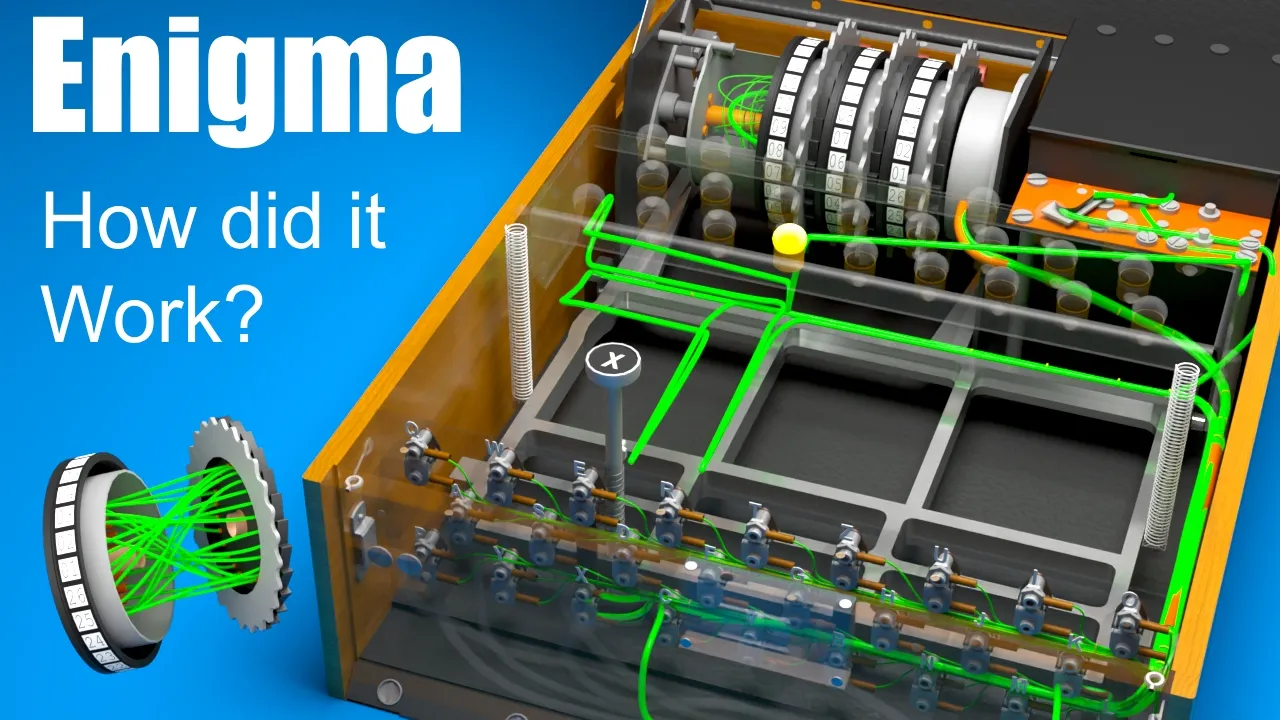
Enigma Machine Mechanics: WWII Encryption Explained
@JaredOwen
13.2M views•2021-12-11
Related Study Plans & Knowledge Roadmaps
Structured learning paths in Computer Science