















The Google Beacon Platform combines open-source Eddystone beacons with cloud services to enable developers to create location-based experiences where a single beacon can serve multiple applications across different users, using beacon frame types (UID, EID, Telemetry, URL), cloud attachments, and the Nearby API to deliver context-aware interactions even when users don't have specific apps installed.
Google Beacon Platform & Eddystone: Proximity API Explained
Added:Understanding of Bluetooth Low Energy (BLE) technology, including how broadcasting, advertising packets, and signal strength (RSSI) function.
Fundamentals of Location-Based Services (LBS), specifically the conceptual differences between macro-location (GPS, cell towers) and micro-location (beacons).
Basic proficiency in mobile application development (particularly Android or iOS) and how client applications consume platform SDKs.
Familiarity with RESTful Web Services, HTTP communication protocols, and cloud-based APIs for managing device registries.
Exploration of security-enhanced beacon frames, specifically Eddystone-EID (Ephemeral Identifiers) for user privacy and spoofing prevention.
Integration of proximity events with cloud platforms for real-world applications, such as retail analytics, indoor navigation, and automated check-ins.
Implementation of Google's Nearby Messages API to facilitate device-to-device and device-to-beacon communication without complex pairing.
Study of modern positioning alternatives and evolutions, such as Ultra-Wideband (UWB) and BLE Angle of Arrival (AoA) for high-precision spatial awareness.
93.5K views558likes33:12Original Release: 2016-05-19
PETER LEWIS: All right, hello.
Hello, everybody, welcome.
My name is Peter, and I am the product manager for Eddystone and the Google beacon platform, and I am uncomfortably excited today to be talking to you about location and proximity superpowers.
So, we're going to cover a whole bunch of stuff, and it's going to be awesome.
So, if my clicker works-- oh, that was the laser pointer.
We're going to get in some code, but before we do that, I want to introduce you to my dog.
This is Oscar.
Oscar is like my sidekick, I suppose, if we're talking about superpowers.
He is a four-year-old Papillon, and one of my favorite things is taking him up to Hampstead Heath in London, near where I live, and taking him for a long walk amongst all the trees and the bushes.
And while I'm walking along, he's constantly sniffing, discovering all the interesting smells, like, is this an important bush?
Is this is a stick I should be playing with?
He has a fantastic sense of all of the important places and objects that are around him, and this session is about to make your users' devices almost as awesome as Oscar.
So, today I want to talk to you a bit about a few location-based experiences.
So, here are a few examples from within Google Apps.
In the Photos app, I can search for photos I took when I was at Google in New York.
There's timeline for helping users to rediscover places that they've been to, and the experiences they've had there.
And there's sort of popular times for one of my favorite restaurants here in London, that reminds me it's been two months.
I should probably go again.
And these kind of location-based experiences make apps really compelling.
If you can provide services to your users that take account of the important places and objects to them, then you can build engagements and be much more successful.
So, all of these are powered by a complicated array of sensors in the user's device, but the experience at the end of it is really simple.
They use Wi-Fi, cell tower location, GPS to produce this kind of thing.
But what we want to do is to provide really simple APIs to be able to develop your own apps, and even in cases where you don't have an app, on top of this platform.
So, today we will cover Eddystone.
Eddystone is the open beacon format from Google, and we want to make it so that the beacons you have on your desk actually become useful quite quickly.
We're then going to talk about how to link your beacons with the Cloud, so that you can think of them much more like Cloud objects.
That is, we're going to talk about attachments, subscriptions, and nearby-- and sharing those beacons with others, so that this physical widget gets all of the power of the Cloud.
And then last up, we're going to talk about something new that was announced an hour ago in stage one, I think.
Powering experiences at your venue through Google.
So, even in the case where you don't have your app installed, how can you use beacons to bring awesome experiences to your users?
So, what is the technology we're going to use?
Well, we're going to use beacons.
And, in fact, beacons are not new at all.
If I can advance the slide-- yes, beacons are not new.
So, here's an example of a beacon, a lighthouse, and all of the components of the Google beacon platform are similar to a lighthouse and a ship at sea.
So, you have the lighthouse itself.
That's the Eddystone beacon.
It just sits there and it broadcasts an identifier to the world.
Meanwhile, out at sea, the captain of the ship has got the telescope.
They're looking out for all of the beacons that are around the coastlines of countries.
That's like the Nearby API in Android and the CocoaPod for iOS.
But just sighting the beacon is not that useful.
You're also going to need a chart with all of the beacons mapped out on it to look up exactly where you are, and that chart is provided by the Proximity Beacon API, which is the Cloud service that you can use to register beacons with Google.
So, we're going to go through each of those parts, but with the Google beacon platform rather than lighthouses and ships.
And by the end of the session you're going to be able to build awesome beacon powered experiences in your app, and also we're going to give you some ideas for how to use beacons in the cases where your app is not yet on the user's device.
So, what is a BLE beacon?
Well, I have one just here.
They're sort of simple, typically battery-powered devices that you can use to mark important places and objects in the world.
You stick them on the object and they just broadcast an identifier.
They do exactly one thing.
The identifier that they broadcast is only 31 bytes long, and by the time you've gotten rid of all the headers there's not really very much space left for content.
So, by placing an abstract identifier in your beacon that you mark, you make devices that come near it aware of that place.
Because beacons only accept connections from devices when they're being configured, they're really good for deploying in public places.
So, you don't want users' devices to have to connect to these Bluetooth things all the time.
You just want your user's device to have a great idea about the important places and objects around it.
So, beacons have been around for a little while, and Bluetooth beacons have as well.
And in the olden days we sort of had this model, that you would deploy a beacon, it would talk to a particular app, and it would probably power a particular feature in that app.
We're taking a slightly different approach with Eddystone and the Google beacon platform.
We're interested in having one beacon or many beacons with many uses.
So, you deploy your infrastructure once, and then you can reuse it multiple times in different apps from different people, all coming to your venue.
So, what is step one?
Well, we've provided an app for you to get started.
It's called Beacon Tools, available on the Play Store and the iOS app store.
Download this app and you'll be able to talk to beacons.
It's an app that allows you to register beacons with the Google Cloud platform.
So, it sits between the beacon and Proximity Beacon API.
You can register beacons that have a number of different frame types.
This is the complete Eddystone specification.
There are four frame types in Eddystone.
There's Eddystone UID, which is the abstract marker for a particular place.
For cases where you're interested in controlling who has access to your beacon signal, there's Eddystone EID, and I'll talk a bit about that in a minute.
Then the third frame type is a telemetry frame.
This reports on the beacon's battery level, which makes it easy to monitor a fleet of beacons once they're deployed in the wild.
And then finally, you can put a pretty tiny URL into the beacon frame itself, and Eddystone URL forms the backbone of the physical web.
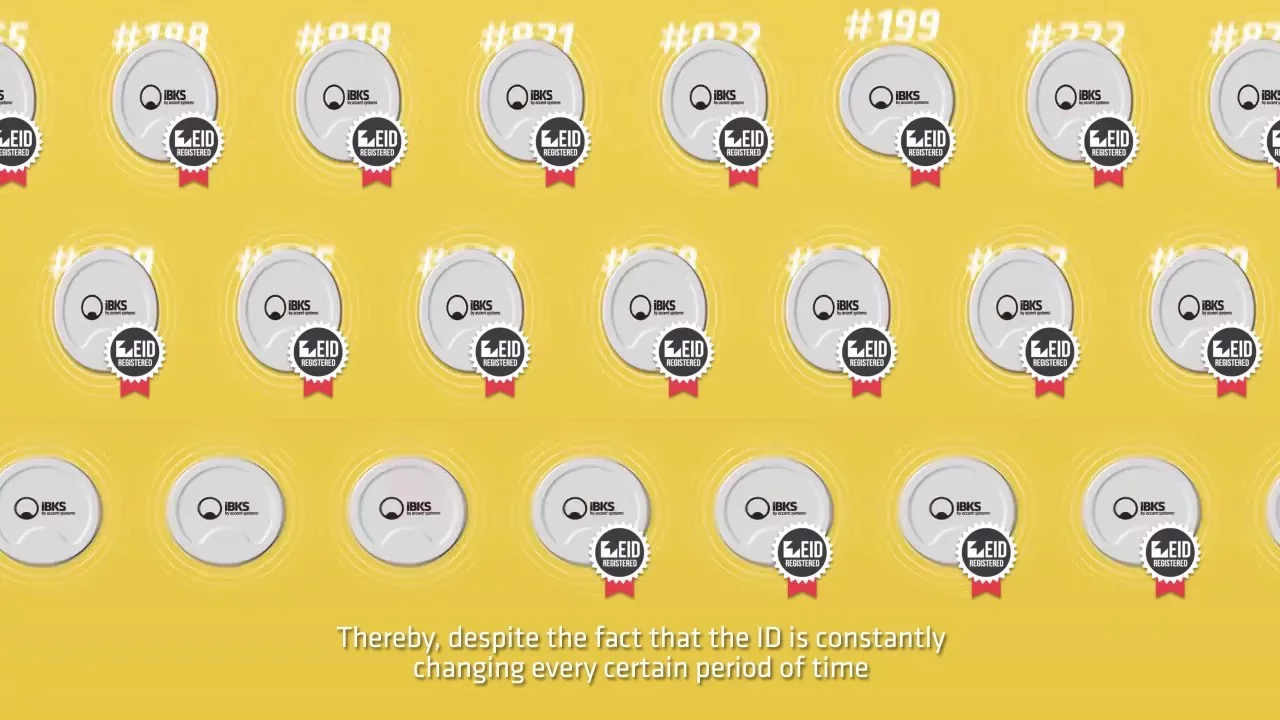
So, I want to talk a bit more about Eddystone EID, and you can see I've made a beacon with a pretty colorful center just here.
What that represents is that the beacon frame itself is continuously changing.
So, I have a beacon, it's broadcasting one frame, and then a few minutes later it's broadcasting a different frame.
And your beacon generates those frames based upon a cryptographic key that's stored within the beacon itself.
That key is also shared with another service, which is able to resolve a sighting of that particular beacon to a stable ID so that you can make use of it in your app.
It's particularly good for cases where you want to control who has access to the beacon signal that you're deploying, and the good news is that all of our APIs supports UID and EID transparently.
So, you don't have to bother thinking about EID.
You can deploy mixed networks of UID and EID beacons, and still talk to them both through the same Nearby API and Android.
So, that's Eddystone.
We've got static identifiers which are, in a sense, the simplest way to get started, and we've got ephemeral identifiers, and these are the ones that are ideal for controlling your beacon signal.
But that's just the beacon itself.
The real power comes from the Cloud service that you associate, where you put that beacon, and that is fronted by Proximity Beacon API.
Proximity Beacon API is an API that fronts Google's beacon registry that allows you to register beacons, associate information with them, and add attachments which can be used by your own app.
So, a beacon object looks a bit like this.
I've represented it as a box, and within the box we've got three attachments represented by these three colors.
So, let's have a look at the beacon registry entry itself.
Here is the list of properties that you can associate with a beacon.
First up, you can assign the beacon a description.
The description of the beacon is your human readable name for that particular beacon, and we'll talk a bit about how you can search for things like that later.
You can add properties to a beacon, so it's sometimes useful to remember the transmit power that you associate it with a particular beacon or some other properties that are relevant to your particular venue.
Then, the next set of objects is to do with place and location.
When you register a beacon with Google, you can associate a place ID with it which goes into the heart of Google's location infrastructure.
So, all of the out of place functionality that I showed earlier just gets better when you have a beacon signal registered with a place ID.
As well as that, beacons enable new kinds of precise locations.
So, in particular, you can associate an indoor level with a beacon, which makes it much easier for your app to detect which level a user is on in a building.
This last field, expected stability, allows you to distinguish between beacons that you deploy in a static place, sort of marking important places in a building, and those, perhaps, that are on a bus, or a food truck, or move around.
Finally, we have the ephemeral ID registration object, which keeps all of the records necessary to support Eddystone EID.
So, if you're using Eddystone EID beacons, you'll need to talk to this part of the API.
And finally, when you provision a beacon using the Eddystone gap service, there is a key that you can use to unlock that particular hardware, and we can store that for you to make beacon administration easier later on.
So, what's next?
We have a beacon, we have a Cloud service.
On a user's device in the middle we have the Nearby API.
And I want to take you on a sort of brief tour of the Nearby API, showing how you can use it to fetch attachments back to your beacon, back to your user's device.
So, this is what you need to put in your manifest.
It's important that you put your API key to talk to the Nearby Messages API.
You also need a service running in the background for if you want background beacon scanning, and you can also put intent filters in your manifest as well.
And that's something you should do because of a reason I'm going to tell you about in a bit.
Once you've connected to Google Play services in your Android activity, then this is the meat of your subscription.
So, this is where you tell the nearby API that, I'm interested in attachments of a particular name space and a particular type.
It's that line under set filter.
So, what happens next?
Well, the Nearby API takes all of the information that you've given it and it does beacon scanning for you.
Notice that you don't have to care about the actual bytes that the beacon is broadcasting.
You've created a subscription to a Cloud object, and Nearby is going to hide all of the sophistication in the background.
So, Nearby goes out looking for beacons.
and when it does beacon scans it shared them across all apps that have active subscriptions.
As well as that, when the Android platform does scans they're also shared to Nearby.
So, you get a lot more scans for a lot less battery use.
When Nearby comes out and finds a beacon, it will query the Proximity Beacon API to say, hey, I found this beacon.
I don't know what it means.
And Proximity Beacon API will return attachments that were the ones that you had subscribed to.
So, let's take a look at what an attachment looks like.
They're pretty simple objects.
They have these two important fields.
The first one is the name space type for the project.
The name space is owned by your project, so you have a name space for your particular developer console project.
After that you can put a type for each attachment.
That could be platforms at a station, or it could be different types of vehicle.
It can be anything you want.
And then the second field is the data that you associate with that beacon under that name space type.
So, this is where you put the information that you actually want to get back in your app when your user sights that particular beacon.
If you're calling the API directly, remember to base 64 encode it, but our tools take care of that for you.
So, Nearby had this subscription to a particular name space and type.
Proximity Beacon API decided if there were any attachments on the beacon that had been seen that correlated with your particular subscription, and then those attachments are returned to your app so that it can behave as you would expect.
Launched this morning, if you don't care about integrating with APIs and so on, you can use the beacon dashboard.
This is a web dashboard that actually uses the JavaScript client library to Proximity Beacon API, and allows you to visualize all of your beacons and edit the information associated with them.
So, for a particular beacon object, registering a beacon just becomes filling in a bunch of fields on here.
We think this is really cool.
You can also add attachments.
Here's an example of an attachment that I added this morning, and you can see it's a simple matter of filling in two fields on a web dashboard.
You now have a registered beacon and an attachment associated with it.
So, where have we come?
Well, we started with a beacon.
We provisioned it using beacon tools, which you can get from the Play Store all the iOS app store.
Then, we associated that beacon in the Cloud with Proximity Beacon API, which allowed us to create this beacon object and add attachments to it.
If you didn't want to call the API, we have the dashboard.
And then down in the bottom right, we've got the model of what happens when a user's device comes across a beacon.
And as I said earlier, it doesn't matter whether you're using Eddystone UID or Eddystone EID, Nearby will behave exactly the same.
You just create a subscription to the name space and type of attachment that you're interested in.
So, I mentioned earlier that there are good reasons for registering beacons in the Cloud, and one of those is that you can create a beacon network and share it with many different developers.
So, launched recently, Proximity Beacon API is one of the first APIs to use Google Cloud's identity and access management roles, giving fine grained control over which developers can make use of your beacon network.
So, here we go.
Here is a picture of the Google Cloud Platform developer console, and their Identity and Access Management, you can add members to your project.
So, these are adding developers who can do things with resources that are in your project.
Things like compute engine instances or data store, and so on.
And Proximity Beacon API is one of these, so once you've enabled the API you can add a developer and choose from the roles that we have available.
So, these are the new roles, and I want to just go through them a bit and tell you about what they allow developers to do with your beacon network.
So, first up is BeaconEditor.
If you grant a developer this role, then they're able to add beacons to your project.
It's important if, for example, the person who's writing the app is not the person who's going and sticking up the beacon.
The person who's going and sticking up the beacon, you want them to be able to register beacons to your project but you don't want them to be able to fire up compute engine instances.
So, BeaconEditor is a role that you can assign to a user or to a group to enable them to add beacons to your project.
And it's important to note that beacon IDs are universally unique in Google's beacon registry.
So, once a beacon has been registered it can't be registered by a different project.
Next up we have AttachmentEditor.
Now, I mentioned earlier that attachments have a name spaces associated with them and the name space belongs to your project.
AttachmentEditor allows you to say, I want this developer to be able to add attachments to my beacons in my name space.
So, that means that they can add attachments that can interact with your app, and they can do this in combination with BeaconEditor.
So, they can register a beacon to your project and they can add attachments to it as well without all of the other permissions that come as a result of being an owner of a project.
Finally, is AttachmentPublisher.
What this allows, you can say, that developer can create attachments in their own name space on my beacons.
So, I have a beacon network, and I can say, my friend, here, I want them to be able to add attachments in their own name space that will talk to their own app on my beacons.
And these roles and these new sharing paradigms allow a bunch of useful things.
So, here we have three different phones, belonging to three different users, with three different active nearby subscriptions, all talking to the same beacon.
And these attachments can be added by different developers.
So, there's a lot of flexibility in the way that you can use a beacon network.
You don't any longer just deploy one beacon for one app.
We have one beacon with many uses.
Great, yeah, it's awesome.
[APPLAUSE] Right, so, interacting with Google products.
Sometimes people come to me and they say, Peter, PM for beacons.
This is fantastic, but my app has to be everywhere in order for it to be useful.
This is not true.
So, what I want to talk about now is how you can take your beacons and interact with Google products at the heart of Android, like Nearby Notifications.
So, Nearby Notifications was announced just an hour ago and is available in the next version of Google Play services, But what I want to tell you today is how you can register beacons today and add attachments that will interact with Nearby Notifications.
Nearby Notifications allows you to prompt notifications in Android in three different categories of cases.
You can associate web URLs with your beacons.
So, you've registered a beacon.
You can associate a URL with it.
You can associate app intents.
So, remember earlier I said, make sure that you've put intents in your Android manifest.
You can point to those intents with a beacon attachment, and if the user doesn't have your app installed, you can have a URL that's the fallback.
So, if I have your app installed, I come near the beacon, it intents into your app.
If I don't have your app installed it says, here is a website.
And then last up, there's a direct app installs.
So, this is an early program, and we're holding it behind the white list at the moment.
So, if you would like to apply to have your app white listed for direct app installs associated with beacons, then you can go to developers.googl e.com/nearby/notifications and it will tell you how to get started.
So, let's have a look at what these things look like.
Here are three examples of Nearby Notifications.
Right up at the top we've got an app for a coffee shop, and this passed our white list because of a particular reason, and that was that a user could take an action if they had the app installed right at that place.
So, it's very much about, is a user going to install your app and then do something immediately with it?
That's a really good candidate for Nearby Notifications.
In the second case, this is an example where, at Kim's Vitamins, a web URL was associated with the beacon that pointed to a particular website managed by that business.
And then at the bottom we've got everybody's favorite example in San Francisco, apparently, paying for parking.
Finding an app where you can pay for parking and actually use it right then to pay for the place where you've just parked is another good candidate for Nearby Notifications.
So, let's go back to the beacon object and have a look at it.
We have three attachments on this beacon.
The bottom two are attachments that you added.
So, they're things that interact with your app.
Maybe you've got some kind of beacon functionality baked in.
But we want to focus on the top one, just here, and what you'll notice about it is that the name space for this particular attachment is not your project.
This is com.Google.nearby, a name space that is reserved for Nearby Notifications.
Any developer can write attachments in this name space, but they can only attach those attachments to their own beacons.
So, if you register a beacon with Google, you can write into this name space.
If this other person registers a beacon with Google, I cannot write into that name space on that beacon.
So, you have to own a beacon in order to take part with Nearby Notifications.
So, let's have a look.
We have the Nearby attachment, and you can see that it's in this com.Google.nearby name space.
In the type field we've put en-debug.
So, en is a language code.
We only want to show your Nearby Notifications to users who have set the default language on their device to the notification that you want to show.
And then in the data we've got some Nearby attachment data.
This is exactly the same pattern that you would build if you were putting functionality in your own app.
So, what does this data look like?
Well, it's just some JSON with a title, a description, and a URL.
you can create this dead easy, and the URL is the part that's interesting.
So, there's a little bit of subtlety here.
I'm going to go through it quite carefully.
So, here are the three different categories of Nearby Notification that I mentioned before.
Up at the top, this is the URL that we would associate with a direct app install.
You can see that it points to a particular package in the Android Play store.
In the middle, this is a URL that we would associate with if the user has the app installed, intent into it.
If they don't have the app installed, then we'll fall back to a website.
And then at the bottom you've got the simple case, just a web URL.
The gotcha with that one is that you have to remember it's HTTPS, so HTTP URLS are filtered out.
Right, that is the end of the content for this talk.
I'm now going to do a demo for your entertainment and amusement, that is possibly the most dangerous demo that's ever been done.
I'm going to use two different kinds of radio.
I'm going to use an unreleased product.
I'm going to use a product that we launched this afternoon, and I'm going to use two different devices.
So, before your very eyes, here is my beacon.
It's broadcasting, and in Beacon Tools I can search for it just like this.
Excellent, it's shown up.
So, I provisioned this beacon earlier, and there it is.
I'm going to register it.
I'm glad that nobody got there before me.
If somebody else had registered that beacon, this would not have worked.
Right, what I just did was, I took this beacon that was broadcasting at Eddystone UID and I registered it with my project.
You can see that I tested this maybe seven times before I got in here.
And this is the beacon dashboard that I was talking about earlier.
So, if I refresh it, fingers crossed, here is my new beacon that I just registered right now.
By the way, if this all works I want you guys to give a cheer that is loud enough to wake the engineers in London who made it.
So, I can associate some information with my beacon.
So, the I/O beacon.
This is the human readable label that I want to associate with the beacon so I can find it later.
I can associate a place with it.
So, I can put it in Amphitheater Parkway, and this will plug into the rest of Google's location infrastructure, as I mentioned before.
And this particular beacon, this is not going to move around, so I'm going to make it stable.
Now, here are some sort of useful administrative labels for me.
So, I can in things like the TX power, the transmit power of this particular beacon.
So, maybe it's broadcasting at minus 20 DBM.
Great, so, I've now registered at this beacon with Google, I've added a description so that I can find it again, and I've put a place ID with it as well.
Next up, I can add attachments to it.
So, here is the name space that's associated with my project, and it is very easy to add an attachment.
There we go, I just press plus, and I now have a beacon registered with an attachment to it.
So, I can use Nearby messages to get that attachment back in my app.
Tomorrow, probably, you should go to the code lab's tent, and there is a code lab specifically on Nearby subscriptions from Nearby messages.
So, make sure you go there in order to get some of these attachments back, and we've created a zoo of attachments around I/O, so if you do it on your own phone you'll be able to collect all of those animals.
Finally is this category, Nearby Notifications.
So, I said earlier that you have this JSON object that you can construct, but what we decided was that we could make it easier than that.
So, we just have a web form that you can fill in.
I can put a title in here, I can put a description for the notification that I want to show.
Can somebody give me a random word?
AUDIENCE: Bacon!
PETER LEWIS: Bacon, perfect-- the bacon.
This is going to prove that I'm doing this live.
I'm going to put it in English, and how about we just point to www.google.com.
Great, so I can check all of the details I put, and I can create the attachment like that.
So, what this has done is created a Nearby Notifications attachment on that beacon that I registered on the stage, live in front of all of you.
Let's go back to the device over here.
And on this particular phone, I have Nearby Notifications running.
So, when I screen on and I pull down the notification shade, and I screen on again, I'm going to see a couple of websites that are not the ones that I was thinking of.
Third time lucky, boo, it looks like it might not work.
So, what's happening is it actually does a beacon scan when the screen comes on, and I'm hoping that it can see this beacon that is sitting right next to it.
There we go, the bacon.
[APPLAUSE] I select that, and google.com appears.
So, we registered the beacon, we added a Nearby Notifications attachment to it, and that took us straight to that link when the user's device came.
So, that is the Google beacon platform.
One beacon, many uses.
[MUSIC PLAYING]
Up Next
7:42
Google Ads Offline Conversion Tracking Setup: Free GTM & Sheets Guide
@prowebanalytics
446 views•2025-11-30

12:54
Triumph of Orthodoxy Icon: Byzantine Art & History Explained
@BenCallan
2.1K views•2024-08-06
3:30
Optimizing Google Play Store Listings with Experiments
@GoogleDevelopers
33.7K views•2015-06-12

1:42
Game of Thrones Opening Credits: A Cinematic Analysis
@gameofthrones
46.3M views•2011-04-18
Related Study Plans & Knowledge Roadmaps
Structured learning paths in General & Interdisciplinary Studies
general-studies
Elevator Engineering: History, Physics & Cities
01From Hoists to Safety Brakes: The Dawn of Vertical Lift
02Hydraulic vs. Traction: The Engineering Physics of Elevators
03Modern Speed, Safety, and Algorithms
+ 2 more learning modules
12h5 modules
Explore Roadmap
general-studies
Rubber: Material Science, History & Geopolitics
01Origins of Natural Rubber & Mesoamerican History
02The Chemistry of Natural Rubber & Vulcanization
03The Geopolitics of the Rubber Boom & Colonization
+ 2 more learning modules
12h5 modules
Explore Roadmap
general-studies
Containerization: Evolution, Logistics & Trade
01Ancient Trade & Bulk Cargo: Amphorae to Barrels
02The Industrial Revolution & Cardboard Packaging
03The Containerization Revolution: Malcom McLean
+ 2 more learning modules
12h5 modules
Explore Roadmap
general-studies
Textile Tech: Evolution, Labor & Global Impact
01Pre-Industrial Textiles: Handloom & Cottage Industry
02Mechanization: The Spinning Jenny to the Power Loom
03The Factory System & Global Labor Transformation
+ 2 more learning modules
10h5 modules
Explore Roadmap