





![Tags, triggers, and variables in Google Tag Manager | Lesson 4 [2020]](https://i.ytimg.com/vi/yOpTD2xCyLc/maxresdefault.jpg)








![Link Building with Google Ads: Results from $1,245 in PPC Ads [Ep. 3]](https://i.ytimg.com/vi/Uz2bGhdnJN0/maxresdefault.jpg)
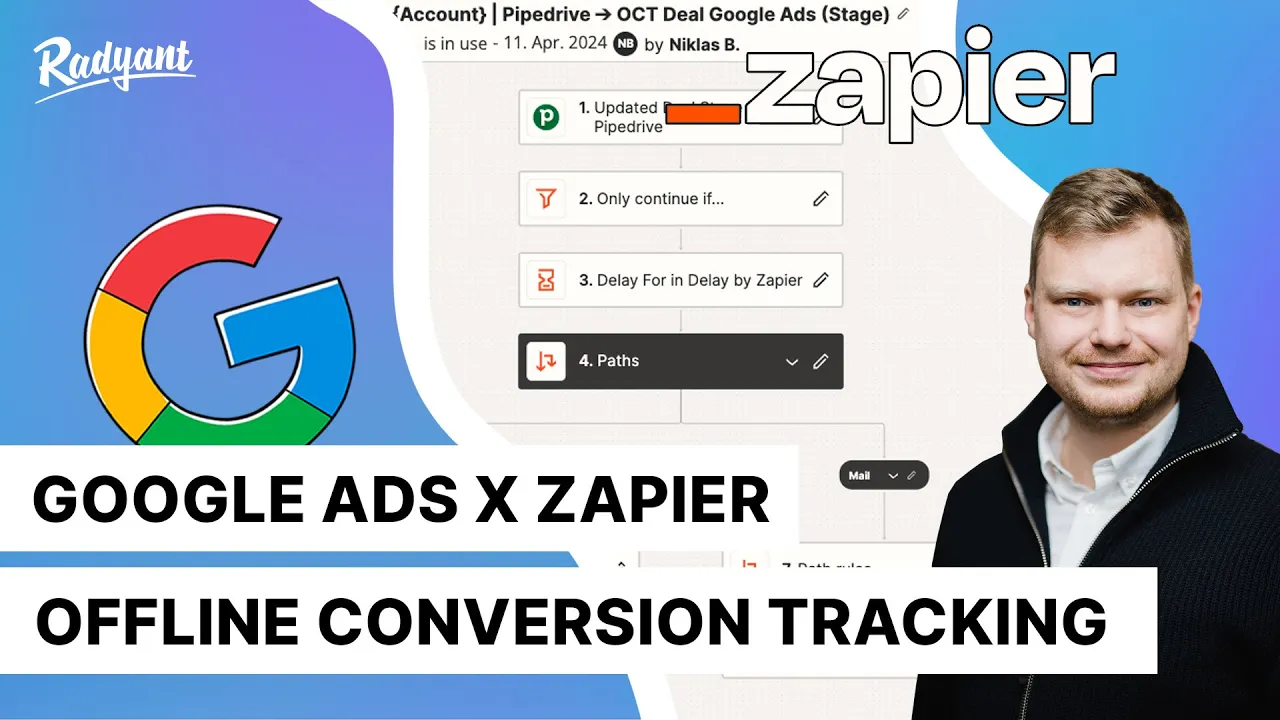














This tutorial demonstrates how to set up Google Ads offline conversion tracking for free using Google Tag Manager and Google Sheets. The process involves creating Custom HTML tags in Google Tag Manager to capture Google Click ID and user data (first name, last name, email, phone number), configuring Google Sheets with Apps Script to receive and process this data, and then uploading the conversion data to Google Ads for attribution and optimization. The system captures conversion values, currency, and timestamps, enabling advertisers to track conversions that occur offline and improve their campaign performance.
Google Ads Offline Conversion Tracking Setup: Free GTM & Sheets Guide
Added:Fundamental understanding of Google Ads conversion tracking, including how conversions influence smart bidding algorithms.
Basic proficiency with Google Tag Manager (GTM), specifically managing tags, triggers, and user-defined variables.
Concepts of lead generation funnels, including the transition of a prospect from an online inquiry to an offline sale.
An understanding of the Google Click Identifier (GCLID) and how it is used to attribute offline actions back to specific ad clicks.
Transitioning from manual Google Sheets updates to fully automated CRM integrations (e.g., Salesforce, HubSpot) using APIs or middleware.
Implementing Value-Based Bidding (VBB) in Google Ads by assigning varying monetary weights to different stages of the offline sales funnel.
Setting up Google Ads Enhanced Conversions for Leads to track offline conversions using hashed first-party data instead of relying solely on GCLIDs.
Analyzing and optimizing bidding strategies based on high-quality offline conversion data rather than mere surface-level lead volume.
446 views4likes7:42Original Release: 2025-11-30
Hi, today in this video I will show you how to set up Google ads offline conversion tagging for free. Here you can see my Google ads offline conversion tagging data and first you need to set up your time zone here. Then you can see Google click ID and this is a Google click ID for testing. Then conversion name and this is the conversion name.
then has parameter like first name, last name, email and phone number or enhance conversion tagging to upload Google ads.
Then conversion value and here you can customize it. Then conversion currency and you can change it. Then conversion time, add user data, add personalization stata, then first name, last name, email and phone number. This is a raw data for checking your lead. Okay. So now today I'll show you how to set up this type of tracking. So first I need to remove this one.
Okay. So now let's go on Google tag manager. Now I need to go new tag.
Then select custom HTML. this one and now I need to go my code here is this and now copy.
Okay.
Now paste here this code automatically call it the Google click ID. Okay. So now select the trigger all piece and then go click edited.
Okay, it's done.
Now I need to again select new for again custom for next code. Now again go my code and this is this is a user data code and just copy.
Okay.
And paste here. Okay. This code will collect conversion name, first name, last name, email and phone number.
Okay. Also here you can see conversion value, currency, time.
So now let's select the okay. It will be lead ticket. Okay. So go as data.
Okay. So it's done now.
Okay. I need to go my sheet again here.
Now click extension then app state here I need to add a code.
Okay here already have. So now I need to remove this one and copy my this code and paste here.
Okay. Here you need to change your like Google sheet link this one then and add change also the sheet name that's it don't need to do anything okay so now I need to click here new and okay here you can add any description like name or if you want add or nothing and select Select here anyone then click deploy.
Okay, here you need to copy this link.
Okay, it's done. Now I need to go Google tag manager. Here I need to go this tag and I need to change the link which I already copy.
Okay, this link just first remove.
Okay. And paste here. That's it. Now save.
Okay. So now I I will go give you.
Okay.
Okay. This is my form.
So I will use pick GL click ID for testing. Okay.
Okay.
Now submit the lead.
Okay. It's successfully fired. Now let's check. And here you can see the f click ID also conversion name and you can see my has parameter like first name, last name, email and phone number.
Then here you can customize the value like before upload on Google ads. Then coin my currency and conversion time.
Then here you can check your lead raw data. Okay. So now I will show you how to upload this data on Google ads. Okay.
So for that first I need to remove the row data.
Okay that's it. Now I will go Google ads upload here. Then I need to select Google sheet. Okay. So first you need to give editor access to your Google sheet on this mail. Okay. So here you can see I already added so I don't need again to add just I will click link.
Then this is my sheet. Okay I will select and click insert.
Now click preview.
Here you can see if if have any error on your goal sheet then you can see here.
Okay. So now let's check Okay. So it's showing a one error and that is the GCL ID because my GCL ID you have you have seen that it's a fake GCL ID that's why it's showing the error. Okay. So when you work on your Google ads then it will collect the real GCL ID that's time it will showing everything successfully.
Okay that's it. Thank you and if you want to set up this type of tracking then you can contact me.
Up Next
4:33
Automating Offline Conversion Tracking with Google Ads and Zapier
@Zapier
26.5K views•2020-01-15

12:54
Triumph of Orthodoxy Icon: Byzantine Art & History Explained
@BenCallan
2.1K views•2024-08-06

9:49
FastAPI vs Flask vs Django: Choosing the Right Python Web Framework
@TechWithTim
302.5K views•2024-05-26

1:42
Game of Thrones Opening Credits: A Cinematic Analysis
@gameofthrones
46.3M views•2011-04-18
Related Study Plans & Knowledge Roadmaps
Structured learning paths in General & Interdisciplinary Studies
general-studies
Elevator Engineering: History, Physics & Cities
01From Hoists to Safety Brakes: The Dawn of Vertical Lift
02Hydraulic vs. Traction: The Engineering Physics of Elevators
03Modern Speed, Safety, and Algorithms
+ 2 more learning modules
12h5 modules
Explore Roadmap
general-studies
Rubber: Material Science, History & Geopolitics
01Origins of Natural Rubber & Mesoamerican History
02The Chemistry of Natural Rubber & Vulcanization
03The Geopolitics of the Rubber Boom & Colonization
+ 2 more learning modules
12h5 modules
Explore Roadmap
general-studies
Containerization: Evolution, Logistics & Trade
01Ancient Trade & Bulk Cargo: Amphorae to Barrels
02The Industrial Revolution & Cardboard Packaging
03The Containerization Revolution: Malcom McLean
+ 2 more learning modules
12h5 modules
Explore Roadmap
general-studies
Textile Tech: Evolution, Labor & Global Impact
01Pre-Industrial Textiles: Handloom & Cottage Industry
02Mechanization: The Spinning Jenny to the Power Loom
03The Factory System & Global Labor Transformation
+ 2 more learning modules
10h5 modules
Explore Roadmap