![Google Ads (AdWords) Tutorial 2021 auf Deutsch für Anfänger [Schritt-für-Schritt Anleitung]](https://i.ytimg.com/vi/lB6SVvC_8U0/maxresdefault.jpg)
![[Full Video] Hướng Dẫn Học Chạy Quảng Cáo Google Ads Cơ Bản | Tùng Lê Ads](https://i.ytimg.com/vi/90ae-Qo4fgE/maxresdefault.jpg)



![Conversões Offline Google Ads: Guia Atualizado + Planilha e Script GRÁTIS [2025]](https://i.ytimg.com/vi_webp/aJXNo9das9E/maxresdefault.webp)











![What is Multi Touch Attribution Modeling? [Whiteboard Video]](https://i.ytimg.com/vi_webp/u-VNR2kXwJg/maxresdefault.webp)
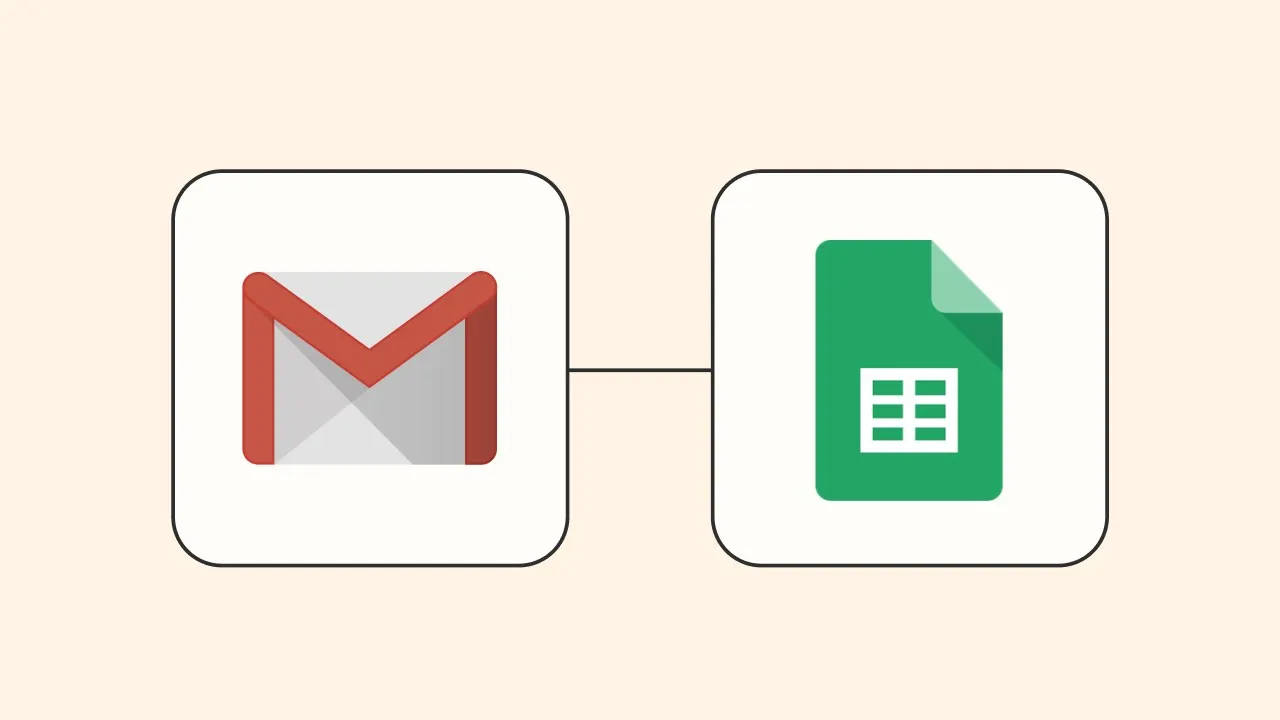
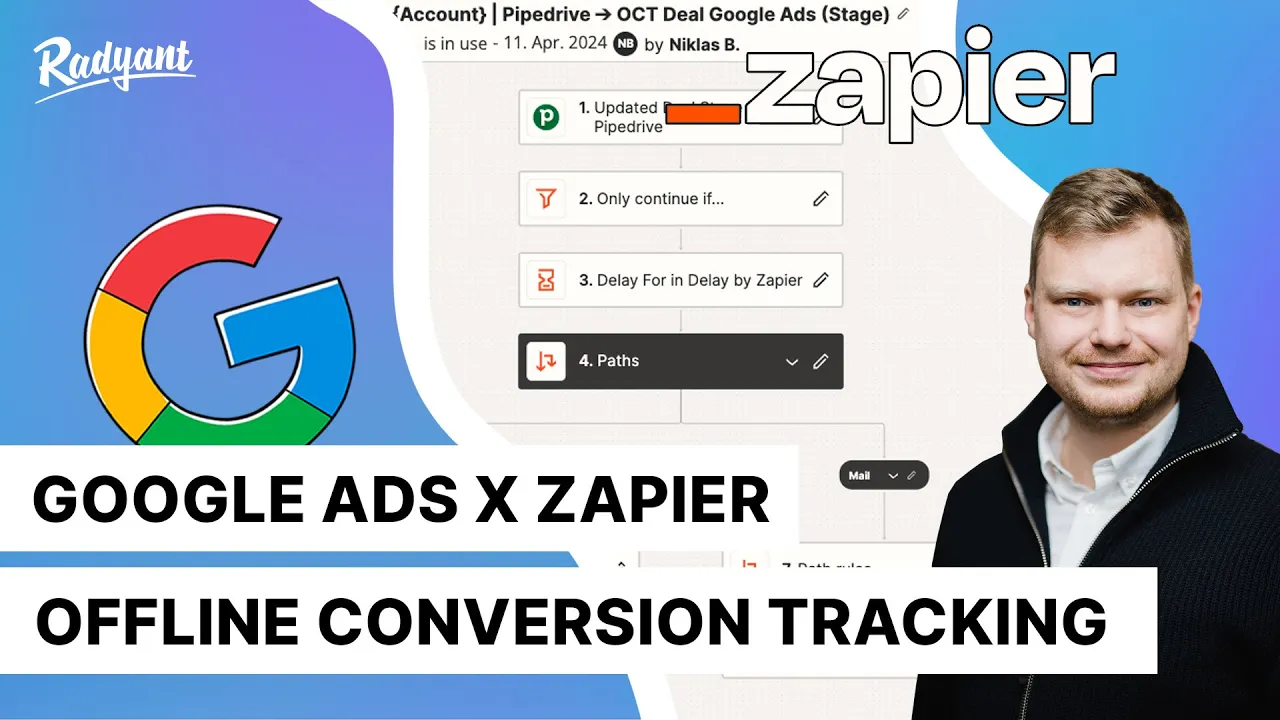
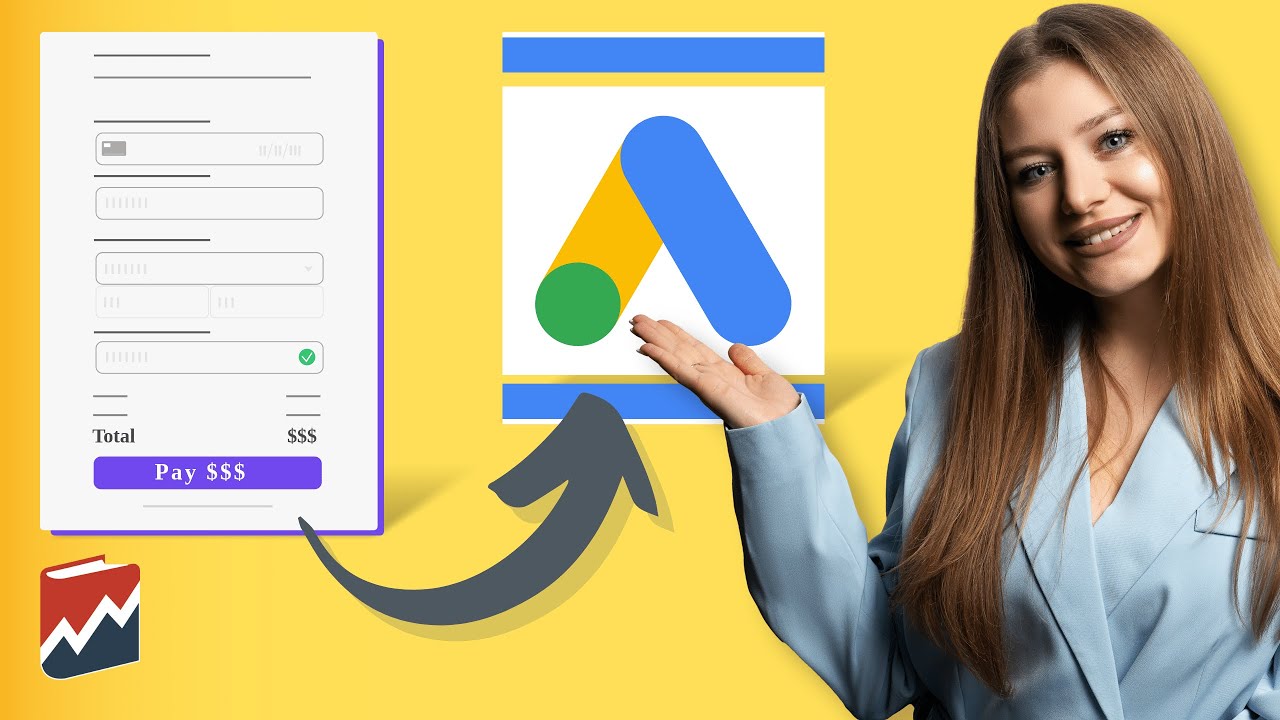
This video demonstrates how to connect Google Ads to a CRM system (using Salesforce as an example) through Zapier to automatically track offline conversions. The workflow involves setting up a trigger that monitors CRM record changes (such as lead status updates), adding a filter to ensure only leads with Google click IDs are processed, implementing a 24-hour delay to allow Google to process ad clicks, and configuring the Google Ads action to send offline conversion data with proper field mapping for click ID and timestamp. This integration enables businesses to measure the ROI of their ads by importing offline sales data and optimize campaigns for the outcomes that matter most to their business.
Automating Offline Conversion Tracking with Google Ads and Zapier
Added:Basic understanding of Google Ads campaigns, specifically how online conversion tracking is configured and measured.
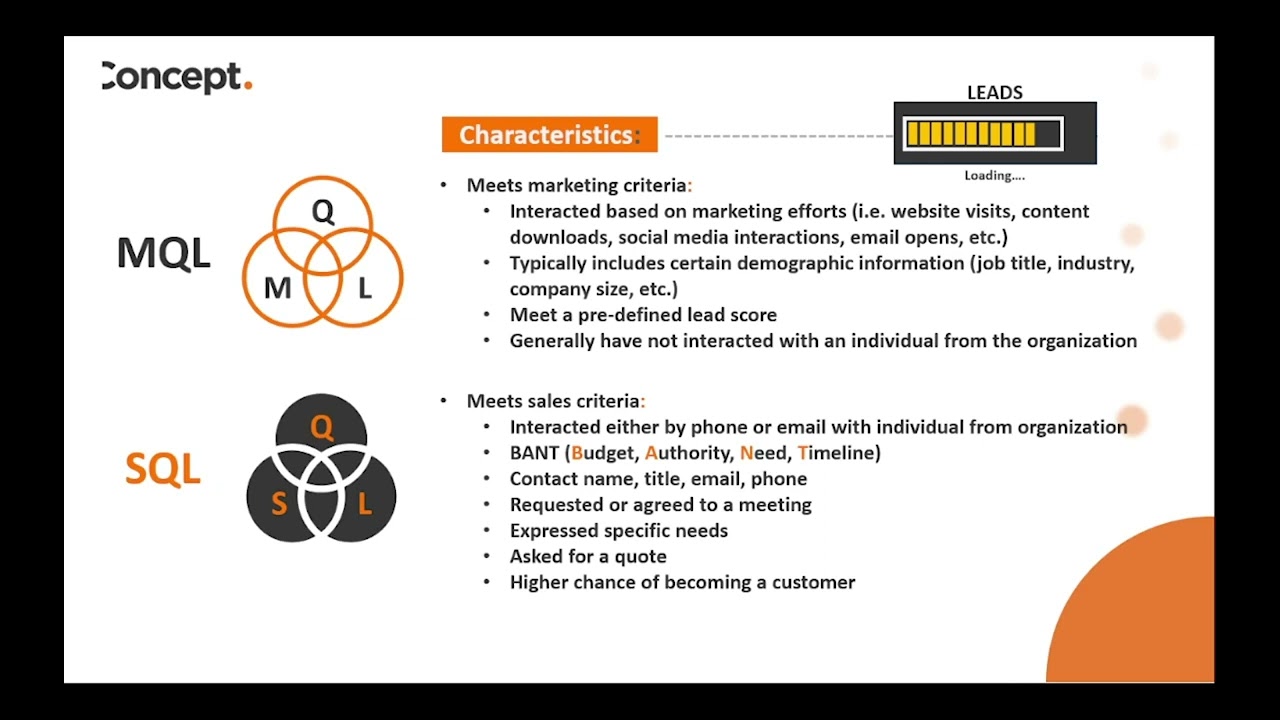
Familiarity with Customer Relationship Management (CRM) concepts and how lead lifecycles (e.g., Lead, MQL, SQL, Closed-Won) are managed in a sales pipeline.
Core mechanics of integration platforms like Zapier, specifically the concepts of Triggers, Actions, and data mapping.
An understanding of the Google Click Identifier (GCLID) and its role in tracking user journeys from search click to offline action.
Implementing Value-Based Bidding (VBB) in Google Ads to optimize campaigns for actual revenue rather than lead volume.
Setting up Google Ads Enhanced Conversions for Leads as an alternative or complement to GCLID-based tracking.
Analyzing data privacy compliance (e.g., GDPR, CCPA) when handling and transmitting personally identifiable information (PII) through third-party automation tools.
Designing advanced multi-touch attribution models that incorporate offline sales velocity and lifetime value (LTV) data.
26.5K views155likes4:33Original Release: 2020-01-15
this video is going to take you through how to connect Google Ads to a CRM to automatically track your offline conversions in zapier offline conversion tracking lets you measure which ads resulted in offline sales or other valuable customer actions by importing your offline data into Google ads this can help you better understand the ROI of your ads and allows you to optimize for the outcome that matter most to your business will be using Salesforce as the CRM in this example but you can use any of the hundreds of CRM zapier connects with to this sap our word for automated workflows will upload your offline conversion events like marketing or sales qualified leads into Google Ads whenever that lead is updated in Salesforce I already have most of this sap filled out but I'll take you through each step quickly before we get to the Google Ad step this first step with Salesforce is what sets our sap into motion anytime there's an updated field on a record this zap will run I've already selected my account but here's the most important piece the Salesforce object field and status that I want zapier to monitor for example my object is a lead and the field is status and because the conversion action I want to send to Google is when the lead becomes marketing qualified I'll input marketing qualified here basically this step means that zapier is looking for a lead whose status has changed to marketing qualified ultimately this SAP is all about the Google Ads offline conversion tracking so I don't want this app to run unless this lead came from a Google ad that they clicked to make sure that's the case I added a filter step to make sure the Google click ID exists on my Salesforce lead if it doesn't exist this app won't run if it does exist this app will run and move into our next step I created a 24-hour delay here because Google needs up to 24 hours after the ad click before conversions can be successfully uploaded this means that if the conversion action you were tracking and sending to Google happens faster than 24 hours this delay will give Google enough time to process the click and now we can set up the connection to Google Ads when you add this final step you want to search for Google ads as the app and then select send offline conversion for the action once we click continue we'll connect our Google account and move on to customizing the offline conversion first we need to select the Google Ads account that you want to send the offline conversion to note that if you're using my clients enter MCC and wish to import conversion data to all ads accounts within the MCC select your MCC instead if you'd prefer to import conversion data to a specific child account selected in this managed account field next is the Google click ID field what we want to do is click on the field button to the right fields let us pull information from a previous step into our current step so we'll click on Salesforce and search for the Google click ID field next you'll specify the conversion actions from the Google Ads account that you wish to track the only conversion actions that will appear in this list are one set is import from clicks in your Google ads account if you don't see anything here head to the conversion section in your Google Ads account and look for the source of the conversion actions if you don't have an option for import from clicks go ahead and create that the time stamp is the time when the conversion event itself occurred just like the ID field we're going to search through our first step to find the last modified date which is how we list time stamp you might have something like marketing qualified date or similar just make sure the date and time you choose is when the lead was converted and with all of those fields complete we can test this stuff keep in mind that the data we're using in the setup process comes from the most recent record from the CRM this means if your most recent record in Salesforce didn't have a Google click ID the test might show a failure message that's totally okay we can press skip test to continue 24 hours after yours app runs you can check that your import was successful either in this app your task history or in Google ads in the campaign's report and segmenting by conversion actions with this app I'll be able to automatically send offline conversions to Google Ads whenever my leads in Salesforce change their status best of all this app will make sure only those leads with click IDs will move forward and at the right moment
Up Next
14:24
Google Ads Enhanced Conversions for Leads: Setup Guide
@MeasureSchool
38.1K views•2022-09-14

12:54
Triumph of Orthodoxy Icon: Byzantine Art & History Explained
@BenCallan
2.1K views•2024-08-06

9:49
FastAPI vs Flask vs Django: Choosing the Right Python Web Framework
@TechWithTim
302.5K views•2024-05-26

1:42
Game of Thrones Opening Credits: A Cinematic Analysis
@gameofthrones
46.3M views•2011-04-18
Related Study Plans & Knowledge Roadmaps
Structured learning paths in General & Interdisciplinary Studies
general-studies
Elevator Engineering: History, Physics & Cities
01From Hoists to Safety Brakes: The Dawn of Vertical Lift
02Hydraulic vs. Traction: The Engineering Physics of Elevators
03Modern Speed, Safety, and Algorithms
+ 2 more learning modules
12h5 modules
Explore Roadmap
general-studies
Rubber: Material Science, History & Geopolitics
01Origins of Natural Rubber & Mesoamerican History
02The Chemistry of Natural Rubber & Vulcanization
03The Geopolitics of the Rubber Boom & Colonization
+ 2 more learning modules
12h5 modules
Explore Roadmap
general-studies
Containerization: Evolution, Logistics & Trade
01Ancient Trade & Bulk Cargo: Amphorae to Barrels
02The Industrial Revolution & Cardboard Packaging
03The Containerization Revolution: Malcom McLean
+ 2 more learning modules
12h5 modules
Explore Roadmap
general-studies
Textile Tech: Evolution, Labor & Global Impact
01Pre-Industrial Textiles: Handloom & Cottage Industry
02Mechanization: The Spinning Jenny to the Power Loom
03The Factory System & Global Labor Transformation
+ 2 more learning modules
10h5 modules
Explore Roadmap