






















This tutorial demonstrates the fundamental workflow of Atlas.ti software for qualitative data analysis, covering project creation, document importation (PDF, text, audio, video, social media), document organization into groups, and systematic coding of textual content to identify themes and patterns in research data.
Qualitative Data Analysis in Atlas.ti: Step-by-Step Tutorial
Added:Fundamental principles of qualitative research methodologies, such as thematic analysis, phenomenology, and grounded theory.
The conceptual basics of qualitative coding, including the difference between descriptive, in-vivo, and analytical codes.
Common qualitative data collection methods, such as semi-structured interviews, focus groups, and document gathering.
Basic file organization and management skills necessary for preparing text, audio, or video files for software import.
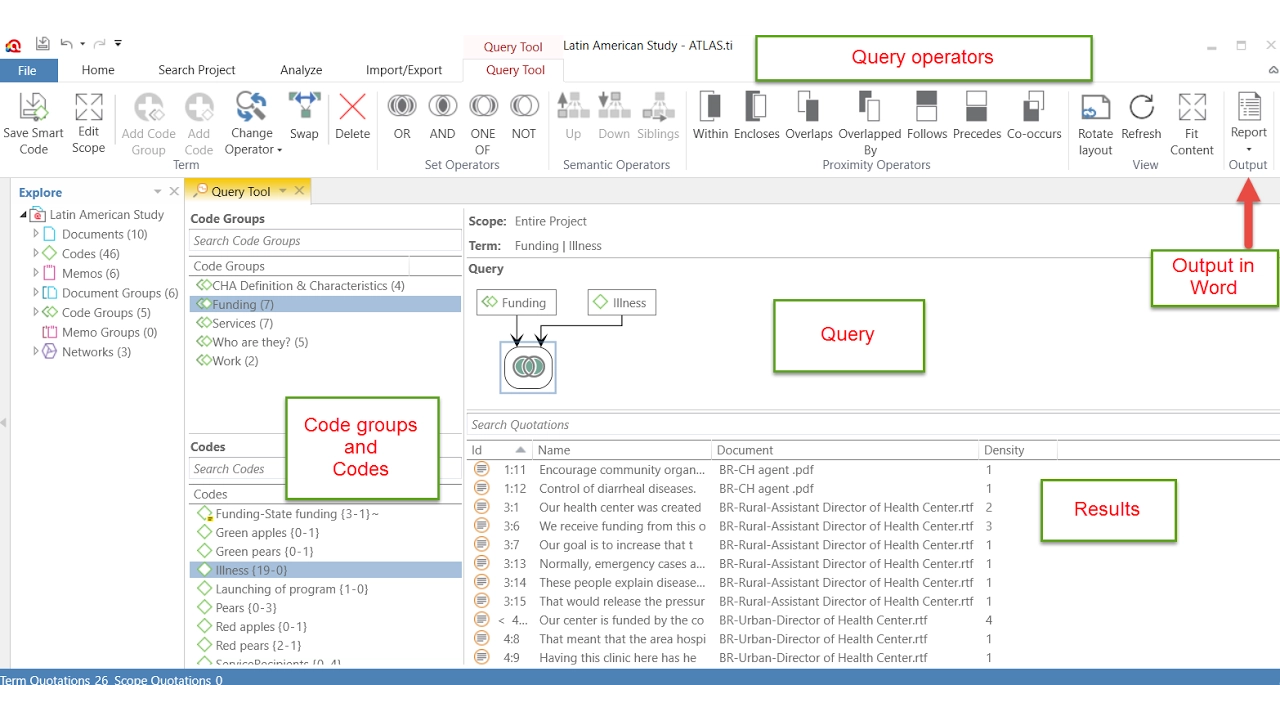
Advanced ATLAS.ti features, including using the Query Tool, analyzing code co-occurrences, and generating visual network diagrams.
Methods for establishing trustworthiness, rigor, and inter-coder agreement (ICA) in qualitative research teams.
Synthesizing qualitative findings to write comprehensive research reports, dissertations, or academic journal articles.
Deepening grounded theory applications to move from descriptive themes to generating substantive or formal theories.
62.2K views774likes13:47Original Release: 2023-01-25
[Music] thank you [Music] hi friends I'm very happy to see you here I'm Uma Shankar Pandey and this is the doctor USB Channel I host videos and Media communication and research on this channel there are a number of computer assisted quality data analysis software some of them are free some of them are very expensive today I'll demonstrate the use of Atlas TI quality data analysis software which is closer to the grounded Theory approach let us see mastering qualitative data analysis with Atlas TI a step-by-step guide plus TI allows import of a number of document types we can import PDF text files HTML audio files video files even social media content and Survey content I'll use the trial version for the demo the only restrictions are that it can be used for 45 days and within those 45 days you can use it for any of those 5 days so we need to download Atlas Ti from Atlas ti.com as you can see here foreign it takes about 552 MBS and then you install it on the desktop and this is what the interface looks like you have the new project here so once you have this interface and as you can see there are some tutorials there if you're starting for the first time you can try these as well so this is the Atlas ti-23 you need to click onto new project here the moment you click onto new project it will ask you to suggest a project name so you can just name it something I'm naming it newspaper create it from here now this has been created and there are three different areas as you can see here and they are very important to know for beginners so this is the project Explorer area that tells us whether there are any documents whether there are codes whether there are memos networks document groups code groups memo groups Network groups Etc and as you can see there's a ribbon on the top here and there are six main areas there so we have the home button here the home button has ADD documents here we'll see that in a moment's time we can add new entities there we can edit comment there there's a navigator button as well and we'll be dealing with these things in our work so we'll be dealing with documents out of those documents we'll be creating quotations and on those quotations we'll be creating codes we might need to add memos and we'll create networks and that's for a later video then on the ribbon you have another tab which is a search and code then we have the analyze tab again the score occurrence and code document analysis is for a later video the Import and Export tab it allows us to import from Twitter we can even use it to import our reference data from zotero for example we can import survey data it could be from an Excel file there are social network comments we can import code book which could be an Excel spreadsheet or it could be on a qdc file so if a code book exists we can import it here we can also export it later on as we can see whatever codes we are creating here we can export it this is the main area this is where everything will be shown right now it tells me that this is the project that I have created at this particular time on this version we go back to the home button we can add documents so we can add files we can add folders we can add linked video audio we can import transcript or we can even have a text document so let's start with files and I have files here on my Google Drive I have some files from the newspaper Hindustan times I'll just take a few of them so let me import them now you can see four documents have been added to the project let's add some more documents so let's add more files another newspaper for example I have files from Times of India Mumbai from 2014 so let's open it here so five more documents have been added here let's add a few more add file I have some from the telegraph as well from the 2014 election coverage so you can see here I have added 15 documents here and if we see this triangle here this will tell me what are those documents there are these four documents from Hindustan time frame from Times of India and another six from Telegraph so these are the documents that have been that have been added to my project if I want to add audio or video I can add that as well so for example I have some video here in my drive these are the documents I've added here I can even add a picture file here and I can see the preview here when it's clicked I can see the preview here if you want to see any of those documents I just need to click on to that we have to organize these documents into groups and for that we have to access the document manager so I have these four newspapers I'll just need to put new group from selection so these four I want to create a new group so I'll call this HD I'll create this so this has been created to HD if I click onto HD I'll just see these four here's then let me just have these right click again new group from selection I'll call this toi so this is another group that I've created these are from Telegraph so I'll just click all these newspapers I'll right click I'll say new group from selection let's call TT so this group has been created and also create a video file I can call it video [Music] I can have all the newspapers together and I can call it another group I can create another group out of it I can call it print new group from selection print so depending on my research questions I can create these groups so as you can see we have certain newspapers which are there in both the groups for for example this newspaper would be in toi and it would be on the print group as well so this is a very important usage of the software because it allows us to place a particular item into many different groups and this will be very useful for analysis later on now we can start coding these documents to code anything we need to select a particular area as you can see if I select this particular area this is known as the quotation and on right clicking that I can apply codes I can name it weather [Music] I can add another code there as you can see this blue line suggests that this part of the PDF has been coded and it shows me that these are the two codes over here now if I go back to my project Explorer I can see that there are two codes here even here it tells me that there are two codes here and one quotation means I have selected one part of the PDF and I have created two codes out of it I can simply go to the codes and to see what are those codes it will tell me that these are the two codes and where it is it shows me that this is what the quotation is I'll open another document this time I'll open this one for example let's talk about coding this headline so I'll just select it [Music] I can call it headline Direction then keep on adding codes here foreign the use of coding depends on what my research questions are and what I see as important here so we can continue adding codes based on our understanding and on a very close reading so these codes are based on Theory this codes are based on the understanding of the researcher and you might need to read the same document again and again before deciding on the codes I have this document I select it as usual I right click it I can apply code I can again name it official I apply it I add another code I call it complaint so I can apply the code here if I see this triangle over here beside these chords it shows me the codes and there are these seven chords the ones that I've coded so far another way in which I can code is by dragging one of those codes onto this document over here so for example this is the headline and I have quoted that already so I'll just click on this headline and I'll drag it over here we can see that the headline has been added here so if there is an existing code and I want it to add to one of my selections I do that by clicking and dragging it similarly if I have to code this one I'll just select it first I can see that this is about election and I want this election to be one of my code so I can just click and drag it over here and I can see that this code has been added to this part over here if I want to add code here I can just click again [Music] apply code and for example I can say it's a soft story so soft storage so there are two codes that I have added here and I can see that the code eight codes are represented here I can code pictures also so I can just click onto this picture whichever part of the picture is important for me I'll just select that one right click again there is another way of adding code which is known as quick coding and if I apply quick coding here it will take the last code that I've used so if you remember the last code I used was soft storage take this as a soft story as well I can add more codes if I want so I'll just click this again so I can keep on adding codes to my selection and it will all be reflected here in this Atlas TI interface it shows me nine codes here so if I click onto the code manager here this tab is for managers as you know so if I click on the code manager here and I can see all the nine codes here if I want to take some of these codes for example soft story headline set these two belong to a particular category I can just select these two right click I can create a new group of code and I can call it placement so this code group is often regarded by some researchers as a group of themes you go from the first stage of coding to the second stage so we can can have complain I can have deadly I can have election I can have foreign I can have weather and I can group them together and call them an election theme so I have two themes now based on the coding of these nine codes I have created these two themes election has five codes and placement has two codes later on we'll see how to create networks from these codes as well thanks for staying along friends as always it was a delight having you here I'll be back with another video very soon till then have a great time foreign
Up Next
16:50
Comparative Analysis of LangChain and LlamaIndex for RAG Applications
@codingcrashcourses8533
23.1K views•2024-03-07

12:54
Triumph of Orthodoxy Icon: Byzantine Art & History Explained
@BenCallan
2.1K views•2024-08-06

9:49
FastAPI vs Flask vs Django: Choosing the Right Python Web Framework
@TechWithTim
302.5K views•2024-05-26

1:42
Game of Thrones Opening Credits: A Cinematic Analysis
@gameofthrones
46.3M views•2011-04-18
Related Study Plans & Knowledge Roadmaps
Structured learning paths in General & Interdisciplinary Studies
general-studies
Elevator Engineering: History, Physics & Cities
01From Hoists to Safety Brakes: The Dawn of Vertical Lift
02Hydraulic vs. Traction: The Engineering Physics of Elevators
03Modern Speed, Safety, and Algorithms
+ 2 more learning modules
12h5 modules
Explore Roadmap
general-studies
Rubber: Material Science, History & Geopolitics
01Origins of Natural Rubber & Mesoamerican History
02The Chemistry of Natural Rubber & Vulcanization
03The Geopolitics of the Rubber Boom & Colonization
+ 2 more learning modules
12h5 modules
Explore Roadmap
general-studies
Containerization: Evolution, Logistics & Trade
01Ancient Trade & Bulk Cargo: Amphorae to Barrels
02The Industrial Revolution & Cardboard Packaging
03The Containerization Revolution: Malcom McLean
+ 2 more learning modules
12h5 modules
Explore Roadmap
general-studies
Textile Tech: Evolution, Labor & Global Impact
01Pre-Industrial Textiles: Handloom & Cottage Industry
02Mechanization: The Spinning Jenny to the Power Loom
03The Factory System & Global Labor Transformation
+ 2 more learning modules
10h5 modules
Explore Roadmap