
















VS Code's inline quick suggestions feature displays IntelliSense suggestions as ghost text inline while typing, offering a more minimal alternative to the standard suggest widget; users can accept suggestions by pressing Tab, cycle through options using Alt+[ or Alt+], and access the full suggest widget with Ctrl+Space, with the feature controlled via the editor.quickSuggestions setting in settings.json.
VS Code Inline Quick Suggestions: Complete Guide
Added:Basic familiarity with the Visual Studio Code (VS Code) interface and workspace navigation.
Understanding the concept of IntelliSense and standard code autocompletion in modern IDEs.
Knowing how to access and modify user settings in VS Code, both via the graphical UI and the settings.json file.
Familiarity with default keyboard shortcuts for triggering basic code completion suggestions (e.g., Ctrl+Space).
Integrating AI-powered coding assistants (such as GitHub Copilot or Tabnine) that extensively leverage inline suggestions and ghost text.
Creating and configuring custom user snippets in VS Code to trigger personalized, rapid-use code templates.
Fine-tuning advanced Language Server Protocol (LSP) settings to optimize autocompletion latency and import behaviors for specific programming languages.
Mastering custom keybindings to seamlessly cycle through, accept, or partially accept inline suggestions for a highly customized workflow.
29.4K views223likes2:14Original Release: 2022-04-11
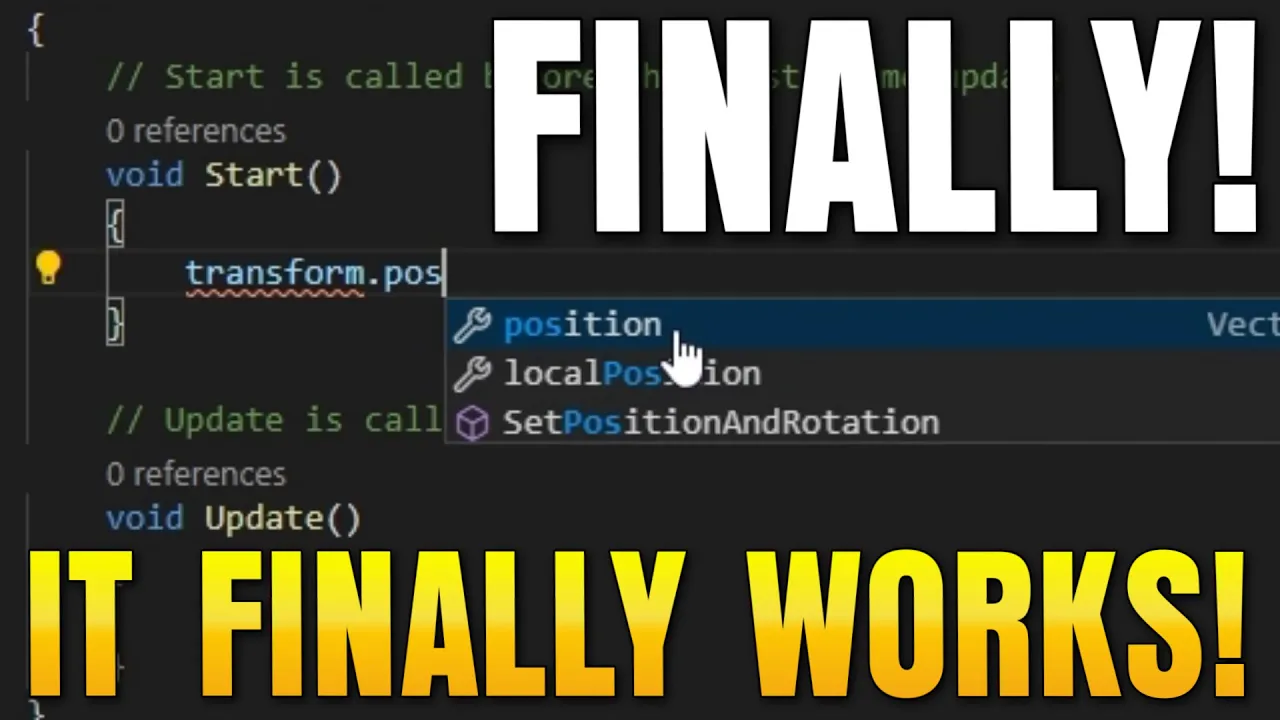
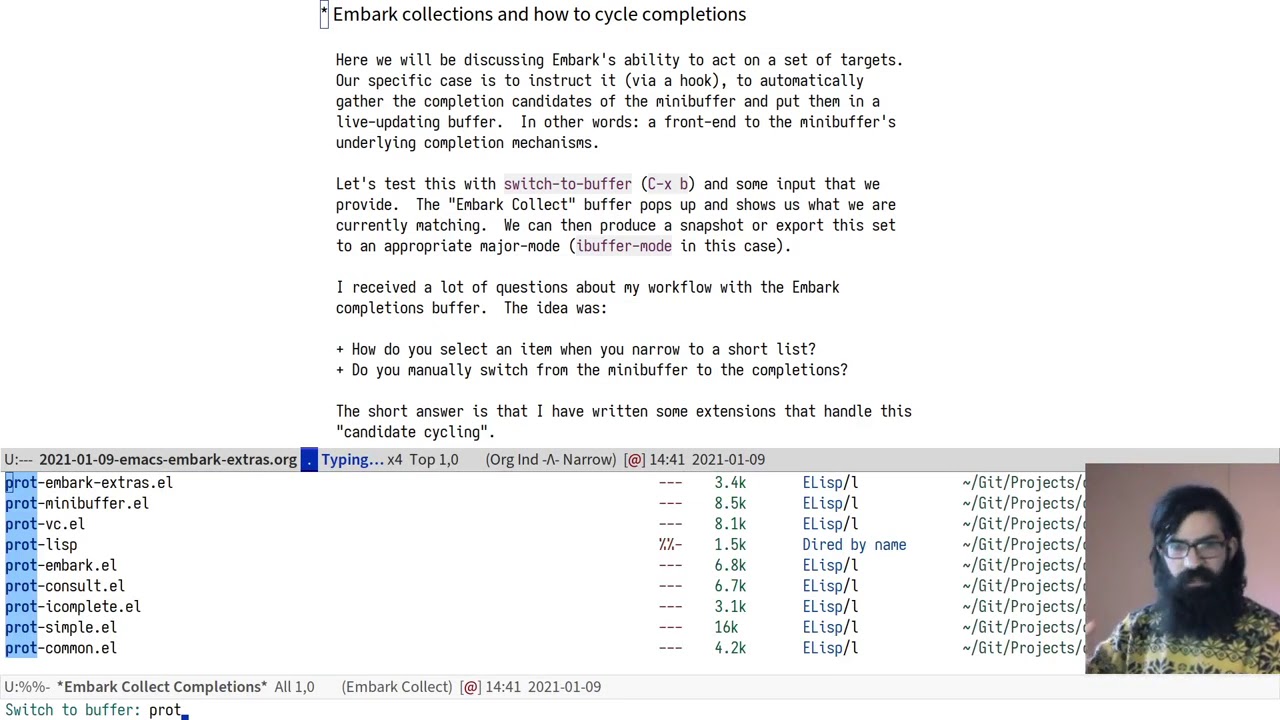
with inline quick suggestions vs code's intellisense will show up inline as you type this is a more minimal presentation and you might find that you prefer it to the standard suggest widget now here i've turned them on and if i'm completing a variable in this typescript file for example let's say i typed out re you can see that on the rest of the line i have this faded out ghost text now this is the current inline suggestion so register theme participant again this is the same intellisense that i'd get from the normal suggest widget but now it is being shown inline instead if i like this current suggestion i can just hit tab and i've gone and completed the rest of that word now a few other notes about these inline quick suggestions so again these are being shown automatically as i'm typing so if i type re again it's just going to show up automatically i don't have to do anything if i want to filter down the list i can just keep typing so i can say rem for example now we have remove event listener i can hit backspace and then we're back to the original suggestion you can also go and cycle through the current suggestions by using option or alt and then the square brackets so i can go and cycle through the different suggestions using option alt and then the square brackets find something that i like so i'll go forward here a little bit and if i find the one that i like again i just hit tab and it goes and completes the current suggestion now i can also use these inline suggestions in concert with the normal suggest widget so let's say i have an inline suggestion that i'd like but i want to learn a little bit more about it i can just go and hit control space to open up the normal suggest widget and this will go and show the standard suggest widget the full list of all suggestions at this position along with the full intellisense and type information down here now inline quick suggestions are disabled by default but they're very easy to turn on and you can even control what context they're enabled in to get started i'm going to open up my settings with control comma or command comma on mac and search for quick suggest and i want the editor quick suggestion setting this is an advanced setting so i'll have to configure it in the settings json file so i'll say edit in settings json and here we can look at the current configuration so the json object here means that i've gone and for other which means code in this case i've enabled inline suggestions the different type of quick suggestions you can have are inline which is what we've been looking at off which just disables quick suggestions and then on which uses the standard suggest widget so i'll keep this as inline and that's how we get the current behavior where the ghost text is showing inline just as i go and type here again you might find that you prefer this more minimal presentation and you can always use the standard suggest widget when you need to so that's a look at inline quick suggestions in vs code
Up Next

11:03
Why Ancient Civilizations Lacked a Word for Blue
@TheWhyFiles
2.6M views•2022-05-05

12:54
Triumph of Orthodoxy Icon: Byzantine Art & History Explained
@BenCallan
2.1K views•2024-08-06

9:49
FastAPI vs Flask vs Django: Choosing the Right Python Web Framework
@TechWithTim
302.5K views•2024-05-26

1:42
Game of Thrones Opening Credits: A Cinematic Analysis
@gameofthrones
46.3M views•2011-04-18
Related Study Plans & Knowledge Roadmaps
Structured learning paths in General & Interdisciplinary Studies
general-studies
Elevator Engineering: History, Physics & Cities
01From Hoists to Safety Brakes: The Dawn of Vertical Lift
02Hydraulic vs. Traction: The Engineering Physics of Elevators
03Modern Speed, Safety, and Algorithms
+ 2 more learning modules
12h5 modules
Explore Roadmap
general-studies
Rubber: Material Science, History & Geopolitics
01Origins of Natural Rubber & Mesoamerican History
02The Chemistry of Natural Rubber & Vulcanization
03The Geopolitics of the Rubber Boom & Colonization
+ 2 more learning modules
12h5 modules
Explore Roadmap
general-studies
Containerization: Evolution, Logistics & Trade
01Ancient Trade & Bulk Cargo: Amphorae to Barrels
02The Industrial Revolution & Cardboard Packaging
03The Containerization Revolution: Malcom McLean
+ 2 more learning modules
12h5 modules
Explore Roadmap
general-studies
Textile Tech: Evolution, Labor & Global Impact
01Pre-Industrial Textiles: Handloom & Cottage Industry
02Mechanization: The Spinning Jenny to the Power Loom
03The Factory System & Global Labor Transformation
+ 2 more learning modules
10h5 modules
Explore Roadmap