














![cout y cin en C++ [Curso de Programación C++] [5/28]](https://i.ytimg.com/vi_webp/3Nw1pwZRckU/maxresdefault.webp)


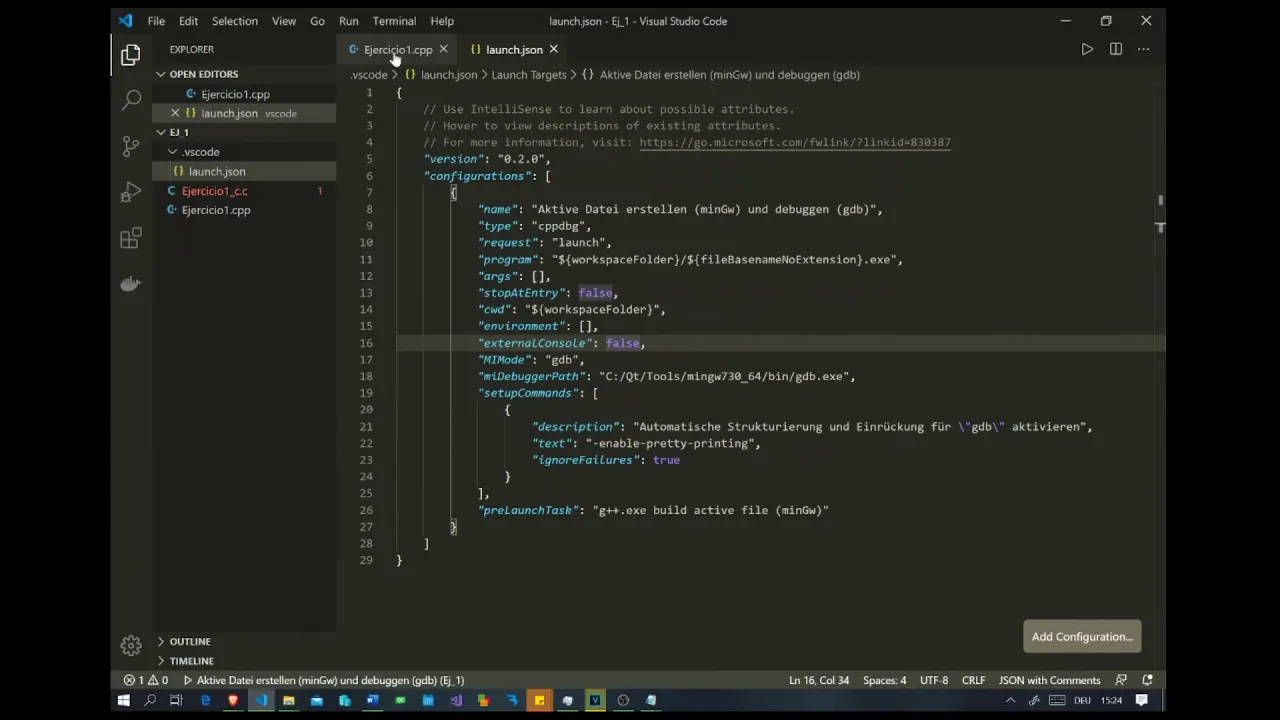
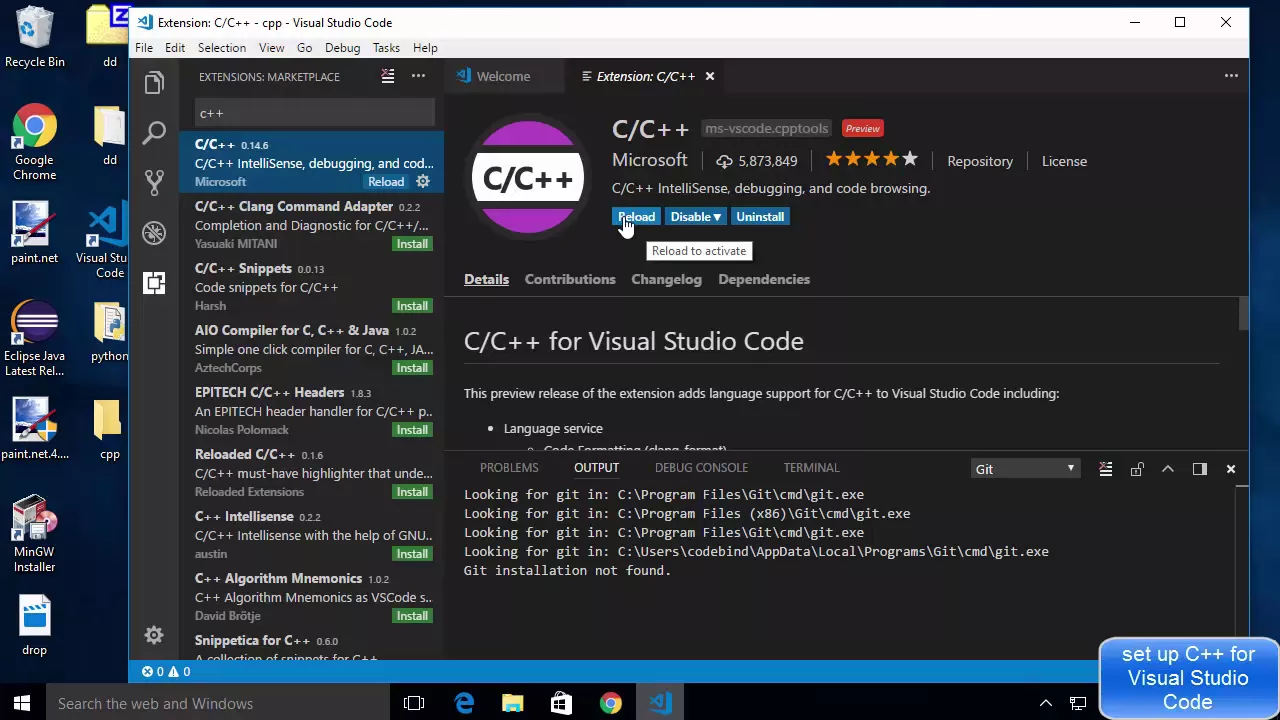



This tutorial demonstrates how to set up a complete C++ development environment by installing Visual Studio Code as the IDE and MinGW compiler, then configuring the PATH environment variable to enable direct command-line compilation using g++. The video covers essential IDE features like syntax highlighting, auto-completion, and debugging tools, while explaining why IDEs are preferred over simple text editors like Notepad for efficient programming workflows.
C++ Setup Guide: Install VS Code and MinGW Compiler for Beginners
Added:Basic computer literacy, including file system navigation and understanding file extensions (e.g., .cpp, .exe).
Conceptual understanding of what a programming language is and how source code differs from executable machine code.
The fundamental role of a compiler in translating high-level code into instructions a computer can execute.
Basic familiarity with the command-line interface (CLI) or terminal, as setting up environment variables often requires terminal interaction.
Writing, compiling, and executing a basic 'Hello World' program to verify the local environment setup.
Learning fundamental C++ syntax, including variables, data types, and basic input/output operations (cin/cout).
Configuring and using the VS Code integrated debugger to set breakpoints and step through C++ code.
Understanding how to compile multi-file C++ projects and automating build tasks using tasks.json or build systems like CMake.
1.4M views21.2Klikes27:46Original Release: 2022-05-02
so let's start our series of c plus plus programming with installation of vs code an id what will i use vs code other ids you can use i'll give you some options we'll install that we'll install a compiler we'll set the tvs code editor to run our program will set the compiler will set the path how to set these thing i'll show you step by step how to install from where you can install and everything and we'll simply first of all discuss like what is an id how to use an id why we use an id right different different types of ids what you can use for your writing your programs right but before that just want to tell an interesting information for those who are interested in full stack development yes geeks4geeks has come up with a live course on full stack development designed by industry export just to help you to learn how to develop an industry ready single page web applications and apis using react and node.js and other concepts like aws ci cd etc and it is best suited for students as well as working professional and you will also get a certificate for it and you will also learn how to deploy and maintain an application with the complete devops workflow now what you will learn in this course the first thing is build test and launch sps by mastering react node and various other related technologies multiple deployment methods like aws github pages etc and one major project based on real-world application just to put your theoretical knowledge to use so i think it's a great great idea to go for this course if you are interested in full stack development so the registration link i'll put in the description box of this video and all the other details also you'll find in the description box of this video you can go and check out now let's discuss now first of all what is an ide see it stands for integrated development environment see it is just a software to build other applications right now it contains various tools which developers use into a single graphical user interface it's it is a gui graphical user interface it consists of many tools which developers use which makes the lifesoft developer easy now to to develop some code to develop other applications so what tools it will have what it will consist first is source code editor now see we can write down code in simple uh notepad so notepad plus plus right but why we use an id see it is a just a text editor to write down some code but some other features it is having like syntax highlighting coloring like if a language is having some keyword so that would be highlighted in different color maybe red color pink color specific methods are highlighted in different color so that program would be easy to read right rather than writing in notepad it will give a feature of auto completion like um based on the programming language you're using if suppose i write like system i'm using java system dot out something like this so rather than writing system wrote out dot println you just write system like this and it will suggest you suggestion it will suggest you and you can simply click on this thing if i write like hash i n c so it will suggest you include so rather than writing complete hash include you can just click on that if i write like std something like this it will suggest you stdia your dot edge you can just click on that so it is something like auto completion that we have also already seen when we were writing some program in c language and we've also seen c plus plus also so it is having some extra feature syntax highlighting auto completion debugging and debugging also uh feature this vs sorry the id is having debugger compiler and what it is having toolbar like it's a gui so here we are having toolbar different different options you will be having they are having their own functionality based on the environment in which you are using so what functionalities different different tools i'll show you the toolbar also when you will install the tvs code editor and whenever you write the code it will show you the error if you have missed a semicolon like this so it will suggest you like this is an error missed semicolon or a bracket if you have missed right then it will show you like you have messed up bracket so these features will make you know a difference that's why we are using id nowadays rather than notepad or it's up to you you can use notepad or sublime editor it's up to you it's your service only now different different ids are there you can use see some id ids are there which support multiple languages some are specific to a particular language like eclipse it is for c c plus plus java python many languages it supports netbeans also supports many languages right cc java python javascript etc php ruby right vs code it will also support many other languages c c plus plus java right so many ids are there some are like eclipse i told you netbeans for c plus plus you can use eclipse net beans def c plus plus and code lite c line by jetbrains specifically for you know c plus plus programs code blocks code lite so many ids are there but see personally my favorite is vs code so i will use this thing vs code visual studio code so now we are going to install this thing we'll download it we'll install it will set up everything the path will download a compiler mingw compiler it is just an ide just to write down your code to compile to execute our programs we have to download a compiler as well and then we will set a path so the compiler will download mingw compiler right for c and c plus plus so both you can run c program and c plus my program so how to set for c plus with that also i'll show you so both things will download and install now let's see how to install this thing first we'll download vs code so just open up your favorite browser here you just write down just type visual studio code and the first see the first is uh website is code dot visual studio.com open this link and here you will find out the link download for windows right you can just click on this drop down menu and if you want to download for mac or linux you can just download it the stable release or if you want to see like complete detail then just click on other downloads and it is it would be on 64 bit for 32 bit for arm which system is your is 64 bit or 32-bit according to that you can download for windows linux or mac according to your system i'll uh download for windows 64-bit right if you want to check then simply what you can do you can right-click on this pc go to properties and here you will see see system type is 64-bit operating system right so from here you can check the type of your system so i'll just click on this user installer 64-bit for windows right and see it has started downloading the file and after that it will take few seconds okay that's it now i'm going to click on this i'm going to open this and we will accept the agreement you can just read out this agreement click on next please don't change the path if you are a beginner like this is the part in c in users and this this is the complete path if you want to change you can browse and you can change according to that you can install like in c directory or nd or anywhere you can install but i would recommend if you are a beginner don't change this path just simply click on next and if you want to create a start menu folder you can click on this i mean if you don't want to create a start menu folder you click on this right if you want to create just keep it as it is right now just click on next and i want to create desktop icon click on this i'm just clicking everything you just trade out and if you want to click you can click right add to path add open with code action to the windows explorer file context menu this also i'll show you right now i have just clicked everything now click on next and just simply click on install that's it it will take few seconds so that's it i'm not going to launch it i'm just going to click on finish now it has been finished see one desktop icon is there for we visual studio code now it is just an id to write down the code we need a compiler to compile uh those programs so now we will do what he'll simply search for a compiler generally the the most famous is what mean gw compiler for c and c plus plus so just write down here mean g w mingw compiler that's it and the first is what sourceforge.net so you can download from this or if you don't want to download from this you can also download like this is mingw.org website from there also you can download you can directly uh open this link osdn.net link download file list menu compiler right i am going to download from the first link sourceforge website would be open and click on download right now your download will start shortly so now it is going to download my mingw but see it's been downloaded i'm going to open it install just click on install please don't change this installation directory it's in c and gw right do not change anything just click on continue and now it's been started and it will take few seconds to download mingw installation manager see processed one one three items of one one three items hundred percent complete so now click on continue right now this installation manager would be open for you guys right now see these are some tools or packages you can see the description by clicking on clicking on this option you can just read out the description right if you click on this you read out the description this would be necessary see what two options would be necessary if you want to uh you know compile your coc plus programs the second one mingw32 base this and this gcc g plus plus right this one click on right click on this mark for installation right click on this mark for installation these two options but this is for you know uh compiling your programs which are written in c plus language this compiler if suppose you want to add a compiler this is for add up language right so you can install this also this is for portrait and this is bottom compiler this is objective c compiler you can install this also right so it depends on you what installation you need right so i am going to select every option here everything mark for installation right just click right click mark for installation right click mark for installation on every option right maybe in future i want to use objective c compiler radar compiler so everything i am going to include if you want to read out description or what are these things you can just click on the thing and below you will get description see like objective c compiler so this package provides mingw implementation implementation of gnu objective c language compiler this is optional component see they have written optional component you can skip it skip it for print this is also optional component right if you wish to compile programs written in foreign language you can click it uh mark for installation you can install it this is also optional component right so that's it now what we will do see now i have selected every package now click on installation and apply changes apply changes apply changes it will ask you okay to proceed yes i'll click apply now it will take some time around 10 to 15 minutes it will take so now it's done extracted all the files and finally after completion this would you will see all changes were successfully applied and you may now close the dialogue so you can close this and that's it now you can close this and you can close this but see if you open your command prompt just c m and it will be opened and see when you will write g plus plus g plus plus is not recognized as an internal or external command although we have installed that g plus plus command gcc compiler but still it is not recognizing because we haven't set the path right where is this g plus plus 5 executable file see just go to this pc c drive in c we have a mingw folder go to this and go to bin now here we have see this g plus plus executable file so now if here you will write down in this path cmd and from here if you open the command prompt now we are here c mingw bin see the path right and if you write down here g plus plus now it is not giving that error it is giving no input file we haven't given input file but it is recognizing g plus plus five because we are in that path right so now in the environment variable we have to set this path it's not like that all the time we have to go to this path particular path c means w bin and then only we can execute this g plus plus command no we don't want this case right so and here if you write g plus plus v e r s i o n version dash dash version so it is going to show you the version 6.3.0 it's now running from here right so now we have to set this path right okay now ah the path is where we have this just go to the mingw and bin so this path c mingw bin just ctrl c copy this path see you have to see these steps carefully because many students would this error g plus plus is not recognized as an internal or external command so where to set this just right click on this this pc go to properties now go to advanced system setting environment variables and in environment variable we have user variable and system variable user variable means these variables are for this user only right if in my pc i have two three four users but i am setting the path for this user only if you update this path and system variable means these variables are for all the users right so i am going to update this path right i want that for all the users i am going to update this path fine now just uh no click on this path just go to edit and new we want to add a new path control v there can be multiple path in that path variable right and just click ok that's it now you have to go click on ok ok and that's it now if you have opened already opened your command prompt just close it first and then open command prompt now g plus plus see now it is giving fatal error no input file but it is not giving that g plus plus is not recognized if you write g plus plus and if you want to check the version dash dash v e r s i o and version now it is giving the version 6.3.0 now we have set the path this thing is very important right now we have set the path also now we will go to our visual studio code right first thing you will see this gui this graphical user interface right now here this this is the toolbar you can say file edit selection many options are there but we don't go in detail one by one we'll see everything here right now see explorer just click on this and you have not yet opened a folder open a folder uh this vs code works on folders not projects like code blocks works on projects many other like eclipse also works on projects so here we create or open folders not projects so open a folder and suppose on desktop i have a folder named c plus there i'm going to store i'm going to save all my c plus programs but right now i don't have any such kind of folder so i'm going to create that folder first new folder and just c plus plus that's it c plus select folder and this folder would be open for you guys see c plus plus now you can create in this folder you can create your own files first file suppose i want to create like f i r s t first dot the extension would be cpp for c plus plus programs right and this would be open for you guys right now it will show you the recommendation see do you want to install the recommended extension for c plus you want to install it extension would help you see right now if i write something like hash include i o s d r e a m right like this it is not it it is not showing us like after i have to write down the complete thing i o s d r e a m the complete spelling yeah by you have to write down the complete thing by yourself but if you install the extension the c and c plus plus extension then what is the difference let me just show you see now from you can also so the you know see the recommendation from here or you can install it or the left side also you have these options the the last one is extension so just click on this right and it will show you the popular popular extension for python intellisense for jupiter right for c and c plus plus see cnc plus intellisense it is debugging and code browsing so i am going to install this this extension and it will take some time see it's done we haven't already installed this right now whenever you will click on this this thing first it will show the installed extension so one extension i have installed in this rather than nothing is there right only one extension so now let me show you that now whenever we click on this first and again i'll write hash c i n c once you type this it will show the recommendation you don't have to type the complete thing just enter now i'll type i o c it is showing you the options what it is you can see assuming according to the language you are using it is assuming that what you have to type right i o s t and c the extension i o stream it is showing so let me just click this so you can say it will save your time rather than writing the complete thing it will show you it will assume like what you have to type it will show you the option and just you can go to that option it is you can see the magic of this intellisense c and c plus plus extension i hope now you could why we have installed the c plus plus right so like in m a i n main like this and if i uh c out c it is showing me the thing c out like this i want to print so it will show you uh the options like no no what do you want to print you don't have to write down the complete thing now let me just write down uh one program we will just we'll just do what will print hello world so in here we use see out and here hello world right and after that obviously semicolon return 0 right see it is giving an error see out identifier c out is undefined see out as a object right i'll will discuss everything in detail when we will discuss the structure of the program right only one time we have to include this i o stream let me just clear this thing right and now how to resolve this error you just have to write std and the scope resolution operator right now it will not give any error right now just ctrl s save it how to run this program now see in terminal i want to run this program right so here in the terminal i want to run this so just you can write down like terminal run the selected text and so here what you need to type g plus plus and just g plus plus and click tab or you can write down this complete thing g plus plus dot slash first dot cpp right enter now come successfully now let me just show you we have first dot cpp in this folder and a dot exe so executable file have been created now we will run this executable file now whenever you will type a just tab or you can write down this complete thing dot a slash a dot exe and just enter it so it will print hello world right and that is what we are printing hello world fine now see if i you don't want to run this program like this like g plus plus you write something you just need a button just click on that button and run everything right so we have to uh install an extension click on extension and one is code runner code runner this thing just install this extension right and it's been installed so now what we will do from here we can directly run this program just click on this this button and it would be run right now at this time we have debug three options debug then run and then run code simply run code or you can directly click on this option this is the magic of code runner extension right now what you can do uh directly i have already checked this option like my programs are directly running in this terminal maybe you are not so just go to this here we have setting the corner settings just go to settings then terminal you can search right and after searching this terminal just go to at the last of this page last almost in the last so here you will see code runner run in terminal option i have already checked this out but in your pieces maybe this would be the case right if this is the case suppose this is not been checked so if now i'll run this program i'll run this so it is not c output it is giving me output in this output but i want to run this in terminal here in terminal not in this output screen right directly in terminal for that you have to click that option so where were we in the setting and in terminal and just go to the bottom and just check this box for runner run in terminal in integrated terminal it will run now now if again i'll run this see it is now running in the terminal it is showing without putting terminal not on the outputs uh screen right and some other settings are also there one by one will when whenever we move proceed in the sports according to our requirement we will do some setting like you can zoom in or zoom out with your mouse wheel if you want to many settings are there color theme if you want to change the theme like this is dark if you want light you can change it right any color setting you can do according to yourself right now i think that's it for this video see don't worry about this program why i am writing this std this colon colon c out what is this we will discuss the structure of c plus plus program in detail in this video i just want to show you a simple thing like basically i have written this program i just want to show you why we are uh installing the extension cnc plus plus i think the difference is clear to you now why we are you know installing these extensions that's why i i have written this program simple program but we'll see everything each and every single word of this program on the next videos and we will discuss the complete structure of a program right and say i have told you in ide we have syntax highlighting so see some keywords are in different color this header file this is a different color whatever you have written in double quotes that is a different color return then zero is in different color so it would you know obviously increase the readability right so now i think that's it for this video i think you have installed you are now set with your vs code you are a compiler and everything if you are finding any problem any error you are getting you can just take the screenshot of that error you can uh you know write down in the comment section i'll see like what i can do and how to remove that and i'll show you right so now i think that's it for this video and i'll see in the next video till then bye bye take care
Up Next

105:33
NVIDIA GeForce RTX 20-Series Launch: Turing Architecture & Ray Tracing
@NVIDIAGeForce
444.2K views•2018-08-20

12:54
Triumph of Orthodoxy Icon: Byzantine Art & History Explained
@BenCallan
2.1K views•2024-08-06

9:49
FastAPI vs Flask vs Django: Choosing the Right Python Web Framework
@TechWithTim
302.5K views•2024-05-26

1:42
Game of Thrones Opening Credits: A Cinematic Analysis
@gameofthrones
46.3M views•2011-04-18
Related Study Plans & Knowledge Roadmaps
Structured learning paths in General & Interdisciplinary Studies
general-studies
Elevator Engineering: History, Physics & Cities
01From Hoists to Safety Brakes: The Dawn of Vertical Lift
02Hydraulic vs. Traction: The Engineering Physics of Elevators
03Modern Speed, Safety, and Algorithms
+ 2 more learning modules
12h5 modules
Explore Roadmap
general-studies
Rubber: Material Science, History & Geopolitics
01Origins of Natural Rubber & Mesoamerican History
02The Chemistry of Natural Rubber & Vulcanization
03The Geopolitics of the Rubber Boom & Colonization
+ 2 more learning modules
12h5 modules
Explore Roadmap
general-studies
Containerization: Evolution, Logistics & Trade
01Ancient Trade & Bulk Cargo: Amphorae to Barrels
02The Industrial Revolution & Cardboard Packaging
03The Containerization Revolution: Malcom McLean
+ 2 more learning modules
12h5 modules
Explore Roadmap
general-studies
Textile Tech: Evolution, Labor & Global Impact
01Pre-Industrial Textiles: Handloom & Cottage Industry
02Mechanization: The Spinning Jenny to the Power Loom
03The Factory System & Global Labor Transformation
+ 2 more learning modules
10h5 modules
Explore Roadmap