

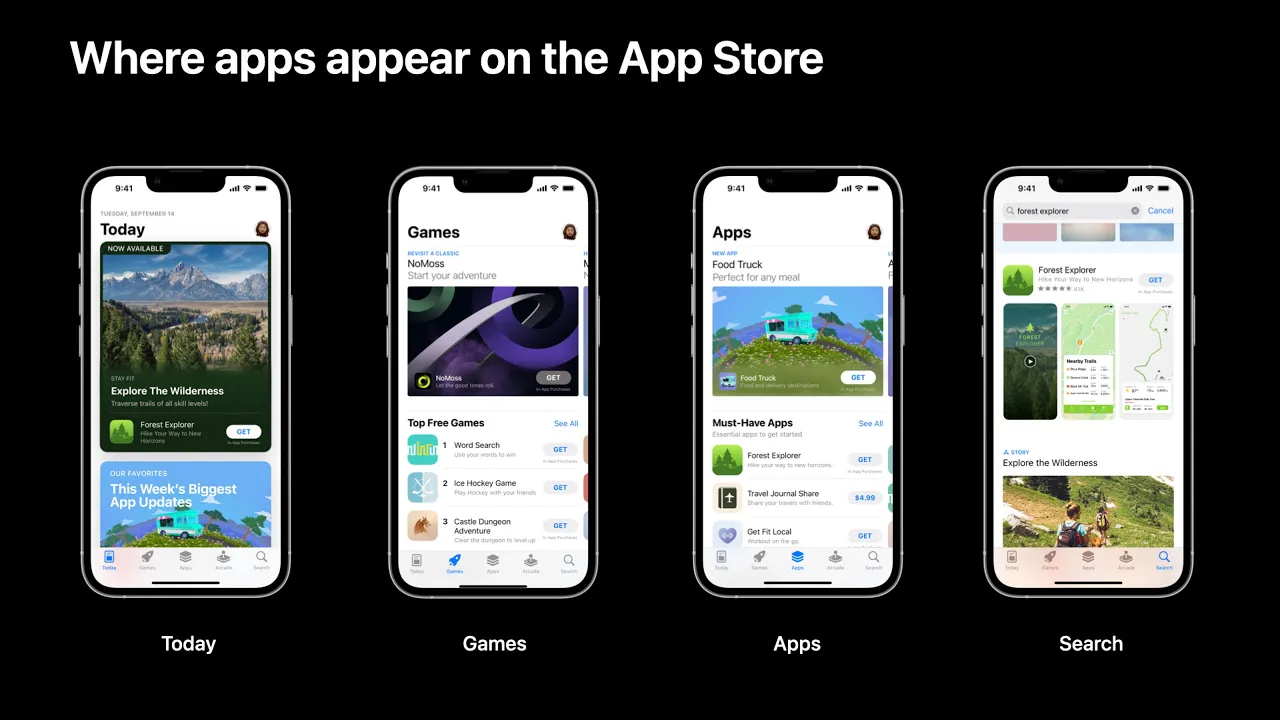






















To run an A/B test in App Store Connect for app screenshots, navigate to Growth and Marketing > Product Page Optimization, create a new test with your treatment name, set the traffic proportion (default 50%), select localizations for different languages, upload your new screenshots replacing the baseline, and submit for review; once approved, monitor the analytics dashboard to compare conversion rates between the original and treatment versions, keeping in mind that low-traffic apps may need longer test durations to achieve statistically significant results.
App Store Connect A/B Testing for App Store Optimization
Added:Fundamentals of App Store Optimization (ASO), including the key elements of an app store product page such as icons, screenshots, and descriptions.
Core principles of A/B testing, including hypothesis formulation, control versus variant groups, and basic concepts of statistical significance.
Basic familiarity with the App Store Connect platform and the general workflow of managing an iOS app.
Understanding of key mobile marketing metrics, specifically App Store Conversion Rate (CVR) and Click-Through Rate (CTR).
Integrating A/B testing insights with Custom Product Pages (CPPs) to deliver tailored user experiences for specific acquisition channels.
Advanced statistical analysis for ASO, exploring how to account for seasonality, external marketing campaigns, and algorithmic shifts during tests.
Applying user psychology and visual hierarchy design principles to create higher-converting screenshots and app preview videos.
Aligning App Store Connect product page optimization with paid user acquisition strategies, such as Apple Search Ads, to maximize Return on Ad Spend (ROAS).
112 views8likes5:13Original Release: 2026-03-28
This is the App Store Connect page for one of my apps about learning mental math. And as you can see, it has pretty boring screenshots. So today, let me show you how to create an AB test inside of App Store Connect to test this set of screenshots versus a new set of screenshots I just created. So before we get started, these are the screenshots I just created in Figma. And I have them in English and in German, and I've already exported them as files. Now, moving back to App Store Connect, we should head into the growth and marketing section and select product page optimization in there. This list is probably empty for you if you've never done this before. So, just hit plus and create a new product page test. I'm calling my product page test dark green because I've increased the contrast in my screenshots along with a few other changes. In here, we can say how many treatments we want to do because you can run AB tests, but also ABC and ABCD tests with several different treatments.
In my case, I only have one treatment and the baseline is the existing set of screenshots. You can also set your traffic proportion. In case you don't want to risk 50% of viewers or of visitors viewing this new screenshot set, then you can also lower it to any percentage that you'd like. In my case, since this app doesn't have too much too many impressions in the app store, I'm keeping 50% to be a bit quicker. And under localizations here, I've selected both English and German because I have two sets of screenshots ready. And at the very bottom here, we can estimate our test duration. So, if you want to find a let's say 10% improvement, we would probably need 450,000 impressions, which for this app would be 2,79 weeks. So, it is very unlikely that we have a statistically significant change within the 90-day limit here. But if we'd say, okay, perhaps they um convert uh twice as good, then it's only 25 weeks, which is a lot closer. And perhaps this would give us a a bit of a better information, but this is just an estimate. And you will get the results either way, no matter how long you let the test run. So let's just say create test here. And then as always in apps connect, it takes a second to load. Then you can see you have your test name up here. So mine is dark green. And then down here, you can select your different languages. We'll get started with English US. Treatment A is automatically filled from your baseline screenshots and original product page is your baseline screenshots.
So in my case, I will delete all of these and import my new US screenshots here. All right. So let Apps Connect process these real quick. This can lead to some issues. If they don't upload properly, you might have to try another browser. Chrome usually works best, but I prefer using Safari for now. And it looks like they've uploaded successfully. So let me quickly sort them into the correct order that um I was going for. All right. So this looks good. So these are now my US screenshots for the treatment. And then let me also switch over to German and also upload some new screenshots here. So the German screenshots now also finished processing. And let me quickly reorder them as well. So this should be the correct order. And now that we have everything set up, I will just click start test. If you're changing your screenshots through product page optimization, then you will need to go through app review. This is usually rather quick. So just say add for review here. And this is part of your draft submissions. So you could submit this together with an iOS binary for example.
And I just say submit for review. And now it's a waiting game to find out whether it gets approved. So now this set of product page optimizations is waiting for review. Here I have another one called modern screenshots that I've ran previously with another image in the first slide. So for that one I can show you how the analytics look. So while your um status is ongoing you would see your date here and then you would have this view analytics button. You can click on that and this opens up this little summary page here which is part of the new analytics in the new apps connect UI. And here you can see the conversion rate of your original product page which in this case is 1.27%.
And the conversion rate of your treatment product page which in this case is 1.39%.
So a 9.5 to almost 10% improvement over the baseline. But it's inconclusive because the conf the confidence is very low because we only have very little unique impressions because this app just doesn't get too many impressions. But either way, for a result like this, looking at the improvement trend, I would argue that this would make sense to keep treatment A because it does look like it performs slightly better even though we don't have too much data.
Subscribe to my channel if you want to learn more about iOS development and ASO.
Up Next

4:54
Teensy 3.2 Review: Powerful Arduino-Compatible Board | Setup Guide
@Educ8s
47.3K views•2015-12-26

12:54
Triumph of Orthodoxy Icon: Byzantine Art & History Explained
@BenCallan
2.1K views•2024-08-06

9:49
FastAPI vs Flask vs Django: Choosing the Right Python Web Framework
@TechWithTim
302.5K views•2024-05-26

1:42
Game of Thrones Opening Credits: A Cinematic Analysis
@gameofthrones
46.3M views•2011-04-18
Related Study Plans & Knowledge Roadmaps
Structured learning paths in General & Interdisciplinary Studies
general-studies
Elevator Engineering: History, Physics & Cities
01From Hoists to Safety Brakes: The Dawn of Vertical Lift
02Hydraulic vs. Traction: The Engineering Physics of Elevators
03Modern Speed, Safety, and Algorithms
+ 2 more learning modules
12h5 modules
Explore Roadmap
general-studies
Rubber: Material Science, History & Geopolitics
01Origins of Natural Rubber & Mesoamerican History
02The Chemistry of Natural Rubber & Vulcanization
03The Geopolitics of the Rubber Boom & Colonization
+ 2 more learning modules
12h5 modules
Explore Roadmap
general-studies
Containerization: Evolution, Logistics & Trade
01Ancient Trade & Bulk Cargo: Amphorae to Barrels
02The Industrial Revolution & Cardboard Packaging
03The Containerization Revolution: Malcom McLean
+ 2 more learning modules
12h5 modules
Explore Roadmap
general-studies
Textile Tech: Evolution, Labor & Global Impact
01Pre-Industrial Textiles: Handloom & Cottage Industry
02Mechanization: The Spinning Jenny to the Power Loom
03The Factory System & Global Labor Transformation
+ 2 more learning modules
10h5 modules
Explore Roadmap