



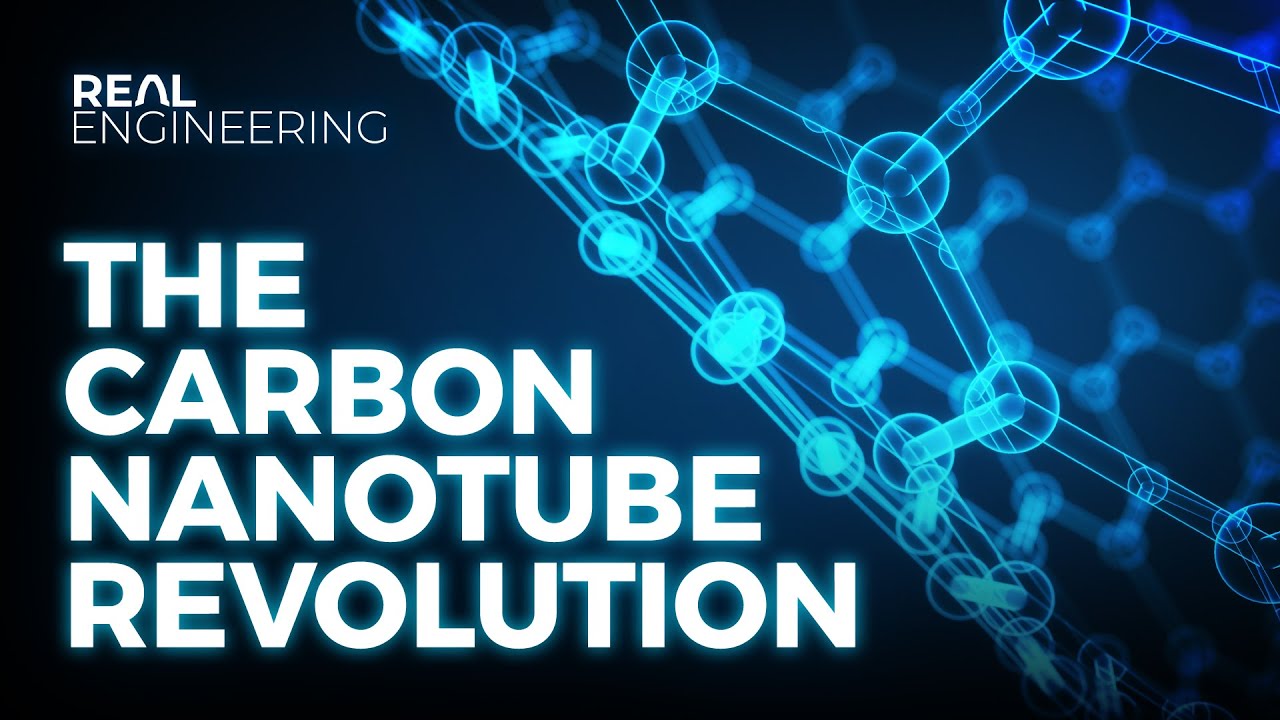




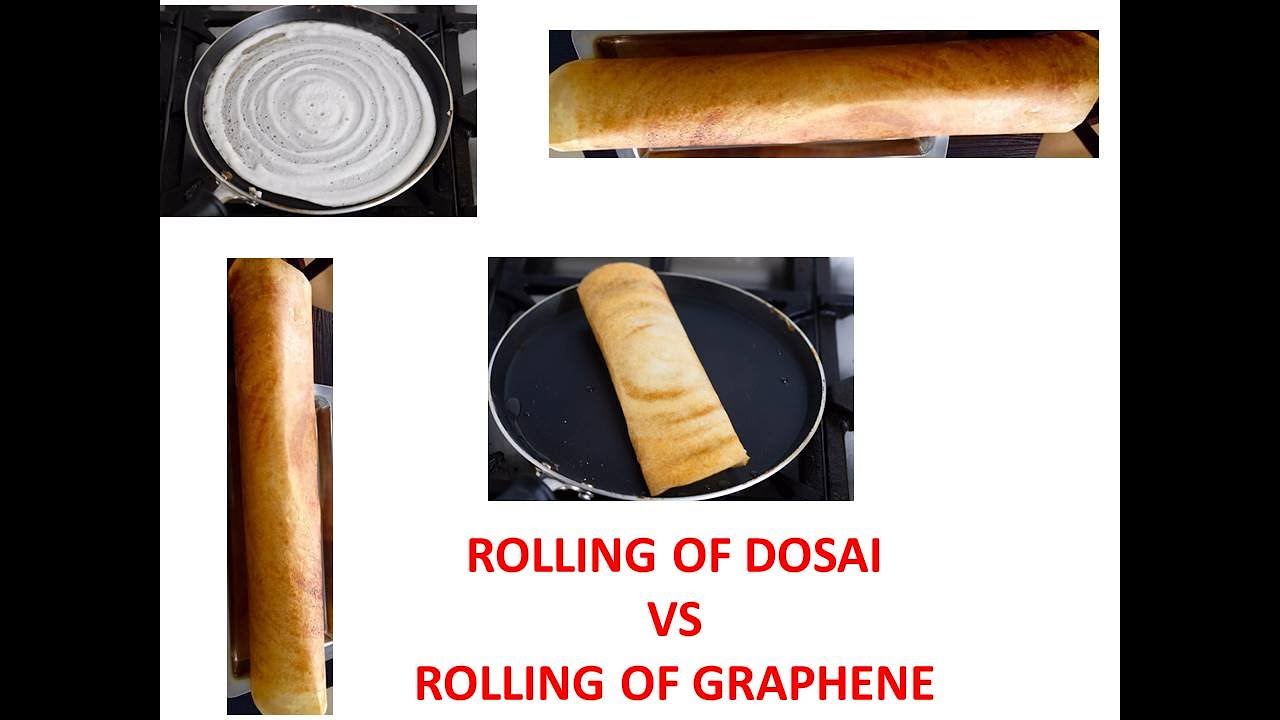











Graphene is created by extracting a single layer from graphite structure (removing atoms above 0.2 Å along the Z-axis), while carbon nanotubes are defined by chiral indices (m,n) where m=n creates armchair nanotubes, m=0 or n=0 creates zigzag nanotubes, and other combinations create chiral nanotubes; multi-walled nanotubes can be created by merging multiple single-walled nanotubes or using larger chiral indices, and nanotubes can be made from elements other than carbon like boron and nitrogen.
Create Graphene & Carbon Nanotubes in Atomistix ToolKit
Added:Understanding of carbon allotropes, specifically the atomic structure of graphene and sp2 hybridization.
Basic concepts of crystallography, including unit cells, lattice vectors, and periodic boundary conditions.
The theory of carbon nanotube chirality, including how chiral indices (n, m) determine whether a nanotube is metallic or semiconducting.
Familiarity with the general workflow of molecular modeling and materials simulation software.
Running Density Functional Theory (DFT) calculations in Atomistix ToolKit to analyze band structures and density of states.
Simulating quantum electron transport and calculating I-V characteristics using Non-Equilibrium Green's Function (NEGF) methods.
Investigating the effects of structural defects (such as vacancies, Stone-Wales defects, and dopants) on the electronic properties of carbon nanostructures.
Designing and modeling advanced electronic devices, such as Carbon Nanotube Field-Effect Transistors (CNTFETs).
304 views6likes10:20Original Release: 2024-02-26
assalamu alaykum uh so in today's video I would be discussing about how you can create graphin and nanot tubes and all the basics that come along with it so firstly to create graphine you need to create a graphite structure out of carbon so here in the left side uh in the left picture you can see that a graphite structure is Created from uh carbon and it has been visualized with the help of Vesta uh and if you visualize the same thing with ob2 you can see that there are only four atoms in one unit cell but what happens with Vesta is it duplicates the cell along all axis now in case of graphine what you need to do is graphine is actually uh a derivative of graphite kind of that is uh if we take the graphite structure along a single plane only we can find we can find graphine so what we need to do is we can pull out the bottommost layer of this structure and we can uh bottommost layer like this layer from this structure and you can find graphine and if you orog if you need to make this particular structure orthogonal you can use the option orthogonal cell and you can create the orthogonal version of this structure and you can also then later visualize it so what is single ball carbon nanot tube so basically when the TU when the radius of the tube is very small like um you can express it with some nanometers you normally you normally Define it as nanot tubes and if the element is is carbon and moreover you can see that there is only a single layer of carbon so it is called single ball carbon nanot tubes in the future that is in the next slide you can see that there are actually two layers so you can Define it as multiple carbon nanot tubes and the creation of nanot tube is not limited to only carbon you can also use other elements for example in this uh particular slide you can see that the nanotube is create ated by Boron and nitrogen and hence it is called Boron nitrate single volt nanot tube and you can later visualize it in atom SK so I would be showing you all the codes by using atom Skin So firstly you can open the terminal that is the power shell and you can write the codes for example firstly for graph a graphite at atoms SK create graphite then you need to input the two lce parameters 3.21 and 5.21 3 for the hcp structure then the element carbon then graphite do xsf file format which is your output uh our file is already created now you can visualize it with the help of Ovito okay so this is our file you can see that there are actually Four atoms per unit cell and to create the graphine you need to delete all the unit cell all the atoms that are above the XY plane for example these two atoms so how can you do this thing uh you I copy this part so before the output you need to cut all the atoms so what you need to do is after carbon you use Cut Above 0.2 amstrong everything you cut from above 0.2 amstrong and along the Zed axis so here is our graphine structure okay yes we are overwriting the previous structure and this is our new structure you see there are only two atoms in this unit cell and this is our graphine structure now if you want to create the carbon nanot tube you can also make the orthogonal version by using the option orthogonal cell which is very easy so in case of carbon nanotube you use atom SK Double Dash create the name of the structure nanotube firstly you use 2.6 so this 2.6 is the bond length that is the distance between two carbon atoms present in a bond next you need to input the value of two kyal indices so the first kyal index 8 it actually denotes the value M so m means the number of unit vectors along the zigzag Direction and the second value zero which denotes uh which is mainly n it is the number of unit vectors along the armchair Direction so it is basically two directions and it denotes how many spaces or how many unit vectors you need to move before putting the second uh atom and it also helps in realizing how the structure would be so after I input carbon element then the output file cn.
CFG so our file is already done if you want to visualize it cn. CFG okay so this is our carbon nanot tube so I need to explain some more things beside this so you see the first value is M uh which indicate uh the first value is M and the second value is n so if m equals to n that means if I would if I used 8 and 8 instead of 8 and zero what we would find is uh armchair nanot tube in case of armchair nanot tube what happens is the two atoms in the hcp structure are diagonally linked and if up if one of the value is zero that is if either M or n is zero then you can find the zigzag nanot tube and if neither of them is zero or if both of them are not equal then what we find is the kyal kyal carbon Caron nanot tube okay so if you want to create a multi multiv Vol carbon nanot tube you need to create a carbon nanot tube with a greater radius so how do you know what the radius of the present carbon nanot tube is so you see there is the radius 3.31 0 amstrong and it is also said the carbon nanotube is of the type zigzag and if you use 8 and 8 you would find that the carbon nanotube type is armchair so you can try that out by yourself I am copying my previous code then instead of 8 I'm using 16 and I am outputting the file in cn.
2. CFG okay so our new carbon nanot tube is already created now what I need to do is merge two of them so you see that newer one has a radius of of 6. 621 which is roughly the double of the previous one and for marging this I am using atom scale the mode Marge We need to Marge two of them so two CNT 2. CFG the first file cn. CFG the second file CFG the second file and the output file M MW do CFG so our files were merged and if you want to visualize it just copy it here and you see here is our multivolt carbon nanot tube which is evident by this structure here you see that there are two walls okay so if you want to create a nanot tube with other elements besides carbon you can also do that so for example I'm using atom SC mode create structure a nanot tube the bone length 2.6 the chyal indexes 8 and zero the elements Boron and nitrite and Boron nitrite uh nanotube do CFG so our file is created and you can visualize it with the help of atom skin okay so this is our nanot tube here you can see that there are these blue dots so these blue dots are one element and the surrounding pinkish kinds of uh circles are another element so in this way you can create a nanotube with uh two different elements you can also use other combinations of elements and in this way uh in this case also you can create multivolt nanot tubes moreover you can also see that these nanot tubes are placed at the 00 0 or at the end of a particular uh vertex of this particular parallelogram if you want to Center your nanot tube in the center of this simulation box you can use uh 0.5 into box to center it or to take it in any other New Direction so that would be all for today's video thank you
Up Next

4:51
Neon Sign Science: How Electric Gas Glows in 360° Animation
@TEDEd
336.8K views•2019-09-19
73:35
Deriving Maxwell's Equations in Geometric Algebra (QED Prereqs) 11
@XylyXylyX
2.6K views•2024-09-08

32:32
NMR Spin Physics I: Zeeman Effect, Resonance Condition & Larmor Frequency
@nptel-indianinstituteofsci8064
2.3K views•2024-01-17

33:44
The Blue LED: A Decade-Long Scientific Challenge Explained
@veritasium
46.5M views•2024-02-08
Related Study Plans & Knowledge Roadmaps
Structured learning paths in Physics
physics
Medical Physics: Imaging, MRI & Radiotherapy
01Foundations of Radiation and Matter Interaction
02X-Ray Imaging and Computed Tomography (CT)
03Magnetic Resonance Imaging (MRI) Physics
+ 3 more learning modules
15h6 modules
Explore Roadmap
physics
Nuclear Physics (Decay, Fission & Reactors)
01Atomic Structure and the Binding Force
02Radioactive Decay and Half-Life
03Nuclear Fission Mechanics and Chain Reactions
+ 2 more learning modules
12h5 modules
Explore Roadmap
physics
Soft Matter (Polymers, Colloids & Rheology)
01Foundations of Soft Matter & Thermal Forces
02Polymer Physics and Macromolecules
03Colloids, Surfactants, and Self-Assembly
+ 2 more learning modules
38h5 modules
Explore Roadmap
physics
Analytical Mechanics: Lagrangian & Hamiltonian
01Mathematical Foundations: Calculus of Variations
02From Newtonian Mechanics to Constraint Dynamics
03The Principle of Least Action & Lagrangian Mechanics
+ 3 more learning modules
28h6 modules
Explore Roadmap