
![Git para todos - [3] Areas de Git](https://i.ytimg.com/vi/lD5-xYYL5eA/maxresdefault.jpg)




![Git and GitHub Tutorial For Beginners | Full Course [2021] [NEW]](https://i.ytimg.com/vi/3fUbBnN_H2c/maxresdefault.jpg)













![Como compartilhar projetos de IA com sua equipe [ Git + GitHub ] Live 005](https://i.ytimg.com/vi/OQWtuTxxIe8/maxresdefault.jpg)



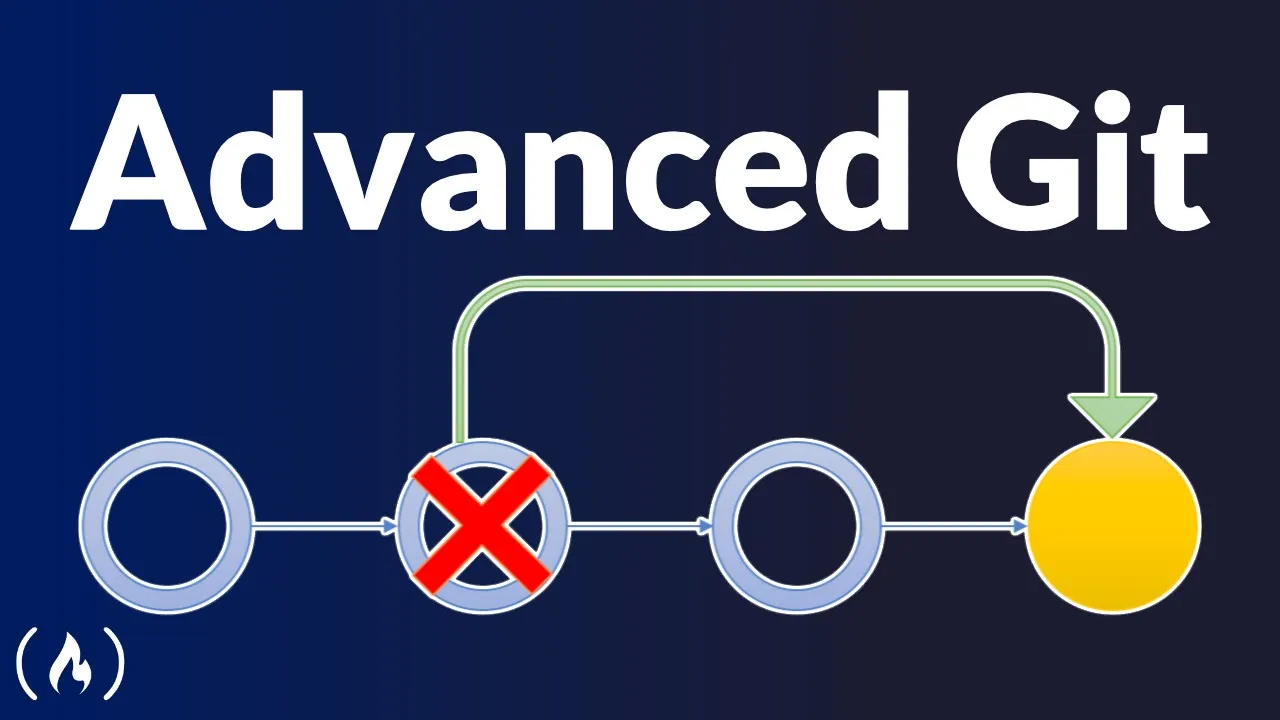
This tutorial explains three Git commands for undoing changes: git checkout commit (safest, read-only view of code at a specific commit without altering history), git revert commit (creates a new commit that undoes the changes of a specific commit while preserving it in history), and git reset commit (most dangerous, permanently rewinds the repository to a specific commit and can delete all subsequent commits and changes, requiring the --hard flag to discard all changes).
Git & GitHub Tutorial: Undoing Changes with Checkout, Revert, and Reset
Added:Understanding of the three Git areas: the Working Directory, the Staging Area (Index), and the Git Repository (commit history).
Familiarity with basic Git commands such as 'git init', 'git add', 'git commit', 'git status', and 'git log'.
The concept of 'HEAD' and how it points to the current branch or specific commit in your repository history.
The basic structure of Git commits, including commit hashes (SHAs) and how commits link to their parent commits.
Mastering 'git reflog' to recover commits or branches that were seemingly lost or deleted during a hard reset.
Advanced history rewriting techniques, such as interactive rebasing ('git rebase -i') and amending the most recent commit ('git commit --amend').
Understanding the implications of altering public Git history and the best practices for collaborating safely on shared remote repositories (e.g., avoiding force-pushes).
Resolving complex merge conflicts that can arise when reverting commits in active branch workflows.
Using 'git cherry-pick' to selectively apply changes from specific commits across different branches.
188.7K views4.1Klikes10:30Original Release: 2017-06-12
how gang and welcome to your seventh git and GitHub tutorial and in this video I want to show you how to start on doing stuff for when it all goes [Music] wrong okay then so this is kind of the stage we're at at the minute where we've made some commits to our Master branch and although those commits might not represent these commits which are on the screen we've still added about three or four so far so we're at the point now where I want to show you how to start kind of rewinding things or and doing things if you've made mistakes or just if you want to so say for example you're right here in the codee you made this commit and your boss comes to you and says hey actually can we rewind this to about here I'm going to show you how to do things like that and we're going to do these things using three different methods checkout commit revert commit and reset commit now the reason the colored like this is because they're in order of danger so this one right here is green because it's completely not dangerous very safe and it's not going to let you edit anything in any shape or form or ruin your commit history this one right here revert commit is still very very safe but potentially not quite as safe but you know still very safe this one here reset is unsafe basically and you want to be sure that you need to use this before you do because potentially it could ruin your repository okay so how do these three different methods work well first of all check out commit so say you're hearing the code and you hand it off to your boss and your boss says can we just go back in time I just want to see what the code was like for example at this commit and you with your new found get knowledge can say yeah I can do that I can use a checkout commit to check out this commit and what it's going to do is show me in my text editor the code at this point in time when I made this commit okay but any changes that I do here while I'm checking out this commit they're not going to be saved this is read only so I'm not going to be able to destroy the commit history or alter it in any way shape or form so that's why it's really safe this second one here revert basically it lets us undo a particular commit so again say for example you're here you hand it to your boss and he says actually don't really like this slider can you revert that commit you can say yeah I can do that so revert commit is going to basically put a big X through this commit as if it never happened it's going to revert the changes of this okay so almost kind of like delete it out of the commit chain it doesn't delete it and we'll see how it works later but the effects are the same it's like it never existed okay so the last one reset commit is the D one and what that is going to do is kind of permanently take you back in time to a particular commit so again you're here your boss says actually we don't need any of these three last commits can you go back to here and we're never going to use these three commits again you can use a reset commit to do that you can reset to this commit and it's going to permanently delete all of these commits and your code is going to go back to how it was at this point in time okay so we're going to see examples of all these different three commands now okay then so I'm still in the git one repository and what I've done for the sake of this tutorial is just added two more commits so I'll do a git log to show you those get log and then on one line and you can see these five commits in total so the new ones I've added is this added new feature which is just this simple Javascript file okay and the second one I did was on the index file which was added a heading to the index file right there so I made those two commits now what we're going to do is start rewinding so the first one your boss comes to you and says Okay I want to see the state of the code in an earlier commit so I want to see the state of the code for example in this commit right here where you added the index title well you can use checkout to do that so the way we do that is by saying git and then check out and then you need to tell git which kind of commit you want to check out and the way we do that is by referencing this thing right here this unique ID so I'm going to copy that and I'm just going to paste it down here below so if I click enter now just check out this thing on the left it's going to change okay it's deleted that right there for a start now this JavaScript file's gone as well and we're basically seeing the code in the state it was in at this commit right here okay where we just added the index um title so that's this thing so any changes we do here a read only we're not going to alter the commit history in any way shape or form so this is really good for going back in time seeing the state of the code at one particular commit now when we're finished the way we get back back to you know the the top of the stack is by saying get checkout master and master is the branch now we're going to see branches later so don't worry too much about this now we're just saying we want to check out the master Branch again because what we did was detach from the master Branch to go to a particular commit so now we're reattached to the master Branch the head of the master Branch okay and now we see that code again okay cool so that is how we kind of just go back in time using G checkout the second thing I want to show you is is get revert and remember G revert basically kind of undoes one particular commit so again let's do a git log to see what we've got and they're going to all go on one line so we've still got all of these different commits now your boss says to you well I tell you what you see this new feature right here I want to undo that I don't want that new feature anymore you can say to him I'm going to use a git revert to do that so the way we do this is get revert and again we need to say which commit and it's this thing right here so I'm going to copy that dude and paste it in and press enter now you get this scary screen right here don't be put off this is basically just kind of like a text editor and it's asking you to give this commit a title because it's making a new commit for us and I'll explain this in a minute so you can see the changes to be committed we're going to delete that feature. JS file right because that was the commit we want to kind of undo so what I'm going to do to get out of this screen we don't need to change anything in this screen right right to get out of it you want to press shift and colon so we get this little sign at the bottom and then press WQ press enter and it goes out so what's happened now is we've removed that feature. JS file right now if I do a git log and then one line what you're going to see is actually we've not removed that commit what we've done is just added a new commit called revert added new feature so what this commit here has done has basically undone anything that we did in this thing right here so say for example we added the JavaScript file here and we say we want to revert this uh commit then what it does is it makes a new commit which reverts it undoes anything that was made in here okay so we still have access to this commit in the history it's just reverted it at the top okay and that's why it took us through to the text editor because it's asking us if we want to add a new message for that particular commit make sense cool so that's how we kind of undo one particular commit using git revert now the last thing I want to show you is the git reset and this is the thing that is going to potentially destroy the contents of your repository so be really careful you want to do this so anyway this is our log and your boss comes to you and says okay you know what these last four commits right here we don't need them anymore so what I want you to do is go back in time take the code to this point in time and just work from there again okay so the way we do this is by saying G reset then we say which uh commit we want to reset to which is this thing right here so I'm going to copy that dude and paste it in now if we were to hit enter now although it would take us down here it would give us a message I'll show you it'll give us a message saying we've got some unstaged changes right the index and the Styles file so basically what that means is we've gone back in time to this commit but it's not changed our working directory everything we did after is still here right but they're not committed and if I do a git lck if I say git log one line then we're not going to see those extra commits we've only got these two but the changes that we made in these commits they're still hanging around in our editor right just in case so if we changed our mind we could read um individual files or all of the files and commit them again so I suppose this could be good if you want to kind of uh take all of these commits and put them into one you can add them all here and make another commit or if you want to rewind in time and actually you know not preserve these changes what you do is get then it's reset then it's the branch again I'm just going to hit up because we can get that command again cycle through them and then once we've specified which commit we want to go to we passing the hard flag and what this is going to do is take us back to that particular commit but because we passed in the hard flag it's not going to retain any kind of changes from the commits afterwards right um in the editor so if I click that now then you'll see them disappear okay so now we no longer have those things and this if we just get rid of it is no longer going to be in the folder right here uh in the Styles we only have that one style right there as well and I tell you what I'll just go right back to the start here so let's copy that dude if we can just oh my God grab it okay contrl C I'm just going to get rid of that and that over here now if I say get reset and then the particular commit I want to go to the first one and then say hard what that is going to do is potentially take away the index title right so press enter now if we open up the index we no longer see the title right and if we do a git log on line we only see that one commit and guess what there's no way now of me getting back those commits that come afterwards they're permanently deleted and that is why I said be very very careful if you're ever using this git reset because it could potentially ruin all of your files or delete them all okay so there we go that's how we kind of rewind go back to Old revisions of code to see them Etc um now we know how to do that what I want to do is introduce in the next tutorial the concept of branching which is going to let us work on new features in our projects without editing the kind of core code based on the master Branch okay so I'll see you in that very next tutorial
Up Next

67:19
David Cay Johnston on the Trump Administration's Impact on America
@TownHallSeattle
2.3M views•2018-01-30

12:54
Triumph of Orthodoxy Icon: Byzantine Art & History Explained
@BenCallan
2.1K views•2024-08-06

9:49
FastAPI vs Flask vs Django: Choosing the Right Python Web Framework
@TechWithTim
302.5K views•2024-05-26

1:42
Game of Thrones Opening Credits: A Cinematic Analysis
@gameofthrones
46.3M views•2011-04-18
Related Study Plans & Knowledge Roadmaps
Structured learning paths in General & Interdisciplinary Studies
general-studies
Elevator Engineering: History, Physics & Cities
01From Hoists to Safety Brakes: The Dawn of Vertical Lift
02Hydraulic vs. Traction: The Engineering Physics of Elevators
03Modern Speed, Safety, and Algorithms
+ 2 more learning modules
12h5 modules
Explore Roadmap
general-studies
Rubber: Material Science, History & Geopolitics
01Origins of Natural Rubber & Mesoamerican History
02The Chemistry of Natural Rubber & Vulcanization
03The Geopolitics of the Rubber Boom & Colonization
+ 2 more learning modules
12h5 modules
Explore Roadmap
general-studies
Containerization: Evolution, Logistics & Trade
01Ancient Trade & Bulk Cargo: Amphorae to Barrels
02The Industrial Revolution & Cardboard Packaging
03The Containerization Revolution: Malcom McLean
+ 2 more learning modules
12h5 modules
Explore Roadmap
general-studies
Textile Tech: Evolution, Labor & Global Impact
01Pre-Industrial Textiles: Handloom & Cottage Industry
02Mechanization: The Spinning Jenny to the Power Loom
03The Factory System & Global Labor Transformation
+ 2 more learning modules
10h5 modules
Explore Roadmap