



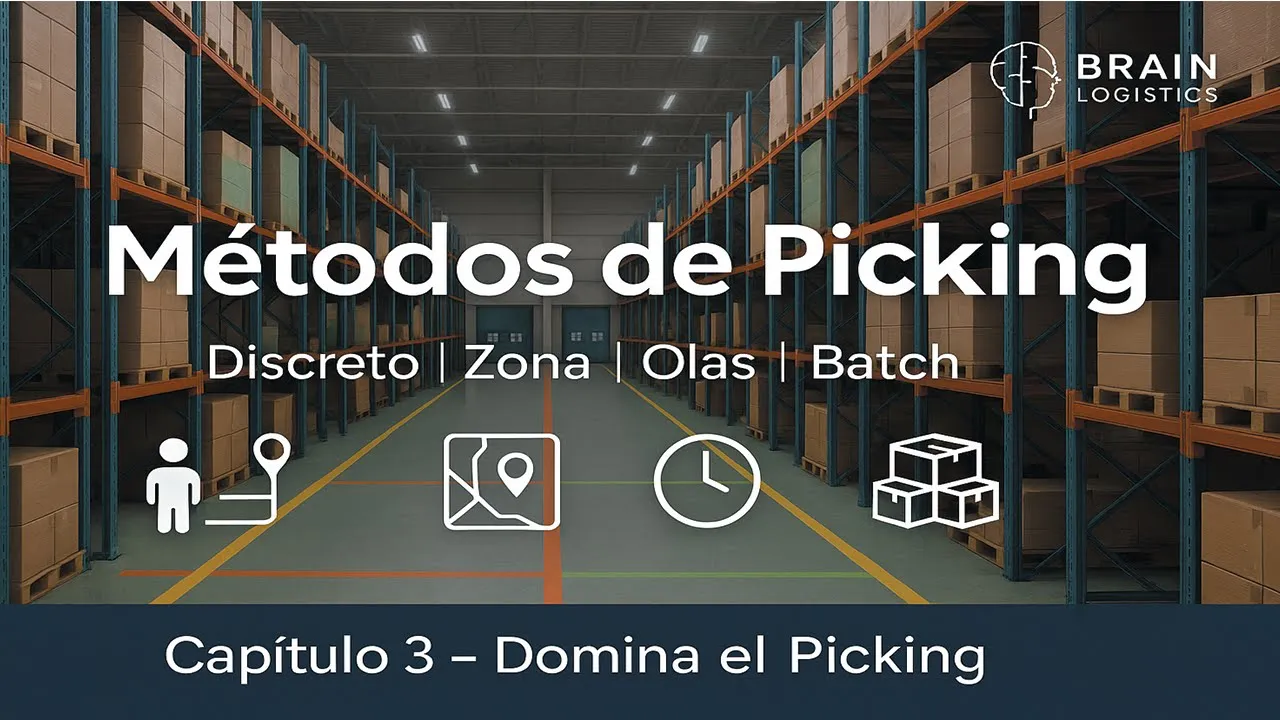











Efficient warehouse picking is essential for reducing operational costs, as travel time can comprise up to 50% of the picking process and significantly impact overall warehousing expenses; Odoo's v15 version enhances picking efficiency through features like easy quantity editing, star products for quick access, barcode scanning for real-time information, automatic batch creation, and wave/picking strategies (wave picking, batch picking, and cluster picking) that minimize picker travel distance and maximize productivity.
Optimizing Order Picking Methods with Odoo 15
Added:Fundamental concepts of Warehouse Management Systems (WMS) and how ERP systems coordinate supply chain activities.
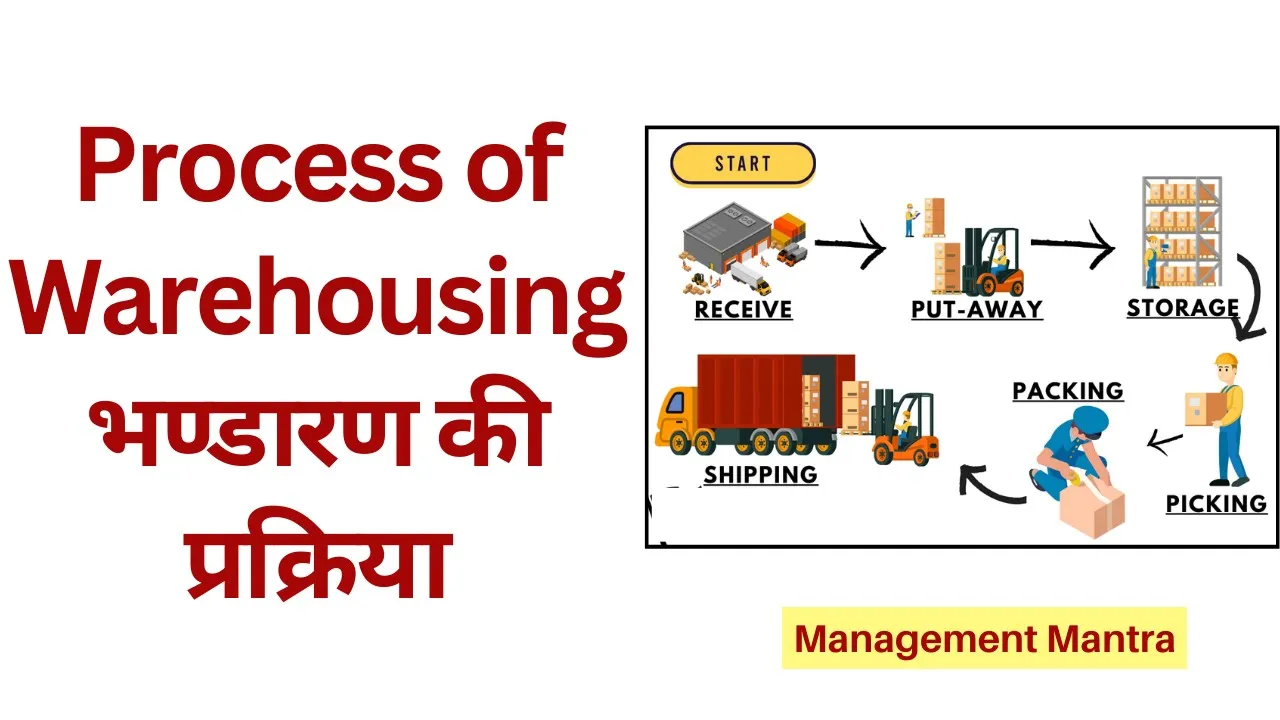
Basic inventory flow processes, including receiving, putaway, picking, packing, and shipping.
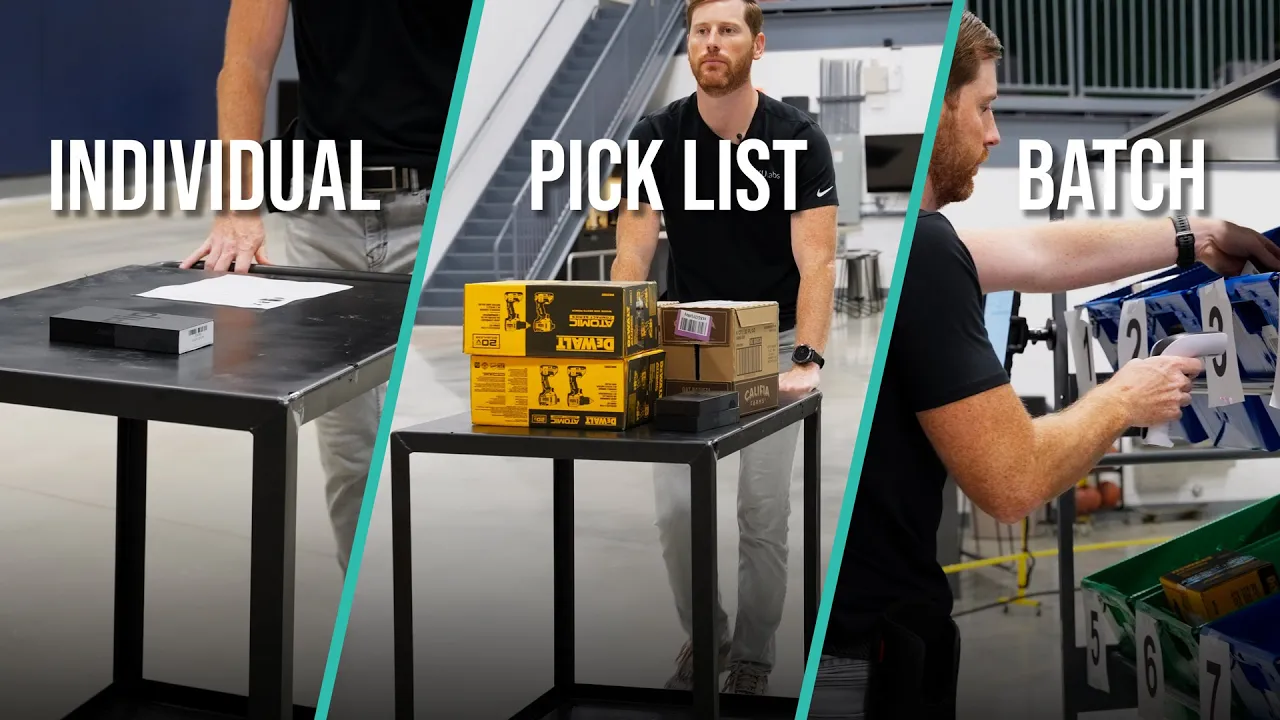
Theoretical distinction between basic picking methods (e.g., discrete single-order picking vs. consolidated picking).
Familiarity with the Odoo ERP interface and basic inventory module navigation.
Designing and implementing multi-step routing (Pick-Pack-Ship) and push/pull rules in Odoo Inventory.
Integrating Odoo with external hardware, such as industrial barcode scanners, IoT boxes, and automated scale systems.
Analyzing warehouse performance metrics and KPIs (e.g., picking accuracy, order cycle time) using Odoo's reporting dashboards.
Advanced inventory optimization strategies, including cross-docking, putaway strategies, and ABC inventory analysis.
17.2K views125likes26:55Original Release: 2021-10-07
good day hello everyone thank you so much for joining me today and welcome at auto experience if this is the first talk you attend to and more specifically welcome at this presentation during which we will talk about picking and i'll try to show you how we can make picking easy by using olu before we get down to business i would like to quickly introduce myself as we will spend the next 25 minutes together my name is kellian i work as a business advisor here at odu in louvain earth and i'm very happy to present this topic today the agenda we will start with an introduction then we will move on to the risks that you could face if you have a bad big impact process the third topic is by far the most interesting one because we will cover the new features of e15 and then we will move on to the picking strategies for a demonstration flow and then of course last but not least you will be able to ask me all your questions during the q a at the very end of this talk now what is speaking kelly do you have an idea of what picking is about um not sure it sounds a little bit complicated though but you know i'm also busy right now all right all right apologies for asking so picking is by far easier said than done we could define picking as the process of pulling out the right product from a warehouse for a specific order or putting out more products multiple products from multiple warehouses for multiple orders i know this sounds quite theoretically theoretical sorry but i'll try to show you how we can make the process quite easy into odoo before i show you this i would like to cover the risks when you have a bad pick and pack process so of course there are a lot of risks um when it comes to picking i have shortly this shortlisted sorry a few pickings such as inaccurate inventory increased that which is a turnaround time it's basically the time you need to fulfill a request a third risk could be the delayed order fulfillment and last but not least you can also have some unsatisfied customers but also employees yeah where is that spare park oh my god it's just always a pain in the ass to find it i don't think kelly is using odoo so what application do you need to do some picking in odoo you mainly need three applications the first one is the inventory application then of course you will need the sales or purchase application and if you want to use this nine little gadget you will need the barcode application now for information the barcode application is totally free you can just download it into the application store and now let's move on to the demo perfect so now let's have a look at the new features of the v15 i won't be able of course to show you all the new features otherwise this video would take too long but i have decided to shortlist a few features that to me are the most interesting to boost or increase the performance of your peak impact process the first feature that we will see together is the fact that now you can edit quantities done in picking more easily in order to show you this i would like to go on the demo database that i have made for today we will go into our inventory application and have a look at the delivery orders for example i'm just going to pick a random delivery order such as this one perfect so in order to understand this new feature we really need to have a look at what were the possibilities in v14 before you were able to do a move line so we're just going to validate the whole move and the move was done or you could go line by line to edit the quantities manually but if you do this it's impossible to validate the whole order in ones so for big companies that have to manage multiple uh sales orders or purchase orders with multiple lines in it it's quite hard then to well before it was quite hard then to edit the quantities and you can see here now with audu you have a new button which is set to quantities and if i click on it i see immediately here that the down quantities are already set on the lines but of course if i still want to edit i can simply click on it and edit all the quantities very easily so you can just stick to the same screen you don't have to go in the lines anymore and you can just click here and set the quantities the second feature i would like to show you is the star products that's a really it's a small feature but a really cool one so let's go back into our database uh and log in into our product catalog so here is just the the articles we sell i'm just going to start a few products such as let's say the office lamp and the three seat sofa for example so we have two products that we just start now what is the why is it useful well now when we want to pick something in the sales application or the purchase application or in the inventory application you will see that those products they will be at the very top of our list so i'm just going to go into a quotation select one product and if i click here on the arrow i see here my two products that are stored so you will win some time of course it's a big game changer for a company used to selling or buying always the same products you won't have to look into the list for the specific articles because they are start or at the top of the list the third feature is of course log a transfer node in a barcode so that's also quite interesting because it's going to boost the communication within the company and especially between the people buying the products and the people receiving the products it's just an example for the receipts so let's go back into our database onto our dashboards just going to discard this is our previous example of course so we just did a purchase we just purchased something to a supplier but the supplier calls me and tells me that the box um the chipping box that they used is broken so it's quite problematic so you just have the person on the phone i'm just going to look for an appropriate example so this one is perfect i will go into the receipt so i have the person on the line and the person tells me well the box is broken so i'm just going to go here my notes edit and then just type down box is broken be careful i can validate this or save it and once the note is saved i really want to be sure that the people in my warehouse when they will doing the picking they will see this node so we can have a look now at the barcode application just remind this is the right sequence we should look for so let's go into the barcode application click on operations we'll go into the receipts and then we will go here in our receipt and what we can see is of course the note which is clearly visible at the top of my receipt order so that's a really nice tool or a feature to boost of course the communication within the company the fourth or the next feature is i love ice allow mass reservation for multiple pickings so once again let's go into the db and let's have a look at our delivery orders so i'm just going to go here in my delivery orders so um what you now can do is basically select all the orders you would like to pick so for example i'm just going to select all of them and i see here now that i have two buttons so i can unreserve and check the availability for the wished lines so in this case for example we can do an example i would like to group the delivery orders by day and then pick for example all the orders that are not ready yet or maybe even ready so that's really up to you i can click on it i can unreserve them of course they disappear because i use the filter ready so if i remove this filter i can go back to it here these were the two orders i just picked and i can just simply click on it and then check the availability again and it's ready again so it's a great tool to just do this on a more bigger scale so that you can really mass reserve or unreserve and then check the availability from the same screen group by destination or by carrier are also quite useful why because now it's possible to group specific deliveries or receipts by carrier or destination let's go back to our delivery orders and we see here that we have now two extra fields so it's the field of carrier and destination some companies for example they have a specific day when the car is coming up to pick the orders so let's assume we would like to group all the delivery orders for ups express i can simply now go into group by add a custom group and then select here carrier apply my group and auto is going to group by all the orders by carrier so that's a great well example for today we see here we have two delivery orders for ups express which is going to make it very easy for me to group them and ship them out so this is of course for the caravan we could do the same of course with the destination some companies might have some tracks with specific dates for example you have a specific day during which a truck is leaving for poland will you be able you will be able sorry to group them by destination as well okay if you want to activate it you can see it here i clicked on carrier and destination so super easy to find scan products to filter or find location quantities um in order to show this feature we need to go on the barcode application so let's go back into our database open the barcode application now the first feature is quite useful why because you can now simply scan a product and auto is going to show you the location the quantities etc so i'm just going to take my barcode scanner and scan a random product there we go and as soon as i scan the product auto really shows me well of course which product it is the location where can i find a product a serial number if it's applicable for this example which is not the case here today and then of course the quantity on hand so that's quite useful because at any time if you want to have more information access more data quickly of a product you can simply scan the product another feature which is really nice as well if you go into the operations this time and let's have a look at or delivery orders in this case we can say for example um i'm going to scan a product and auto is going to automatically filter all the records in which you can find that product so in this case i'm going to scan this product for example and you see immediately odoo shows me which record has this article so quite easy as well very useful um another tip and trick i wanted to share with you if we click here on a random order so let's say this one for example i'm going to go init so this is a screen for the picking if you use the barcode application now if we click on the pen here we access more information such as for example the place the location sorry the name of the product the quantity on hand and also the serial number and then last but not least for the ones reading to try the barcode application which is free once again you'll be able to click here on the stock barcode sheets or the commands for inventory i'm going to click on that one for example and you can see here for example all the operations that you can use by using a scanner perfect next automatic batch creation um so this feature enables you to create from scratch just a new batch uh in order to do this let's have a look once again in the barcode application into the operations of the delivery orders and i'm just going to pick a random operation such as this one for example and as soon as i click on it while odu asks me if i want to start a new batch and that's the new feature so you can really from that screen start a new batch or just process the operation like you would just usually do so in this case let's do the new batch i'm going to click on it and you see that audu immediately creates an automatic batch in this case here we have a batch with one two three four and five orders and then last but not least the wave from stock move line which is uh well related with the wave picking uh in order to show you this i would like to quickly prop i mean to quickly present to the picking strategies in odo so the speaking strategies in odo we have three picking strategies we have the wave picking the batch picking and the cluster picking i'll show you of course the new feature but before i would like to quickly explain you what's the wave picking is about so we could see the wave picking i'm just going to take an example in this case we have one company with a warehouse and in the warehouse we have three different areas zones or shelves for example so with shaft number one shelf number two and shelf number three and then we also have three employees employee number one employee number two and employee number three with wave picking every single employee so employee number one is going to shelf number one picks the orders and brings it back to the consolidation table employee number two does the same with shelf number two and employee number three does the same with the shelf number three so this is really what we called wave picking i'll show you of course in a few seconds how we can do this in auto with a new feature but first i also want to speak about the batch picking i'll also give you an example in a few minutes of course batch picking is basically going to the warehouse with one big batch and you simply add all the products on the batch and then go to the consolidation table for picking for packing sorry and shipping and then the last strategy is the cluster picking which is pretty similar to the batch picking but on top of the match we also have some small clusters and in the clusters we'll be able to put all the products um so that you can also ship the products uh after the picking is done so we go back to the wave picking and i would like to show the new feature so in order to show you this new feature we are still in the inventure application this one here and there are two possibilities or two ways to do the wave picking the first one is just by going into my delivery orders i'll just go i'll just group them by date for example perfect and i'm just going to do a wave picking with all the orders i need to ship out on the 24th of september so it's quite easy you can see here i can select them all and once i selected them i can just click here on action and then at wave so that's the first possibility to make a wave the second option is we go back to our inventory application and we're going to look here at the operations of our delivery orders in this case i'm not going to group them by date i'm just going to group them by location so you'll see it's a bit likely to the example i gave you before so group by location and we see here i have shelf number one shelf number two shelf number three let's assume today i would like to do one wave picking for shelf number two i can simply click here on all my operations select them all and add to the wave now odo asks me if i want to if i want to add it to an existing wave transfer if i already have one so i could just pick this one or create a new wave transfer and that's exactly what we're going to do i confirm and we just made a wave picking um another tip and trick if we go back on to our overview in the inventory and let's go here for example in the delivery orders we can now access immediately the batch or the wave you see here this is the wave peak i just created so we can simply click on the wave and have an immediate look at what's the weight or what are the items or all the articles in the wave so this is for the wave but i can also do the same with the batch for example such as batch this one here and then we have a clear look at what's in the batch perfect so like promised i would like now to show you a more practical example on how to do the batch picking and the cluster picking and for this i invite you in my warehouse let's go [Music] this was fast welcome in my warehouse so we're going to do the first exercise which is a batch picking and in order to make a batch picking we need a batch so this is my batch it's basically a big trolley and the first step that i'm going to do is basically scan the batch code now as soon as i scan the batch i also see on my screen what are the items i should put in my batch in this case here we see we have two different orders the blue one and the red one and for each order i need to put some items in my batch so let's take the first product i'm just going to pick the box take it put it in my batch there we go and then of course i need to scan the items or the quantity which is required on the screen perfect so now we have 10 of those and i can move on to the second item let's take the other box there it is i add it to my batch like this and same as the first one i'm going to scan the quantities perfect and now last but not least the third box which is right here i'm also going to add it on my batch to fulfill the order and i'm just going to scan it as well perfect and now that we have all the items in the batch we can successfully validate the batch perfect so this was the first batch picking now we're going to do a batch picking but which has a cluster flow in it so i'm going to change my trolley it's a smaller trolley it's the same idea of the batch before we had one big batch in which is what i was putting all the articles now in this case i'm going to use one trolley on which i have two clusters so the idea like i said before of the cluster picking is you put immediately the product into the right packages all right to do this of course you need to activate packages into your configurations perfect so the start is the same as with the batch we're going to scan the batch code in this case it's batch001 on the screen you can also see all the articles or the items that you need to put in the batch and we can start perfect we take our first article i'm going to scan my article have a look at the quantities i need three of those one two three and then when i'm going to put it in the cluster i need of course to scan the cluster and you can also see on the screen that this article goes into cluster pack one we do the same for the other products one two three four and this is also going into my cluster pack number one perfect and now i can see on my screen i still have one line to do which is this box perfect i'm going to scan it add it to my cluster scan my cluster and then of course the last action you need to do is to validate and that's it super easy so i'm just going to remove my trolley and now i have one last question of course kelly do you still think that picking is a difficult process well not really you did make sounded very easy and i'm glad to hear it thank you so much for watching and see you soon for the q a thank you bye hello everyone and thank you for the nice uh presentation you just showed us yeah we're here now to answer all the questions you have clean how are you doing today yeah pretty good thank you very much um i hope everyone enjoyed the um peaking talk um let's move on to the questions awesome let's jump right into it i think the first one was about hardware so when i'm gonna become a customer of audio and i want to start with inventory and picking how do i how do it work with hardware did it be provided by us so how is it working it's it's a good question uh people ask it frequently i would say at audu we provide with the license applications uh the software but we do not sell hardware um so any type of hardware pretty much can work with the auto system you can go for a very cheap barcode scanner you can find on internet or you can go for some more expensive hard hardware uh sorry hardware um objects or just the material that are a bit more pricey but of course that can provide with more features uh we have a list on audio.com so if you go on the website you can just see the list with all the hardware we would suggest uh one of the harder we do recommend the most are the zebra ones okay uh they're quite interesting when you look at the features but also when you look at the price um there is a good ratio so price quality wise is the one you would recommend that's the one we would recommend okay and also we get the question quite often could it also work via the phone so with my iphone or android i'm walking around in the it does work but i would say it's maybe better to use a proper hardware a proper equipment to to scan all those um the barcodes yeah but it can technically work with an application that you have on your smartphone okay but it's more like for testing reasons not like productively if you will you do like serious inventory if you want to go like professionally and use a barcode application to it full extent i wouldn't go with an application all right then let's check we have something from sophia over here um is it possible to scan a serial number instead of a product barcode it's a good question uh i would say yes and no it really depends on the fact that does audio already know the the product you are dealing with if the product is already in the back end you can simply scan the serial number and although it's going to show you the product itself if for example you do reception and you receive maybe products that you never had in your warehouse uh you will then first need to scan the barcode of the product then move on to the serial number so yes i know it really depends if it's already in the backend or not like a lot of times right okay then from hugo we have here for wave picking um is the stock picking duplicated in the list view only no actual creation of stock picking if is if it has multiple products that are in different locations so for the ones knowing odoo we do work with a feature that's called just the back order uh it works pretty much the same way here with the picking you can decide to just select a line on the wave picking go for the line and then all the other lines that are not processed you can just make sort of a back order which is just going to make another wave peaking in the future when you want to process it all right okay then here james is asking what's gonna happen in case i'm gonna be in the warehouse walking around and i'm scanning the wrong product very good question so it's not always the wrong product um let's just put ourselves in an example you're in a warehouse and accidentally you would like just to add or remove maybe an additional product so you will be able to scan it with a barcode application um odo is not going to tell you this is wrong you're just going to add it on the on the order and then it's really up to you if you want to keep it or delete it from your order yeah okay uh same goes on when i see the question of reuben here uh if you scan too much or too less odoo counts of course all the orders that you stand that you scan so for example in the previous video that you saw i had to scan 10 times an article so you just need to scan it 10 times if you go over it you can but then audio will show you that you overload the quantity so you get like kind of a warning message to see well technically you can just go above or below as long as you're okay with operation all right okay um then what else do we have um how we could print barcodes to zipper or anything else do we need the iot box for that uh you don't need the id box to uh print the label simply go to the inventory application you go into one of your operations can be in the receipt can be the transfer can be in the dv order and if you click on action or print you can also well print all the the print the barcodes for the zebra scanner for example same goes as well with the delivery slips etc you can just simply print them from the application in the inventory so in that case no iot boxes no you don't need an iot box to print them no cool okay uh what else do we have here oh maybe the one with the cluster with the cluster you you faster than me which one is the club no it's from annie from annie you and you are there i see it does it any you is asking does it tell you what cluster to put the product in very good question so yes um odo tells you the cluster or the package you need to put in it so if you've watched the video uh you will have a big batch on which you have some clusters and as soon as you take one item and you want to put it into the cluster you also need to select or scan the appropriate cluster so as soon as it's scanned and you scan also the cluster you will see on the screen that audu says well this item went or this item from that order went into this specific cluster and you also have figures on it so you will be able to know this is the cluster number one this is cluster number two and you can also see what are the items that are in the cluster cool all right let's go on here from benelux computer how do i make auto print that's the last question for the day yeah i print my picking list where the products are in alphabetic order now they are in order where they have been inputted in the order the standard feature of odoo but is something i might need to double check is not going to be sorted alphabetically um so you're not going to have one list with all the articles that are sorted alphabetically it's just going to be depending on the sales order lines that you just added to the to the order all right great clear and then thank you so much for your time for answering all our questions you're welcome um thank you for watching us and enjoy the rest of the order experience and watch all the other talks you can see thank you so much have a great day bye you
Up Next

12:42
Understanding the Bullwhip Effect in Supply Chain Management
@cscplearning1044
7.7K views•2022-06-02

12:54
Triumph of Orthodoxy Icon: Byzantine Art & History Explained
@BenCallan
2.1K views•2024-08-06

9:49
FastAPI vs Flask vs Django: Choosing the Right Python Web Framework
@TechWithTim
302.5K views•2024-05-26

1:42
Game of Thrones Opening Credits: A Cinematic Analysis
@gameofthrones
46.3M views•2011-04-18
Related Study Plans & Knowledge Roadmaps
Structured learning paths in General & Interdisciplinary Studies
general-studies
Elevator Engineering: History, Physics & Cities
01From Hoists to Safety Brakes: The Dawn of Vertical Lift
02Hydraulic vs. Traction: The Engineering Physics of Elevators
03Modern Speed, Safety, and Algorithms
+ 2 more learning modules
12h5 modules
Explore Roadmap
general-studies
Rubber: Material Science, History & Geopolitics
01Origins of Natural Rubber & Mesoamerican History
02The Chemistry of Natural Rubber & Vulcanization
03The Geopolitics of the Rubber Boom & Colonization
+ 2 more learning modules
12h5 modules
Explore Roadmap
general-studies
Containerization: Evolution, Logistics & Trade
01Ancient Trade & Bulk Cargo: Amphorae to Barrels
02The Industrial Revolution & Cardboard Packaging
03The Containerization Revolution: Malcom McLean
+ 2 more learning modules
12h5 modules
Explore Roadmap
general-studies
Textile Tech: Evolution, Labor & Global Impact
01Pre-Industrial Textiles: Handloom & Cottage Industry
02Mechanization: The Spinning Jenny to the Power Loom
03The Factory System & Global Labor Transformation
+ 2 more learning modules
10h5 modules
Explore Roadmap