

















The Pinata Go CLI is a command-line tool for managing IPFS content through Pinata Cloud, featuring file upload with progress tracking and CID retrieval, file listing with JSON output, search by name or CID, file deletion, and pinning existing IPFS content by CID; to use it, users must create a free Pinata Cloud account, generate an API key with admin permissions, install Go, install the CLI, authorize with the JWT token, and then execute commands like 'pinata upload', 'pinata list', 'pinata delete', and 'pinata pin' to manage files.
Pinata Go CLI: Installation, Setup, and Core Commands
Added:Fundamentals of IPFS (InterPlanetary File System), including decentralized storage, content addressing, and Content Identifiers (CIDs).
The concept of 'pinning' in IPFS and how pinning services like Pinata prevent data from being garbage-collected.
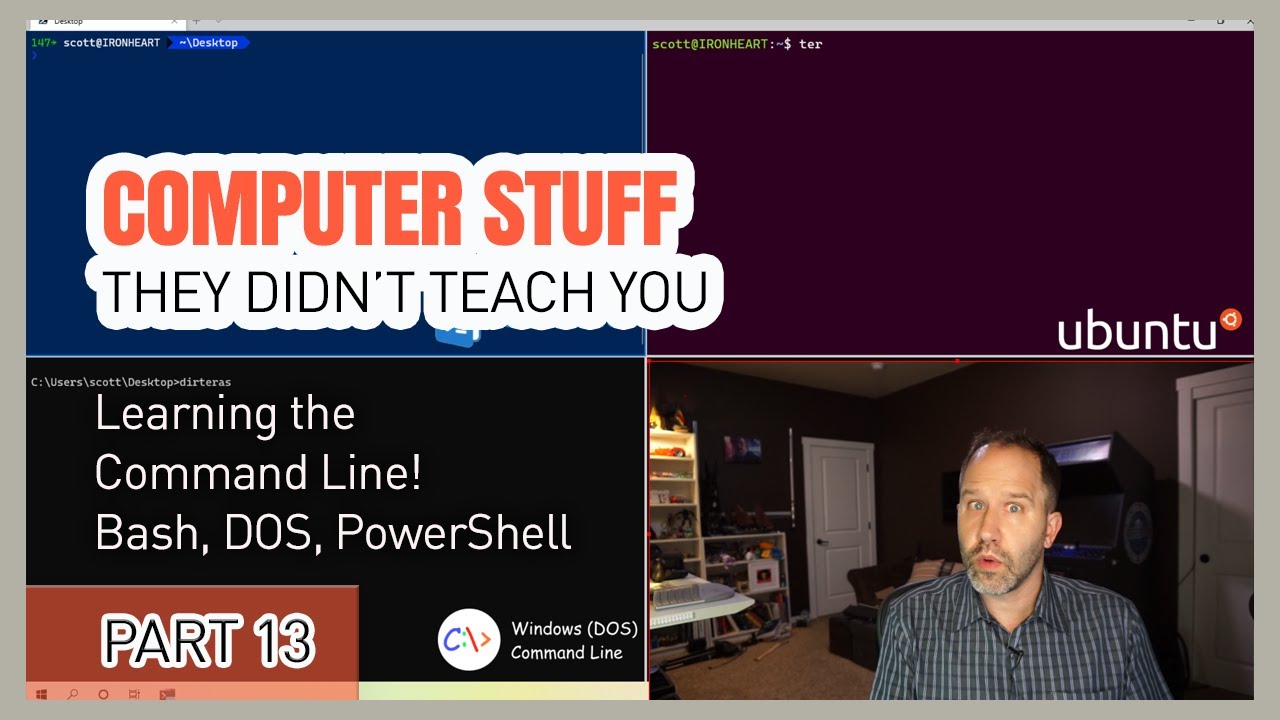
Basic command-line interface (CLI) navigation and execution commands in terminals like Bash, Zsh, or PowerShell.
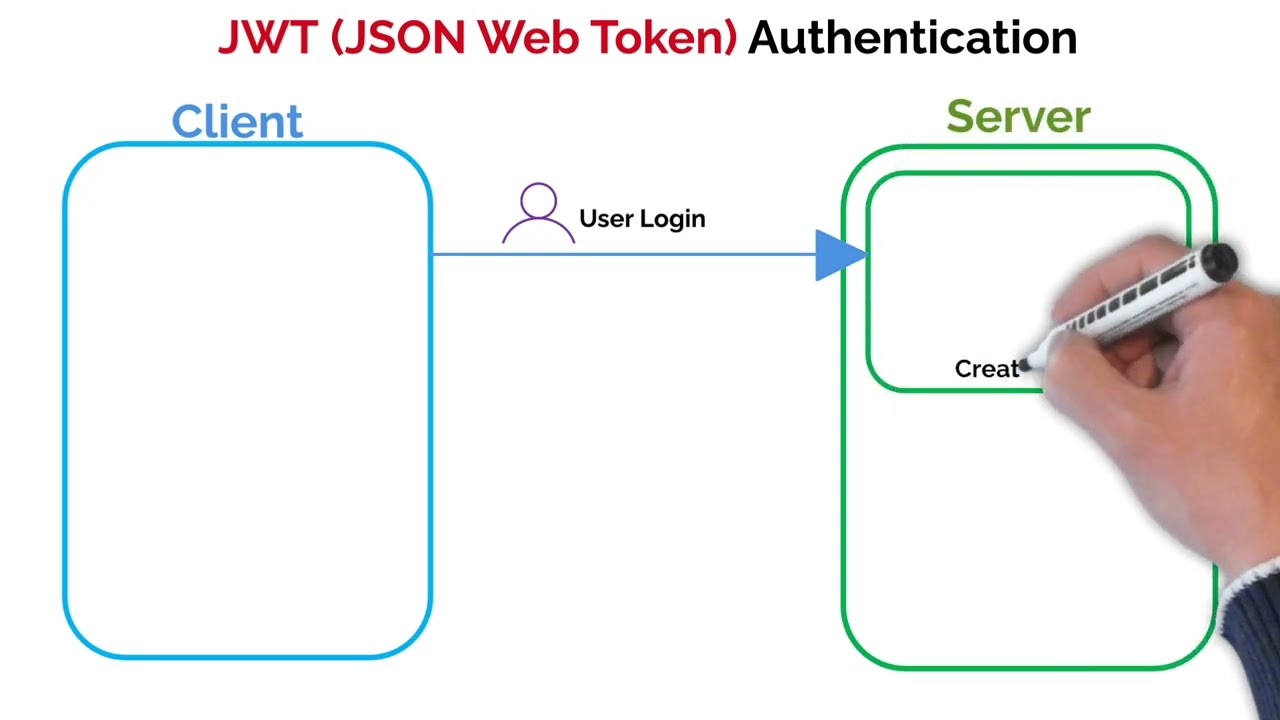
Concepts of API authentication, specifically how API keys and JWTs (JSON Web Tokens) are used to secure endpoints.
Programmatic IPFS integration using Pinata's Go SDK or REST API within custom software applications.
Automating asset deployment pipelines (CI/CD) to deploy decentralized frontend builds or media directly to IPFS.
Batch uploading and structuring directory frameworks for large-scale NFT media and metadata generation.
Configuring and utilizing Dedicated IPFS Gateways for high-speed, reliable content delivery to client-facing web applications.
299 views2likes5:01Original Release: 2024-01-18
hey there my name is Steve and today I'm going to show you how to use the piñata CLI now we have had a CLI before and it was written in nodejs but because it wasn't the most performant we've decided to rewrite it in go it's much faster now has way more features I can't wait to show you guys how to get started first thing you want to do is go ahead and go to aptop in cloud and make a free account once you're there you can go to the API Keys page here and click new key from here we can give it a name like CLI I'm recommend giving it admin permissions and click generate API key once you do this it's going to show you a model with the API key API key secret and the longer JWT copy all of these and put them somewhere safe but primarily we're going to be using the JWT for this CLI another thing you're going to need to actually use this CLI is install go I'm going to have a link down below to the go as well as the repo for this CLI tool and that also has some instructions had install go once you have it installed you want to run Go version from your terminal just to make sure everything is working and you'll also want to go ahead and copy this command paste it into your terminal and run it and that is going to install the CLI to your computer all right so we're back in our terminal now we've install the CLI to make sure it's running just go ahead and run pinata and make sure that this comes up this is going to show a nice help screen that actually gives a nice layout of the CLI all of the different commands you can use and the great thing about it too is that for any of these commands you can actually use the help flag to get more info about it so if I wanted more info about upload loing I can do pinata upload help and that's going to give me all the different stuff I can do with the upload command so the first thing we're going to do to actually use the CLI is to authorize it so we're going to do that by running pinata off and then paste in that longer JWT that we made earlier so we'll do pinata off paste and if it works it'll say authentication successful now that we have the CLI authorized we can start doing some stuff with it so let's upload file I'm in this directory called penny and I have a file that's called penny.
PNG so to upload it all I have to do is do pinata upload penny.
PN and there we go it's going to upload it give us percentage if it's a bigger file maybe take a little bit longer and actually show the progress and it's going to give us the Cid in return now what's really cool is that there's loads of different options you can do with the CLI to do uh different return stuff or different options so for instance one of the things I can do is pinata upload and do a version flag and I can do version zero upload the same file and this time I'm going to get the zero version of the CID instead of the V1 this Lei can also list our files so I can run pinata list and it's going to return the last 10 files and I can see them here and it's going to do it in a Json format so you can actually pipe this into other files or other commands which is really helpful sometimes so for instance if I wanted to I could do that same command and then filter that into to a list.
Json file and let's see if I list here yep here's my list I can C it out there we go and that is our file with all of our listed files really cool with that list command you can also do searches by name or by CID which is really helpful sometimes so if I do Piñata list name and do Penny that's going to return all the files that have the name Penny inside of the file I can also do CID so pinata list CID and I'll search that Penny CID and it's going to only return that particular file I can also delete files with the CLI as well so I can do pinata delete followed by the CID of the file I want to delete and it'll say file deleted let's make sure it's deleted we'll just run that Search Command as well so pinata list CID empty so it is deleted from our account it is unpinned we can also pin by CID through the CLI and if you're not familiar pinning by CID is when you want to pin something that's already on ipfs and it has its own CID and you want to pin that to your Pata account helping replicate it or keep it in your account for using later so to do that all you have to do is pinata PIN followed by the CID it's going to give you the request and the ID and everything and we can also do pinata request to check the status of that pin by C ID this one I think is already done so it's not there and let's try try making sure that our CID is pinned yep there it is it's already pinned very cool so that wraps it up for this tutorial I hope you guys enjoyed it and I hope that you enjoy using this pinata CLI I use it all the time now it's very helpful in my workflows for ipfs and getting stuff uploaded quickly but if you have any thoughts comments or questions feel free to leave them down below let us know if there's some other stuff you'd like to see in the CLI we can look into adding that too and until next time happy [Music] pinning
Up Next

24:04
Arweave (AR) Protocol Guide: Permanent Decentralized Data Storage Solutions
@CoinBureau
186.2K views•2022-03-25

12:54
Triumph of Orthodoxy Icon: Byzantine Art & History Explained
@BenCallan
2.1K views•2024-08-06

9:49
FastAPI vs Flask vs Django: Choosing the Right Python Web Framework
@TechWithTim
302.5K views•2024-05-26

1:42
Game of Thrones Opening Credits: A Cinematic Analysis
@gameofthrones
46.3M views•2011-04-18
Related Study Plans & Knowledge Roadmaps
Structured learning paths in General & Interdisciplinary Studies
general-studies
Elevator Engineering: History, Physics & Cities
01From Hoists to Safety Brakes: The Dawn of Vertical Lift
02Hydraulic vs. Traction: The Engineering Physics of Elevators
03Modern Speed, Safety, and Algorithms
+ 2 more learning modules
12h5 modules
Explore Roadmap
general-studies
Rubber: Material Science, History & Geopolitics
01Origins of Natural Rubber & Mesoamerican History
02The Chemistry of Natural Rubber & Vulcanization
03The Geopolitics of the Rubber Boom & Colonization
+ 2 more learning modules
12h5 modules
Explore Roadmap
general-studies
Containerization: Evolution, Logistics & Trade
01Ancient Trade & Bulk Cargo: Amphorae to Barrels
02The Industrial Revolution & Cardboard Packaging
03The Containerization Revolution: Malcom McLean
+ 2 more learning modules
12h5 modules
Explore Roadmap
general-studies
Textile Tech: Evolution, Labor & Global Impact
01Pre-Industrial Textiles: Handloom & Cottage Industry
02Mechanization: The Spinning Jenny to the Power Loom
03The Factory System & Global Labor Transformation
+ 2 more learning modules
10h5 modules
Explore Roadmap