


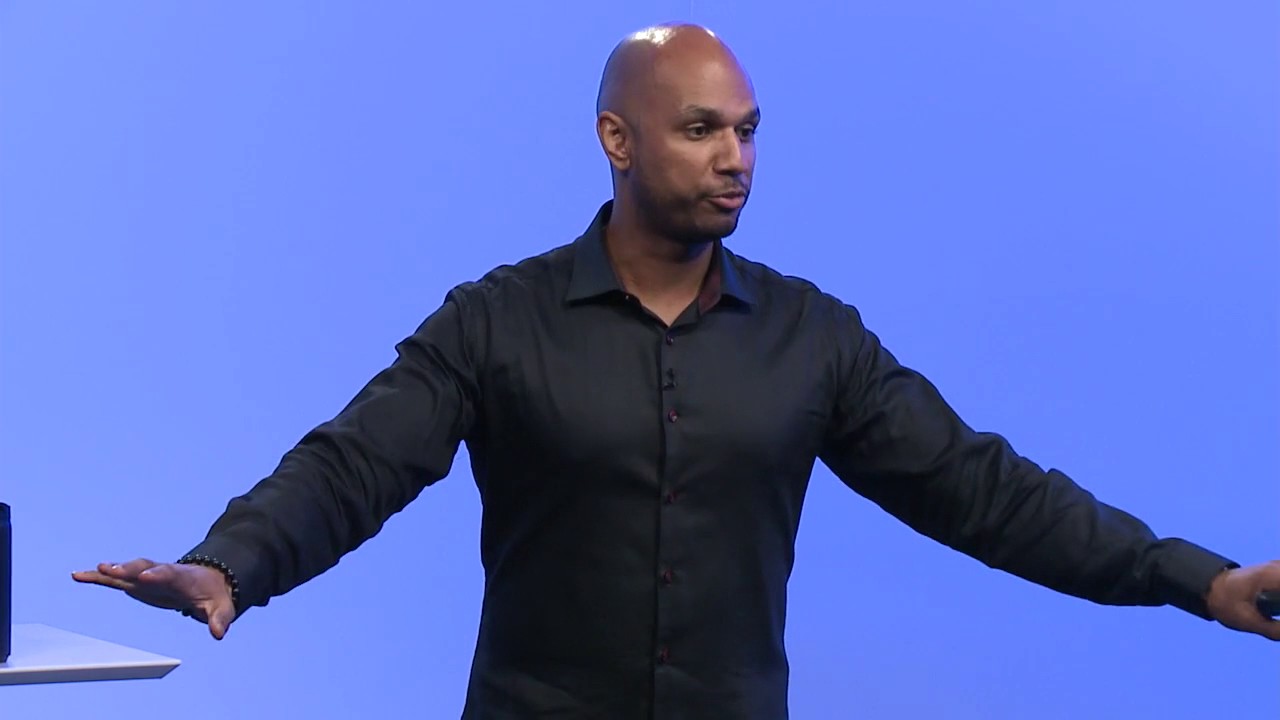


Icons serve as powerful visual metaphors that make computer interfaces intuitive and easy to learn, allowing even first-time users to understand and operate complex systems within approximately 20 minutes by replacing abstract text commands with recognizable pictorial representations that require minimal explanation.
Susan Kare Demonstrates the 1984 Macintosh Interface (GUI Design History)
Added:The operational paradigm of Command Line Interfaces (CLIs), such as MS-DOS, to understand the historical shift to visual computing.
The fundamental concept of the 'Desktop Metaphor'—mapping digital files and directories to familiar physical office objects like folders and trash cans.
Basic tenets of Human-Computer Interaction (HCI), particularly how cognitive load and intuitive design affect user adoption.
The pioneering work of Xerox PARC (Alto and Star systems), which laid the technological groundwork for modern graphical user interfaces.
The specific design principles of Susan Kare, analyzing how pixel constraints (e.g., 32x32 grids) influenced visual communication and iconography.
The evolutionary trajectory of visual interface styles, contrasting skeuomorphism with modern flat and material design philosophies.
Modern standards of software design, specifically the evolution of Apple’s Human Interface Guidelines (HIG) and how consistency drives user trust.
How GUI principles have adapted beyond the mouse and pointer to touchscreens, gestural interfaces, and spatial computing environments.
474.1K views9.3Klikes7:04Original Release: 2022-06-03
Susan you're you're an icon designer among other things and uh uh have you learned something from The Experience on Lisa as to the effectiveness of icons how to use them and how they fit in well certainly um I think one of the best experiences is seeing a person who's never used a Lisa before or a Mac before um and even never used a computer before it is possible easily possible to teach most people to use one of these Compu Compu in about 20 minutes and a lot of that is because you can explain what an icon means and a person can remember it easily so we certainly use Lisa as a jumping off point and making just some refinements and additions for some new features okay your area the icons are another one of the key ergonomic aspects I suppose of using a Mac maybe you can run through a demonstration here Susan and show us how we use the icons to get from place to place tell us where we are right at this moment with Mac well what you see now is the image the icon that you get when you just plug Mac in and turn it on it prompts you with a picture of the diset so you and a question mark saying where's my diset saying I need something so that all you do is it only fits in one way so there's no way you can break it or make a mistake just pop it in you get an image of a Content Mac so you know that everything is okay and you're welcomed it's just so that the person using Mac gets information all the time visually so nothing has to be translated a little wristwatch to tell you just wait one second things are happening you've replaced the salt timer moving into moving into the 80s so what do we have now so what we have now is an image on the screen of the diset that we put in the slot and it can be with the mouse it can be moved and it's already showing you the name of that disc right and it's highlighted in the sense that it's inverted so that Mac knows that you want to do something to this diset and your choices of what you might want to do are listed in hidden menus that operate a little bit like window shades when you move your cursor so let's pull down the file menu see that would tell us now what right that our choic is we could find out something about this diset or we can just open it or we could eject it but if we open it just say open and immediately you get what we call a window that displays graphically and in words what is contained on the diset in the machine so you can see there's a picture of a hand painting which symbolizes a paint program and a handwriting for the word processor and a couple of um memos that were already written some folders if say you want to store a document or two in a folder um it's analogous to life you just put the piece of paper in the folder now you've got something called the control panel here show me what that is um always available to you are a number of desk accessories um so you move the cursor to control panel let go of the mouse button and what do we have so this which looks a little bit like a dashboard um lets you tune fine-tune this system in a number of ways to your comfort level or just your personal preferences um the computer will work no matter what setting so that such as what controls do you have here say here's a little volume control you can see the speaker so every now and then you hear a beep with Mac when you turn it on um or sometimes during uh applications if you're at home by yourself and you're listening to the stereo you might want to know that you'll always hear those beeps if you're a student working in the library you can move it so that just the bar will flash so there's no noise at all say some of the other features let you adjust keyboard repeat rate or a menu flash or the amount of time between double clicks which might vary with the age of the person using I'm I'm going to rush it because I want to see as much of this as we can in the time we have show me notepad and how that works we can po pop the control panel Away by just clicking on it and notepad lets you while you're working in any application as well as just this um what we call the finder which is like a directory be able to um grab the keyboard and write a note to yourself uh remember to um read page 12 and you could say put this away or you could move it over um show me how you flip the pages of the notepad that's kind of impressive we can go to page two where it says uh another note one left for oneself flipped page three um up to eight pages of notes that could help you in your work or just remind you of social events one of the items was a was scrapbook right um scrapbook lets you keep um literally you're only up to 256 you're only limited by how much memory you have free pictures or messages or documents always available for the terms we use are cutting and pasting go to right then we could build up to how you'd use that right so say to open a word processor application you could click on Mac right and say open if you want to get right to a document which automatically launches the application same procedure which is why it's easy to use and now you're loading the the word processing loading the word processor and the two the specific document that um I think one of the advantages two of Macintosh is that things happen so quickly uh certainly fits into the ergonomic pattern of of user interacting quickly with the with the device it's just very direct no complicated sequence of commands to remember we can here's an old little bit of sample text this is how the word processor appears to you um a ruler lets you set formats which is certainly familiar object say you want to go from single to double space just click on the wider image if you want and you can justify or Center we're not going to have time actually but you could have pulled up pictures from Mac pain from the Scrapbook and then insert them into the documentary paste them in just by saying paste from the menu if you want to change a word to be bold just say bold change a font to something like Old English I know you're having fun but I'm going to have to stop it's hard when it's when it's your baby I get the feeling well thanks so much for showing off M DS and thanks for joining us
Up Next

12:58
Desktop Horror Films: Digital Media in Modern Cinema
@UniversityofEastLondonvideos
465 views•2020-05-15

26:22
Walking in the City: Urban Rituals and the Flâneur in Contemporary India
@PSBTIndia
1.9K views•2016-08-02
9:49
FastAPI vs Flask vs Django: Choosing the Right Python Web Framework
@TechWithTim
302.5K views•2024-05-26

1:42
Game of Thrones Opening Credits: A Cinematic Analysis
@gameofthrones
46.3M views•2011-04-18
Related Study Plans & Knowledge Roadmaps
Structured learning paths in General & Interdisciplinary Studies
general-studies
Artificial Light: History, Tech & Human Impact
01The Pre-Electric Era: Fire, Oil, and Gas Lighting
02The Incandescent Revolution and Grid Electrification
03Gas Discharge and Fluorescent Illumination
+ 3 more learning modules
14h6 modules
Explore Roadmap
general-studies
Elevator Engineering: History, Physics & Cities
01From Hoists to Safety Brakes: The Dawn of Vertical Lift
02Hydraulic vs. Traction: The Engineering Physics of Elevators
03Modern Speed, Safety, and Algorithms
+ 2 more learning modules
12h5 modules
Explore Roadmap
general-studies
Rubber: Material Science, History & Geopolitics
01Origins of Natural Rubber & Mesoamerican History
02The Chemistry of Natural Rubber & Vulcanization
03The Geopolitics of the Rubber Boom & Colonization
+ 2 more learning modules
12h5 modules
Explore Roadmap
general-studies
Containerization: Evolution, Logistics & Trade
01Ancient Trade & Bulk Cargo: Amphorae to Barrels
02The Industrial Revolution & Cardboard Packaging
03The Containerization Revolution: Malcom McLean
+ 2 more learning modules
12h5 modules
Explore Roadmap