













![[OpenGL & C Game Engine Dev] More Lighting and Physics Pt. 2](https://i.ytimg.com/vi/vEsKjBO118U/maxresdefault.jpg)






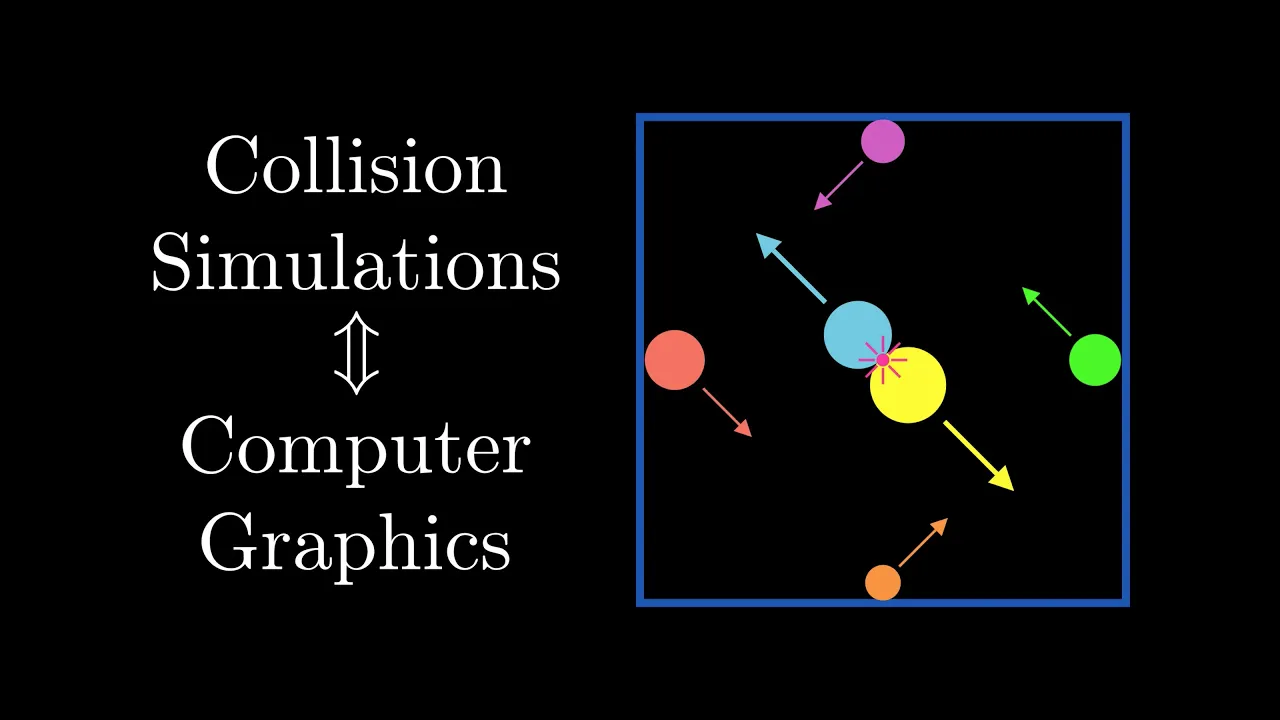
This tutorial demonstrates how to resolve simple linear collisions in a 2D physics engine by calculating relative velocity between colliding bodies, projecting it onto the penetration normal, computing the impulse magnitude using the formula J = -(1+e) * relative_velocity_along_normal / (1/massA + 1/massB), and applying equal-and-opposite impulse vectors to separate the bodies, where e represents the restitution coefficient controlling bounciness.
Physics Engine Tutorial: Resolving Collisions with Linear Impulses
Added:Vector Mathematics: A solid understanding of 2D/3D vector operations, specifically vector addition, subtraction, dot products, and normalization.
Newtonian Mechanics: Familiarity with Newton's Laws of Motion, linear momentum (p = mv), and the Impulse-Momentum Theorem.
Basic Collision Detection: Knowing how to detect intersections between simple shapes (like circles or AABBs) and identifying the collision normal.
Fundamental Programming: Experience with a general-purpose programming language (e.g., C++, C#, or JavaScript) and basic code structure.
Rotational Dynamics and Angular Impulses: Extending collision resolution to handle torque, angular velocity, and moment of inertia for off-center impacts.
Frictional Impulses: Implementing Coulomb friction models to simulate static and dynamic friction along the tangent of the collision normal.
Constraint Solvers: Exploring advanced iterative methods (like Projected Gauss-Seidel) to resolve simultaneous multi-body contacts and joints.
Continuous Collision Detection (CCD): Implementing techniques to prevent 'tunneling' where high-speed objects pass through boundaries between physics steps.
Spatial Partitioning: Optimizing the engine using Broad-Phase algorithms (such as Grid-based partitioning or Quadtrees) to handle hundreds of active colliders.
373 views17likes24:06Original Release: 2024-01-08
hello everyone and welcome back um now it's getting interesting and the reason for this is we're going to add our first impulse um well impulse function um to the to our physics engine this episode we're going to add a linear impulse so no rotation um but this will change in the I think think well yes it's going to take a little bit time um before we're going to add the rotation and P because before before that we need to calculate inertia and do some other things but um we're going to add the linear impulse um today so go to the manifold um glass and here you see resolve collision and positional correction and in the resolve Collision we're going to add the code for our linear impulse so I'm going to make a comment here and say linear impulse impulse and the first step we need to do is calculate the relative velocity between two bodies um the relative velocity um is basically you substract one velocity from each other then you have the relative velocity you know the the velocity um like if you're on a highway and you're overtaking another um car these two cars your car and the other car have both a velocity but if you only look to the other car you are a little bit faster or yeah depends on how fast you're overt taking it of course but you are from from your perspective you are a bit faster than the other car and we're going to calculate this relative velocity here so um yeah relative velocity velocity is equal to we need to subract one velocity from the other one um we're going to say here here this RB do velocity we can also say get velocity but I'm going to use this one this do which a.
velocity um that's the relative velocity um now we're going to calculate um the relative velocity along our penetration normal okay we need to get uh yeah we need to get this value along our penetration normal and um that's quite easy we just need to um we just need to project the relative velocity onto the normal we can do this um by relative velocity by saying relative velocity or Dot and then we're going to say this do normal okay and then we have the Velocity along the penetration normal and of course I'm going to save that too and this will be called um relative velocity along normal okay and I think we can also print this one so I'm going to say this uh console lock [Music] um and then I'm saying velocity along normal is yeah just the the relative velocity along normal all right um if this value if this value um along the normal is greater than zero then we can return don't go any further cuz if the velocity is uh greater than zero that means that the velocity um uh well the the the bodies don't collide with each other let's take the example um on the highway um it's like you're just you're trying to overtake but your velocity um is lower than the other one so um you know you get um further apart from each other and that's the case in this one in this lines okay then we have to declare Nar variable and this is uh the E variable [Music] um this is when I uh remember correctly the bounciness but I'm not quite sure let me check um I'll be right back all right I was right that's the restitution Coe coefficient um here we can use our material bounce um um attribute uh we declared earlier and also we're going to calculate um this one later like in the next episode or maybe at the end of this episode um but yeah um we were going to set it to one so the collisions um well the objects of the Collision don't will will not lose any energy if we set e to for example 0.5 then the objects will lose half of its energy after the Collision then we're going to set J J is our um impulse um yeah it's our uh resulting impulse this is Al uh this is only a value so no vector and we can calculate it like this and then we have to multiply this with the relative velocity along the normal and then we can calculate our impulse Vector so our impulse Vector is equal [Music] to um this.
normal uh well of course scale it scale the normal by the J value and then we need to add it to uh our impulse uh well we need to create um two vectors one for one impulse Vector for Rich a one impulse Vector for which B and we're going to scale it so um the impulse will be divided um between those uh Rich bodies so let's say impulse Vector r a is equal to scale pulse vector by minus 0.5 and we can just copy this line and it to the other one and say this is positive 0.5 and this will be rich body B okay and now we can add this impulse vectors so WI a do velocity is equal to here also we can say set velocity um I'm going to do it like is um yeah I leave it to you is this do rigid body a do velocity and then here you're going to say um impulse Vector Rich a and the same thing for Richard body B I'm going to copy it again say Richard body B this will be also Richard body B and this Vector all right and here I'm going to say um no I'm not going to say anything um and that's it for our linear impulse hopefully it does work let's see um now we're going to jump to the simulation class here we going to change again um yeah the whole full loop basically um I'm going to remove the gravity force the added one and I'm going to remove everything else except the update Richard bod's update okay then I'm going to add another for Loop and just going to copy the other for Loop because we need the same content almost and here I'm going to say uh I'm going to copy that for loop again and I'm changing the eyes to a y there we go so we're going to going to check every body against every other body but not the same body with each other so if I on is not the same like J then um we get the richet body a from the first for Loop and the Richard body B from the second one there we go then I'm going to do a collision detection with our method I'm going to save the Collision manifold in a in a separate variable Collision manifolds equals to Collision detection do check collisions and this is uh Rich a and Rich GB then I'm going to say if there is a Collis manifold so if there is an actually if if there is an Collision then we're going to say Collision manifold first positional correction we go note that this method is still has no content so there's nothing um it's not going to do anything but I'm going to call it anyways positional correction all right and then our resolution step resolve Collision there we go okay then I'm going to change um our Richard bodies we have in our simulation now um yeah I think I can leave one Circle there [Music] um I think I'm going to remove everything except this one Circle um but um no I just leave it like this um yeah then I'm going to add a new rectangle this do Richard bodies.
push new Richard body this will have a new rectangle shape new rectangle and the position of this one will be 600 and 600 um the width has a is 200 and the height is 100 and the mass is 10 then I'm going to have another rectangle and the position will be 2600 that's going to be a width of 100 so it's going to be a kind of flipped rectangle and yeah ahead of 200 and that's it and then I'm going to change the rotation of the first rectangle and I'm going to do this by Richard bodies zero I'm going to call here get the G shape function and then I'm saying rotate rotate by 1.3 radians not degrees it's going to be radians um all right okay it's not working let's see why Vector is not defined ah okay yeah I have to write here a vector 2 okay jum back and there we go we have another error um in the update reference Arrow B is not defined simulation 23 oh yeah of course I don't know how I did that that must be a a uh J um okay then let's refresh again okay it's working cool um now okay I have the circle now in my control but I'm going to change um the force here to 5,000 cuz it's a bit tedious to do that by hand um like this okay refresh then with the arrow keys I'm going to move my my rectangle into the circle shape and let's see what's happening okay no collision and let's see what's happening with the other one okay yeah there's uh something wrong I guess um I'm going to check and see in a short second okay welcome back I found the error um what I did first is uh I rotated the wrong shape um I want to rotate the one um at the first um yeah at the first well actually at the seeven at the seventh at the seven at the second um element of the array so that um the rectangle you see here is rotated what I did is um changed this one from 0er to one and rotate by 1.3 okay and why we don't have a collision the Collision manifolds now the reason is obviously quite simple and yeah we're checking here if the shape is a circle but but I'm passing um the rich bodies so what I need to do is passing the actual shape of the rich bodies um yeah I'm going to rename this here to um Richie a so I'm going to so I can pass a rich body and I'm going to say that the shape let shape a is Rich a.
shape and the same thing for shape B which youb shape there we go and now it should work hopefully so we go back to the browser refresh now I'm going to move this rectangle here and throw it into the other rectangle see what happens there we go we have another arrow manifold positional correction position correction is not a function ah okay yeah um I called that I spell that wrong because it's called positional not position correction so um I'm just going to copy this name of the name of the function and paste it in here there you go let's try this again go back to the browser hopefully it works and it still doesn't work and this time uncode type error canot read properties undefined reading velocity at Collision manifold just 12 okay let's see there um ah okay mhm yeah I also forgot something else and this is we need act to actually set the uh Richard bodies to the C manifold too okay so let's add that that um in the Collision manifold say Rich a is equal to null and this Rich B is equal to n 2 okay and then of course we need to set it in the Collision uh detection class here and I'm going to say that uh before the return statement that if the Collis manifold is not null I'm going to say CIS manifold Rich a is equal to Rich a and then Collision manifold Rich B is equal to RB and now we set it we set the uh R Body to the Collision manifold too and now we can actually use um the methods in the resolve collision and position correction and hopefully it will work now oh let's see and okay it's working but the Collision doesn't work okay let's see what's going on here all right um there are two errors two arrows more first of all I changed this one that was um smaller must be greater and um there was a spelling error um I think it was this scale here um it was like this and I changed it like this okay now go back to browser again and now it's working there we go we have our coll same thing for the circle same for the circle there we go there's our um Collision I'm going to change the velocity damping so we can see more or it's not going to um you know slow down our velocity so let's refresh I'm going to aim a little bit to the left then we should see that the circle here is going like to this direction somewhere there so let's try and there we go Works awesome this one was working too nice ah okay that's Circle no ah okay I missed it all right um after some problems we finished the linear and puls um episode um yeah I hope that was okay um I did some errors here in there um yeah but I don't think you can prevent that with serious editing um well anyways it's working now um I hope you had some fun um see you in the next episode um in the next episodes in the next episodes I'm going to show you how we can um add a weight to the shapes so that a shape with like Ms of 100 um is is a bigger impact than the shape with just 10 you know uh uh yeah then after that we're going to add some kinematic bodies so these bodies won't move basically um then we're going to add boundaries and the gravity again adding the bounciness back too finally we're going to at the positional correction and I think then one of the most annoying Parts um I had in the past to find the right one is calculating the inertia for any uh convex polygon and then we going to implement our rotational impulses and our fictional impulses and then we can say we have a kind of finished physics Engine with the basic things after this we're go just going to add some features um and yeah so it's getting interesting in the next couple of episodes um hope you're are excited like me and yeah I'll see you in the next one and have a nice day bye bye
Up Next

73:51
Rotations Part I: Dynamics of Rigid Bodies | Physics Lecture
@YaleCourses
282.3K views•2008-09-22

12:53
21cm Hyperfine Transition in Neutral Hydrogen: Radio Astronomy Basics
@AaronRobertParsons
12.4K views•2011-10-13

32:32
NMR Spin Physics I: Zeeman Effect, Resonance Condition & Larmor Frequency
@nptel-indianinstituteofsci8064
2.3K views•2024-01-17

27:14
Entropy and the Second Law of Thermodynamics Explained
@veritasium
27.5M views•2023-07-01
Related Study Plans & Knowledge Roadmaps
Structured learning paths in Physics
physics
Nuclear Physics (Decay, Fission & Reactors)
01Atomic Structure and the Binding Force
02Radioactive Decay and Half-Life
03Nuclear Fission Mechanics and Chain Reactions
+ 2 more learning modules
12h5 modules
Explore Roadmap
physics
Soft Matter (Polymers, Colloids & Rheology)
01Foundations of Soft Matter & Thermal Forces
02Polymer Physics and Macromolecules
03Colloids, Surfactants, and Self-Assembly
+ 2 more learning modules
38h5 modules
Explore Roadmap
physics
Analytical Mechanics: Lagrangian & Hamiltonian
01Mathematical Foundations: Calculus of Variations
02From Newtonian Mechanics to Constraint Dynamics
03The Principle of Least Action & Lagrangian Mechanics
+ 3 more learning modules
28h6 modules
Explore Roadmap
physics
General Relativity (Spacetime & Cosmology)
01Foundations of Relativity: Special Relativity
02The Geometry of Spacetime: Equivalence Principle & Curvature
03Einstein's Field Equations: The Mathematics of Gravity
+ 2 more learning modules
55h5 modules
Explore Roadmap