

![[5]–ROS2 Basics Explained – Nodes, Topics & Messages [شرح بالعربى]](https://i.ytimg.com/vi_webp/x7fgj2tMVLg/maxresdefault.webp)



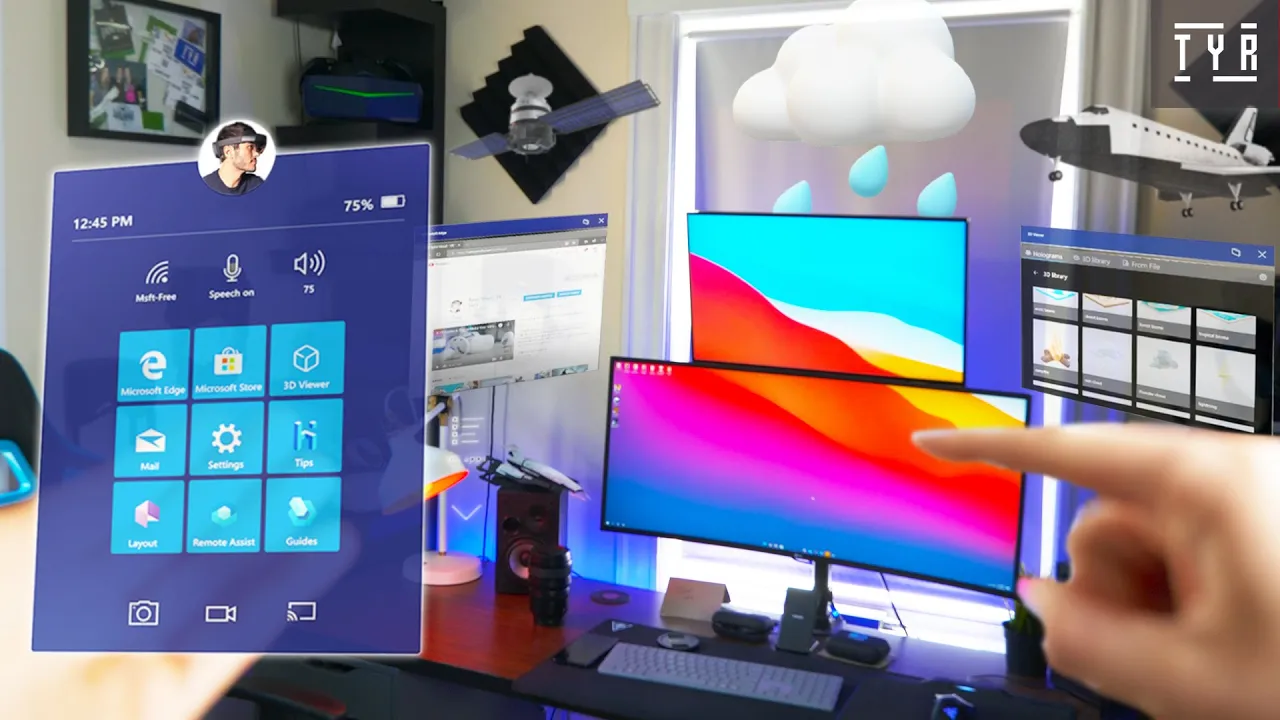




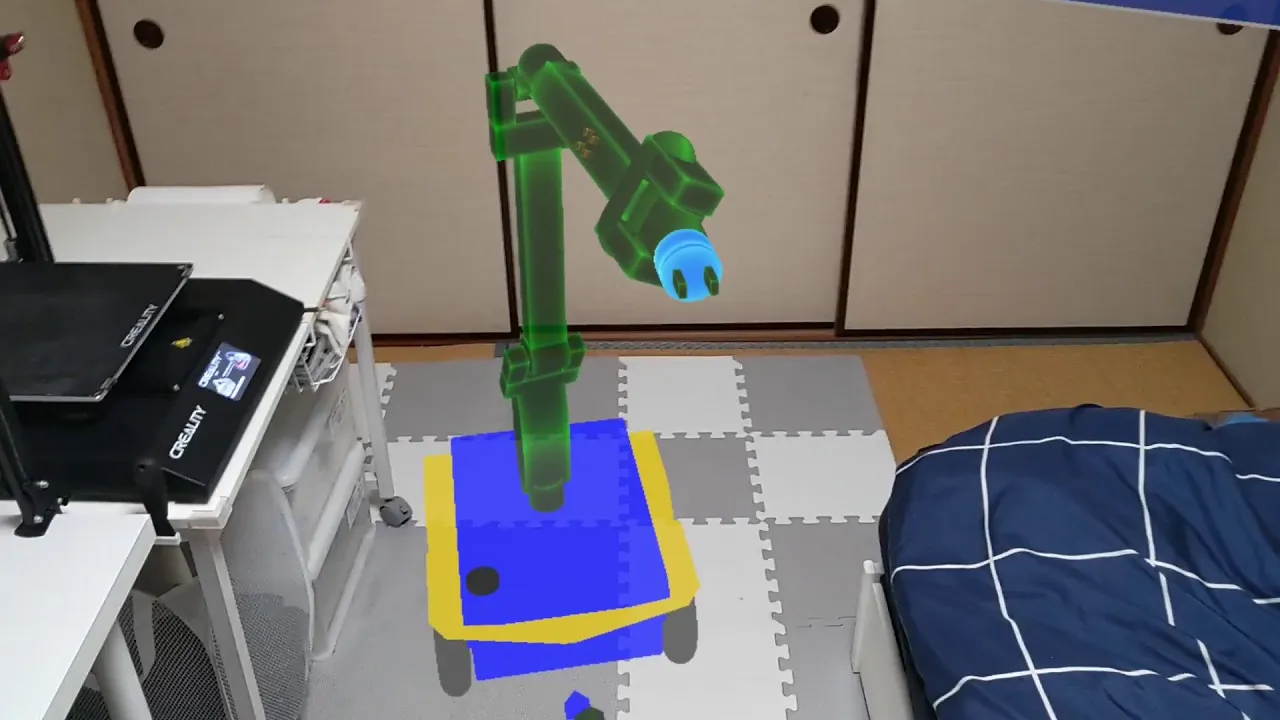



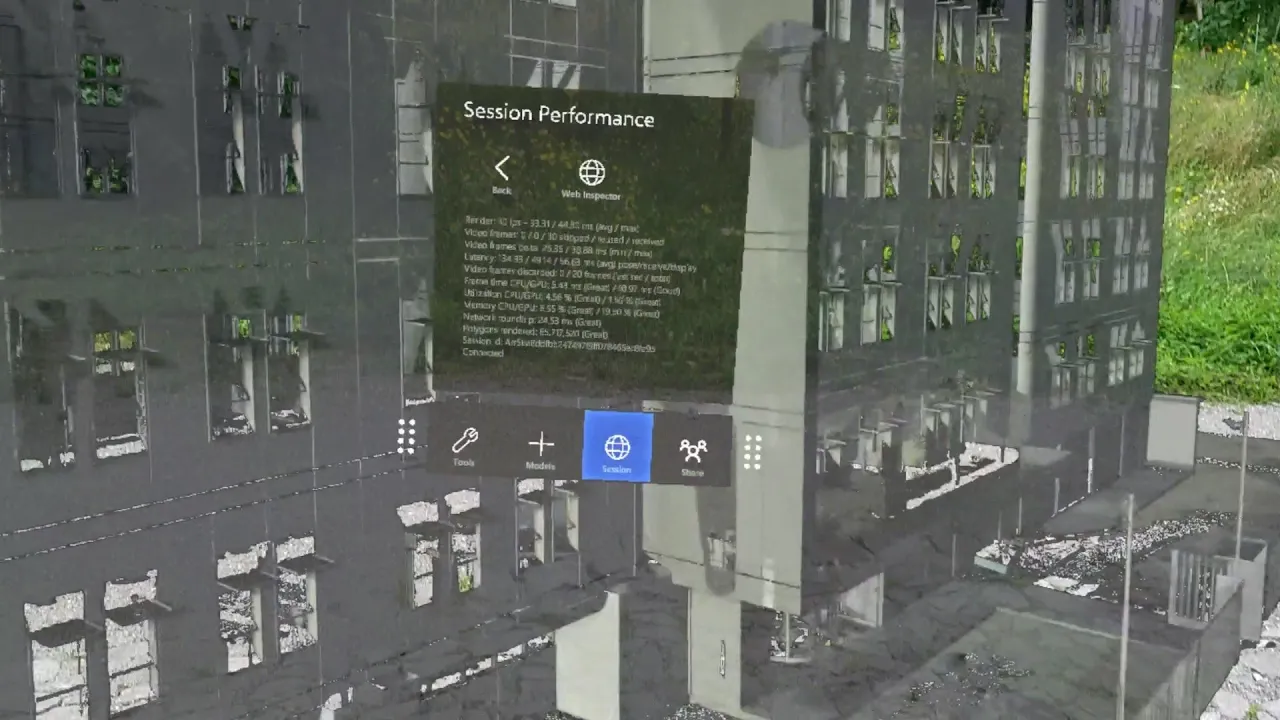





This tutorial demonstrates how to set up the Unity Robotics Hub on Hololens 2 by installing the MRTK feature tool, configuring project settings for mixed reality, adding ROS TCP Connector and URDF Importer packages, and building the application for deployment to the Hololens 2 device.
Unity Robotics Hub on HoloLens 2: ROS Integration Tutorial
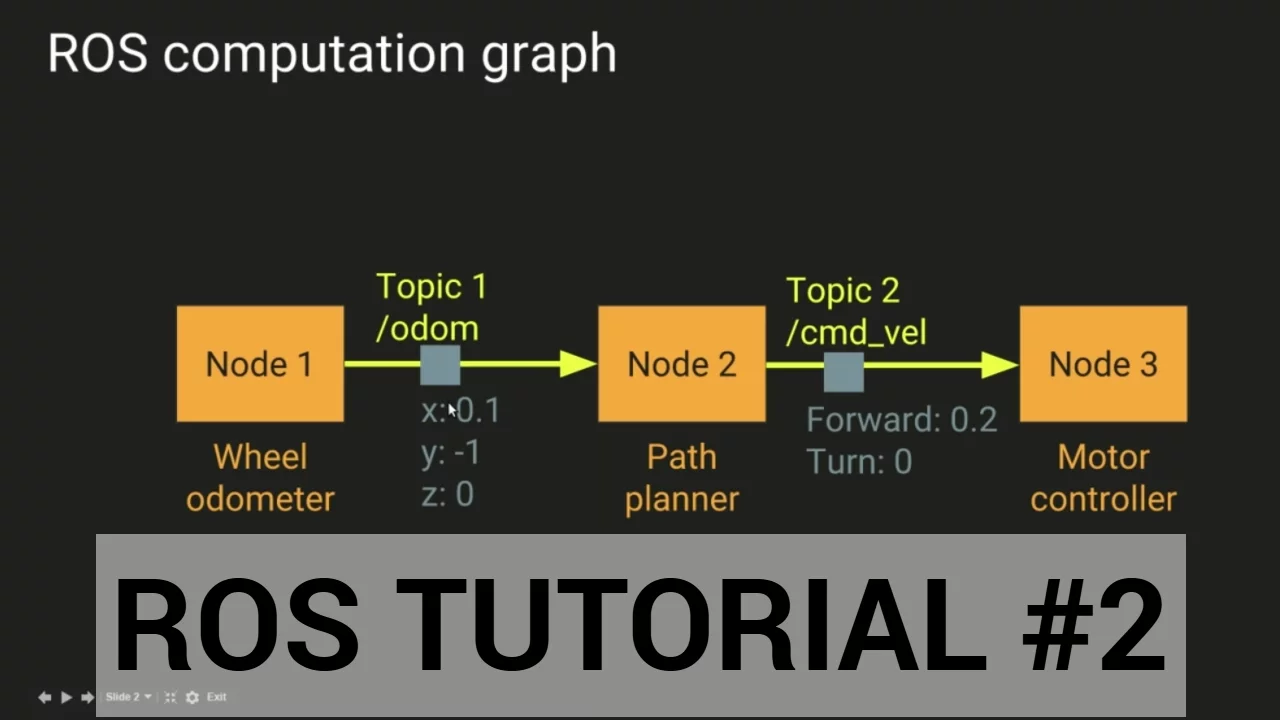
Added:Fundamental concepts of ROS (Robot Operating System), including nodes, topics, publishers, subscribers, and ROS messages.
Basic proficiency in the Unity game engine, including C# scripting, scene management, and package imports.
Understanding of Mixed Reality (MR) concepts and familiarity with the Mixed Reality Toolkit (MRTK) for HoloLens 2 development.
Basic knowledge of network communication protocols, specifically TCP/IP, which is essential for understanding how Unity and ROS communicate via the ROS TCP Connector.
Bi-directional teleoperation, allowing users to send target trajectories or joint commands from the HoloLens 2 to a physical or simulated robot.
Real-time Digital Twin synchronization, overlaying robot sensor data (like LiDAR point clouds or camera streams) directly onto the physical environment using HoloLens spatial mapping.
Advanced MRTK interaction design, such as using hand gestures, voice commands, and eye-tracking to manipulate robotic arms or navigate mobile bases.
Performance optimization techniques for standalone XR devices, focusing on reducing network latency in ROS-Unity communication and managing rendering budgets.
4.6K views41likes12:47Original Release: 2022-03-02
this is just a quick tutorial on how to get the mrtk and unity robotics hub set up on unity so you can get this running your application running on the whole lens too so first what we'll do is we'll go here and you'll see i have the unity robotics hub github and then the i'm in the mixed reality toolkit unity releases page and this will be for version 2.7.3 and so the first thing we'll do is go down here and to download we'll do the feature tool and when you click here on the download you can download the future tool extract it and then you're going to want to open up the application so my application's right here and so then press start and then you're going to go to your project path and here my project path is for this project which i've created for this tutorial and then you'll see the project path there and i'm currently using unity version 2020.3.28 f1 now go to discover features and the first one we'll do is platform support and we're going to want to click the mixed reality open xr plugin and then in mixed reality toolkit we're going to want to do examples extensions foundation and standard assets you can do any others but these are pretty much the only ones you need to get started right get features then validate and then import exit and then we'll let unity do its thing okay now once that's done loading we can go to here the top uh to mixed reality and then we're going to want to first go to project and apply the recommended project settings for hololens 2.
and once that's done it'll bring this up so we're actually going to want to switch from the so you can actually find in some project settings but if you go down the xr plugin management you're going to want to switch from into the universal windows platform and that should be set i wonder so if you see this red mark here let's just do fix all and then we can apply i guess it'll restart the editor all right and once it's restarts we can go to you'll see that maybe this menu pop up and you want to do apply settings then we'll go next and then you're going to hit apply and then apply and let it restart again and now once it restarts it should hopefully let's see oh we just fixed that we'll be good okay and then go here to open xr make sure okay so we have the interaction and profile hand tracking motion controller okay next we want to go to player and make sure here that the optimize mesh data is unchecked and that's in the other settings and then you want to go to publishing settings and click the internet client server and the private network client server and we actually don't need this webcam so we can take that off that that should be everything there and we'll want to go to quality and we'll just delete these qualities until we get to low and then we can exit out of that so now we're here in the main scene so we'll go to the mixed reality tab and then hit toolkit and then add to scene and configure so now we have a camera in the scene so if we press play you you pretty much see like here we have this profiler and then you can move around so two things i like to do one is it's okay so first go to the mixed reality toolkit hit uh here we'll do clone asset uh let's actually make sure yeah so default mixed reality toolkit configuration profile this will work so we clone it and then we can actually just save it as new you can name it whatever you like so that creates your own new profile and then what i like to do is for spatial awareness you can either so so clone this you can either go into the spatial messa mesh observer and then clone this again here and at the very bottom you can set the wire display to either visible occlusion or none if it's visible it'll render all of the scene mapping and so it'll slow down your applications a little bit and it'll get really messy so i would i would recommend just occlusion if you want it uh i'm just going to turn it off for now and then in diagnostics uh i don't like that diagnostics menu so i'm just going to disable it and the rest should be good so we can save that scene okay so next thing we're going to do is we're going to go to the unity robotics hub and in here you're going to go down to quick installation instructions and then we're going to take bring in the urdf importer so you can copy control copy that and then we're going to go to package manager add package from git url paste it in and add it while that's adding we're going to go to the ross tcp connector and there will be two packages so actually so there's the ross tcp connector here which let's see this is still loading which we can add and then there's also this new thing called visualizations which you can add that if you'd like but you don't really need it to get connected okay now another thing you can do is you can go to the github project i'll link in below but basically in this github project i have these prefabs here and then i have these scripts here and what that'll let us do is so if we drag those into this project um you can kind of skip this part if you don't really need the ip address menu but this is something i like to use so i'll bring this number pad okay so import number pads in and then near menu i'll actually unclip that and then for scripts we're going to go to um oh we're actually going to go to robotics hit raw settings and then you'll want to set the ross ip to whatever you'd like so i'll just do mine and save that and then i'm going to go into resources that's created after that and [Music] drag in the ros connection prefab and then i'm going to add the connect ip here then i'm going to go to the number pad in the input field we have the number pad input we are going to add this ros connection prefab the connect ip and then we're going to go to near menu button collection set ip and then let's see add the ross connection here to set ip button text and then in the input field we're going to drag in the set ip and then one other thing um here on events for on click on set ip you're going to want to drag in the number pad hit function game object and then set active so if i bring up my virtual machine i will run the ros tcp endpoint and then i will press play on here and then you see this menu here uh you see it's green there because it's actually connected to my uh virtual machine so you can see that says connection from there now um you can see the tutorial in my previous video on how i can use this menu basically that's how that works um so that's all you need for that so now we need to go to build settings add open scene click target design device hololens and then minimum platform version let's make it 18 362. you probably want a 1904 but we'll just do it there and then we we will architecture arm 64.
wait no actually just keep it at x64 i think this is it okay so we'll build it create a new folder and then build it all right and once that spilled is done you're going to want to open it up and then hit this visual studio solution which will bring up something that looks like this and you're going to want to go to release arm 64 and then properties here you're going to want to put in the machine name in debugging and that is whatever your ip address is on the whole line so you can say what's my ip address when you turn on your hololens and it should pop up all right so got my hololens on got the ip address so i hit uh put in machine name hit apply then okay and then hit remote machine play and it should build to the hololens right so my build is done and while it might take a while it does work and i'm able to play with the menus here i would recommend connecting it via the usbc cable to your computer just to make the transfer of the files a lot faster but let me know if you have any questions or any issues trying to get this working
Up Next

3:33
Unity BioIK Basic Setup: Configure and Animate Assets for Beginners
@kyastal
264 views•2021-10-30

12:54
Triumph of Orthodoxy Icon: Byzantine Art & History Explained
@BenCallan
2.1K views•2024-08-06

9:49
FastAPI vs Flask vs Django: Choosing the Right Python Web Framework
@TechWithTim
302.5K views•2024-05-26

1:42
Game of Thrones Opening Credits: A Cinematic Analysis
@gameofthrones
46.3M views•2011-04-18
Related Study Plans & Knowledge Roadmaps
Structured learning paths in General & Interdisciplinary Studies
general-studies
Elevator Engineering: History, Physics & Cities
01From Hoists to Safety Brakes: The Dawn of Vertical Lift
02Hydraulic vs. Traction: The Engineering Physics of Elevators
03Modern Speed, Safety, and Algorithms
+ 2 more learning modules
12h5 modules
Explore Roadmap
general-studies
Rubber: Material Science, History & Geopolitics
01Origins of Natural Rubber & Mesoamerican History
02The Chemistry of Natural Rubber & Vulcanization
03The Geopolitics of the Rubber Boom & Colonization
+ 2 more learning modules
12h5 modules
Explore Roadmap
general-studies
Containerization: Evolution, Logistics & Trade
01Ancient Trade & Bulk Cargo: Amphorae to Barrels
02The Industrial Revolution & Cardboard Packaging
03The Containerization Revolution: Malcom McLean
+ 2 more learning modules
12h5 modules
Explore Roadmap
general-studies
Textile Tech: Evolution, Labor & Global Impact
01Pre-Industrial Textiles: Handloom & Cottage Industry
02Mechanization: The Spinning Jenny to the Power Loom
03The Factory System & Global Labor Transformation
+ 2 more learning modules
10h5 modules
Explore Roadmap