






















This tutorial demonstrates how to find the transition state of a chemical reaction using Avogadro for molecular visualization and geometry optimization, ORCA for computational calculations (including relaxed surface scans and nudged elastic band methods), and IBOView for visualizing molecular orbitals. The process involves optimizing reactant and product geometries, performing either a relaxed surface scan (for simple bond-making/breaking reactions) or the nudged elastic band (NEB) method (for multi-step reactions), then confirming the transition state through transition state optimization and numerical frequency calculations that verify exactly one imaginary vibrational mode. The tutorial uses aspirin's acetylation of serine 530 in COX2 as a case study, showing how computational chemistry can model enzyme-inhibitor interactions at the molecular level.
Find Chemical Reaction Transition States with ORCA Tools
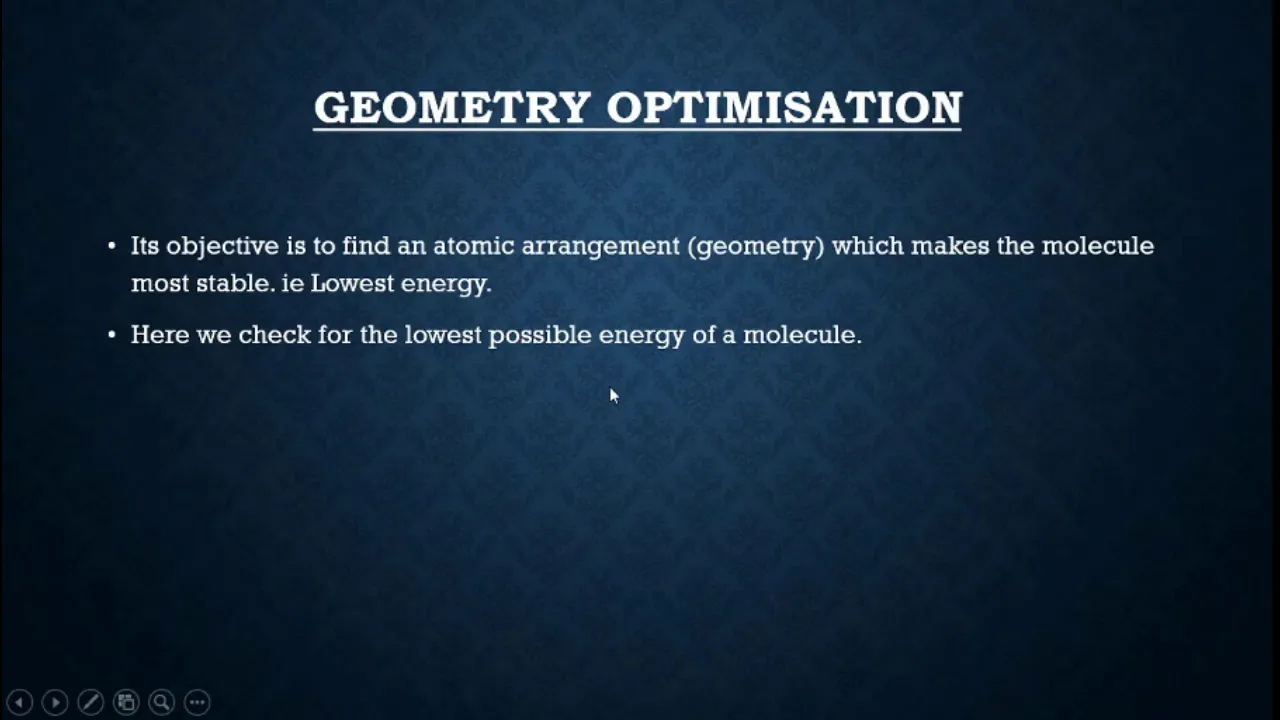
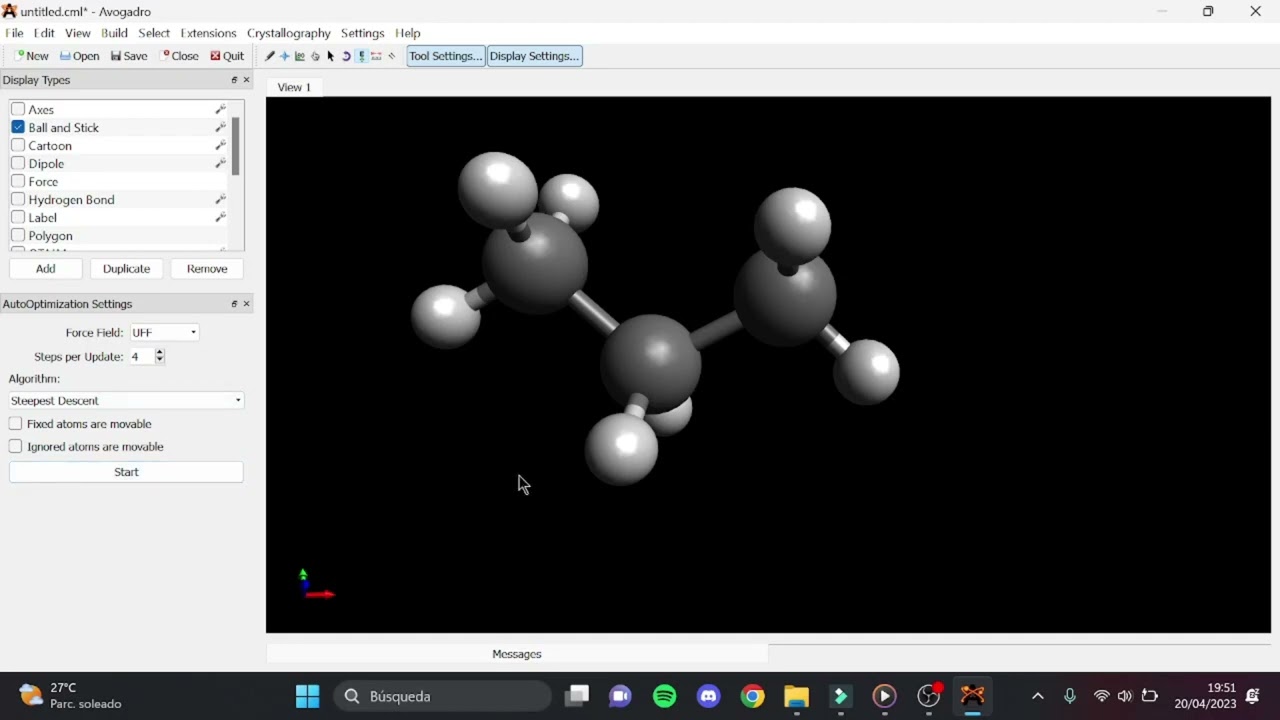
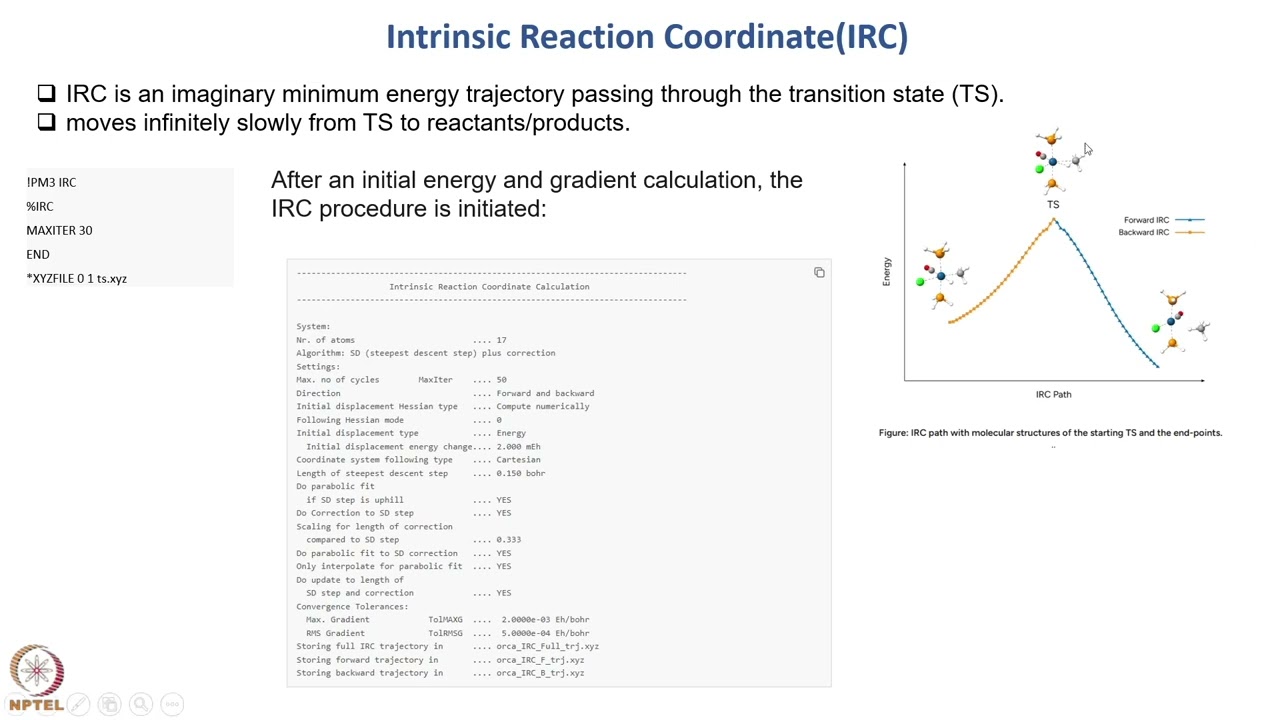
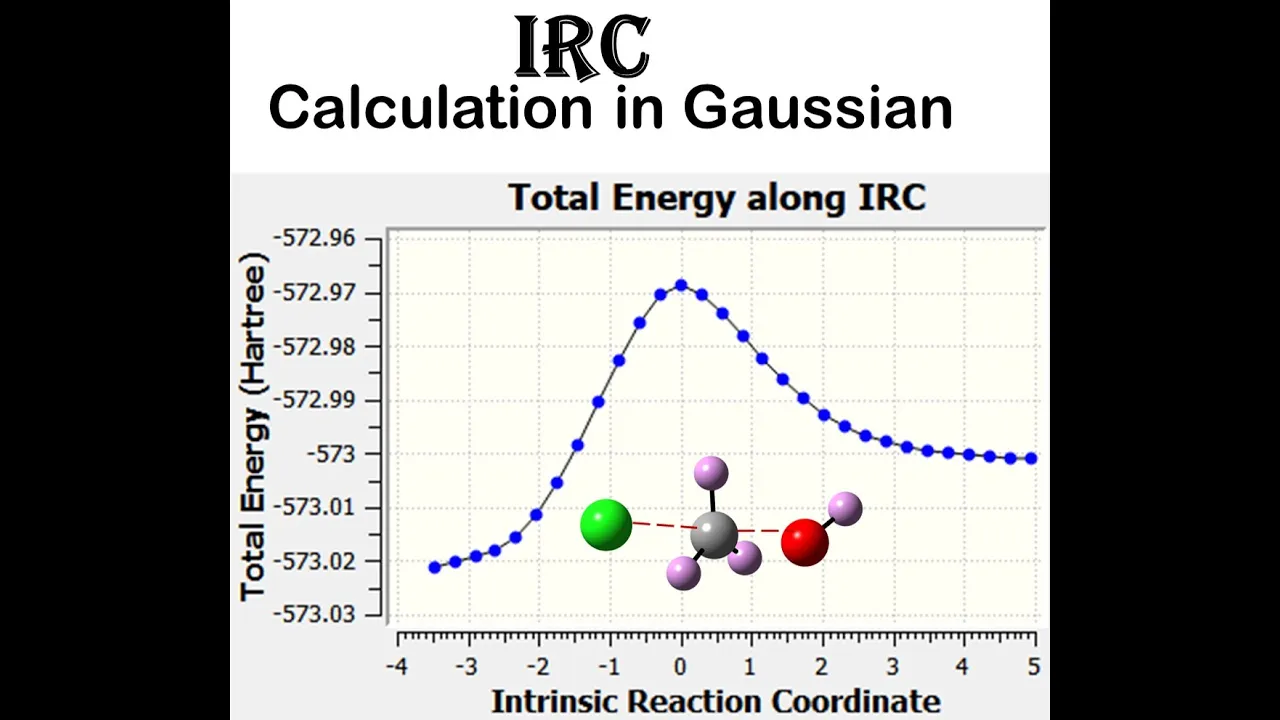
Added:all right hello Dr snow and future CBE 310 students today we'll be walking through finding the transition state of a chemical reaction of Interest using avagadro Orca and ioio here I have a comprehensive guide on how to find the transition state um I'll be walking through a little bit today it'll also be linked in the description of this video in case you want to walk through a bit of a slower Pace um but since this concept is pretty Visual and there's a lot of stuff to cover we're also recording this video the setion we'll be working with today is um has to do with Aspirin so as we know aspirin is a very common anti-inflammatory agent um it actually works by targeting an enzyme in your body called cyc oxygenase 2 or cox2 it ends up calent modifying cox2 by caliz a side chain on the enzyme called serin 530 um serin 530 is near the active site of cox2 and results in a confirmational change um that inhibits The Binding of a substrate and leading to irreversible inhibition of cox2 uh for a little bit of context cox2 is an enzyme that is several steps up the um up the ladder that eventually leads to the expression of inflammation so by inhibiting cox2 you inhibit the expression of inflammation down the line it's not super important that we know how cox2 works but it is important that we know how aspirin and serin interact and how aspirin assizes serin so this is the curved Arrow mechanism for our reaction right here we have aspirin also known as acetyl salicylic acid and right here we have Serene in a normal reaction Serene would actually not be an individual molecule it would be attached to the backbone of the enzyme um at this hydroxy group but for the sake of this reaction um it's a bit unreasonable to try to model the entire enzyme that would be way too many atoms for these programs to compute um so I've just left serin as an individual molecule um note that aspirin starts as acetal salicylic acid and ends as salicylic acid because it's given that acetal group to Serene which becomes acetalized Serene it's not always necessary to know the curved aor mechanism of your reaction um but in this case I do know it so I will be using it to find the transition state there are um several different ways of eventually finding your way to a transition state using Orca avagadro and IBO ultimately what we want to do is run a command through Orca that will optimize the transition state geometry and run a numerical frequency calculation uh we'll cover a little bit more on this later but essentially these two commands will confirm that you've correctly identified a transition state of your chemical reaction of Interest however to run these commands you need a guess for the transition state geometry of your reaction that is going to be near to the real geometry so it needs to be a pretty accurate guess um and there are two main ways to find that guess of your transition state geometry the first is the relaxed surface scan this is a method that's very good for simple Bond making or breaking reactions or possibly confirmational changes it's a method that will tell Orca to scan over a vector or a bond of interest and try to find how the atoms might interact um as they get closer or farther apart along that bond this can only be used for elementary steps in a reaction so for example with my reaction with aspirin and serin this is the very first step of my reaction so what's going to happen is there's a negative charge um if we look back up here a base has taken away this hydrogen from the carboxilic acid group and it's going to relieve that carboxilic oxygen um with a negative charge it's going to attack that hydrogen on the hydroxy um and then that charge will find its way over to the oxygen on our sering atom so this is one step of my reaction that I will be modeling with the relax surface scan um if I were to model the entire reaction I would need I believe three or four more relaxed surface scans to complete this reaction and then find the transition state between every individual step which for me Isn't completely ideal since this is a multi-step reaction so I actually ended up primarily using the second um method we'll be talking about which is the ludge elastic band method this is a blackbox method um so that basically means you give the computer the inputs and the outputs and you don't really see what happens in the middle um but I really like the nudge elastic band method because you all you have to do is give Orca the Rea and the products um both optimized and then Oracle will find a pathway between those two confirmations with the lowest um energy path so you can actually um use so both The Lax surface scan and the nudge lassic band I'll be calling it the neb will give you a minimum energy pathway which means that as um Orca scans either along that Bond or along that pathway between reactants and products it will be constantly optimizing the geometry of your reactants to be at their low lowest energy State and along that path you'll actually end up with one state that's got more energy than the rest and that's your transition state so hard to visualize what I'm talking about if you just look at a normal activation energy graph let move my face you can see here that you start with your reactants and this is gives free energy you go up you hit a transition state and you come back down so you this is basically a minimum energy path um if you look at this very highest energy right here you're going to find your transition state G geometry so that's what we'll be looking for with both the relaxed surface scan and the nudged elastic band method um I would mention that as of the time of recording um the neb command can actually only be run on the latest version of orca which is orca 4.1 this version of orca is not the same as the one that is in currently installed on the computers on csu's campus and the VPN so I was only able to run the neb on my personal device um that is something to keep in mind if you're thinking about using this method um here's a quick run times table of how long it took me to run all different calculations that I did this is not the Full Table the full table is linked right here um there's a lot of information but I just wanted to give an idea for the potential transition state Seeker um of how long a calculation might take depending on the number of atoms you have and the command that you're giving Orca some of my calculations took a lot longer than I was expecting um some of them never converge so it's just good to have an idea of how long things might take um if this might able to help you moving on to the first step for either your relaxed surface skin or your neb whichever you may choose is to do geometry optimizations of your reactants this should be pretty familiar as this is something we tackled in um CB 310 but you're going to want to open avagadro Draw your molecule I'm going to open a file that I've already drawn um just for efficiency's sake these are my reactants um so this is aspirin on the left and serin on the right uh I actually optimized both of these conf the both of these molecules separately and then I brought them into the same file and I optimized them again um before using them in any of my calculations um that geometry optimization should be pretty straightforward I'm going to go ahead and assume that you know how to do it if you don't there is a bit of a walkthrough right here I will mention you do have to remember to put the correct charge and multiplicity in for your molecule if you don't do that Orca will get get confused and give you an error message once you have um optimized your geometries for the relaxed surface skin you're good to go and start making your input files and we'll cover that in just a second but if you're running a neb there is an additional step so like I said the NAB will take a geometry optimization XYZ file so that is just the pure cartisian coordinates of every atom in your uh molecules it'll take a reactant file and a product file and it'll find Pathways between the reactants and the products um to do this Orca needs every single atom in your reactants to match up exactly to every single atom in your products um what I mean by this is that if orc is trying to get from A to B and um atom one in the first confirmation is atom 16 in the second it's not going to be able to make that pathway or at least not the pathway that you want it to make so to make sure that um every single atom is the same you're going to want to label this will give a number to every atom um it's worth noting that aad doesn't automatically give atoms um every every atom a unique number it I think it labels it by symbol um or like atom type and then molecule type to change that you're going to want to hit this little um toolbar right here take atom number whatever it is change it to atom number that will give every atom a unique number um which is how Orca will read your input file uh you're so basically these are my reactants this is just AAL salicylic acid and Serene and what I want to do is make a products um file so I can then optimize it and then put it into my neb scan so what I want to do is without creating any atoms or deleting any atoms I want to make my products out of these atoms and this is where it's really handy to know your curved error mechanism um because I for instance know that during the course of my reaction this hydrogen hydrogen will attach to this oxygen 14 and then this Carbon 15 is going to come take that hydrogen 30's place and attach to oxygen 22 and then that oxygen 30 will move down to oxygen 12 or hydrogen 30 will move down to oxygen 12 um I know my curved Arrow mechanism very well at this point just because I've been working with it for so long so I can just do this by moving atoms so I'm not going to delete anything and I'm not going to add anything but I'm going to take I think I actually want to take my Carbon 15 I want to select all of these atoms right here because everything attached to this Carbon 15 is going to move with it I want to take all of these and move them move them towards carbon 22 this is a bit hard to see but I'm going to move them towards sorry that's oxygen oxygen 22 and then I'm going to delete this Bond I made it big figger I'm going to delete this Bond and then I'm going to take hyrogen 30 and move it down towards oxygen 12 and I'm going to delete this bond this is where when you've clicked on your little Bond editing tool unclicking adjust hydrogens is very helpful because as soon as I deleted this Bond uh avad might have been inclined to make an extra hydrogen to fill up that extra space and we don't want that because we know that at the end of this reaction there are going to be no extra hydrogens than there were in the first place so the products has the same number of hydrogens as the reactants um so we don't want Orca making anything extra for us and then we're going to reattach the bond right here and then we know we want Carbon 15 right here and carbon 22 to attach so we're going to reattach those two now this may look a little wonky rest assured you can click extensions optimize geometry and there you go you have two things that look remarkably like the products we're aiming for and if you'll notice no atom numbers changed during the course of this um op this change from reactants to products so now what you're going to do is file save as save it as a new product file run it through a geometry optimization um with extensions Orca gener Ora input change geometry optimization change your charge I'm going to assume you know how to do all that um what you're going to really what's really going to matter is that you end up with an XYZ file for both your products and your reactants so this is my neb folder where I've kept all of my things related to my neb calculation uh right here I have my reactant XYZ file so that is completely optimized a geometry optimized reactance file and a completely optimized product file and those are going to be two two of my inputs to the neb so if you're going to be doing a neb make sure you get those steps right um and we're going to hop back to talking about the relaxed surface scan for just a second so we're going to talk about um the input for a relaxed surface scan and this can be a little bit confusing so just for review for this relaxed surface scan I want this singular step to happen I want this oxygen to attack this hydrogen and this charge to be end up on this oxygen on the sering um to do this I tell Orca that I want to scan along one vector or or one it's almost like an imaginary Bond um I can also scan between two points in space um if you're curious about that you're going to need dummy atoms I recommend this video tutorial um but if you're just scanning between two atoms like I am this bond in green is where I want to scan um then you can just use those atom numbers so I'm going to pull up um avagadro again and go back to my relaxed surface scan input so you can see here that I know the two atoms I'm interested in are this hydrogen 21 and this oxygen 14 now these are numbered differently from the neb because they're different files um um it doesn't actually matter in this case but I need to know that I'm interested in hydrogen 21 and oxygen 14 and what the input to a relaxed surface skin will look like is something like this so this is my command line it's telling Orca that I'm using reduced Harry faul I'm doing a single point calculation I'm using a basis set of Def 2 SVP and I want to optimize it um then this command block right here this is called a geometry command block and what it's saying is that um with regards to the geometry of this molecule we want to scan along a specific Bond and that is going to be the bond between atoms 13 and 20 uh it's worth noting that the numbering schemes between avagadro and orca are different so if we go back to our input remember this is carbon 14 or oxygen 14 and hydrogen 21 so avag numbers atoms zero or one and up and orca numbers atoms zero and up so when we're making an orca input we have to remember to reduce the number of our atoms by one so 13 and 21 will become or 14 and 21 will become 13 and 20 so between Bond 1320 they're starting 3.84 angstroms away from each other and they're going to get one angstrom away from each other and it's going to take 12 steps now since I've messed with this input file since I did my relax surface scan these numbers are a little bit different but you can use your distance tool right here you click on the atoms that you're interested in and avagadro will tell you how far apart they are right now so right now they're 1354 inrs apart so I moved this entire um seran atom a little bit closer since I did this reaction um but you just start you you check what your farthest distance apart is right now you're going to input that into your initial distance apart this is how far apart you want them to go this is how many steps um orc is going to take this is just your XYZ file this is your starting coordinates um this negative 1 means that the charge on my molecule is Nega 1 one so that's the setup of that Bond command and so every time that you run a relaxed surface scan you'll have to redo the bond that you want to optimize um and how far apart it is right now how far apart you want it to be and how many steps it's going to take to get there and the output of your relaxed surface scan um is going to it's going to give you a number of files every time or runs a calculation it'll give you a whole handful of files um XYZ gwb um interp files output files there's all sorts of fun stuff uh the ones we're really interested in um are going to be the XYZ file and the output file for our relaxed surface scan so we know the surface scan is done um when Orca tells us that it's terminated normally uh I'll actually open my output file for my relaxed surface scan so we can look at it together um I'm going to be looking at attempt four wrong attempt I'm going to be looking at attempt two I I've run so many of these I apologize um I'm going to look at this output file if you scroll down just a little bit you can actually see all of the input uh you put in that's the wrong file as well goodness gracious me it's this one uh you can actually see the input file so now I can double check that I scanned um along bonds three and four so this is a different configuration U from 3.84 angstroms to one angstrom in 12 steps if we scroll all the way to the bottom we see that orc termin nor normally and actually everything under relaxed surface gin results is what we're going to want so if we go back to our walkthrough you can this is the same set of numbers um you'll find two column two chunks of numbers one is the calculated surface using the actual energy and one is using the SCF energy we want this section the calculated service using the actual energy what you're going to want to do is take these numbers and copy them into an application that can graph them um for I heavily recommend matlb because these will copies is one giant chunk um these are the very same numbers as we're in that output file just confirm um these are the very same numbers I've just copied them into matlb I've made them into a giant Matrix and then I've said um everything in this First Column is a step size and everything in the second column is an energy so what this is is the step size and inkrs so if you'll remember we ran that bond from 3.84 ingstrom to one ingstrom and then these are the corresponding energies for for every one of those steps so when we I have actually I've taken those points out and I've plotted them so when we run our plot this is what we end up with this is our minimum energy pathway um and so what we can look at here is as our our bond started at 0 point uh 3.84 angstroms as the bonds get closer as that oxygen and that hydrogen get closer and closer their energies are going to go up hit a local maximum come back down and then they shoot off into outer space uh the reason for that is that as at as the atoms get too close um it's not actually you know it's not actually possible the um the reaction will get atoms closer than they could experimentally get so the energy shoots up so what you're actually looking for is a local maximum so this step right here is going to be our step of interest because if you think about that activation energy graph again this is going to be looking very likely to be our transition state um with relaxed surface scan graphs you count your steps from left to right uh sorry right to left um because you start at three angstroms and you go to an angstrom so this is step one two three four five six um we can actually confirm that that is the correct um oh in avagadro that's what I'm looking for um we can actually look at the trajectory of this calculation um optimizing itself this one so you're going to have the name of your file um mins attempt 4 input and then underscore trajectory it's going to be an XYZ file you can open these in avagadro and then we can actually see what this animation looks like in real time so this has 310 steps I'm going to say Dynamic Bond so I can see the bond stretching and loop and we can just watch as this relaxed surface scan brings those two closer and closer together so this already happens now it's just see they get too close that's when the Energy starts to shoot up um but if we watch we can actually see that hydrogen move bonds around step what 80 um or so um so you can kind of watch a reaction and progress which is really cool trajectory files are a lot of fun and a great way to make sure that your reaction is um on track as you go so that is what your output for the relaxed surface is going to look like basically all you get from it is that you can qualitatively say it looks like it's going to be step 1 2 3 four five that is going to house the transition state moving on to nebs nebs are a little bit different um in that they don't need any direct output um Orca generated input file or from avag godra so avagard generated Orca input file they don't need one you can kind of just make your own input file um but before you get there there are three types of nebs just to cover them quickly the first neb is um the most vague it's the most crude estimate of the transition state the second neb um is a bit more computationally expensive and it will give you a climbing image guess for the transition state geometry so it will use kind of a vague minimum energy path convergence so it's not going to be as specific for the entire path um but once it finds a geometry that it thinks is the transition state it will opt it will um have a a high convergence threshold so it's going to be a more accurate guess of the transition state to then put into your optimization of the transition state and your numerical frequency calculations later um last but not least is the neb TS keyword so neb transition state keyword this one's my favorite and it's the one I used it is also definitely the most computationally expensive what the neb TS is going to do is it's going to find your minimum energy pathway with a medium convergence threshold so like fairly accurate it's also going to find you a climbing image guess for the transition state and once it finds that climbing image guess so what Orca thinks is going to be the closest to their transition state it'll automatically feed it into a transition state optimization calculation which would have been the next step for the relaxed energy scan or the neb neci um calculations already so this one just does it for you which I think is pretty cool and then as if that converges it will give you both the climbing image guess in your initial pathway and the actual transition state geometry um which is great because then it's just already run and you can run a numerical frequency calculation after that um worth noting it does take a little bit while because it's doing so many things at once so an input file for a neb is going to look something like this it's a lot simpler um this is just my input file I used B3 LP uh basis set and the def2 SVP I used the neb TS keyword and then I have this neb command block in this command block I have specified that the neb and XYZ file is going to be my optimized products XYZ file that came out of my Orca geometry optimization for my products and I say the XYZ file that we're starting at has a charge of negative one and is going to be the reactant optimization XYZ file um I can open these up we're back to the neb um I can open these up all these are are XYZ files it's a bunch of coordinates um so it's telling Orca start at these coordinates and finish at these coordinates and it looks like a bunch of gobble deg to us um but they're slightly different and orca will recognize that and find a pathway between them it's worth noting um that when I actually ran this calculation for the first time uh I ran out of geometry optimization cycles and so my output didn't fully finish it it finished it just told me it didn't Converge on a transition state um geometry we can actually look at that output file so we see the input is just the same one I just showed you um we're going from the reactants to the products um if we look at it did not take long for the neb to converge um it takes a lot longer for the geometry optimization Cycles so we look at the neb path summary this CI right here stands for climbing image this is the step that Orca thinks will be closest to the actual transition state geometry so take a note here that this goes from 0 to 9 so there are 10 steps or 10 images here um I'm going to count them 0 1 2 three and avag godra is going to count them 1 2 3 4 so we'll just keep that in mind as we move forward so Orca thinks that this will be step three we'll also come down to the bottom as you can say this took four and a half days to run and it did not actually optimize my geometry because I reached the maximum number of iterations that's not a big deal I just took the last known output um from this neb calculation the last know geometry and I just put it into a new geometry optimization and that ended up converging um so it's not the end of the world if something doesn't fully converge but if you want to up the number of geometry optimization Cycles um so that it might not your calculation might not terminate early you can do that by adding a section to your GE so your your command line so this is a neb block you'd add a geom block just right after it um max iter for max number of iterations and you can put your max number here um for some of my calculations they took several thousand iterations the ones that really mattered all usually took less than 100 or 200 so um it's you can always do more max iterations than you think you'll need because Orca will stop once it hits the ideal geometry it will not use all 4,000 iterations you give it if it hits it at step 24 um if so but you do need enough time to let Orca run if you do a large number of iterations so once your n optimization has converged um you can start looking at finding that minimum energy pathway and that guess for the transition state so Orca is really sweet it already gave us a guess for the transition state if we felt so inclined we could go ahead and open that file in avagadro and take a look at what um Orca thinks that transition state is going to look like so remember it was image 01 2 three was the one it thought would be the ideal transition state uh this is what it looks like you kind of see that we've got this floating molecule in the middle um it's come from right here and it's on its way to right here and this hydrogen is already transferred from from this um oxygen to this oxygen and it will end up in this oxygen so another really fun thing to look at I told you I like the trajectory files we're going to look at the um the mean energy path trajectory file for this reaction so going to look at the animation these are the 10 steps that Orca gave us so if you remember in that output file that is this one way back up at the top or could gave us these 10 steps it's these same 10 steps just made into um geometries so I don't know what happened there made into geometries and um shown here in avagadro so Dynamic Bonds on Loop on I'm going to put this at a lower frame rate because I know it moves really quickly and we can actually watch the bonds being made and broken and moving around so this is really great because this reaction actually almost exactly follows my predicted curved Arrow mechanism um you start with the oxygen upside down you start with this hydrogen transferring to this oxygen there it goes and then this uh oxygen is going to attack this carbon and that carbon's going to break its bond with this oxygen and move over to here and then this hydrogen is going to move from this oxygen to this oxygen there we go so that's the full mechanism that um I would expect to see this is the minimum energy pathway as as opposed to the initial path it just means that these are the minimum energies um at every step that looks really good like qualitatively visually that looks what like what I'm looking for um and you can kind of see here we can we can qualitatively confirm that the transition state is probably at image four because this is that image right there's a bond there and there's a bond there and so this this little um transition molecule is just hanging out by itself right around step four so that looks like a pretty good guess of the transition state uh worth noting that it's not super critical whether avag godra chooses to form a bond here or there uh you can easily imagine those little dotted lines like half bonds um that you draw between these two it's really just some parameter somewhere that tells avagadro whether to actually draw a bond or not so don't put too much weight on it um so those are two ways we can qualitatively check the uh transition state of our neb output and then the third thing we can do is actually make a minimum energy pathway like we did for the relaxed surface scan so what you're going to want to do for that is open your neb uh files it's going to give you a whole bunch of output files but it's also going to give you one that is an interp file so it'll be the name of your final file. final and it's just a bunch of energies uh distances and images so you're gonna want to take this and copy it into mat lab once again close that so these are those same numbers so there's a small chunk and there's um whoops a large chunk um these are the same they represent the same steps it's just the longer chunk has more points in between and then Orca condensed all of that into 10 steps just for viewing ease uh and what'll happen is if we run this calculation this um mat lab code um I've just taken the images I've plotted the images so reaction pathway against the energy and um this is the output that we get so once again this is the short output so the 10 steps and this is like 80 something steps um I've written I've given it both uh circles just to see the individual points and a line just to get an idea of what's Happening um how how the points are connected so as you can see the bottom graph is really just the top graph with a little more detail it hits a local minimum and a local maximum here that this less detailed graph might miss but what we really care about is this very top step right here this very top point is the same for both models I can't really click it but it's the same there we go and so this is our going to be once again our guess for the transition state geometry our guess of the transition state geometry will occur at step 0 1 2 3 um so all three of our ways of checking uh our transes state guess for the neb are matching up everything's looking really good um so we can move on to running a transition state optimization and numerical frequency calculation so this is really the critical step where we confirm um our transition state geometries our transition States geometry and that it's actually a transition state the way we do that is through these two commands opts and num freak the opts is Orco command that will start with an approximate transition state geometry and then converge to the actual transition state and optimize the geometry at that transition state uh there are several different ways to do this with um either an approximate Hessian or an exact Hessian hessan is just uh it's a tool to help the optimization converge and like keep it on track uh you can really only use this is the approximate Hessian version um of this opss num freak command you can really only do this if your guest happens to be very very close to the transition state and you got to be a little bit lucky for that to happen um most likely you're going to need to run a couple Hessians this is computationally more expensive but it keeps the reaction on track so hopefully we'll take less iterations um than just making a a approximate Hessian so um if we scroll down to my actual code for this command I used a pm3 opt TS command so find that transition and optimize it and then run a numerical frequency calculation on it and then in this geometry block I said calculate the Hessian in the big beginning uh it's a numerical hessan and then recalculate the Hessian every five steps and then also you have 2,000 iterations to do this luckily I didn't take all 2,000 iterations I believe it only took 82 iterations in 5 hours to converge um so that's what your gon block is going to look like if you want to use um numerical Hessians uh just returning to this numb freak um command I've explained it already but what it's going to do is find every vibrational mode of your transition state geometry and then um if you've got one imaginary mode one negative mode you're on the right track you found a transition state for your reaction of interest uh the num freak always needs to be run with an Ops TS command or an opt command reason for this is if you run a numerical frequency on a geometry that's less than optimized you're going to get a lot of noise and some strange vibrational frequencies probably multiple imaginary modes um which is not going to be super accurate so you always want to run it with an opts command just to be sure um the output for this is going to look like this you've got your vibrational frequencies um every time Orca calculates a Hessian it will recalculate your vibrational frequencies for you I actually had like 101 modes or something but here we are at mode six we've got our one imaginary mode um which means that we that confirms that we have in fact found a transition state for our aspirin serin reaction which is Stellar that looks really good um if we want we can actually open that up in I'm going to close some of these we can open that file up in um avagadro what you're going to want to do is go to where you've run your optimization and here you can see I have um an input file an output file an XYZ and a trajectory file I want this XYZ file this is where I ran my optimization of the transition state and numerical frequency calculation and I've go crashed and so in that file um is going to be our setting and done optimized transition state geometry so I'm just kind of curious what it looks like so I'll go go ahead and open it up I'll turn those labels off okay so we can kind of see that instead of floating like in that um step three of the neb we can kind of see that AVG God decided to draw that bond between these two the hydrogen has moved from the Serene to the aspirin so we're kind of in the middle here and this is our transition state um geometry so now that we have that you can also run this calculation on the relax surface scan I ended up just doing it and making the walkthrough on my neb output um because the neb was the main method that I used for finding my transition state but now that we found that um we can go into visualizing molecular orbitals in IBO View and for this you're going to need the remote desktop I'm just sign in really quickly because um ibov is a very Graphics heavy program so you're going to need something like the GPU um to sign on to it I think that just I think it just got confused um where am I there we go I'm just going to renew my pulse secure connection um if you don't oh no I messed up um if you don't know how to access the GPU I did make a tutorial oops hello currently connecting that's not good here we go I did make a tutorial um it's linked right here it's also it's just a PowerPoint on how to access IBO VI the Virtual Lab so the normal computers on campus um have an option where you can either choose I think Mo the computers in Scott bio engineering at least have an option where you can choose um whether to log into the GPU or VPN if you're going for ibov log into the GPU um because that's the graphics processing vers version of the VPN and then you can go ahead and open IBO so we are going to look at two different uh ways to look at our reaction of Interest the first is going to be our mean energy path from our neb scan um so remember that mean energy path where I was showing you the molecules moving back and forth this is that same exact file that trajectory scan we can go into data sets here frames orbitals will show up here once we calculate them but frames and we can actually move our reaction and so we can see that um or IB actually knows that minimum energy path that we made on mat lab it can it sees it and so it knows it's step one two three four is our transition state at that very tip there and it'll keep going down so you can move your reaction around um what you're going to want to do is go into actions and files and click compute analyze wave function what this is going to do is allow you to make your actual orbitals so you can watch them move I click both these numbers these boxes at the top charge of negative one make sure you put in the correct basis set I use def 2 SVP you click calculate this will take a couple minutes to run because this mean energy path has 10 steps in the meanwhile we'll open another window of IBO and take a look at our actual transition state um this so this is the file that we were just looking at in avagadro it is the transition state optimized geometry we're going to go ahead and open it here looks familiar we talk about this Bond being connected and we're also going to compute the wave function for this one once again charge of negative 1 basis set of death 2 SVP yes this will take not very long at all to run because it's just one frame um it's worth noting IB of you does not use basis sets of the 6-31 G basis set um so don't use those during your optimizations and also uh I would recommend against trying to calculate a wave function for for a a trajectory file or an XYZ file with more than 10 steps just because if you're trying to make an animation you do need to save every photo for every step individually so it's going to take a long time to compile those it's also going to take a long time for ibov to calculate more than 10 steps I had a couple Reactions where when I put them into the avagadro trajectory um to watch them animate they had you know 300 to 2,000 steps um which just isn't going to go over well in IBO so we see here that our wave function computation is finished for our singular um transition state like geometry so what we're going to do is go back into data sets and we can see that all of these orbitals have now been populated there's 75 different orbitals the first 10 or so are usually empty but if you just start clicking you double click on one of these and you're going to start loading some orbitals um and this is really fun you can you can change the colors down here in render orbital um and you can change the shininess up here it's all very fun um and then you kind of just got to click through and find the orbitals that you're interested in to actually look at um let's check on our other reaction still calculating a little bit um the to get an animation you're going to did it just finish beautiful so this just finished um our mean energy path calculation so if we go into data set orbitals we have all these wonderful orbitals and this is how you're going to get your animation if that's something that you want um you can see once again we can move current frame watch our orbitals move and now this track orbital button is usable whereas before with our single frame you can't move this because it's just it's one frame and um one you know it's one frame you can't move it um but if we go back over to our mean energy path our orbitas are now showing up so what how this works is it shows you your minimum energy path and then you can scan through all your orbitals 1 through 74 75 um and then any orbital that's not a baseline energy that one that's very exciting so if it's if the orbital doesn't change it'll stay along this bottom line if the orbital does change its energy goes up so orbital number 26 looks pretty exciting because it energy changes a lot really close to our transition state so we're going to click show 26 and it'll show that orbital on our molecule it'll also retain this energy path on our graph so I'm going to keep scrolling through here and pick some that one's exciting pick some um paths that I want to keep that one looks fun I have some predefined orbitals here that I'm aiming for um because there are a lot of interest but if you do too many at the same time it can get a little bit uh confusing so I'm just going to stick with these four for now and then here hit control T this will trace the isoforms of all of your orbitals so basically it loads them through every frame so you can watch them move which will now do by either changing the frame down here or scrolling our bar right here so we can watch our reaction go through its states we can see at our transition state we've got some orbitals that are stretching um between molecules or or this is our this isn't our actual transition state remember this is the closest guess we got for our mean energy path or minimum energy path from the neb output um so we can watch those orbitals move around and you can also turn them on over here by clicking um the orbital numbers I'm going to go ahead and turn on some more that one's a bit messy they they overlap a lot and I'll retrace those ISO forms and then I'm going to go back and watch them all move um so if you want to make an animation out of these orbitals you got to I'm going to deselect these just because they do get confusing um you go to actions and files you find a nice uh setup that you're happy with I'm on Step Zero I'll click save picture as and I will save this picture into a file you can see I've already done this with two different sets of orbitals I've saved all my photos um step by step and then you go to data sets you go up one frame and you save the picture again and then you go back and go up one frame and you save the picture again it is worth noting that once you have computed a wave function and gotten your orbitals there's actually no way of saving that file for later use in IBO view IBO view only saves things as a PNG or a Java file and you can't re-upload that Java file into IBO view so it's either once you've made your wave functions save your photos or just recalculate the wave function the next time you open IV oo um so you go ahead and save every frame um for a reaction and then you can compile them into an animation with some online editor or even into a PowerPoint Rec click through really fast and the orbitals will look like they're moving so my animation for those very same four orbitals I just left you with looks like this um if that looks familiar and that is more or less where our walkthrough of finding the transition state with avagadro Orca and IBO will end uh take note that there are more things you can do with transition States uh for this specific walkthrough we happened to model um our reactants as if they were individual and as if they were not touching anything else so as if they were basically gases um whereas in an actual reaction there would be solutes and other stuff um that might be a fun way to take this project in the future um you might also to investigate reactions that have more than one transition state so you can model more than one in IBO view but um for now this is as far as we go uh there's an extra section here on continuing calculations that have been terminated early that I'm not going to cover right now um but if your calculations do terminate ahead of schedule don't freak out there's ways to recover them um I also listed all of the work cited and then also those websites that I found useful while making this tutorial um so if something about my walkthrough just doesn't click with you you can try any of these sites that being said um I hope you had a wonderful time learning about transition states with me uh I heard you hope you learned a little bit something um and have a wonderful day
Up Next

Organic Nomenclature: Oxygen Functional Groups | Chemistry Tutorial
@crashcourse
427.4K views•2020-05-20
Biocatalysis and Catalysis in Islatravir Synthesis | Merck Webinar
@SCIwheresciencemeetsbusiness
675 views•2020-10-08
1H NMR: Determining Number of Peaks from Structure
@MSJChem
59.2K views•2017-04-06

Edible Water Bottles: A DIY Guide to Sodium Alginate Spherification
@ryan
10.5M views•2019-06-21
Related Study Plans & Knowledge Roadmaps
Structured learning paths in Chemistry