

![Update, FixedUpdate, LateUpdate... What's The Difference? [Unity Tutorial]](https://i.ytimg.com/vi_webp/E6pKLK8HsKc/maxresdefault.webp)
![[UNITY3D] 4 способа задать движение объекту](https://i.ytimg.com/vi_webp/-Bhy8ySbews/maxresdefault.webp)
















![How many Rigidbodies can Unity support ? [2020 DOTS Edition]](https://i.ytimg.com/vi/U6idEdIEsa0/maxresdefault.jpg)

![Dive into C++11 - [2] - Frametime, FPS, constexpr, uniform initialization](https://i.ytimg.com/vi/tPbrWAbzyTE/maxresdefault.jpg)


Unity's semi-fixed time step system causes stuttering motion when objects are moved in different update loops (update vs fixed update), as these loops run at different rates; the solution is to either move all game logic to a single update loop or use interpolation to smoothly interpolate object positions between fixed update steps, which requires storing the two most recent fixed step positions and applying a global interpolation factor during update frames.
Unity Motion Smoothing: Fixed Timestep Interpolation
Added:The distinction between Unity's Update (rendering loop) and FixedUpdate (physics loop) execution cycles.
The concept of Frame Rate (FPS) variability and how asynchronous rendering and physics steps can cause visual stutter (micro-stuttering).
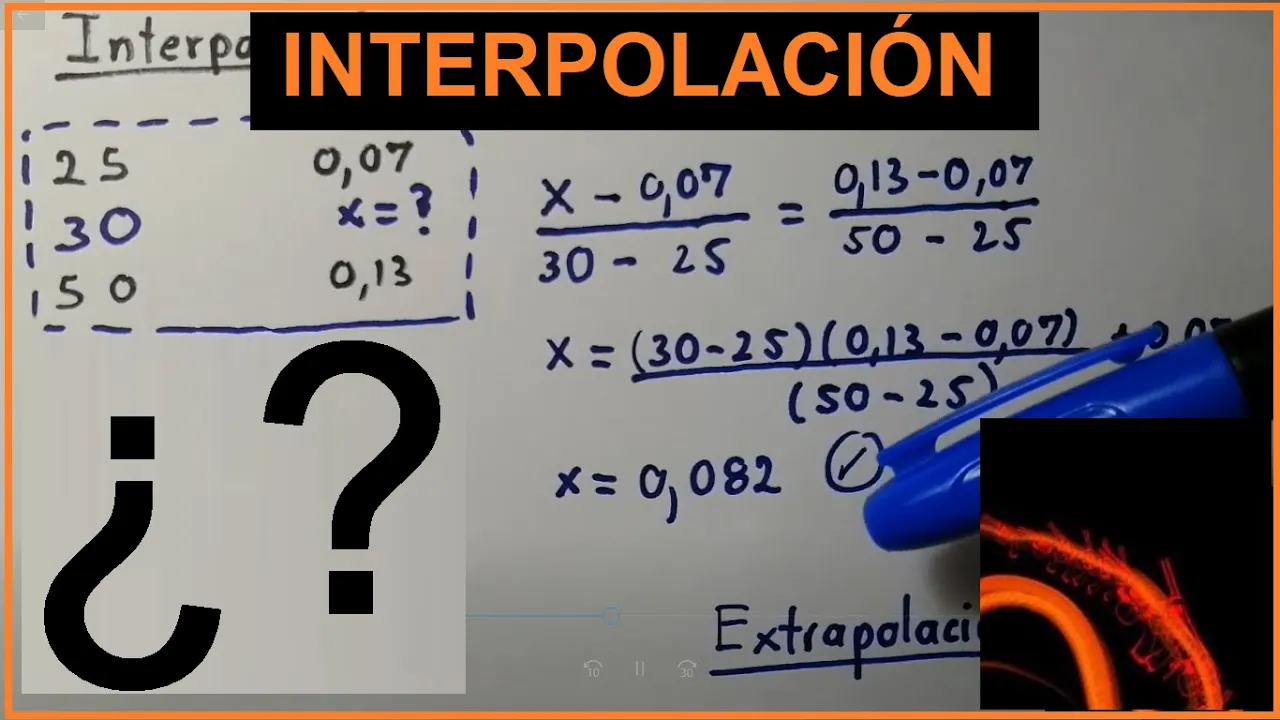
Basic mathematics of linear interpolation (Lerp) and extrapolation, and how they estimate intermediate values between data points.
How Rigidbody components work in Unity's physics engine (PhysX) to control object movement and simulation.
Networked physics and state synchronization, including client-side prediction, interpolation, and reconciliation in multiplayer games.
Advanced custom interpolation systems for non-Rigidbody movement, such as script-based camera tracking and kinematic transforms.
Utilizing Unity's Data-Oriented Technology Stack (DOTS) and Unity Physics for high-performance simulation and rendering interpolation.
Frame-rate independent design patterns, ensuring game logic, inputs, and animations behave consistently across varying hardware specifications.
61.3K views1.8Klikes9:28Original Release: 2017-05-26
Hi, this is Bob from Kinematic Soup and today we're going to cover motion smoothing in Unity. If you've ever worked in almost any game engine, you've probably experienced stuttering motion.
There is no single solution that works for every situation, but there are certainly suboptimal ways of dealing with it. This video aims to explain time steps in Unity, where you'll typically experience stuttering motion, and we'll present a solution that helps resolve it. We're going to start with an example that shows how stuttering occurs and what it looks like. Notice the annoying stuttering going on here. This occurs because some elements of the scene are moved in update while others are moved in fix update. We'll go over the Unity update cycle in more detail later on.
Now, let's look at the same scene where we've applied the techniques I'll show you how to use. Notice the dramatic improvement in smoothness. To understand this issue, we need to understand how the update loop works in Unity. The parts we'll focus on most is the update and the fixed update loop. Unity implements what's known as a semi-fixed time step, which means the main game loop can run at any frame rate using a variable time step called delta time in Unity that manages an internal loop, which uses fixed time steps. This has some advantages, primarily being able to run visual updates as fast as hardware permits while locking the core game simulation to a constant rate. There are disadvantages though, including being prone to the affforementioned stutter.
The following is a simplified representation of what Unity's update loop is probably structured like. The update method is likely familiar to you already. It's called in mono behaviors every frame just after your inputs are processed by Unity and before the screen is rendered. When one frame is complete, Unity will immediately start on the next one. Therefore, retaining the highest possible frame rate. Since hardware and the complexities of each frame varies, the frame rate is never constant.
Because of this, update can be called any number of times per second. Fixed update is called on MonoBehaviors each time the physics simulation is progressed. Unity treats these calls if they were a fixed time apart even though in actual time multiple simulation steps are not calculated at an even time interval. This is done because game physics in particular accelerated motion is most accurate and stable given even delta times. That fixed time step is known as fixed delta time within Unity.
By default, it has a value of 0.02, 02 meaning there are always 50 physics steps and fixed update calls for every second of game time. In this way, one can think of fixed update as frame rate independent as it's called the same number of times per second even if the rendering frame rate is very low or high. It is necessary to stress that fixed update and the physics loop are synchronous and does not occur on a separate thread.
This is an ideal representation of what 50 fixed updates and 60 update frames per second looks like. However, this is not perfectly achievable since frame rate varies. So, a more realistic though exaggerated timeline is below. Notice how some frames are close together with no physics steps between them, which typically occurs when there is low rendering complexity. On the other hand, other updates have long pauses between them with numerous physics steps computed between each frame.
This often happens when loading assets.
This means that even if you're trying to match the frame rate with the number of fixed steps, they're not guaranteed to be aligned. Using our knowledge of Unity's time steps, we can now understand the case presented. In this scene, there's a sphere and camera both orbiting a pivot.
The sphere's transform is set in the update loop, while the camera's transform is set in the fix update loop on the left and the update loop on the right. The left side has obvious stuttering while the right side remains smooth. Because update is called at a different rate than fixed update, the sphere often moves while the camera remains still. This causes the sphere to move inconsistently relative to the camera, creating the stutter. Let's slow things down a bit so this behavior can be better observed. Now we can see the root cause of the stutter is moving some objects in update and others in fixed update. The simplest fix is to move all transforms to either update or fix update. However, this is where things get tricky. The common answer found among Unity developers is to put most game and movement logic in update and use fix update only for the occasional physics task. While this has its merits, including simplicity of use, it's problematic for many reasons. Perhaps most importantly is that your gameplay is now frame rate dependent. In Unity, it introduces problems when you need accelerated motion on an object, such as a character controller's gravity. For those objects, fix update should be used. But since other objects are moved and update, you'll get stutter.
Therefore, a common and sometimes necessary alternative is to put all state and gameplay logic in a fixed time step like fixed update and strictly handle visuals and input logic and update. This is not without its own challenges, however. First off, you may want your physics steps to occur at a different rate than the game logic ticks depending on your game. This can be resolved by implementing your own fixed time step loop independent of fixed update that ticks at whatever rate you wish. This is fairly simple to do and can give you a lot of control, allowing for fine-tuned optimization. However, one large issue is that fixed update is typically called less than the client frame rate. So moving objects don't update their position as frequently as the screen is rendered. This makes the game somewhat choppy though consistent.
There are various ways to resolve this centering around using interpolation and extrapolation to fill the frames between fixed updates smoothing the motion out. Interpolation is moving an object smoothly from one game state to the following state. It is convenient in that it can be applied to most objects and works easily, but does introduce a fixed delta times worth of latency. This latency is generally accepted and plenty of games, even Twitch shooters, allow for this delay to gain smoothness.
Extrapolation, however, predicts where an object will be the next fixed step.
Avoids latency, but is inherently more difficult to get working seamlessly and comes with a performance cost. This is another comparison to demonstrate interpolation. On the left side, both the camera and the sphere have their transform set in fixed update. The right side is the same, but with interpolation moving the transform smoothly between fixed update steps. Notice how both objects remain aligned in either case, but on the right side, the more frequent transformer updates reduce stutter.
This example setup works based on three scripts found under this directory in the example project. Let's take a look at the interpolation controller first. This script stores the timestamps of the two most recent fixed steps and by comparing them against the times during updates generates a global interpolation factor.
The script must be attached to a single game object in the scene. The next script interpolated transform stores a transform for an object after the two most recent fixed steps and interpolates the object between them using the global interpolation factor. It also ensures that the object is placed back where it was the last fixed step before the current fixed step executes instead of where it was interpolated to last. This means that any scripts moving the transforms are working from the correct state. If you teleport an object and want to prevent interpolation, call the forget previous state method after moving the object. This script should be attached to any objects move during fixed update. Lastly, interpolated transform updator is used to call a couple methods in interpolated transform both before and after other scripts fixed updates. This script must be placed on objects that also have interpolated transforms attached. For these scripts to work properly, you'll need to open the script execution order window by clicking editor, project settings, then script execution order.
Once there, set the script order as follows. Also, any objects with an interpolated transform attached must only be moved in fixed update as any transformations made in update will be overridden by the interpolation.
Additionally, you'll need to make sure that you buffer any inputs when necessary. While there are numerous ways you can do this, a good solution is to build input buffering into your own input controller. In conclusion, put all your game logic in either update or fixed update. Do not mix and match time steps unless you're willing to bite the bullet and accept some stutter. Additionally, it is strongly worth considering putting all game state in fixed update using update exclusively for user input, visual effects, and interpolation between game states. While this requires a change on how you structure your game, it's a proven design structure with many advantages.
[Music]
Up Next
12:24
Digital Audio Sampling: Bit Depth & Sample Rate Explained
@Computerphile
273.5K views•2015-10-26
87:26
Introduction to Secure Multiparty Computation with Yehuda Lindell
@fhe_org
7.7K views•2021-02-04

4:55
HTTP Requests Explained: GET, POST, PUT, DELETE
@codecademy
103.1K views•2021-10-07
19:25
Enigma Machine Mechanics: WWII Encryption Explained
@JaredOwen
13.2M views•2021-12-11
Related Study Plans & Knowledge Roadmaps
Structured learning paths in Computer Science
computer-science
Container Runtimes: Namespaces, Cgroups & Go
01Linux Systems & Go Programming Foundations
02The Core of Isolation: Chroot and Filesystems
03Linux Namespaces: Process Isolation
+ 3 more learning modules
32h6 modules
Explore Roadmap
computer-science
Building a CHIP-8 Emulator: Rust & CPU Basics
01Computer Architecture Foundations (Bits & Bytes)
02Rust Programming for Systems Development
03CHIP-8 Virtual Hardware Specifications
+ 2 more learning modules
32h5 modules
Explore Roadmap
computer-science
Building BitTorrent: Go, P2P & Concurrency
01Go Fundamentals & Concurrency
02Networking Foundations & P2P Architecture
03Bencode Parsing & Torrent Metadata
+ 3 more learning modules
26h6 modules
Explore Roadmap
computer-science
Actor Models (C++ Concurrency & Lock-Free)
01C++ Multi-Threading Foundations
02Thread Pools and Task Scheduling
03Atomics and Lock-Free Queue Design
+ 3 more learning modules
45h6 modules
Explore Roadmap