

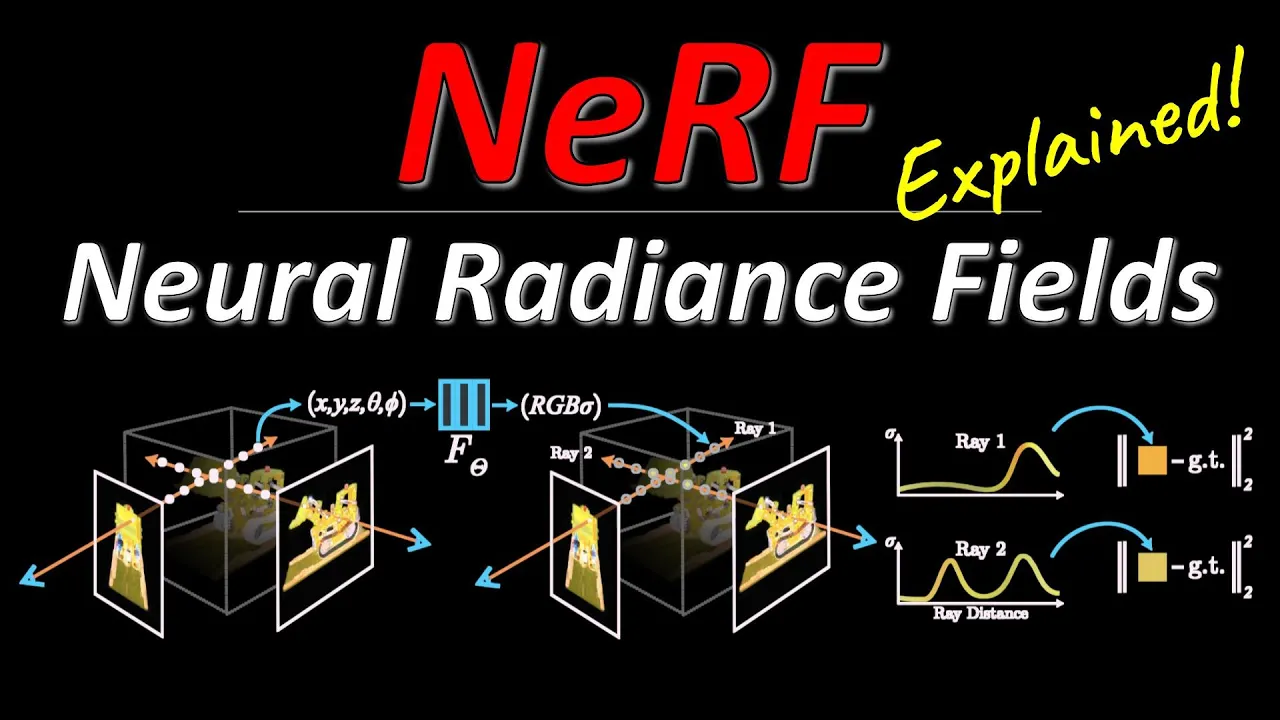




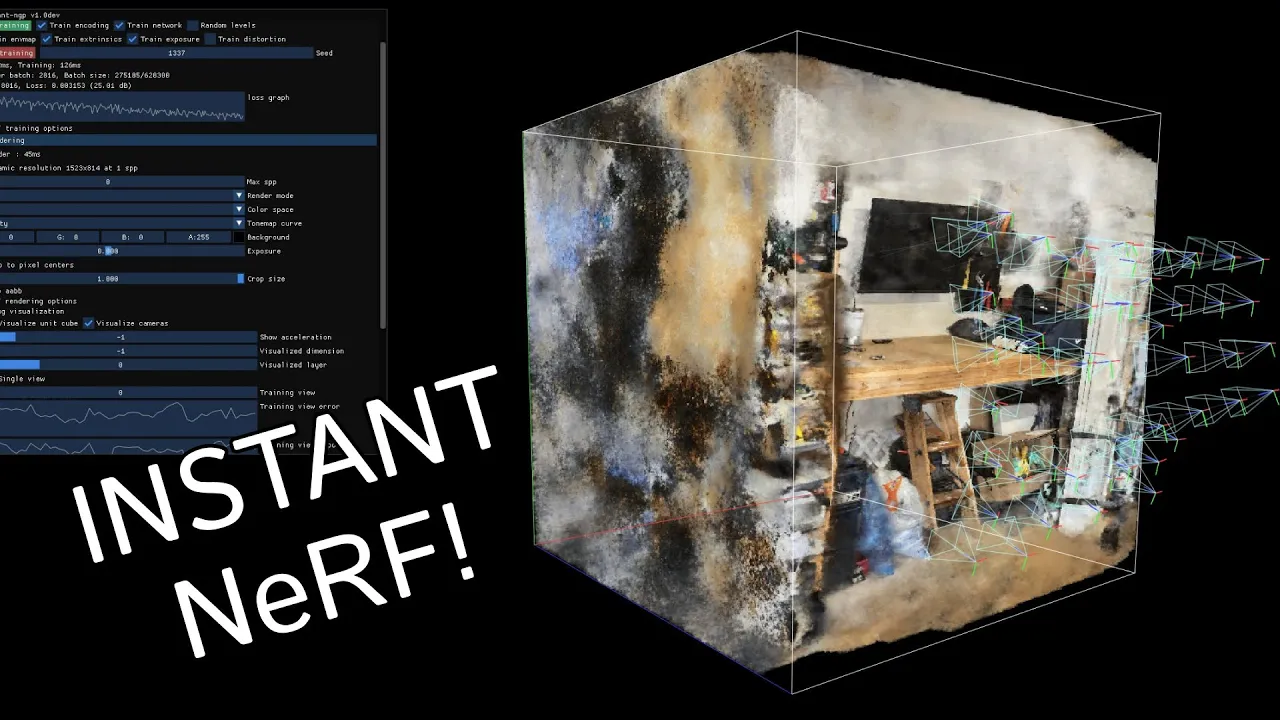







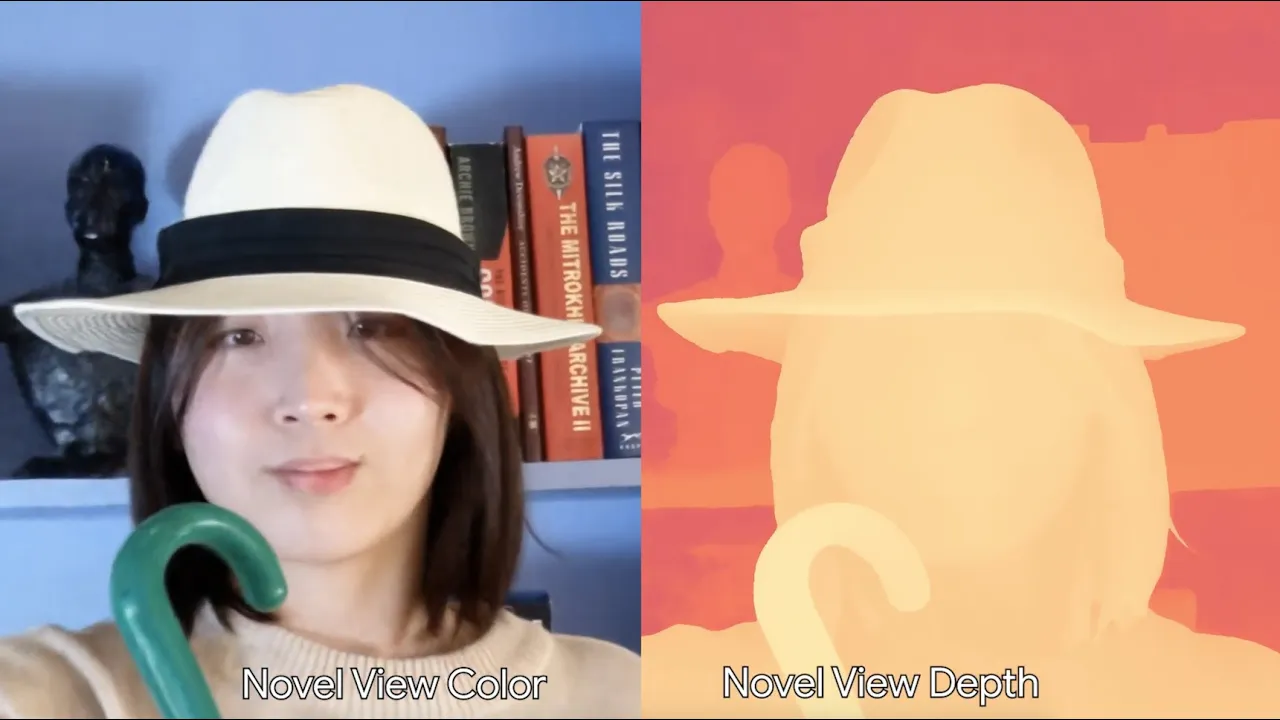
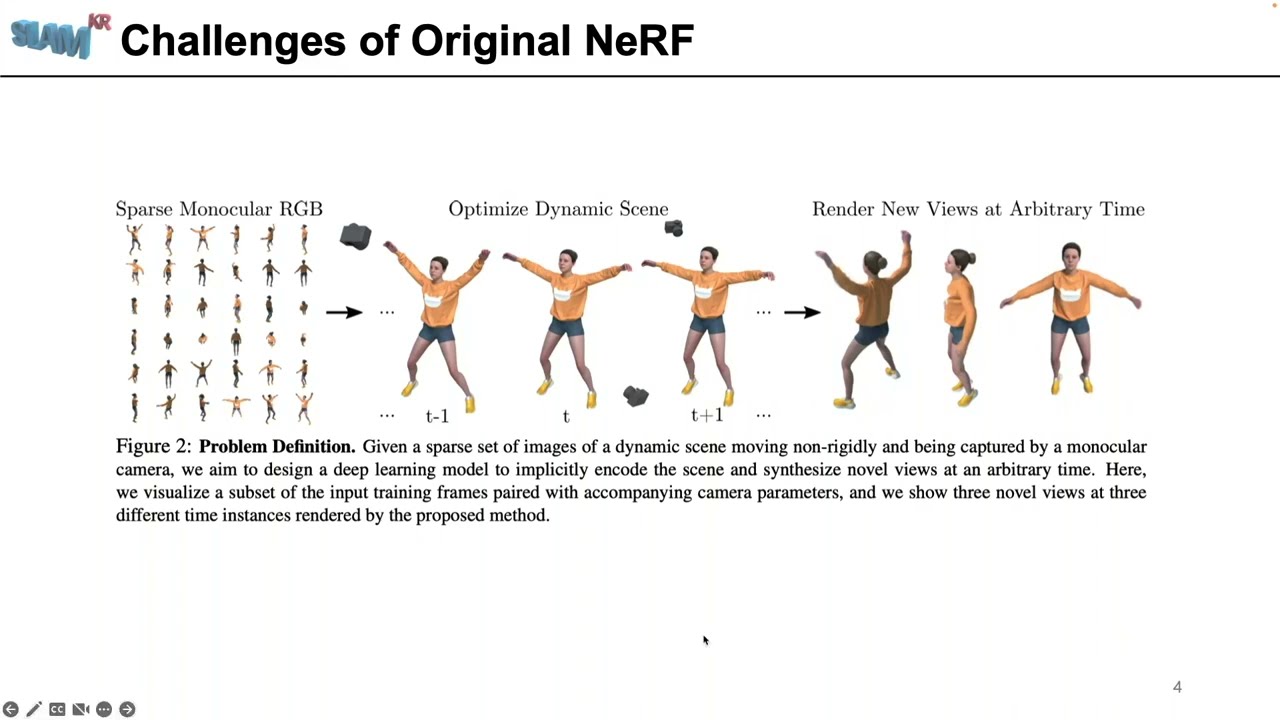



This video tutorial demonstrates how to convert a video into a Neural Radiance Field (NeRF) using NVIDIA's Instant NGP software, covering the complete workflow: extracting frames from video at 2fps, deleting blurry images for better results, performing camera matching to establish 3D scene geometry, training the NeRF model while monitoring loss patterns, refining the scene using crop and rotation tools, creating camera paths for animation, and finally rendering the final animated video.
NVIDIA Instant NGP Tutorial: Creating a NeRF Movie from Video
Added:Basic concepts of 3D computer vision, including camera intrinsics, extrinsics, and Structure-from-Motion (SfM) techniques.
An introductory understanding of Neural Radiance Fields (NeRF) and how they represent 3D scenes using coordinate-based neural networks.
Familiarity with using command-line interfaces (CLI) and managing Python environments, which are necessary for running developer scripts.
An understanding of GPU computing fundamentals, specifically NVIDIA CUDA, which accelerates the Instant NGP training process.
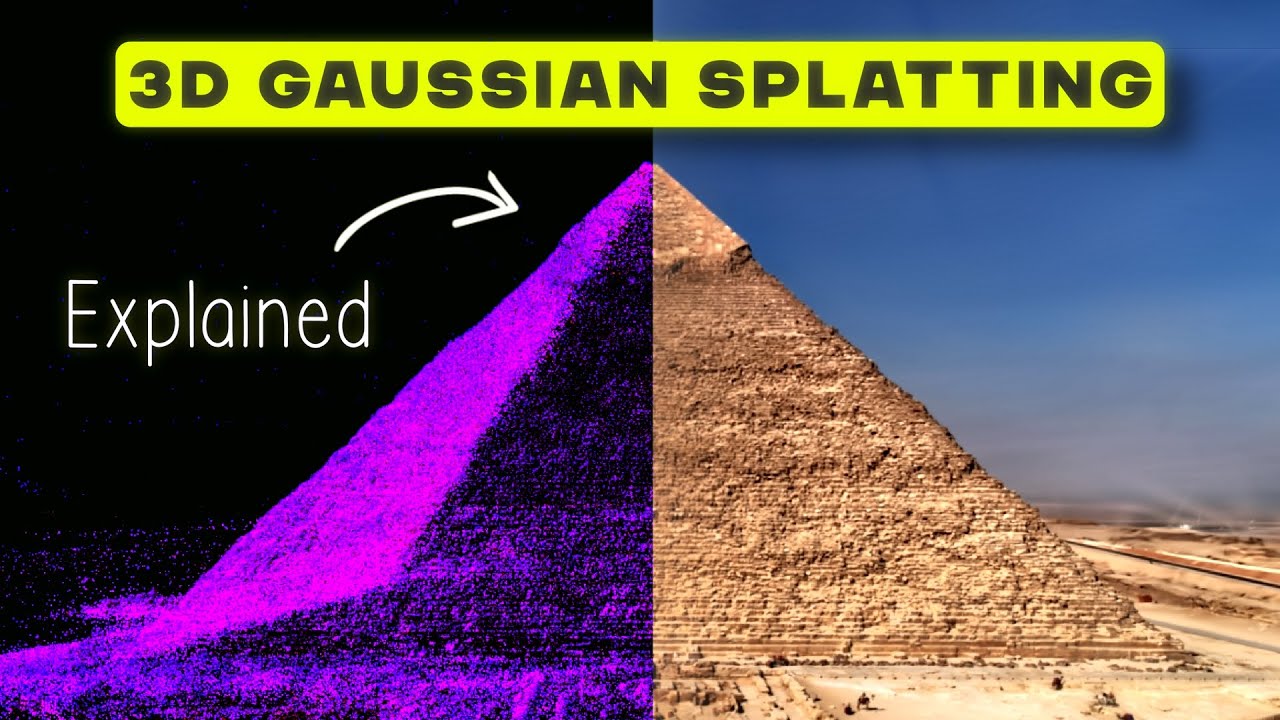
Exploring 3D Gaussian Splatting as an alternative, faster real-time rasterization technique for 3D scene reconstruction.
Integrating reconstructed NeRF assets into traditional 3D graphics pipelines and game engines like Unreal Engine, Unity, or Blender.
Studying dynamic NeRF formulations (such as D-NeRF or Nerfies) to capture and animate moving subjects rather than static environments.
Learning advanced dataset optimization techniques, including custom camera path creation and lighting compensation, to improve render quality.
86.6K views1Klikes9:41Original Release: 2023-01-13
this video is all about using the instant NGP software to take in a video that you've made and turn it into a Nerf and then let you create a little animation flying around through it so I'm going to assume you know how to download this software there's no windows binary release you've got it all set up you've got Anaconda running and you've you know properly you've seen the the little fox Nerf on the screen so you basically got into going this is more about making the movie and whatnot so let's say I have a movie here's a little movie it's not much of a movie it's just really meant to capture this model which is a sort of a practice model by this famous sculptor Daniel Chester French who did like the the sculpture of Lincoln at the Lincoln Memorial and so on and this is a just a guy Charles Devens who's a Civil War Union general and later became attorney general General anyway so that's the movie and I've sort of captured it as best I could and what I first want to do is basically take frames from it so let's see I have to go to where the instant NGP software is so that's that and all of these commands will be in the in the notes below below this video and so now I'm going to start this process running which is uh to extract the images so if you look at this movie you basically are now going to get a bunch of images that get created from the movie and you can go look this up it's basically doing like two frames per second so it's going to pull out a bunch of frames from this little movie um the cool thing here is this thing's just been added called overwrite which basically says hey don't pause don't ask the user you know are you sure you want to overwrite this data and so on so this is really handy for batch processing but anyway this is going to churn for a minute or two and I'll be back when it's done it's done churning and now we have a bunch of images so what I like to do is go through these images and delete the blurry ones and in fact the uh there's a whole web page that you can read carefully which is all these sort of data set tips and so on and it recommends the same is because it's sort of garbage and garbage out if the images are blurry they're not going to do you much good at all so like so there's a blurry one I delete it and that one's kind of blurry too let's just get rid of it and what I'm doing is just using Irfan view to kind of walk through all the images and as I see a blurry one I uh just make it go away so yeah that one's kind of blurry let's delete it you just hit the delete key you can also hit the X up here but delete key is just just plain to use here so anyway let's let's crunch through this get this process over with I'm just deleting a bunch and this also tells you that you should probably try to avoid uh moving the camera around so quickly so you don't get such blurry images you could also just take a bunch of still images if you want but that can take a while so making a little video is often faster so I'm almost done and sure that looks good that means I'm at the end and now I'm ready to go on to the next process which is uh camera matching so what that is is I'll just again toss these two commands in and now what it's going to do is just exhaustively match cameras and come up with some more data about that kind of stuff and what's nice is actually if you have an iPhone 12 Pro or newer there's a different system called record 3D which you can use to have the the sort of recorded camera positions uh come into the system so that that can be a little bit cleaner but I've got an iPhone 11 and nothing fancy and so I'm just doing it this way so we'll let that crunch for a minute and we'll be back after that we're back and now we have some extra data files and whatnot and now we're ready to do the next thing and the most fun thing really is to run instant NGP itself and instant NGP now has this whole ability to make the animations inside instant NGP so it's it's definitely a more pleasant process so let's just resize a little bit and uh you can see it's resolving here it's just pulling in my images and doing its best to to make the statue and basically you just look at this loss graph and when this loss graph is just all up and down sort of teeth pattern and it's not dropping it at all then you're kind of done and you can stop training or whatever but right now it's training long and that's fine we can still interact with the uh with the software and do some other setup so one thing I like to do is uh you know you can see it's kind of noisy around the edges there's a lot of stuff and I really just want to focus on the statute so what I'm going to do is trim it down what I do is I just take crop size and trim trim trim and one other thing one other cool tip is that I can hit the Tab Key and that'll toggle the menus on and off and uh so anyway you can sort of see what you're doing there um so let's see oops not that one that one so anyway I sort of trim and okay that's about as tight as I can get it but I can do better than that it turns out if I use this crop AABB which stands for Access align bounding volume what I can do is also let's uh let's rotate it a bit so now I'm kind of rotating it so that's kind of squared off and I'll also try to rotate it this direction so that the base is kind of level and so that that looks pretty good um anyway so what I can do is do this and now I could pull it in even a little bit closer so let's see I think it's this Max yeah so I'm going to pick pull the back wall in I can go you know look at the tail make sure to cut the horse's tail off and you know that's pretty reasonable I could probably get a little fancier with like minwise you know cut off the cut off the base a little bit maybe even in Z you know Etc but anyway these these are just a way to sort of uh focus in on your model and make it nice and you know what your focus is and when you're done with that what you can do is then close down this control like make these controls go away by just doing the crop there and so now I'm all set pretty much and uh and by the way if you want what you can do anytime you make a Nerf like this is to do a save at any point to save your results and then when you if you were to reopen instant MGP you can just do load on that model and it'll get you all that training data back so you don't have to wait again for a few minutes um so on to making a camera so let's just in fact this is a Fine Place to Start we'll just uh we'll go let's let's do something like this okay so we'll start there add from camera so now we've made a camera and that's that's our first sort of first keyframe and I'm just using the mouse like the mouse middle button lets me pan around like this uh the mouse scroll wheel lets me Zoom so okay so maybe I move over to here and I say yeah it's a pretty good frame I add from camera and move around again and let's say let's see I take one from here something like that you know nothing too exciting but hey it's you know I'm just what I'm going to do here is make just a little cool animation and let's get a sort of dramatic final shot here something like that and uh add from Cam and then now if you back up you'll see I have these cameras and you can see the path the dashed line is the path and one other cool feature well oh by the way you can also do this kind of thing save on your path but one other cool feature that I like is that you can also make a looping animation so you can just have some continuous loop something you can play so anyway we're all set now we've uh We've set up our path all we have to do is render so what we're going to do is let's call this Devon's for the name of the guy and I like that 15 second five is too short um and 30 frames per second is probably plenty fine so this all looks good so now I can just hit render and what's going to happen is as you can see it's going to render and it approximates about how long time that render will take in this case it's probably a low estimate just because we're going in close to the model and that when you get closer it's just going to take longer like you can see the remaining time is if anything is going up but only for ever so slightly but anyway in about two or three minutes It'll be done and I'll be back with you at that point here's the last few seconds of the process you can take see it took about four minutes total and now it's just taking all those frames and making a final video out of it and we should have a video it's uh fresh out of the oven let's go here and it won't be in the Chesterwood directory or wherever you know your data normally is it's actually up above where instant NGP is and here's what the video looks like so you know nothing uh Academy award-winning or anything but you know made a nice little looping video and in not a very long time so that's about it and I hope you have a great time using this software it's it's really pretty fun
Up Next
39:38
3D Gaussian Splatting for Windows: A Beginner Guide
@pixelreconstruct
257.5K views•2023-08-28

12:54
Triumph of Orthodoxy Icon: Byzantine Art & History Explained
@BenCallan
2.1K views•2024-08-06

9:49
FastAPI vs Flask vs Django: Choosing the Right Python Web Framework
@TechWithTim
302.5K views•2024-05-26

1:42
Game of Thrones Opening Credits: A Cinematic Analysis
@gameofthrones
46.3M views•2011-04-18
Related Study Plans & Knowledge Roadmaps
Structured learning paths in General & Interdisciplinary Studies
general-studies
Elevator Engineering: History, Physics & Cities
01From Hoists to Safety Brakes: The Dawn of Vertical Lift
02Hydraulic vs. Traction: The Engineering Physics of Elevators
03Modern Speed, Safety, and Algorithms
+ 2 more learning modules
12h5 modules
Explore Roadmap
general-studies
Rubber: Material Science, History & Geopolitics
01Origins of Natural Rubber & Mesoamerican History
02The Chemistry of Natural Rubber & Vulcanization
03The Geopolitics of the Rubber Boom & Colonization
+ 2 more learning modules
12h5 modules
Explore Roadmap
general-studies
Containerization: Evolution, Logistics & Trade
01Ancient Trade & Bulk Cargo: Amphorae to Barrels
02The Industrial Revolution & Cardboard Packaging
03The Containerization Revolution: Malcom McLean
+ 2 more learning modules
12h5 modules
Explore Roadmap
general-studies
Textile Tech: Evolution, Labor & Global Impact
01Pre-Industrial Textiles: Handloom & Cottage Industry
02Mechanization: The Spinning Jenny to the Power Loom
03The Factory System & Global Labor Transformation
+ 2 more learning modules
10h5 modules
Explore Roadmap