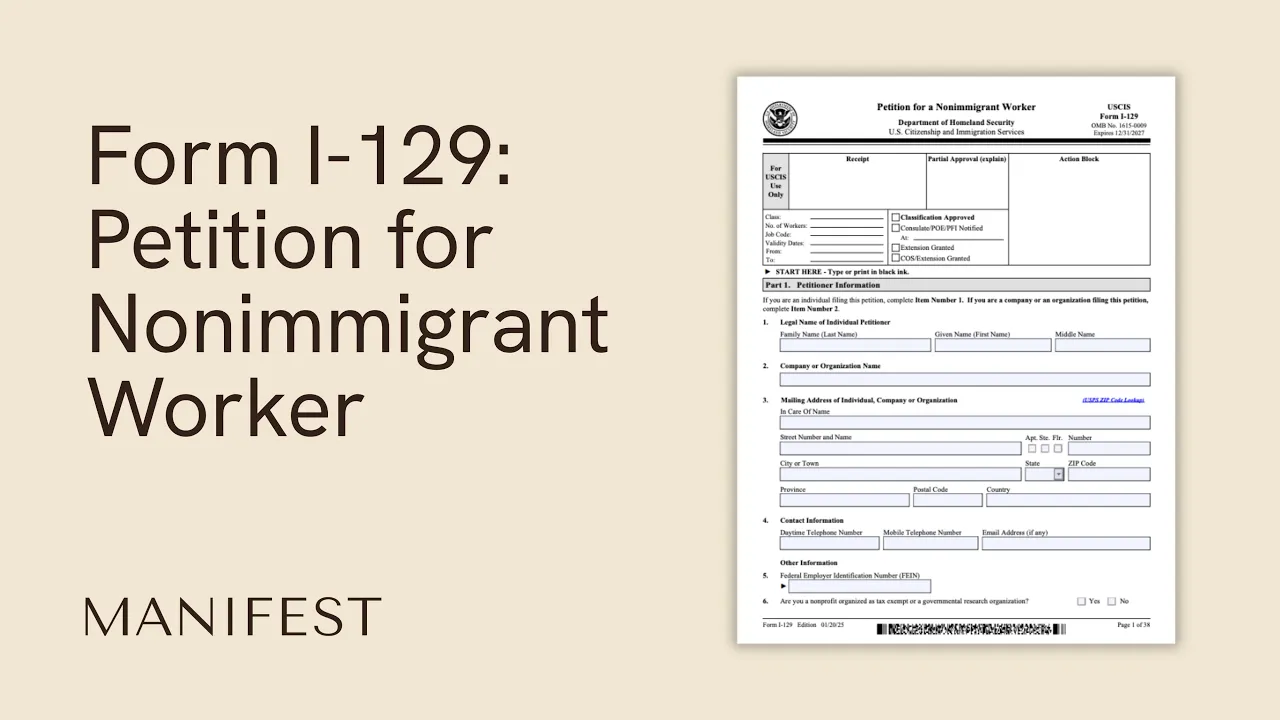


































This video demonstrates the complete online filing process for Form I-129 Petition for a Non Immigrant Worker through USCIS's online account system, covering the sequential workflow from paralegal initiation through company administrator acceptance, including concurrent filing of Form I-907 Request for Premium Processing and Form G-28 for legal representatives, with detailed guidance on evidence requirements, document formatting rules, and multi-stage review processes.
USCIS I-129 Filing: Online Submission Guide with I-907
Added:Understanding of nonimmigrant visa classifications (such as H-1B, L-1, or O-1) and the specific role of the Form I-129 petition in securing work authorization.
Familiarity with the myUSCIS online portal structure, specifically the differences between registrant, employer, and legal representative account types.
Basic knowledge of the role of legal representation in USCIS filings, specifically the authorization process associated with Form G-28.
Comprehension of the USCIS Premium Processing service (Form I-907), including its associated fees, turnaround times, and eligibility criteria.
Developing strategies to monitor online case status, manage digital notifications, and properly respond to Requests for Evidence (RFEs) via the portal.
Coordinating the next steps in the immigration lifecycle, such as Consular Processing or Change of Status (COS) once the I-129 is approved.
Managing employer compliance obligations post-approval, including maintenance of Labor Condition Applications (LCAs) and Public Access Files (PAFs).
Filing concurrent or subsequent applications for dependent family members (Form I-539) and aligning their processing times with the principal petition.
42.4K views189likes15:50Original Release: 2024-04-16
This video will walk you through the filing of Form I-129 Petition for a Non Immigrant Worker.
We will begin in the account of a paralegal who will initiate the filing.
Then we will go to the legal representative who will review the form and send it to the company administrator.
After the administrator accepts the form, we will show how the legal representative pays for and submits the petition.
From the home screen, the paralegal will go to file a form.
The first drop down menu will have a list of clients the paralegal has been granted permission to work with.
After choosing the client, the paralegal will select form I-129 from the drop down menu.
We will continue as though you are the paralegal.
The next screen will confirm the company and the form and we will have reminders about who may apply online.
There is also a note to let you know that you can concurrently file Form I-907 request for premium processing.
If you request premium processing, the system will present form I-907 for you to complete after you sign form I-129.
This will allow the legal representative to pay for and submit both forms.
When you are ready, start the form.
There will be two pages of reminders about eligibility fees, documents you may need, and what to expect after the petition is submitted.
Please read this information carefully.
The online form collects the same information as the paper form, but it is formatted a little bit differently.
It works on conditional logic, which means the questions sometimes rely on the answers you have already provided.
For that reason, it is best to move through the form in order.
The online form has left rail navigation, which you can see here.
The left rail is an index of the form and you can see where you are, what you have already completed, and what remains to be done.
You can exit the form and log out of your account at any time and we will save your work.
We will save the draft form for 30 days.
If you do not make progress or edits for 30 days, your form will be deleted and you will have to start over.
Here are some notes about information required in Form I-129.
In the Getting Started section, it asks if the beneficiary has a valid passport.
The beneficiary must have a valid passport and it must be the one that was entered in the registration.
Any discrepancy should be explained in a document that can be uploaded in the Additional Evidence section.
You cannot file online for dependents.
If you are filing any applications for dependents, you can say yes to this question.
Then file for the dependents with paper forms.
If you would like to request premium processing service, select yes and the I-129 and I-907 will be submitted together as the paralegal.
You should fill out the Preparer section.
In the section titled About the Petitioner, you will fill out the name of the petitioning company, the title of the authorized signatory, and the phone number and e-mail address and physical address of the company.
When entering the EIN or other federal tax identification number, use the same one that is on the selected registration that is the basis of this petition.
Only one of these fields needs to be filled out.
The section for the beneficiary will include details like name, where the beneficiary is physically located now, and what type of office you would like the petition approval sent to.
If you select an overseas embassy or consulate, you will need to provide that address.
The Employment section will require details of the job the beneficiary is going to have.
You will also need the Labor Condition Application, otherwise known as the LCA or Employment and Training Administration ETA Case number.
Be ready to provide details of the petitioning business, such as the type of business, years established, number of employees, and gross and annual net income.
The H Classification Supplement needs to be completed by petitioners sponsoring a foreign national in any primary H visa classification.
The first question requires the beneficiary confirmation number from the H-1B selection notice.
Read the following questions in the H Classification Supplement and only answer the ones that apply to you.
The evidence section needs careful attention.
There will be a list of file requirements that will be there for your reference every time you need to upload evidence.
Be sure to give your evidence a simple descriptive name.
The only accepted file formats are JPG, JPEG, PDF, TIF, or TIFF.
You may not upload encrypted or password protected files.
Foreign language documents must have a full English translation as well as the translators certification.
With each original document, you may upload all the evidence you need, but no more than five documents at a time.
Accepted characters for file names are English language letters, numbers, spaces, periods, hyphens, underscores, and parentheses.
The maximum file size is 12 megabytes per file.
In the left rail, there will be a list of documents you must provide.
Remember that you can log out, collect the evidence you need and save it on your computer.
Then log back into your draft I-129 and continue adding evidence.
The first evidence requested is the U.S. Department of Labor Certified Labor Condition Application, otherwise referred to as the LCA, and what you see here is an example of what that looks like.
You can provide this by selecting the blue choose button, then selecting the documents from where you stored them on your computer.
In this example, I purposely uploaded a document with a file format that does not comply with the requirements so you can see the error message.
When that happens, I will delete that document and upload one with a correct file format.
After uploading the document, it appears in the list with its name and description.
You can now move on to the other evidence.
You should provide as much evidence as you can at the time of filing.
If anything is missing, it might slow down processing the petition.
If you have evidence that does not have a clear category, you can upload it as Additional Evidence in the Additional Evidence section.
There is a place to type notes related to any section of the petition that you think needs some clarification.
Select the section of the petition and the question you want to address from the drop down menu and then type your additional information.
You have a limit of 500 characters.
Save the response when you are done.
You can add more than one note if you need to.
After that it will be time to review the information that has been entered on this screen.
There will be a red alert if there is a place in the petition where information is missing.
On this screen, the red alert says there are errors in the petitioner's name.
You can select Edit My Responses and the system will take you directly there.
After providing the missing information, you can use the left rail to return to review and submit part of the petition.
Now there is a green alert letting you know that we found no alerts or warnings in your petition and you can continue.
You will review your Form I-129 information.
You may view a draft snapshot or download a printable copy if you wish.
You can scroll through all the information on this page and if nothing needs to be added or changed, select Next at the bottom.
If you selected Yes to Premium Processing, you'll be directed to fill out form I-907 next.
If not, then your form is ready for review.
This form was filled out by a paralegal, so the system asks who you want to notify.
This paralegal will notify their supervising attorney by selecting that name and then selecting Notify Administrator.
The paralegal will be returned to their homepage and there will be a green alert letting them know that the form was successfully sent for review.
Now let's look at the next steps.
In the account of the attorney on the homepage in the table of drafts, the draft petition is there with the status Pending Representative Signature.
To open it, the attorney will select View Draft.
A case card appears with the name of the petitioning company, the form type and its status.
The attorney will select Review Form I-129.
We will continue as though you are the attorney.
You can see that the left rail has the entire form listed and that you are currently in the review and submit section.
There are no red warnings, so you can select next just like in the review for the paralegal.
The form can be viewed in a draft snapshot in a printable PDF or by scrolling down the page.
If you see a place that you want to change or add information, you can use the left rail navigation to go directly to that part of the form.
If you have no changes, select next at the bottom of the page.
The preparer's declaration is for the paralegal who prepared the form.
Please follow the instructions.
You will then be able to select Finish the I-129 and continue to the I-907 If it is being concurrently filed. By finishing Form I-129, no further changes can be made.
Please be sure that Form I-129 is complete and then select Finish and continue.
You are now reviewing the form I-907.
Request for premium processing.
You will indicate that you are the attorney or accredited representative and select Next.
You as the attorney or accredited representative are the preparer for this form and you will fill out this section.
Now you can review the rest of the form.
There will be a place for additional information if you need it.
If there are no error alerts, you can continue the review.
Then you will fill out the statements and provide your signature.
Once you select Finish and Continue, no further changes can be made at this time to the I-129 or the I-907.
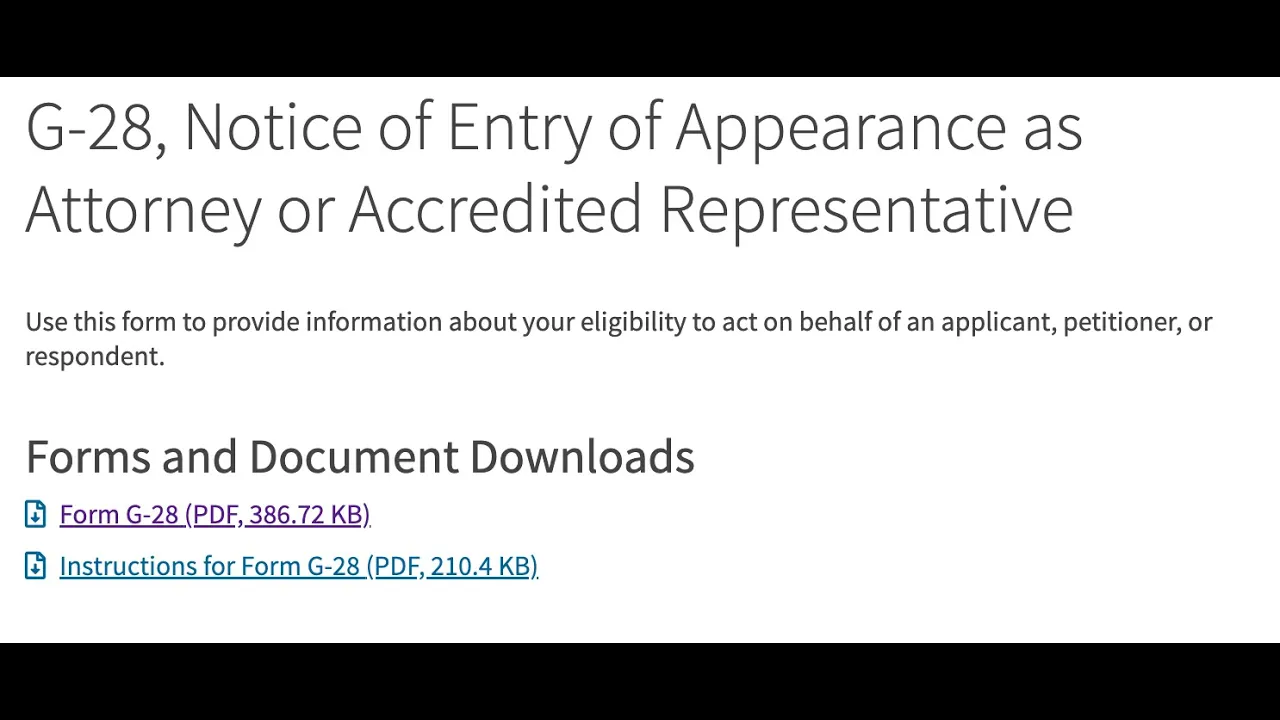
You will continue to the G-28.
You have the option to auto populate your G-28 from the information in your online account profile.
If you select that option you will confirm your information.
Just a note, if your client doesn't have an A number or a USCIS Online account number, or you don't know those numbers, you can check the box and move on to the next section.
If there are no alerts or warnings, you can review the G-28, then provide your typed name as a signature.
After that you will select submit and notify an administrator.
You can select one, some, or all of the administrators in the company account.
Everyone in the company group will be able to see the draft is waiting for review and signature, but only the ones that you select will receive an e-mail letting them know that there is a draft ready.
You have successfully submitted the draft to the company administrator.
Now let's look at the process from that point of view.
The company administrator will log into their homepage and see that there is a draft pending administrator signature.
We will proceed as if you are the administrator.
Select View Draft.
You can see that there are three forms waiting for your review, the I-129, the I-907 and the G-28.
You can download each of them if you wish, but you must review them in order by selecting Review Form G-28 at the bottom of the page.
After reviewing form G-28, you will be able to either accept or decline the form.
If you decline the form, you will not be able to continue to the I-129 or the I-907.
The attorney will receive notification that the G-28 was declined and will be able to edit that form.
He will then submit it to the company administrator again.
Only after the G-28 is accepted can the company administrator continue to the other forms.
After you accept the G-28, you will read several statements and provide your typed signature, then submit the form.
You will do this three times, once for each form.
You only provide your signature when you are accepting the form.
After you finish reviewing the I-907, you will select Finish and Send to return the signed forms to your representative.
The forms will now appear in your draft table with the status Pending Representative signature.
Let's return to the Attorney homepage.
On the homepage in the draft table you can see that the form is ready to pay and submit.
Select actions and a drop down menu will appear with two choices, View Draft and Pay and Submit.
When you select Pay and Submit, you will be taken to the pay. gov website, a secure government website run by the Department of the Treasury.
Pay. gov is not part of USCIS. USCIS does not provide a receipt for Pay. gov transactions.
After you have made the payment, you will be returned to your homepage, where you can see in the table of submitted cases that the forms were successfully submitted.
The company administrator will see the same thing on their homepage.
Thank you for watching this video.
Here are some resources. For more information and how to contact us if you encounter a system error.
Up Next

59:52
H-1B Grace Period Ending: Visa Options Explained
@ReddyNeumannPC
17.5K views•2023-03-28

12:54
Triumph of Orthodoxy Icon: Byzantine Art & History Explained
@BenCallan
2.1K views•2024-08-06

7:17
How to File an H-1B Registration: A Step-by-Step Guide
@uscis
3K views•2026-02-23

1:42
Game of Thrones Opening Credits: A Cinematic Analysis
@gameofthrones
46.3M views•2011-04-18
Related Study Plans & Knowledge Roadmaps
Structured learning paths in General & Interdisciplinary Studies
general-studies
Elevator Engineering: History, Physics & Cities
01From Hoists to Safety Brakes: The Dawn of Vertical Lift
02Hydraulic vs. Traction: The Engineering Physics of Elevators
03Modern Speed, Safety, and Algorithms
+ 2 more learning modules
12h5 modules
Explore Roadmap
general-studies
Rubber: Material Science, History & Geopolitics
01Origins of Natural Rubber & Mesoamerican History
02The Chemistry of Natural Rubber & Vulcanization
03The Geopolitics of the Rubber Boom & Colonization
+ 2 more learning modules
12h5 modules
Explore Roadmap
general-studies
Containerization: Evolution, Logistics & Trade
01Ancient Trade & Bulk Cargo: Amphorae to Barrels
02The Industrial Revolution & Cardboard Packaging
03The Containerization Revolution: Malcom McLean
+ 2 more learning modules
12h5 modules
Explore Roadmap
general-studies
Textile Tech: Evolution, Labor & Global Impact
01Pre-Industrial Textiles: Handloom & Cottage Industry
02Mechanization: The Spinning Jenny to the Power Loom
03The Factory System & Global Labor Transformation
+ 2 more learning modules
10h5 modules
Explore Roadmap