
















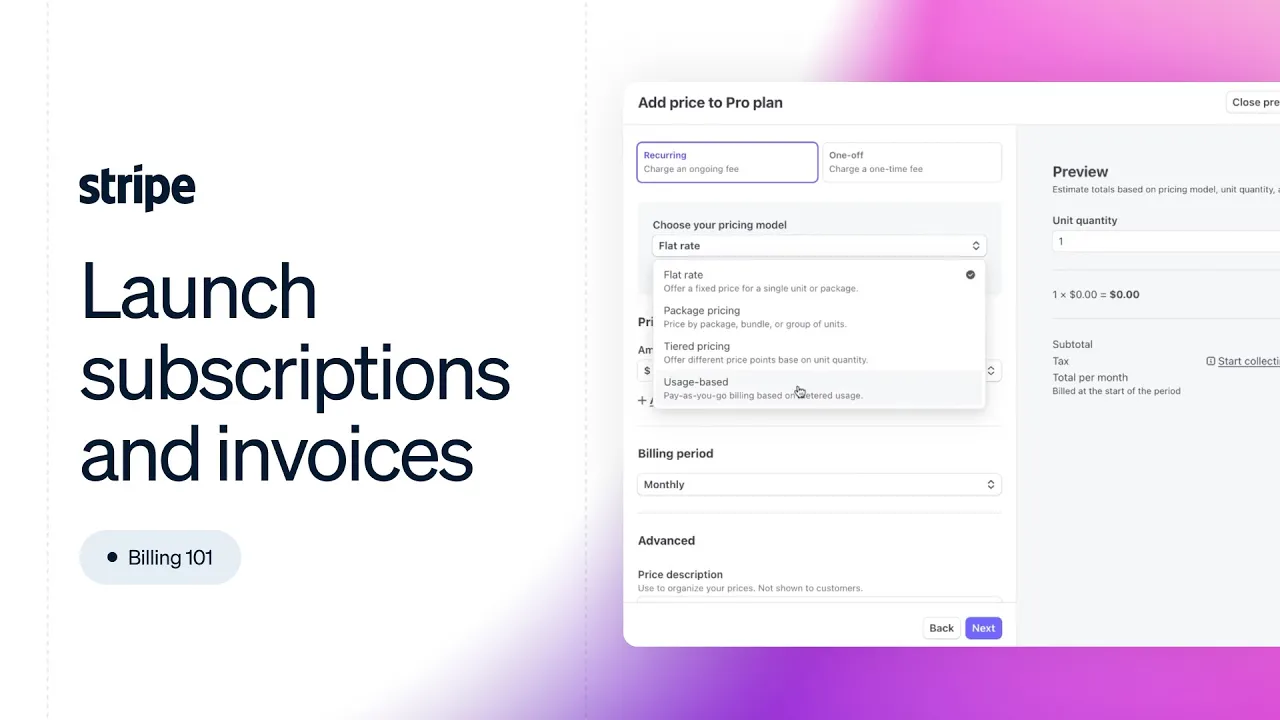





To create a subscription in Stripe, navigate to Products, add a product with details like description and image, select a pricing model (standard pricing is most common), enter the price, choose between recurring or one-time billing, set the billing frequency (daily, weekly, monthly, yearly, or custom), save the product, then create a payment link to customize the checkout page with fields like customer information or free trial options, and finally generate the checkout URL for customers.
How to Create a Subscription in Stripe: A Step-by-Step Guide
Added:Basic understanding of payment gateways, merchant processors, and how online transactions work.
Familiarity with the subscription business model, including concepts like recurring billing cycles, billing intervals, and trial periods.
The conceptual distinction between a 'Product' (the service or physical good offered) and its 'Price' (how much and how often a customer is charged).
Basic familiarity with online merchant dashboards and navigating SaaS administration panels.
Implementing Stripe Webhooks to programmatically listen for and respond to subscription events, such as successful payments or failed renewals, in a custom database.
Setting up the Stripe Customer Portal to allow subscribers to self-manage their billing details, active plans, and cancellations.
Managing dunning processes and failed payments, including configuring automated retry schedules, card preservation, and customer email alerts.
Integrating advanced billing structures such as metered (usage-based) pricing, tiered pricing, and promotional coupon codes.
Transitioning from no-code Stripe Payment Links to a custom checkout flow integrated directly into a website using the Stripe API and Stripe.js.
16.8K views181likes3:05Original Release: 2023-05-22
in this video I'm going to show you how to create a subscription with stripe so let's get started okay so the first thing you want to do is you want to navigate to products right here once you're in products you want to click on add a product then this is where you will need to fill out your product information so what is it that you're selling so let's say for example that I'm going to be selling coaching with George okay good then you have you can enter the description so let's say it's going to be you know a one on one uh coaching session right and then it's going to you can add an image here so you can upload some kind of an image there we go I can also add some additional features here like the statement descriptor unit label metadata and feature list but I usually just don't touch these so I'm gonna close this down now this is where you get actually to the part where you're setting up the subscription so you have different ways of pricing models right so you have the standard pricing and then you have the package pricing graduated price volume pricing and customer chooses their own price okay so the most popular and basic step pricing is the standard pricing so standard pricing is when you enter some kind of a price let's say 49 euros so this is where you choose the subscription thing right so the recurring is the subscription and one time it's just going to charge the customer once and that's it so if you click recurring then you can choose how often do you want to build your customers right so let's say a billing period is going to be daily weekly monthly every three months every six months yearly or custom so if you click custom you can decide every for example I don't know two and a half months oh I can't have two and a half so let's say for example every you know five months right every five months the customer is going to build this amount or you can just say hey every month I want to charge my customers 197 Euro you can also change the currency here so once you've chosen your pricing model you've entered the price and you've chosen how often would you like to build your customers then you click on Save products and once you've saved your products you want to click here on create payment link here you'll be able to customize your payment page details so you can add for example a custom field right here so let's say that you want to add you know Instagram handle right if you want to find the customer easy on Instagram you can you know collect their address you can get them to provide their phone number or you can include a free trial Etc and then here if you click on after payment this is what they're going to see after they have subscribed okay so you can also customize this you can replace the default text with custom message you can say hey I'm going to message you on Instagram for example okay and once you're done customizing this you simply click on create link and here you're going to see the link to your checkout page so if you copy this and you open a new tab and you paste it in and we search for it voila you can see that this is going to be your check account page so yeah I hope this video was helpful and thank you so much for watching subscribe
Up Next
10:34
How to Configure Paid Memberships With the Memberful WordPress Plugin
@memberful
1.2K views•2022-10-21

12:54
Triumph of Orthodoxy Icon: Byzantine Art & History Explained
@BenCallan
2.1K views•2024-08-06

9:49
FastAPI vs Flask vs Django: Choosing the Right Python Web Framework
@TechWithTim
302.5K views•2024-05-26

1:42
Game of Thrones Opening Credits: A Cinematic Analysis
@gameofthrones
46.3M views•2011-04-18
Related Study Plans & Knowledge Roadmaps
Structured learning paths in General & Interdisciplinary Studies
general-studies
Elevator Engineering: History, Physics & Cities
01From Hoists to Safety Brakes: The Dawn of Vertical Lift
02Hydraulic vs. Traction: The Engineering Physics of Elevators
03Modern Speed, Safety, and Algorithms
+ 2 more learning modules
12h5 modules
Explore Roadmap
general-studies
Rubber: Material Science, History & Geopolitics
01Origins of Natural Rubber & Mesoamerican History
02The Chemistry of Natural Rubber & Vulcanization
03The Geopolitics of the Rubber Boom & Colonization
+ 2 more learning modules
12h5 modules
Explore Roadmap
general-studies
Containerization: Evolution, Logistics & Trade
01Ancient Trade & Bulk Cargo: Amphorae to Barrels
02The Industrial Revolution & Cardboard Packaging
03The Containerization Revolution: Malcom McLean
+ 2 more learning modules
12h5 modules
Explore Roadmap
general-studies
Textile Tech: Evolution, Labor & Global Impact
01Pre-Industrial Textiles: Handloom & Cottage Industry
02Mechanization: The Spinning Jenny to the Power Loom
03The Factory System & Global Labor Transformation
+ 2 more learning modules
10h5 modules
Explore Roadmap