

![[Lecture] What's a word?](https://i.ytimg.com/vi/ZqFqd9qUQM4/hqdefault.jpg?sqp=-oaymwEmCOADEOgC8quKqQMa8AEB-AHUBoAC4AOKAgwIABABGH8gQCgbMA8=&rs=AOn4CLAS4jOn1iL_Ats0dQtu4gUVW9dcag)

![NLP Full Course 2026 [FREE] | NLP Tutorial For Beginners | Learn NLP With Python | Simplilearn](https://i.ytimg.com/vi/9LOyEYJsy6k/maxresdefault.jpg)








![Penelusuran korpus beranotasi semantic tag [LK 111]](https://i.ytimg.com/vi_webp/8jkoqUapcXc/maxresdefault.webp)
![Penelusuran korpus beranotasi POS tags [LK 107]](https://i.ytimg.com/vi/Y9wTSX_KWas/maxresdefault.jpg)


![Analisis kolokasi 2 [LK 118]](https://i.ytimg.com/vi/HGh-1KKtb-Y/maxresdefault.jpg)


AntConc is a free, open-source corpus analysis toolkit that enables users to download and install the software, create and load language corpora from various file formats (text, PDF, Word, HTML), and analyze linguistic data using tools like the Keyword in Context function, which searches for words or phrases and displays their usage patterns with surrounding context to reveal collocational relationships and frequency distributions.
AntConc 4.2 Tutorial: Getting Started with Corpus Analysis
Added:Basic understanding of corpus linguistics, including what a 'corpus' is and its role in empirical language study.
Familiarity with foundational terminology such as tokens, types, lemmatization, and word frequencies.
Knowledge of text file formats (particularly plain text (.txt) and UTF-8 encoding) and why they are preferred over formatted text documents.
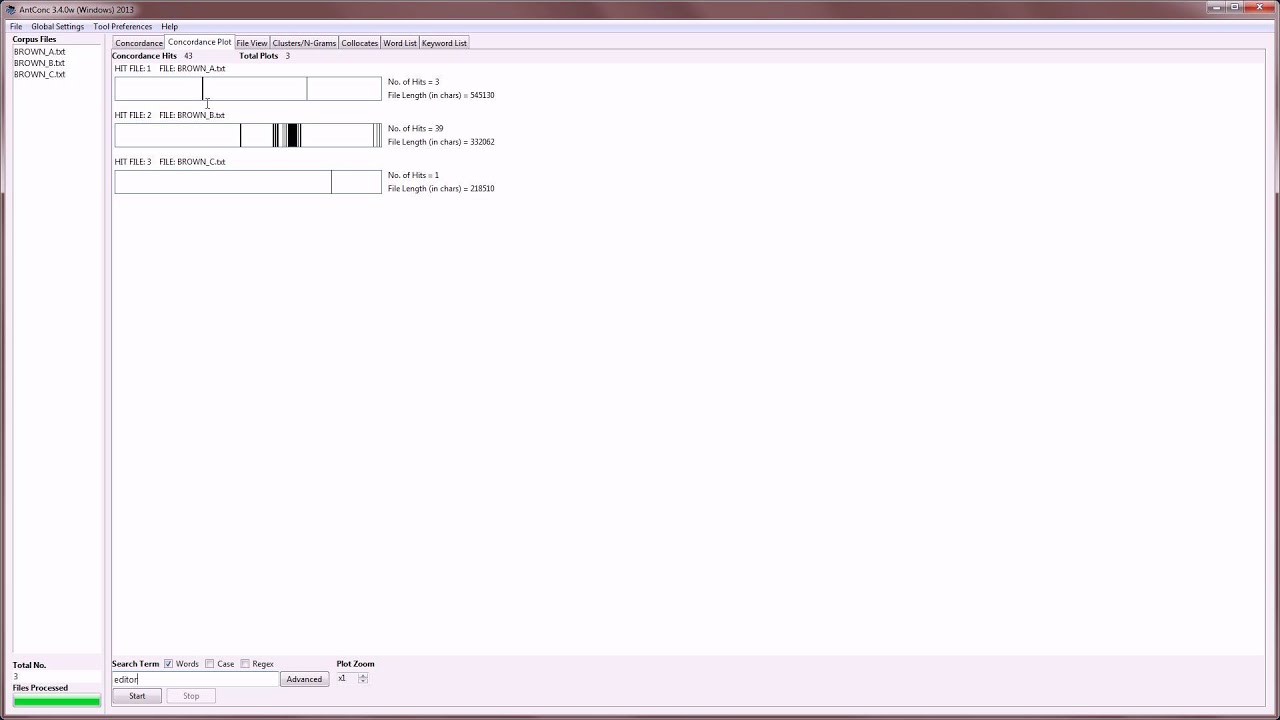
Mastery of advanced AntConc features, such as regular expressions (Regex) for complex search queries and utilizing the Collocates and Concordance Plot tools.
Methods for corpus annotation, including Part-of-Speech (POS) tagging and semantic tagging to perform more sophisticated linguistic analyses.
Statistical principles in corpus linguistics, such as association measures (e.g., Mutual Information, t-score) for collocations and keyness metrics (e.g., Log-Likelihood).
Best practices in corpus design, compilation, and clean-up, including issues of balance, representativeness, and sampling.
50.6K views762likes10:05Original Release: 2023-01-16
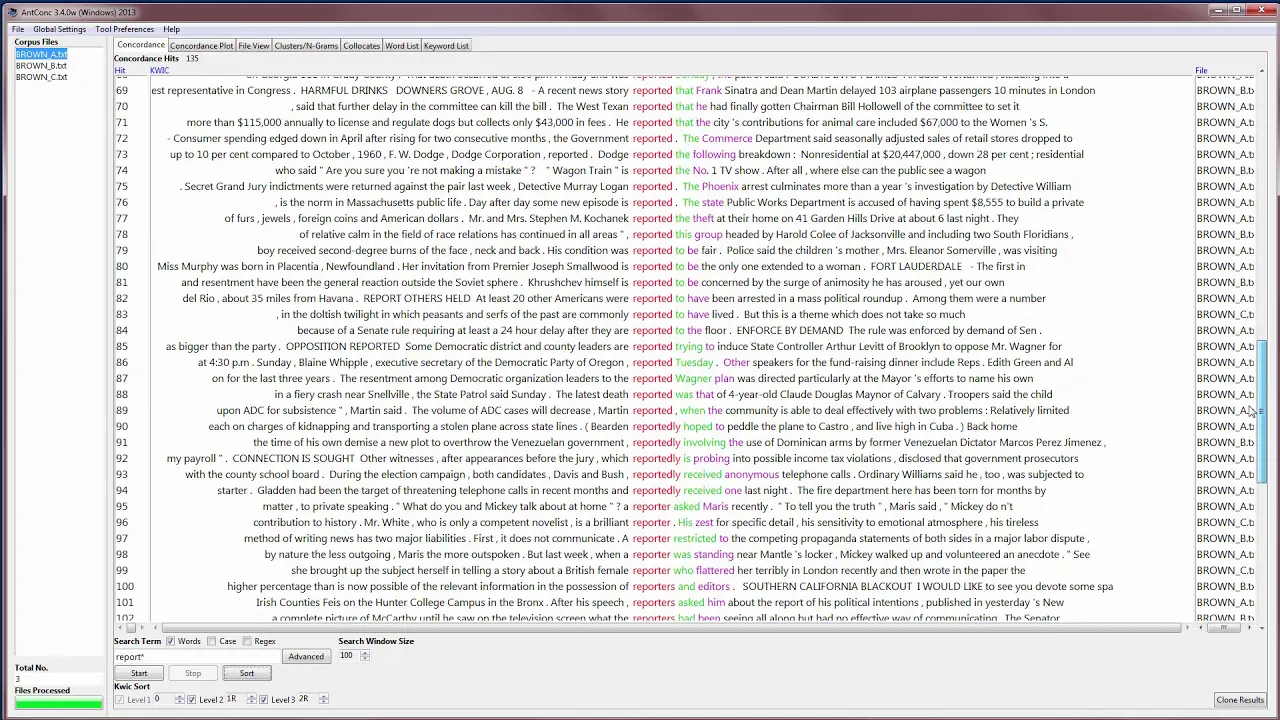
foreign Ty and in this video I'm going to show you how you can get started with and conch first I'll explain how you can download and install the software then I'll explain the basic layout of the toolkit then I'll show you how you can create some language data a corpus and load that into Ancon and then finally I'll explain how you can use some of the basic Tools in Ancon to analyze your language data okay so let's get started so to get started with Uncle you first need to go to the Ancon home page which you can see in the URL here and uh scroll down and look for the version of Ancon that you want to install now you can see that there are different versions for different operating systems for Windows there's also Mac OS and Linux in the for Windows there's an installer version and a portable version and for the mac and Linux they're both basically portable versions that you install so once you click on one of these versions you'll the browser will download the software into your computer you double click on the file and load it as with every other general purpose software tool you will find so just follow the instructions after you download the software so so while we're here I should also point out that um you can see at the top here there's a link to different screenshots that show the various tools within Ancon so you can look at those and there's also a link to the help page which is a PDF file which gives you quite a lot of detailed information on how to use Ancon which I definitely recommend you have a look at and you can also access the license agreement here which is another file that you can read okay and just for a few other things if you would like to donate or supporter and Kong in any way you can click one of these buttons there's also some frequently asked questions with the answers to those and some other information including video tutorial supports and how to cite and reference Ancon in any Reef search paper foreign okay so what do you do once you've downloaded and installed and conch well let's look at that now so once you've downloaded and installed Ancon and you can go to your start menu in Windows or your Launchpad in Mac OS or the folder in Linux and just double click and start the program and you can see that once it launches it looks something like this now for these video demonstrations and tutorials I'm going to increase the font size of the tool so that it's a little bit easier to see but you probably don't need to do that in your own when you're using it yourself so I'm just going to go to here settings I'm going to go to global settings and go to the font category and I'm going to change that to 16 point which will make this a little easier to see and I'll also maximize the screen so this should be now easy for you all to see okay so uh this is what Ancon looks like when you first start the tour you'll see on the left is a space or a window pane for the Target Corpus or language database that you're using at the moment there is nothing here and we're going to load that in a moment and you'll see at the top here we have tabs for the different tools that Ancon offers there including a quick tool plot file view cluster engram collicate word keyword and word cloud tool and as and is updated you'll see new tools appear here uh for each tool the interface at the bottom of the screen does change and depending on what needs to be done and I'll explain those tools in other videos in this tutorial series so let's now create a simple Corpus or language database and use some of these tools to see what the data looks like so the simplest way to create a language database or Corpus within Ancon is to go to the file menu and open files as a quick Corpus so these files could be text files PDF files Word files HTML files and various other formats that you can read about in The Help menu so I'm just going to click open files as quick Corpus and then we have a standard file directory option here I'm going to and I'm going to navigate to a folder of plain text files that store the data for the meo6 academic English sub Corpus of the amiosis Corpus that Paul Baker created a few years ago thank you Paul for letting me use this data so here after you can see that we have many many files so I'm going to select all the files and I'm going to do a shift click option here or I could select individual files with control click or I could just use a shortcut like Ctrl a to select all the files in this folder and then I click open and you'll see that uh in a moment and conch will process these files as you can see here and then it says a temporary Corpus has been created the Corpus can be saved via the Corpus manager which I'll explain in a different video so you can see here now that these files have been loaded and we have a hundred and sixty one thousand four hundred and sixty nine tokens in this Corpus and we can go through and see them all there now once we have the files loaded into Ancon we can start using the different tools within Ancon to analyze the data now there are many tools within Ancon but for this getting started tutorial I'm just going to focus on the keyword in context tool which is perhaps the most commonly used tool in Copper's analysis let's look at that now so the keyword in context tool of Ancon is the default tool when you first start Han Kong and you can see it is highlighted at the top here and but we also have other tools like the plot tool the file view tool and so on so the keyword in context tool allows you to search within the data for any word or phrase or expression and see how that word or phrase is being used so let's type in the word process and see how that is used in the database so I'm going to type word process I can then click Start here and we get the results I can also just click return after typing the word to get the results as well now you can see here in the results table we have the file name where the hit appeared we also have some context to the left and right of the search query word and also the results here are sorted by and you can see here at the bottom by frequency and this is the pattern frequency so the word process appears in various patterns and the most frequent pattern that it appears in and to the right is process of and then we have some other variations process of taking process of being process of creating I can scroll down and I can see other patterns like process that process the process and and and so on so this tool allows you to immediately see how a word is being used um in patterns to the right and I can use a sort option here and sort to the left and then start again and see what patterns it appear to the left of the word process and we can see the most common pattern is in the process and then to the process as the process and some other variations now the keyword in context tool has many many other features that I could show you but I'll leave those to a different video and I'll stop here and uh hope that you can get started with ankong and start doing some language analysis on your own [Music]
Up Next

16:43
AntConc 4 Basics: KWIC Concordance Tool Tutorial
@AntLabJPN
29.1K views•2022-06-02

178:38
Whole Brain Architecture: First International Workshop 2024
@thewholebrainarchitecturei9784
640 views•2024-07-22

9:49
FastAPI vs Flask vs Django: Choosing the Right Python Web Framework
@TechWithTim
302.5K views•2024-05-26

1:42
Game of Thrones Opening Credits: A Cinematic Analysis
@gameofthrones
46.3M views•2011-04-18
Related Study Plans & Knowledge Roadmaps
Structured learning paths in General & Interdisciplinary Studies
general-studies
Artificial Light: History, Tech & Human Impact
01The Pre-Electric Era: Fire, Oil, and Gas Lighting
02The Incandescent Revolution and Grid Electrification
03Gas Discharge and Fluorescent Illumination
+ 3 more learning modules
14h6 modules
Explore Roadmap
general-studies
Elevator Engineering: History, Physics & Cities
01From Hoists to Safety Brakes: The Dawn of Vertical Lift
02Hydraulic vs. Traction: The Engineering Physics of Elevators
03Modern Speed, Safety, and Algorithms
+ 2 more learning modules
12h5 modules
Explore Roadmap
general-studies
Rubber: Material Science, History & Geopolitics
01Origins of Natural Rubber & Mesoamerican History
02The Chemistry of Natural Rubber & Vulcanization
03The Geopolitics of the Rubber Boom & Colonization
+ 2 more learning modules
12h5 modules
Explore Roadmap
general-studies
Containerization: Evolution, Logistics & Trade
01Ancient Trade & Bulk Cargo: Amphorae to Barrels
02The Industrial Revolution & Cardboard Packaging
03The Containerization Revolution: Malcom McLean
+ 2 more learning modules
12h5 modules
Explore Roadmap