



![[한국어 학습자 말뭉치 나눔터] 한국어 학습자 말뭉치 활용을 위한 분석 도구 활용법](https://i.ytimg.com/vi/boUGPkKaGs0/maxresdefault.jpg)







![Regex Tool In Antconc | How To Search Words By Boundaries | [ English ]](https://i.ytimg.com/vi_webp/GD00E7UfbPc/maxresdefault.webp)






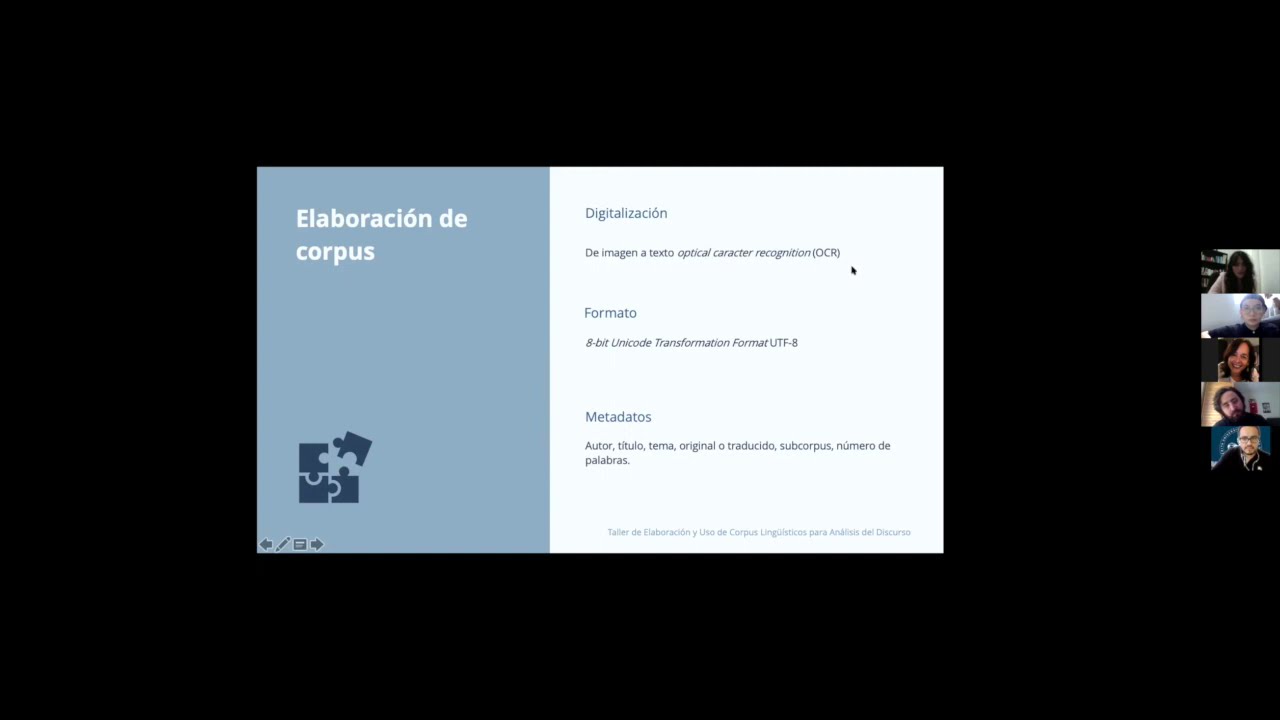
The KWIC (Keyword-In-Context) tool in AntConc 4 allows users to search for words or phrases within a corpus and display them with surrounding context, enabling analysis of language patterns through features like context size adjustment, sorting options (alphabetical or frequency-based), multi-word unit searches, and wildcard functionality, with results that can be saved as plain text or copied directly to other applications.
AntConc 4 Basics: KWIC Concordance Tool Tutorial
Added:Understanding the basic definition of corpus linguistics and how digital text corpora are structured for research.
Familiarity with the concept of 'Key Word in Context' (KWIC) and the significance of analyzing textual patterns.
Basic knowledge of file preparation for corpus analysis, specifically working with plain text (.txt) files.
A general understanding of search queries, including literal search strings and basic wildcard operators.
Learning to use Regular Expressions (Regex) within AntConc 4 to perform highly complex and precise linguistic searches.
Exploring advanced AntConc tools, such as the Collocates, N-Grams, and Word List tools, to identify statistical word associations.
Applying KWIC analysis to specific qualitative and quantitative linguistic frameworks, such as Critical Discourse Analysis (CDA) or Lexicography.
Understanding statistical measures of association (like Mutual Information or t-score) used to evaluate the strength of collocations.
29.1K views383likes16:43Original Release: 2022-06-02
[Music] so in this video i want to introduce the keyword in context or quick concordance tool of anconc so let's look at that tool now okay so uh here you can see and conc as a single file executable if we double click this it will start and look like this and the first thing to do is load in a corpus and i explained how to do that in the getting started video so here i'll go to file and go to open corpus manager and here i'm going to select select one of the pre-built corpora which is the ambio six learned subcorpus of academic english so i've double clicked on that click ok and now we're ready to start so in this video i want to explain how to use the first tool here which is the keyword in context tool or the quick concordance tool of anconc so this tool allows you to search for words and phrases and see how they're used within the corpus as a whole so to use this tool uh we have a set of controllers here um so you can see here we can set the search term as words and if we deselect this we can search for word fragments or parts of words we can also activate this case option so we can search for uppercase words or lowercase words we also have a regex option if you want to search using the regex or regular expression language we can use that too at the moment the results are gonna as the result set is all hits so everything will be shown and we have a context size of five words to the left and five words to the right and you'll see what that means in a moment so let's type a word and see how it is displayed here in the quick tool now for this demonstration i'm interested in looking at the writing style in academic language and one of the interesting words is we we isn't is used in various ways so let's see how that looks now okay so we can see here uh that the quick display shows on the left the file where the word appears and then we have some context before the word we have the word itself and then we have some word some context after the word and this is how the quick cut tool looks so the context size here means how many words to the left and how many words to the right are going to be shown in the display and you'll notice also that the coloring here is indicating the way that the words are sorted in the display so the sort option here is sort to the right and we have c meaning the center word and then one word to the right two words to the right and so on and um the values are ordered uh here the ordering is by value meaning in this sense alphabetically so we have capital words first and then we have lower case words appearing next you'll notice that all the first words are capital we but if we page through the results we have 523 in total if we paste through we'll start seeing some lowercase we appearing in here you can see here and then again we'll start seeing the ordering of the words to the right and ordered alphabetically afterwards and this is a very standard way of displaying concordance lines and the idea here is that we can order them and start to see patterns in the language for example here we can see we are is a frequent pattern following we as a small case and so on uh we can also sort to the left and we'll get a quite different display of results here so if we sort to left one word to the left two words to the left and three was to the left left it looks like this and of course the first word the first concordance lines now will be different because of the ordering we can go through them in the same way now you might think that's this display is actually not very useful for finding patterns because we we have to paste through all the results and we have to kind of remember which patterns were frequent and so on so there are a few ways to deal with this and one way is to increase the pay size so for example we could look at 50 hits and at a time and go through those or we could perhaps even look at all the hits um and see those alphabetically ordered but again you may think that's quite difficult to like to use to identify patterns so we have a few other options as well let me just sort to the right here to make this more clear okay so one thing we can do is instead of looking at all 523 hits we can look at a sample of those hits so for example here instead of looking at all hits we could say look at a random sample of 10 hits now you can see perhaps a a a an interesting pattern in how uppercase wii is used in comparison with lowercase we here but that's only 10 hits so maybe we could have say a hundred random hits and see then how these patterns change but it's still a little difficult to see so and kong comes with a quite unique feature which is to not order simply by value but by to order by frequency and that means it's going to order the results by the the frequency of the pattern that you're looking for so let me just explain this i'm going to look at all hits and i'm going to have a page of 10 okay if i start the results here now what we can see is not an alphabetically ordered list but we can see which which center word has the highest frequency and then which word to the right comes most frequently after that and then which word two words to the right appears most frequently after that so for the center word we can now see that we appears more frequently than in small case than in capital letters so all the small case we appears first but then on the right of we then which word appears most frequently and we have the word have appears most frequently to the right and then we have lots of have as you can see paging through so then it's interesting to see what is the most frequent word that appears after have and in this case we can see it's a we have a we have a we have a we have a we have a and so on if we go down now in this frequency ordering and go to the next word that appears after we we get the word ah we are we are we are and we can see that there are many examples of we are as well so this display is quite unique in corpus linguistics at this time but it does immediately show you the most frequent patterns based on the sorting parameters that you've set so if we reverse this and and sort to the left we'll then see the most frequent patterns that appear with we on the right so in this case it's the word is that that appears most frequently before we so is that is that is that way that assume that and if we paste through these results we'll see that that comes very frequently before we and then which and so on so let me show you a few more things that we can do with the quick concordance tool so we've been looking at the word we and showing look looking at the patterns that it's used in in this academic writing and we've identified we have so we uh in this pres used with a present perfect tense form like this uh and we can now investigate this more so one thing we can do of course is to start using not just one word but multi-word unit so we can look for the word the phrase we have and we can see all the phrases that use we have and we can see here there are 37 hits that we have we have ah and then we have been we have both and so on um we might look for we are and we can see that there's 29 hits for we are and we have this present continuous tense we are building uh we are building and so on uh we can even use a wildcard and search for uh all the uh words all the phrases that have a pattern with like this so we could for example we'll search for we followed by w with a wildcard meaning any word that starts with w so here we can now get 59 hits for we will if we go through the results we will see we were we would and we want and so on so a variety of different hits here for this pattern and again we're ordering by frequency here and so we're we're seeing the most frequent patterns first but if we went back to ordering by value and did the same hit then we would get an alphabetical ordering which is the more common uh display that you'll see in many concordance tools like like this and we could go go through these and try and identify patterns based on that so that's one thing we can do we can also see these senten these phrases in a larger context so if we click on one of these hits then what the software will do is immediately jump to the file view tool which is the third in the list here and it will show exactly where that phrase appeared in the original text you can see here that it appears in this j42 text right roughly in the middle of the text there and if we go back and we can look at other patterns as well so for example here you can see we were dragged into the 1967 something and if we double click on that again we jump now to the j37 file and again you can see the exact context where that phrase was used so that's how we can use the keyword in context concordance tool of anconc but just before i finish let me show you a couple of settings that you can change to make the display work slightly differently so one thing we can do if we go to the settings menu and choose tool settings and we can see here the tool settings for the quick display and one thing we can do is change the colors that are being displayed so if you don't like these colors we can edit them and choose a different color like this for example and we can apply that and we can get a different display notice the main hit color is still the same because that is a global setting here as all the hits will be shown in this blue color unless we change it to something else and if we change that and then start it then we see this different color scheme another thing that some people do sometimes is they hide the hit so that they can see the words to the left and the right but not the word in the middle and this can be used for maybe study for student learning exercises trying to identify the word in the middle here so if we want to do that we would go to settings again go to the quick control settings and click hide search term in display and if we hide the search term and then start again the the hit we um is being found but it won't be displayed in the here and then we can save these results and use them in maybe a classroom activity so how do we save the results well let me show you that now well the simplest way to save the results is to simply use the interface itself and we can here click on lines of the concordance and shift-click or control-click and select the lines that we're interested in and then we can use the edit setting and copy those or use a shortcut like control c and then we can just paste that directly into something like word so if i open a word file here i can now just paste that into word uh the format is slightly different because of the the sizing of the of the uh font and so on but if we um rearrange the table like this make sure everything's lined up as we had before centering the middle words like this then you can see that we are now very close to how it originally was in the concordancer itself so that's the first way to save the data and of course if we go back to our interface we can show all the results for example here we can see all the results and then similarly we could perhaps click the top left corner select everything here or again use the edit to select all copy those results and again we can paste those into a word document and then we get all the results there so that's the easiest way to save the information an alternative way is to use the file option the file menu option and here we can save current tab results if we click on that then we get an option to save a plain text version of the results so let's just call these say quick results so if i now go to the folder where i save those you can see here we have quick results and if i open this file you can see we have a plain text version of the results and these are tabs separated which means that if we copy and paste these into something like excel which i'll just jump in now what we can now do is paste those directly into excel and you can see that all the information is nicely separated into rows and columns and then if you're interested in analyzing this more you could perhaps edit these excel results removing some of the results if they're not what you hoped or what you're interested in and so on so that's how to save the results from hong kong so that's the basic way to get started with the quick concordance tool of ancconc [Music]
Up Next

75:23
AntConc 4.2.4 Tutorial: Corpus Analysis for Textual Research
@keemanxp
3K views•2023-11-29

178:38
Whole Brain Architecture: First International Workshop 2024
@thewholebrainarchitecturei9784
640 views•2024-07-22
10:05
AntConc 4.2 Tutorial: Getting Started with Corpus Analysis
@AntLabJPN
50.6K views•2023-01-16

1:42
Game of Thrones Opening Credits: A Cinematic Analysis
@gameofthrones
46.3M views•2011-04-18
Related Study Plans & Knowledge Roadmaps
Structured learning paths in General & Interdisciplinary Studies
general-studies
Artificial Light: History, Tech & Human Impact
01The Pre-Electric Era: Fire, Oil, and Gas Lighting
02The Incandescent Revolution and Grid Electrification
03Gas Discharge and Fluorescent Illumination
+ 3 more learning modules
14h6 modules
Explore Roadmap
general-studies
Elevator Engineering: History, Physics & Cities
01From Hoists to Safety Brakes: The Dawn of Vertical Lift
02Hydraulic vs. Traction: The Engineering Physics of Elevators
03Modern Speed, Safety, and Algorithms
+ 2 more learning modules
12h5 modules
Explore Roadmap
general-studies
Rubber: Material Science, History & Geopolitics
01Origins of Natural Rubber & Mesoamerican History
02The Chemistry of Natural Rubber & Vulcanization
03The Geopolitics of the Rubber Boom & Colonization
+ 2 more learning modules
12h5 modules
Explore Roadmap
general-studies
Containerization: Evolution, Logistics & Trade
01Ancient Trade & Bulk Cargo: Amphorae to Barrels
02The Industrial Revolution & Cardboard Packaging
03The Containerization Revolution: Malcom McLean
+ 2 more learning modules
12h5 modules
Explore Roadmap