























This video introduces four essential Python tools that every Python developer should know: uv (a package manager 100x faster than pip that automatically manages virtual environments), Streamlit (for creating web-based data science applications with minimal Python code), python-dotenv (for loading environment variables from .env files to keep secrets secure), and Rich/Textual (for building beautiful terminal applications with colors, animations, and advanced styling).
Essential Python Developer Tools: A Practical Guide to 4 Libraries
Added:Fundamental Python programming, including variables, data structures, loops, and functions.
Familiarity with package management in Python (using pip) and the concept of virtual environments.
Basic usage of the command-line interface (CLI) to run scripts and execute terminal commands.
Introduction to Object-Oriented Programming (OOP) principles in Python, such as classes and inheritance.
Integrating developer tools into Continuous Integration and Continuous Deployment (CI/CD) pipelines (e.g., GitHub Actions).
Configuring automated code quality enforcement using pre-commit hooks, linters, and code formatters like Ruff or Black.
Advanced dependency management and packaging strategies using tools like Poetry or Pipenv.
Writing robust test suites using testing frameworks like pytest to ensure code reliability alongside development tools.
95.1K views4Klikes13:00Original Release: 2025-06-09
If you're a Python developer, then you need to be using these four tools.
Stick around as I give you a high level introduction to each of them, and then jump into a code sample so you can see exactly how they work.
And if you like this video, I also have a free developer training that I've linked below that explains my new program Dev Launch.
So check that out if it sounds interesting.
Anyways, let's get into tool number one, which is you've.
Now if you've written code in Python, I'm sure you've heard of the tool Pip.
And that's the thing that lets you install your favorite libraries like pi game, numpy, etc.. Well, pip is good, but you've is just better.
You've is a relatively new tool that is 100 times faster than Pip.
And in my opinion, significantly easier to use.
It does pretty much the exact same thing, but it also manages your Python virtual environments for you.
So it automatically handles dependency tracking, activating the environments, etc. and it makes it really easy to set up projects that have a lot of different dependencies.
Anyways, let me show you a quick demo so you can see the value of UV.
So let's look at a laser fast demo here of UV.
So you can see that I'm inside of a directory and I've called it UV demo.
Now what I can do to create a new UV project is just type uv init and then dot.
Now when I do that it's going to make a new project inside of this directory.
And if we look at the files here you'll see that it creates a Python version file, a main.py file, a py project file.
And this is where it's actually going to store our dependencies.
Now it's super easy to work with UV.
You can just type UV and and then the name of the package you want to install.
So maybe something like numpy.
When we do that installs this super fast like usually way faster than pip, it gets added into our dependencies and then it automatically creates a dot v and v file here and manages a virtual environment for us.
Now, right now, I don't actually need to activate this virtual environment like I might have to do with a traditional virtual environment.
What I can do is simply run my code by using the command UV run and then the name of my Python file.
So something like main.py.
When I do this, it's automatically going to use this virtual environment to run the Python code for me.
So for example, if I go to main.py here and I import numpy.
Okay. Let's just run the code now and I run it.
You can see that I don't get an error because it's actually using this Python interpreter, the one that was automatically created by uEFI to run the code.
And then when I import numpy there's no issue because numpy is actually installed.
Of course, there's a lot more things that you can do with UV, but I just find it's very easy to add the packages.
I just go UV add and then, you know, maybe matplotlib or something and then boom, it gets installed automatically, finds all of the other dependencies, adds it to my Pi project file, and we also get a log file.
So you can lock all of the dependency versions and know exactly what's happening for this particular project.
All right, if you want more information on UV, I'm going to leave a video on screen that goes over all of the different features.
With that said, let's move on to the next tool.
Now the next tool on my list is not Python related.
It's actually called SEO writing.
And they're the sponsor of today's video.
Now, what if I told you that you could create high converting, SEO optimized pages in literally minutes by analyzing what's already working for your top competitors?
Well, that's exactly what SEOs writing new super page feature can do.
Let me show you what I mean.
I just created this top ten Best Wireless Headphones Comparison page using this super page.
You can see here I simply entered my keyword, told it I wanted a product roundup and look at what it generated.
We've got detailed product specs, pros and cons, feature tables, and these strategically placed by now CTAs that are designed to actually convert this tool.
Analyze the top ranking pages in Google, and extracted their winning strategies to build this out.
But it's not just for product pages.
Check out this local roofing service page that I created for Chicago.
Super page automatically included service descriptions, contact information, and even suggested where to place phone call CTAs throughout the page.
The I analyzed what the top local service pages were doing and replicated those conversion elements.
The genius here is that super page doesn't just create content, it's studying your Serp competitors and stealing their best conversion traffic.
Now, if you want to try Super Page for yourself, I've got an exclusive 25% discount code where you can use 25 at SEO writing dot AI.
That link is in the description below.
And now let's get back to our Python tools.
So next on my list here is Streamlit again, a newer Python module that lets you make web based user interfaces with pure Python.
Now, since I discovered this, it's been my absolute go to for spinning up simple Python websites.
It's extremely useful for data science and AI related apps.
You don't need any JavaScript.
No HTML, no CSS.
And you can write three lines of Python code and have a fully functioning UI, which is great, especially for quick demos.
Now it's definitely not something I'd use in production, but it's still extremely useful.
And I want to show you a few examples so you can see what it looks like.
So let's have a look at some Streamlit code.
So you can see here that I've imported Streamlit as s t.
And I also just brought in pandas and numpy because it's very common to use these with Streamlit.
I do some basic stuff, so I'm setting my page configuration.
So this is the name of the page.
For example, I can just add a title.
I can add a sidebar.
I can show some kind of number inputs and then I can have some buttons.
So for example there's a button here called generate.
It's as easy as saying okay on the sidebar I want to add a button and let me show you how we run this code.
So you can see what this 29 line file actually looks like.
So if I open up my terminal here, I've already used UV, so I would have gone UV add and then Streamlit, right.
So it installed the package for me.
Then I can run the command.
You've run Streamlit run and then the name of my python file.
So main.py.
So whenever you're running with Streamlit, rather than doing, you know, Python and the name of the file you do Streamlit run and then the name of the file that you want to execute.
And because I'm running this with UV, I just put UV before it.
So it uses this Python virtual environment.
So I'm going to go ahead and press enter.
You're going to see that it spins this up now.
So I'm just going to go full screen.
It's just running localhost on my computer.
Let's zoom in a little bit on the sidebar.
Let's generate some data.
And you can see that we get a graph that we can look at.
And we have a table that we can kind of scroll through and we can edit and look at these different values.
Obviously this is a super simple example, but I think it's really cool.
Streamlit works very, very well, especially for these data science related type applications.
And as all of these pre-built components.
So again 29 lines of code, we now have this working and Streamlit will also do hot reloading as well.
So anytime you make a change to the Python file it can automatically reload on the page.
Anyways, this is super cool.
Definitely check Streamlit out if you want a simple UI.
And now let's move on to the next tool.
Okay, now next on my list, we have a module that I probably install five times a week, just because of how often I find myself using it.
And that's Python dot envy.
Now, this is an extremely simple, yet very powerful module that simply lets you load environment variable files with just two lines of code.
Python dot env can detect and load environment files in your projects directory, and allow you to access the values in your code.
And in case you don't know, an environment variable is it's just a key value pair stored outside of the code that defines configuration settings or system behavior, such as things like file paths, API keys, or database credentials.
It allows your app to access dynamic values without hardcoding them in, and it makes your code more secure and more portable.
Anyways, let me show you here. Let's go on to the computer.
So let's have a look here at the Python dot envy module.
Now first in order for this to make sense, I just want to show you that I have this dot env file created in my directory.
Now this is a convention for storing various credentials.
So for example I have this variable called API key.
I've just made it equal to five zeros just as a demo here.
But a lot of times you have all of these kind of secret values that you just want to be local to your own environment.
Now you want to be able to load these values into your Python script, but by default Python doesn't really let you do this.
So for example, you can see I'm importing OS and then I'm trying to get this API key variable, which should be this right which stored in my dot env file.
But if I just open up my terminal and I just run this by default without using the library, I'm going to show you.
So I go Python and then main.py.
So let's run this here.
You see that it says my API key is none.
It tries to load this API key variable but it can't find it.
So that's why we need this Python dot envy module.
Now in order to install this story you can go like this.
We can type uvw init and then dot.
We can say uv ad and then python dot env.
Okay. To install the module then I'm going to clear.
And now what I can do is simply write these two lines of code okay.
The ones that I'm on uncomment in here.
So we just say from env import local env.
And then we simply call this load down env function.
When we do that it's going to look for the presence of a dot env file in our local directory.
If it sees that it's going to load this as an environment variable, that we can then use in our Python script.
So now if we go back here and we go you've run and then main.py, you'll see that it actually loads our API key.
So obviously that works well.
But you can also load various other environment variable files based on the environment you're running in.
So a lot of times you might have like a staging dot environment variable file or a dev environment variable file depending on the environment that your code is running in right.
Staging, development production etc.. So if you want to specify a particular file to load, then you can just go here and say the dot env path is equal to.
And then something like staging dot envy.
And then in this case it should load the value from staging.
So if I run this now you can see the API key changes.
Because in staging that's the value I have here.
That's pretty much it.
It is stupid simple but it is so useful.
So I wanted to show you.
Okay.
Now the last on my list here are actually two modules that I like to group together, and those are rich and textual.
Now, if you've ever seen those really fancy terminal applications and wondered how people are generating those loading animations, colors, fonts, etc., well, they're probably using one of these.
Now, both rich and textual allow you to make beautiful terminal applications with advanced configurations, styling and commands.
So if you're making a command line interface tool, then these are really just a must use.
Let me show you what they look like and how they work.
So before we can start using rich and textual, we do need to install them.
So I can type above ad rich and then textual like this in a UV project.
And then it will add those dependencies for me.
Then I'm going to show you a few different demos here of kind of how this works.
So the first demo I have is a CPU and memory monitor.
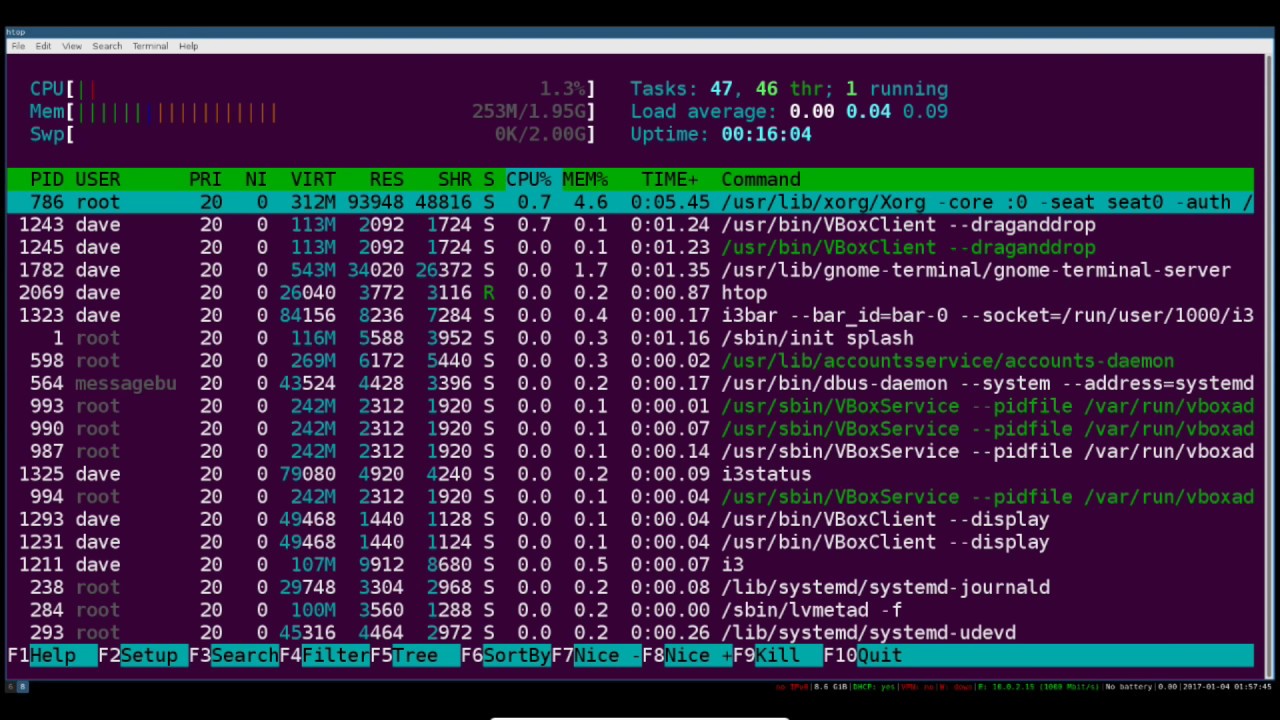
So it will kind of in live time update on the screen you can see that I've imported a bunch of stuff from textual here, as well as this util library, which allows me to get things like the CPU percentage, virtual memory, etc.. So if I open this up and I go, you've run, I believe I call this demo two dot pi.
You can see that we get this nice terminal and it shows you, shows me, sorry, the CPU and memory usage.
Then I can press Q and I can quit and get out of that.
Okay, next demo that I have for you here is a simple one where I'm just showing you kind of some different colors on the screen.
So same thing. This is from textual.
So I can go you've run and then demo 3.py and you can see that we have again a nice terminal.
Welcome to the terminal UI built with textual.
Next demo I have you just uses the rich console.
So again just kind of showing you how we can have some different text with different styles.
So here I can go, you've run and then demo for Dot pie.
And you can see we get more in the standard terminal here.
These different colors like the purple color, the emoji, the underline, the green the bold etc.. And you can see how simple it is to use this.
It's pretty much just the same command, but using console dot print.
Okay. And kind of creating this text object.
Lastly we have demo five which is just showing you how to make a loading bar using rich or kind of like a loading spinning animation.
So sometimes you might see that in the terminal and be like, how the heck do I make that?
Well, this is how you do it. So I'm going to go again.
You've run and then demo five dot pie and you can see it kind of says loading.
We have that nice animation still working and then boom it stops.
Okay. So stupid. Simple.
Just a few lines of code here to get that to work, but makes your terminal applications look so much better.
So that's my list of Python tools that I think every developer needs to be using, mostly because I use them literally every single day.
I like to hear what Python tools you're using, so leave a comment down below.
And with that said, I look forward to seeing you in another video.
Up Next

41:15
Python Basics Tutorial for Beginners: Functions, Loops, and More
@Postulatedstate
143 views•2018-03-26

12:54
Triumph of Orthodoxy Icon: Byzantine Art & History Explained
@BenCallan
2.1K views•2024-08-06
21:16
Python API Tutorial: FastAPI, Ollama, LLM Security & Deployment
@TechWithTim
125.8K views•2025-02-21

1:42
Game of Thrones Opening Credits: A Cinematic Analysis
@gameofthrones
46.3M views•2011-04-18
Related Study Plans & Knowledge Roadmaps
Structured learning paths in General & Interdisciplinary Studies
general-studies
Elevator Engineering: History, Physics & Cities
01From Hoists to Safety Brakes: The Dawn of Vertical Lift
02Hydraulic vs. Traction: The Engineering Physics of Elevators
03Modern Speed, Safety, and Algorithms
+ 2 more learning modules
12h5 modules
Explore Roadmap
general-studies
Rubber: Material Science, History & Geopolitics
01Origins of Natural Rubber & Mesoamerican History
02The Chemistry of Natural Rubber & Vulcanization
03The Geopolitics of the Rubber Boom & Colonization
+ 2 more learning modules
12h5 modules
Explore Roadmap
general-studies
Containerization: Evolution, Logistics & Trade
01Ancient Trade & Bulk Cargo: Amphorae to Barrels
02The Industrial Revolution & Cardboard Packaging
03The Containerization Revolution: Malcom McLean
+ 2 more learning modules
12h5 modules
Explore Roadmap
general-studies
Textile Tech: Evolution, Labor & Global Impact
01Pre-Industrial Textiles: Handloom & Cottage Industry
02Mechanization: The Spinning Jenny to the Power Loom
03The Factory System & Global Labor Transformation
+ 2 more learning modules
10h5 modules
Explore Roadmap