




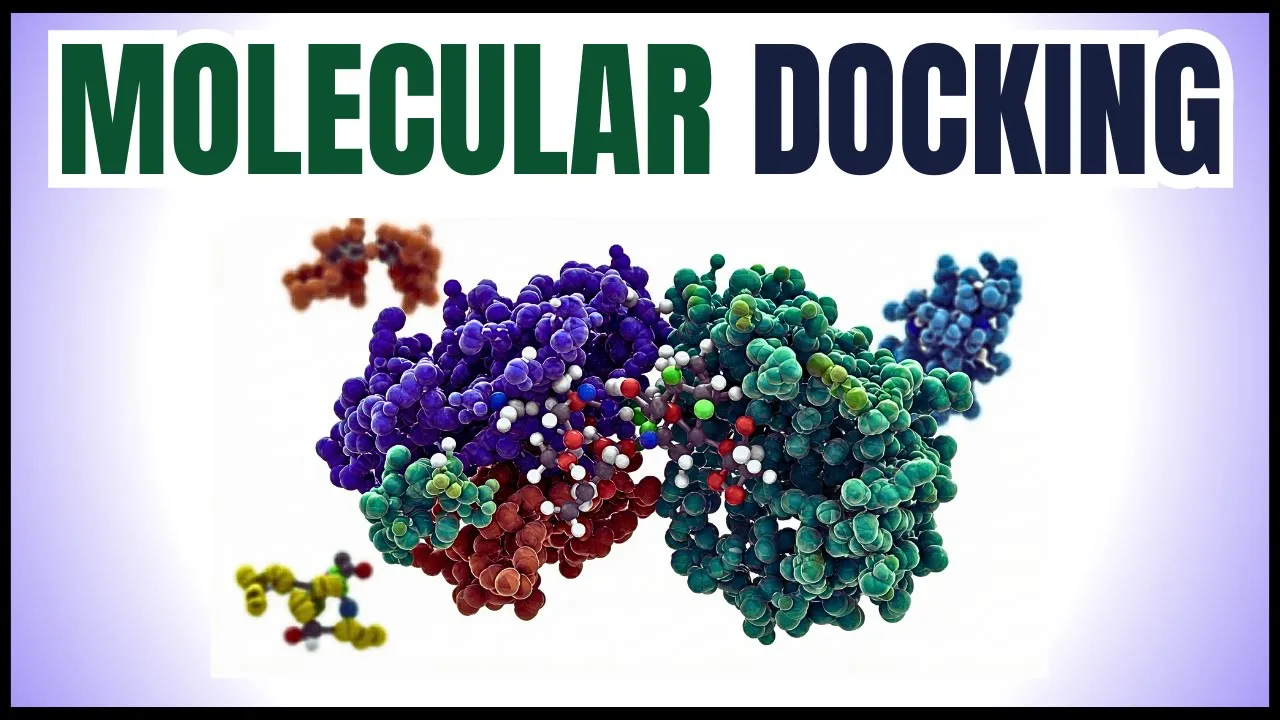



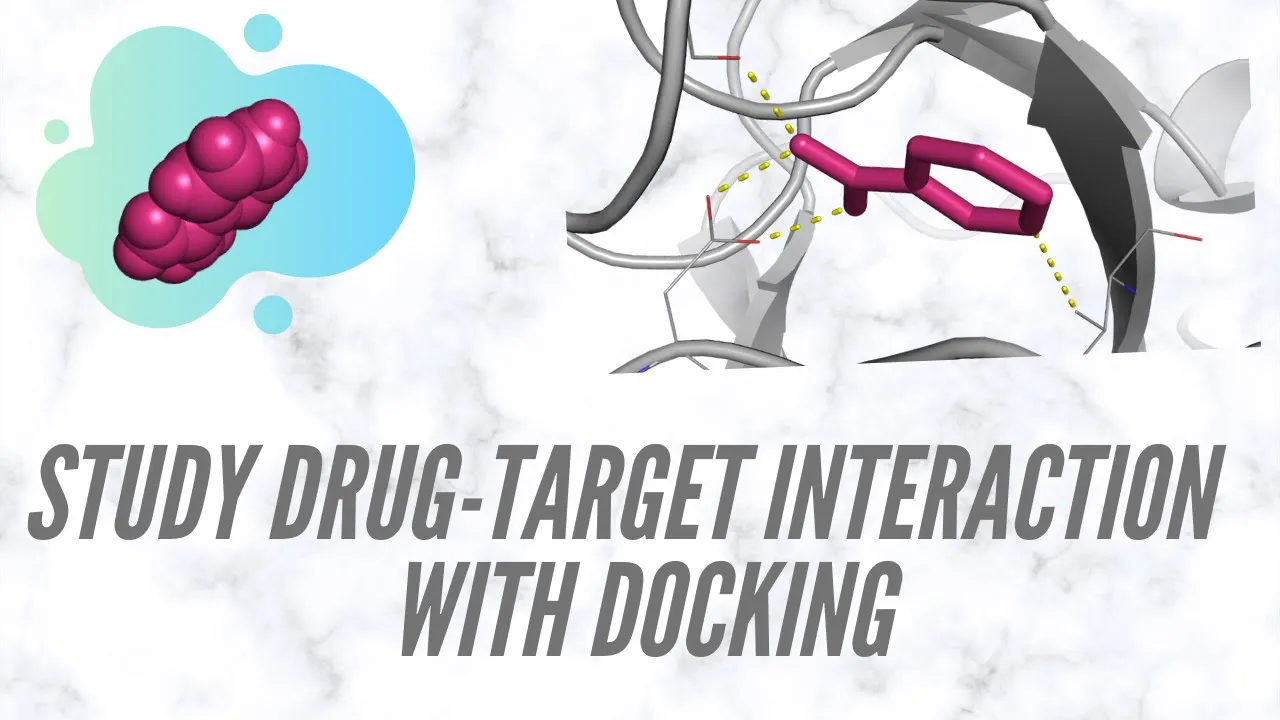










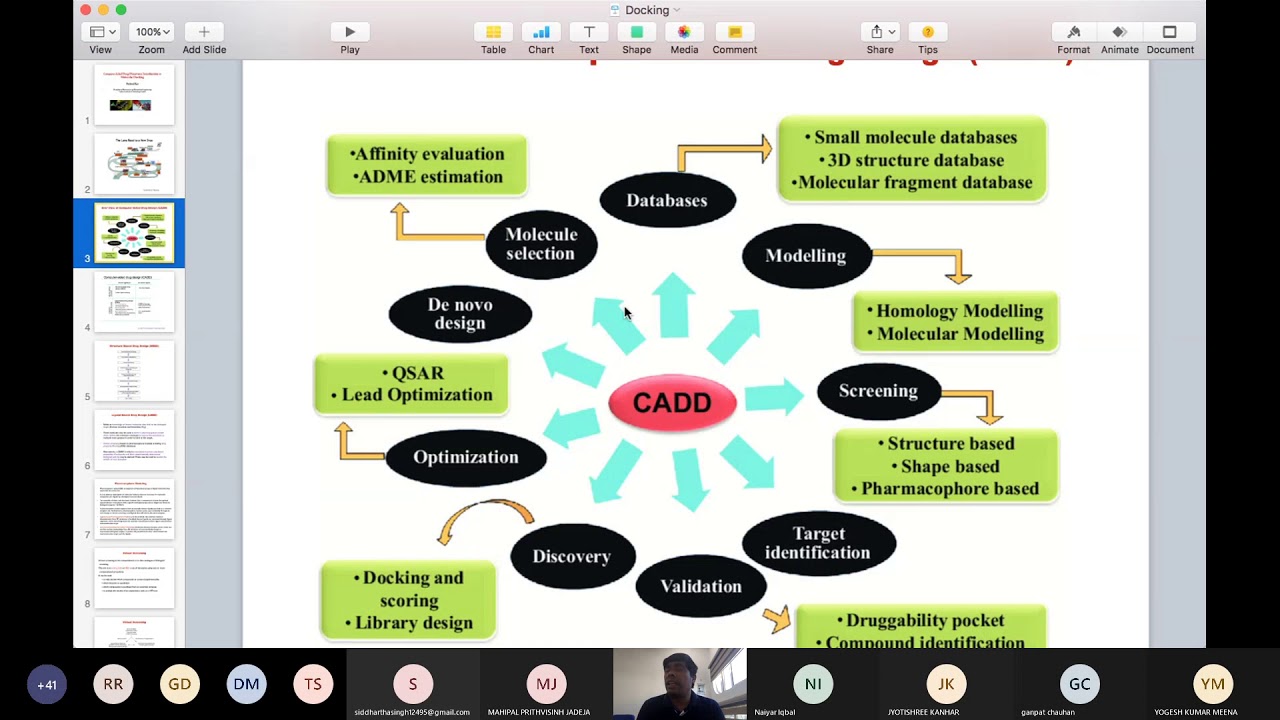


This tutorial demonstrates the complete workflow for performing molecular docking using AutoDock Vina, including downloading and installing MGLTools and AutoDock Vina, preparing protein and ligand files in PDB format, setting up a grid box to define the docking search space, configuring the docking parameters, and analyzing the resulting docking poses to identify potential protein-ligand binding interactions.
Molecular Docking with AutoDock Vina: Step-by-Step Tutorial
Added:Fundamental principles of protein-ligand interactions, including hydrogen bonding, van der Waals forces, and electrostatic interactions.
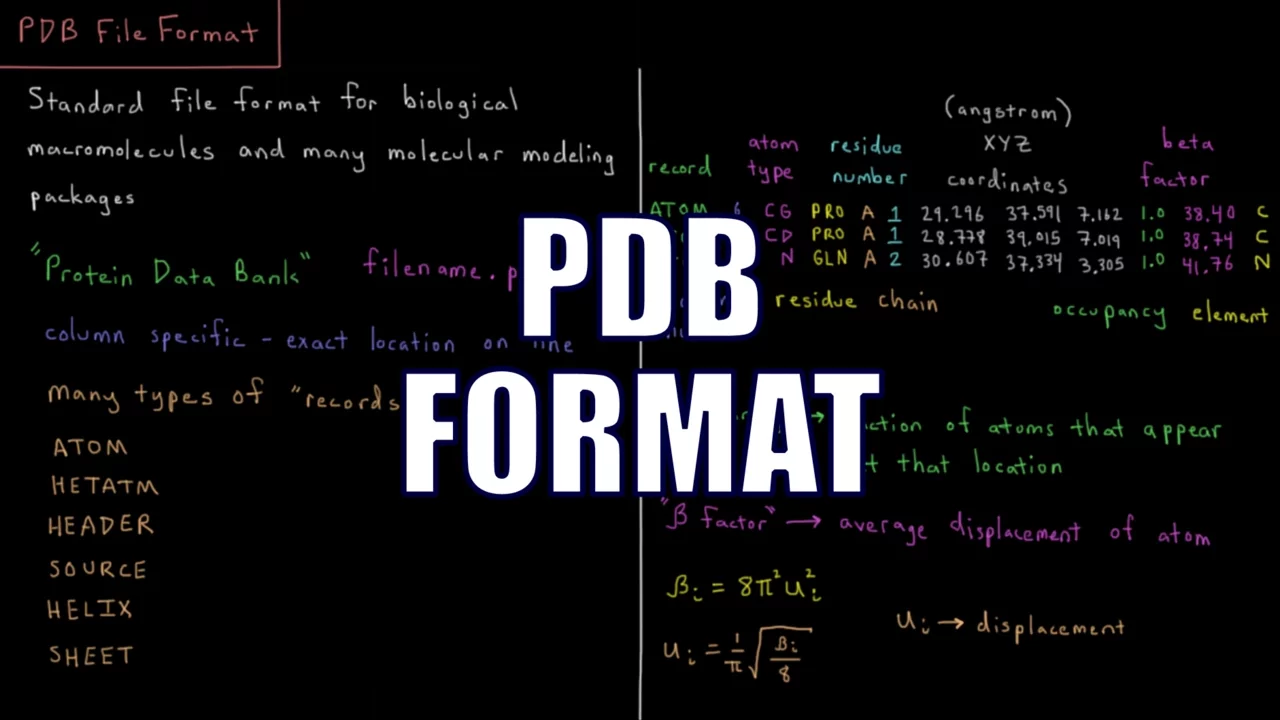
Basic understanding of 3D molecular structures and common computational chemistry file formats, such as PDB, SDF, and PDBQT.
Theoretical concepts of molecular docking, specifically the role of conformational search algorithms and scoring functions in predicting binding poses.
Familiarity with molecular visualization software (e.g., PyMOL, UCSF Chimera, or AutoDock Tools) to view and manipulate biomolecules.
High-throughput virtual screening (HTVS) strategies to screen libraries of thousands of small molecules against a target protein.
Molecular Dynamics (MD) simulations to evaluate the thermodynamic stability and conformational flexibility of the predicted protein-ligand complex over time.
End-point binding free energy calculations (such as MM-PBSA or MM-GBSA) to refine and validate docking scores.
Structure-Based Drug Design (SBDD) workflows to perform lead optimization and rational design of novel inhibitors.
20.2K views420likes30:45Original Release: 2024-03-06
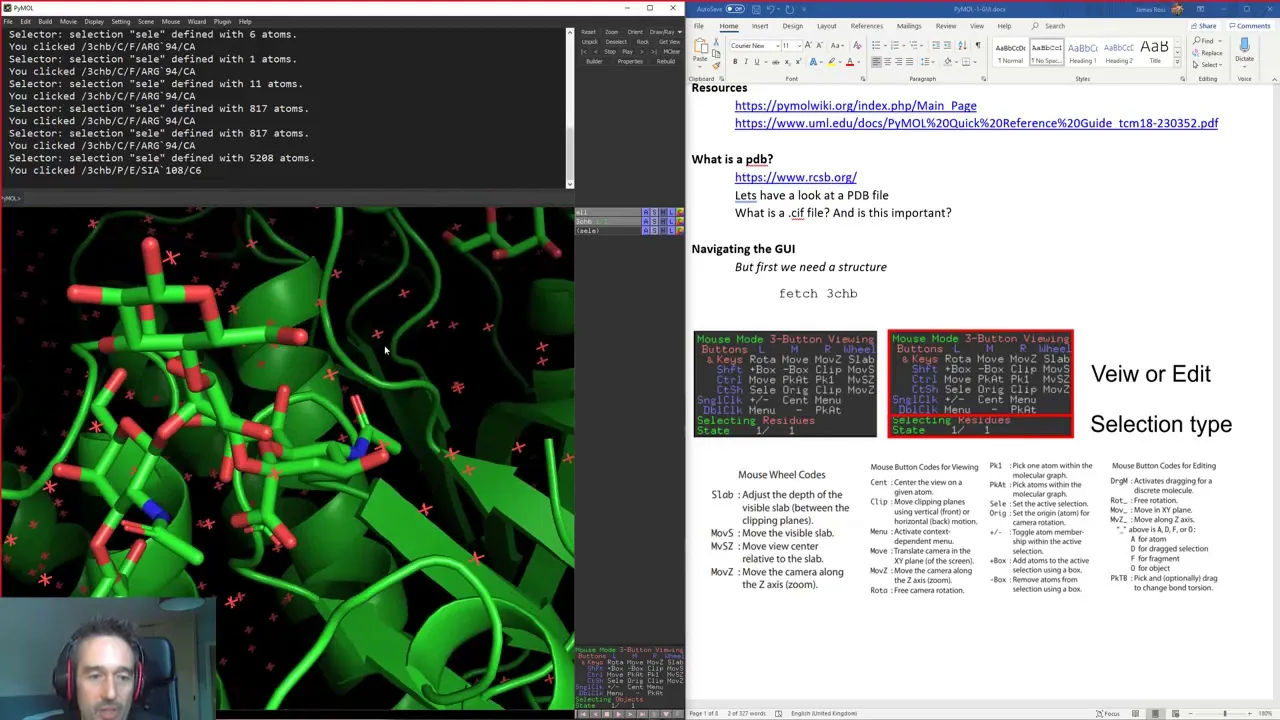
hello everyone this is ashak and I work in the field of B informatics and structure biology today I'm going to talk about the docking with autod do Vina or I will train you or I will teach you how you can do Mo molecular docking with autod do Vina I will try my best to C this tutorial with the most easiest way that you can follow so let's start what programs we will need we will need two programs that is called mgl tools and the second one is called autod do V mgl tool the size of mgl tool is 80 MB and the size of Auto doina is 500 KB so both are relatively smaller from where to download it I will drop links the download links of these programs in the description section of this video if you don't have this program just copy those links and download those programs for yourself besides programs what extra things you will need you will need a receptor molecule or a protein in PD V format I hope it will not be an issue for you you can take it from the pdb or you may have your own model you have achieved from somewhere a Lian molecule a compound you want to dog with your protein but it should be in pdb format the problem comes for the people who are new in this field that they have a Lian molecule in mole or SDF or Mole 2 so they if they're watching this video they will think that how can we achieve the pdb format it is very easy and very simple but I I here I'm going to tell you how can you do this very easily if you have any program any visualizer installed for example pyo or for example Discovery visualizer or DS viewer or Chimera or vmd or any other just open your liin molecule in any of the visualizer then click file then click save as and save as pdb format that's it uh okay also if you don't have these visualizers then what will you do you can install this program open Bubble or if you don't want to install there is an online server for this program just input the coordinates of your Li and paste it there and save it in the pdb format let's start our docking this is the download link or the download website for the mgl tool once you open this link which is present in the description section of this video you can scroll down and you can download down load a specific program which is compatible for your system if you are using window download this one if you are using Linux download one of them if you are using Mac download this one okay this is the download link for autod do Vina and I Dro this link in the description section of this video you can find it there if you are using window so here is your target or this should be your target once you download it you will have a download folder you will see this file here right click and run as administrator for autod doina right click and install once the programs are installed then you need to check it how you can check click your C click your program files check these two directory one should be with the name the scripts Research Institute click here vaa okay you should see three files here and go back a little up you will see mgl tools click here you will see all such stuff that's it the next thing your programs are ready now we will do some docking stuff you will need to create a folder anywhere you your computer for this video I have created a folder on my desktop you can see here and it name is 1 2 3 it's easy to find for me therefore I name it a 1 2 3 so this folder contain two file one is my protein or a receptor the second one is a liin or a compound I want to dog this Lian compound with this receptor using autod do Vina what will you do the first step you need to do you need to come the C directory click the program file scripts research Institute Vina and copy this option the first one the Vina copy do not cut copy and paste it the 1 2 3 folder why you need to copy it here because I know most of my listeners are do not good are not expert in computer science so I'm trying my best I'm trying my level best to make thing easy for them so this Vina program should be copied to the folder your files are okay now let's start how to start you need to open the mgl tools we have installed and we have installed so you will see this kind of thing on your desktop after the installation of V so you just just click autod do and it may take 10 seconds or somehow okay that's it you can see this window just make it bigger okay the first step is we will prepare our protein molecule for docking it's very easy you need to click here and read molecule file read molecule then click desktop my files are in the 1 2 3 folder here and whatever the name is in my case it is protein click protein now you can see your protein in this window the next step is you need to click edit and now come to hydrogens click add select polar only and okay you can see the white spots these are hydrogen if you are using a model structure this STP is not necessary but but if you perform it it doesn't matter so I suggest you to perform okay now next is you need to click this grid then come to Macro Molecule and select choose do not select open because the molecule is already open you can see here in your browser or in your GOI screen so click choose once you click choose you will have this kind of smaller window and it will show only one name that is your protein click this protein and select here you will have some kind of this kind of messages click okay once you click okay you will have this kind of screen and just go to your desktop and select that one 2 three uh folder and name let's say I will name P1 P1 means my protein name whatever you want to to do it but okay and then write P DB QT and save you can see here the 1 2 3 folder contains an extra file P1 we have created it just now and ensure that it's mentioned pdbqt file here okay now come back now we want to select a grid box how will you select a grid box just click grid now after that you can select grit box once you select a grd box you can see here you see some box inside this protein which was not present before okay also after select after selection of the grid box button we see this box here and we see this smaller window here this smaller window has two main things the bottom part and the upper part first of all you need to select the bottom part okay what this grid Box means you need to understand it actually tells you where you want to dog your compound for example I want to dog my compound in this area in other words it actually asks you where is the active site of your protein it actually asks you tell me where exactly you want to dog your compound in scientific term this grid box area we call it space search so we are asking the programs to do a space search in this particular area so how to select this box or how to fix this grid box for example my dis uh my active site is this let's say this one so the first thing is you need to bring the box down so you have you the first thing you need to adjust is the bottom part this is X this is y this is z just like the coordinates XXX yxx and z-axis okay now if you put your mouse here and drag this way you see it goes that way or if you see it goes here you see it's moving so let's say my docking area is this one okay now here is you see it's actually up and down so let's say I'm selecting this area okay and this one is the zaxis so let's say this is my area I have selected okay now what these values means it's actually the the dimensions of these box in other words the size of this box okay let's say you you can see bigger smaller let's say this is our box I want to dog here now what exactly we need then what is the next step our grid box is selected or we choose a a grid box okay the next thing is you need to type here snip if you are using window 10 otherwise use the screenshot button open your snip tool and click the new what you do you can copy this or take a screenshot or use use your Mobile to take a picture that's it why I tell you now go to the same folder here and right click new text document and name it something just just like like I Nam C NF that stand for configuration C NF but that doesn't matter you can name it anything okay open it once you open it you need to write some things first you write Center underscore X and then write The Sign up equal now copy this and paste it three times okay X Change this x to Y change this x to Z Now go down right size underscore X again the equal term assign and once again copy this and paste it two more times so y and z a little earlier we made some picture this one now the center value we need to write here so what are the X Center values see here that is - 64118 - 6 64118 what is the Y value 26.
642 26.
642 what is the Z value - 30603 - 30.
603 we will put all these three value this is X this is y this is Z in the dimension or the sizes uh column here 52 50 52 and you can close this close it 52 50 and 52 okay save this that you do not waste it okay come back here and delete this thing even you can delete the protein doesn't matter or you can hide it just click here it will be hide okay now we are going to select or prepare our Lian molecule quickly the first step you need is to click here input open where is your Lian molecule that is in the same directory that is 1 2 3 click here all files that you can see and click this Li in you will have some option okay doesn't matter now again click Li in then torent tree and then choose tan okay you can see these names or you uh you may not see these name that that's okay it means uh three rotatable bonds done among in the total 32 so click done let me do it again that I choose tgin okay three okay done now we want to save it what the tarent means if you are a basic or beginner don't do it uh any experiments here but for expert people uh like in this Lian we have 32 Bonds in total three are rotatable so if you are really an expert in uh protein uh sorry in chemistry of the compound and if you want some more bonds to moveable or rotatable and if that is allowed you can do it because it gives you an option you can see make amide bond rotatable or not etc etc so it will increase or decrease this number okay now once you are done then select the output save as pdb QT I will name it uh in this folder I will name it let's say L1 let's me write this way L1 pdb QT save it okay close this thing okay y okay so in our folder we have the CF we will open again we will write here receptor equal and what is the receptor name we prepared P1 do pdbqt then Lian what is the Lian name L1 pdbqt give a space okay one thing you can also include exhaust tus here for example you want more appropriate docking so or in in other words if your compound has much more rotatable Bonds in our in my last video I have discussed uh in deta detail what is the importance of exhaustiveness there we have used eight but I suggested you to use 16 but let's say uh I'm not going to but if you want to include it you just write uh X aess here is equal to whatever the value is but I'm not going to mention here by default it is it okay uh save okay the file is save now our configuration file is ready Vina is here everything is closed now we are going for formal docking you need to type here CMD open if you are not good in computer then follow me this cmdr command prompt we call it command prompt you can see here this command prompt is basically Bally here in the user Ash in my case in your case it will be C user or some name here so you need to bring it to the C how you will bring back to the C just type CD dot dot enter you see the H has been remoted do it again CD dot dot enter now now the program is on C now we need to bring the program to the folder VI where your files are my files are here how I will bring it here just click here you will see this blue option copy and come back to the CMD and write CD but this time do not write double do space space and paste control V enter now one final thing you need to write D it will show you what files are present in this directory it has CF file L1 pdbqt Lian pdb P1 pdbqt Protein that's it we know all we have this now the second thing is we know we need to test our program just write vaa enter if you can see this kind of screen it means that the vaa is working and it is asking for some proper command so we will now write our proper command so just write Vina space Dash Dash or I would say Double Dash write c o n if IG G that means I'm providing you a configure file so what is the name of your configure file in our case in my case I name it C NF so you will write C NF that is text file so txt now space again we will write out out me means our result file so we will write the name of I will name it like let's say testore Doc let's say I name test doc.
pdb QT that's okay I don't need the lock file so let's see how it goes you can see from program is running warning the search Space volume is this it means the space is very bigger so that's okay uh program is working when it reaches here it will be 100% let's see that's it these are the energies or these are the things for it has generated nine poses these are the arsd lb rmsd UB lower bound and upper bound and this is the Affinity of our molecule now I want okay if you let's see to this for we have a result section generated you can see here test talking with the name of test talking and you can see here for every it has nine results as I showed you before nine poses so for every pose you have energy this is for model 1us 5.0 the lb rmsd or the UB rmsd if you don't know please uh read what is the upper bound and lower bound rmsd this is for model two that's it okay now let's say I want to make a pdb uh file so you can use this one and the same way you generated pdbqt you can open this in any brow visualizer and convert it into the pdb file and make a t pdb for yourself so that's it uh let me open it that whether uh how our docking looks like uh normally I use P so let's see okay I will first open the pdb file which is present on desktop 1 2 3 let's say I'm opening the protein file pdb now I open the test dog file you can see here this is our compound and if you see here it says nine I already showed you it has generated nine poses so click this button it's it's came here here here here that's because our that box was very bigger so that was just a demo stuffs I wanted to tell you how to generate the those things now and exactly um if you want to do this for your research you should be very specific and very precise with your GD box I would suggest if you are taking 30 minutes for one dog or let's say 1 hour for one dog so in that 60 Minute you should spend 40 or 45 minutes with setting a great box because the main thing or the main success depends on the successful selection or the accurate selection of gr box I hope you enjoy uh this video and you will learn something new from this video some of you have already also requested about this video so I'm happy uh I made it and if you like this channel if you want me to continue this work for you please support me in the form of subscribers and share these information with your colleagues or with your students or use it in your own research I will be happy if you can take advantage of such kind of videos Remember Me be happy and goodbye
Up Next

126:10
Full Stack Web3 Development: Tools, Protocols, and Frameworks
@naderdabit
31.4K views•2022-04-09

12:54
Triumph of Orthodoxy Icon: Byzantine Art & History Explained
@BenCallan
2.1K views•2024-08-06

9:49
FastAPI vs Flask vs Django: Choosing the Right Python Web Framework
@TechWithTim
302.5K views•2024-05-26

1:42
Game of Thrones Opening Credits: A Cinematic Analysis
@gameofthrones
46.3M views•2011-04-18
Related Study Plans & Knowledge Roadmaps
Structured learning paths in General & Interdisciplinary Studies
general-studies
Elevator Engineering: History, Physics & Cities
01From Hoists to Safety Brakes: The Dawn of Vertical Lift
02Hydraulic vs. Traction: The Engineering Physics of Elevators
03Modern Speed, Safety, and Algorithms
+ 2 more learning modules
12h5 modules
Explore Roadmap
general-studies
Rubber: Material Science, History & Geopolitics
01Origins of Natural Rubber & Mesoamerican History
02The Chemistry of Natural Rubber & Vulcanization
03The Geopolitics of the Rubber Boom & Colonization
+ 2 more learning modules
12h5 modules
Explore Roadmap
general-studies
Containerization: Evolution, Logistics & Trade
01Ancient Trade & Bulk Cargo: Amphorae to Barrels
02The Industrial Revolution & Cardboard Packaging
03The Containerization Revolution: Malcom McLean
+ 2 more learning modules
12h5 modules
Explore Roadmap
general-studies
Textile Tech: Evolution, Labor & Global Impact
01Pre-Industrial Textiles: Handloom & Cottage Industry
02Mechanization: The Spinning Jenny to the Power Loom
03The Factory System & Global Labor Transformation
+ 2 more learning modules
10h5 modules
Explore Roadmap