



![3. Πως λειτουργεί το Internet: Το Διαδίκτυο - Οι IP διευθύνσεις & το DNS [code.org]](https://i.ytimg.com/vi/epnA5KPhqvk/maxresdefault.jpg)






![[ExpressJS] | #3 Cách sử dụng method GET, POST, PUT, DELETE chuẩn Restful API | Nodemy](https://i.ytimg.com/vi_webp/B2_A41fjyo4/maxresdefault.webp)





HTTP (HyperText Transfer Protocol) is the fundamental protocol governing how computers communicate over the internet, operating on a client-server model where clients (browsers) send requests to servers, which respond with status codes (100-series informational, 200-series success, 300-series redirection, 400-series client errors like 404 Not Found, and 500-series server errors) and data; this request-response cycle uses headers containing metadata and a body for the actual content, with HTTP being stateless (connections close after each exchange) and built upon the TCP/IP protocol suite.
HTTP Explained: Requests, Responses, and Status Codes
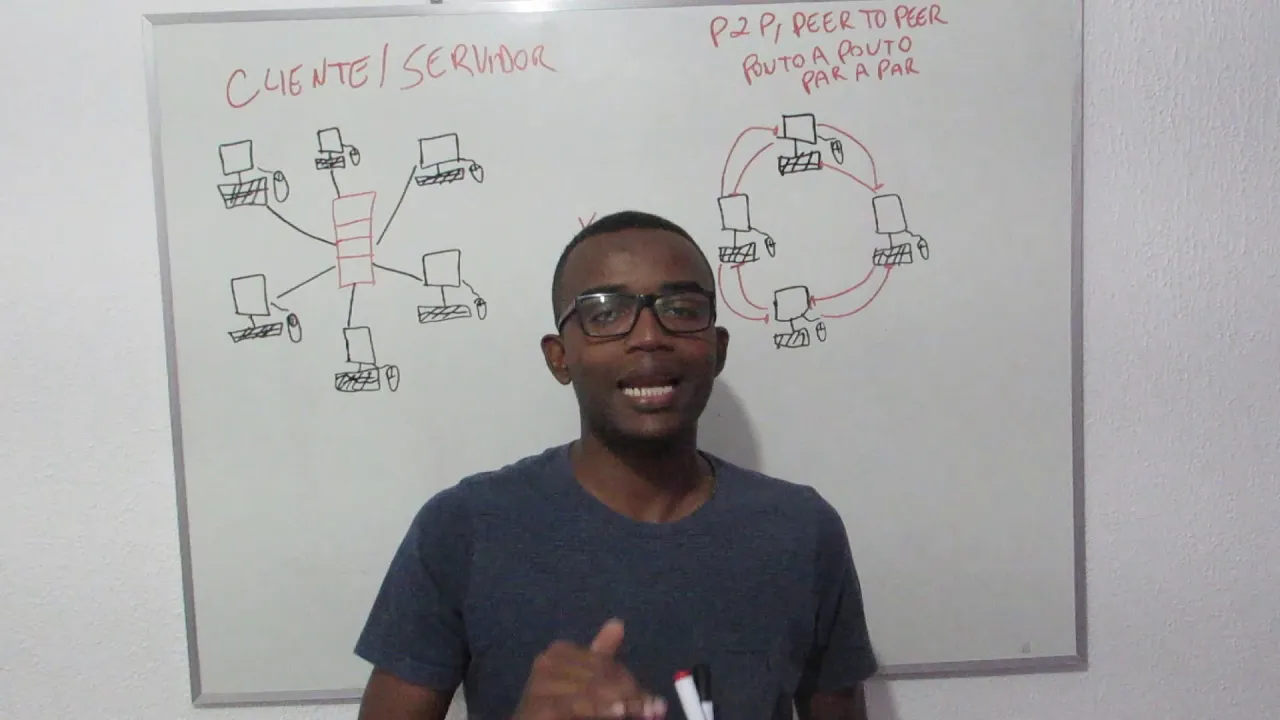
Added:The basic client-server architecture model, understanding the distinct roles of a client (like a web browser) and a server.
A general understanding of how the internet works, including concepts like IP addresses and the Domain Name System (DNS).
Familiarity with basic web technologies, specifically HTML, to understand what kind of resources are being requested and rendered.
Secure communication via HTTPS, exploring SSL/TLS encryption and how certificate authorities establish trust.
Designing and consuming RESTful APIs, which utilize HTTP methods (GET, POST, PUT, DELETE) for application-to-application communication.
State management in stateless HTTP using cookies, sessions, and modern token-based authentication (like JWT).
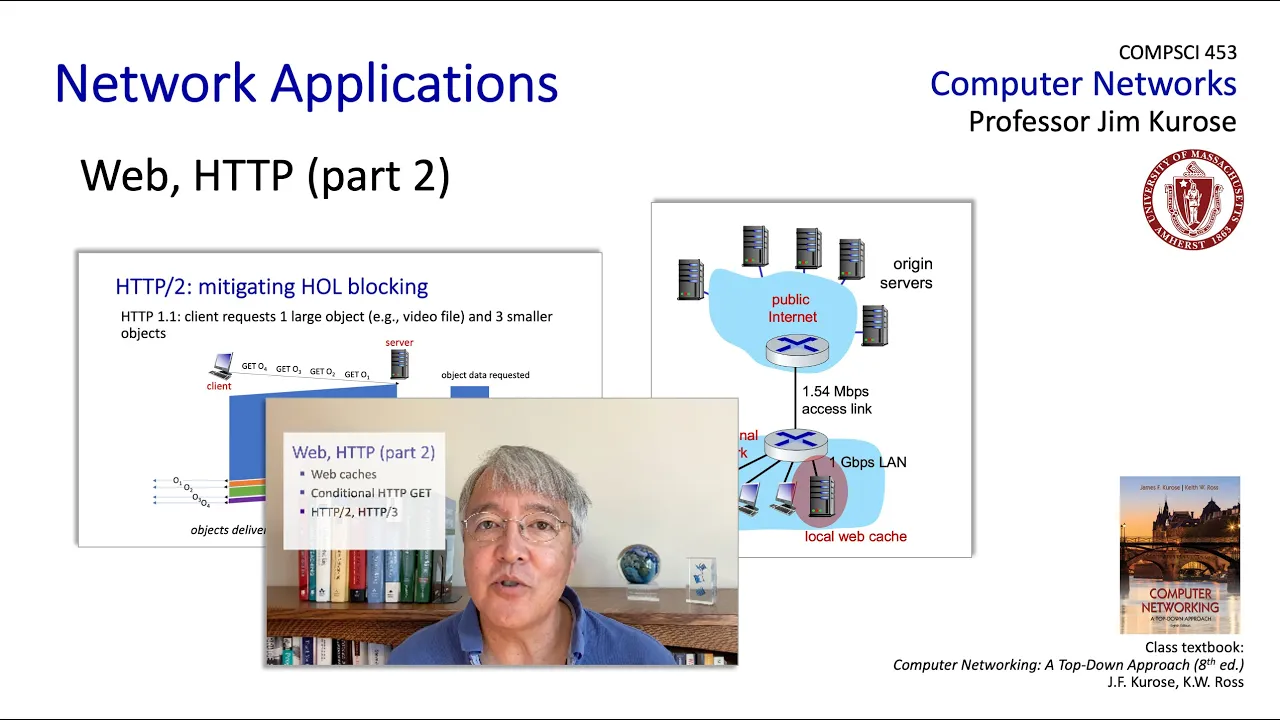
Advanced HTTP features and performance optimization, such as HTTP caching, HTTP/2 multiplexing, and HTTP/3 over QUIC.
266.4K views8.1Klikes17:26Original Release: 2019-09-27
and welcome to the first lesson for this comprehensive web design series now this first set of videos is going to be covering what I call Internet infrastructure which we're going to try to demystify some of the way the internet works we're going to be talking about routers and servers and Internet connections and some of the protocols that govern how the internet works in order to help you gain a solid foundational set of information that'll help you much later on when we get to more technical details of building and designing web pages [Music] very it's not initially about what HTTP is that's something that you probably type in your web browser every single time you visit a website so I'm gonna talk about what that is and how the protocol works now before we do that let's start out with the basics of talking about a network now a network is simply two computers that are linked together somehow now typically there's a physical connection between the two computers and that is what we call the router so there's a piece of equipment that's only job is sort of to talk to one another and send traffic back and forth between various computers on a network now there's also technology a lot of routers these days are also routers and also Wi-Fi gateways that can also push internet signals wirelessly but there's always some sort of interface that connects these two computers together now if you sort of take that concept and you expand it a little bit what if we have for example at a college or university that has multiple campuses in separate physical locations and those campuses are interconnected with one another and that's really the same thing as a local area network it's just on a bigger scale so instead of having in the same home two computers we have computers and networked across cities even or you know major geological locations now if we take that concept one step further and we go across the entire globe that is what we call a world wide web or WW so that's a global network of computers that are interconnected across cities states or even countries and oceans now one interesting thing to think about is it's pretty easy to think about my computer being connected to my computer in my office or maybe colleges could be connected because we can see those physical cables you know lying around our cities but how do we connect let's say one continent with another continent this is something quite interesting that a lot of people don't know the continents are actually connected via physical cables that lie on the bottom of the ocean floor so these are called submarine cables this website here called submarine cable map com this is actually an interactive map you can click on each individual cable and it will tell you what company owns that cable so a lot of times because these are very very expensive to build several companies will sort of lay one together or even governments and states can sponsor these cables to be laid on the ocean floor but that's how the internet works across multiple countries is along these same physical connections that lay on the bottom of the ocean floor now the reason the Internet is able to work so quickly for example if I go to my website and I type in a website that's let's say in Europe and I'm based in the United States it almost instantaneously pops up and that's because the internet travels along these cables at the speed of light so these are called fiber optic cables and these fiber optic cables are cables that are made of glass fibers and light get shot along these glass fibers so the signal or the data that's transferred between these various end points travel at the speed of light which is very very quickly I think it's something like the speed of light can go around the world eight times in a single second or around its entire circumference so that's how the internet travels so quickly on land the internet still travels through these fiber optic cables but it's typically buried underneath the ground somewhere three meters or something like that and that's why whenever you dig whenever you have to do a construction project you'll typically have to call your your city or your you know your authorities there and get a permit to dig because they want to make sure that where you're digging there's no fiber optic cables running that you're unaware of because if you dig through those with a backhoe or something like that you've essentially just knocked out the Internet to whoever was downstream from where you're at so that's kind of how it works now once the internet reaches your home typically it's not on fibre optic cables those are typically in these trenches which we call the Internet backbone once the internet reaches your house it typically runs over an electrical signal to go actually into your house and that travels very very quickly but not as fast as the speed of light in some newer developments you'll actually see fiber connectivity going straight into the homes so that's something that almost all new developments are building to it but a lot of the older homes don't have the infrastructure to have fiber-optic cable run directly to each individual address so now they understand a little bit about how that works let's talk about the basics of HTTP now HTTP is simply a protocol and the protocol here h.d TEP is what we call the hypertext Transfer Protocol and it's a set of rules that govern how two computers are supposed to talk to one another so in the simplest form we have a computer here and the computer that you're working at or that you're consuming is what we call the client 2 machine sometime that's also referred to as the local machine now the computer that you're interfacing with that actually houses the website files that you're pulling up is what we call the server or the remote computer and of course we have the router in between the two that does the actual talking we'll talk a little bit more about routers and some other things in a letter in a later tutorial but we're just going to cover the basics in this one so what happens is the client machine makes a request to the server and the server machine has a response that it sends back to the client so we have a request and a response and those two things always happen over HTTP now what happens here is when this request happens so this guy's gonna send a request over here and this server is basically gonna ask itself a question it says do I have the files that the client machine is requesting so it's gonna respond back and send back a response with sort of yes or no and if it has the files that were requested it of course sends those files along if it does not have the files that were requested it will send an error or a status code so the server always responds with what is known as a status code and those status codes are simply three-digit numbers and that helps the client to know you know yes or no or correct or incorrect or if the files were found or not so let's take a look at some of those status codes of the server can send it back so the status codes are broken down into three digit numbers 100 through 500 and the 100 series numbers are simply informational status codes the 200 series numbers typically mean a success so if you pull up a webpage if I go to google.com and hit return and actually shows me the webpage the status code that was sent back from the server remember the server is sending all these status codes over to the client it would have the number 200 which means OK or success now 300 status codes are redirections so if you have a one website that redirects to another website that would be a 300 status code so the server would say I don't have the files but it's gonna redirect you to the place that does have the files 400 status codes are what we call client errors now I'm sure you've probably seen these but you've never realized it because if you pull up a web page and you get a number that's called a 404 and it says page not found that's the error status code for the file was not found so if you try to pull up a website or a file and the server looks for it but it doesn't have it it's gonna send back the status code of 404 which means sorry I don't have the file you're looking for and then the browser displays that little error message ok and then the last series here are the 500 status codes those status codes typically means something's actually broken on the server itself so it was busy or it had hiccup or it crashed or something this server wasn't able to process the requests properly it will send back a 500 code telling you that something was wrong so that's the status code so now let's talk about it a little bit about what we call the git and request response headers so remember how we talked about how that each request sent by the HTTP client remove there's a request and response that request goes through what's known as a header ok now you can sort of think of like the header is the first few lines of the request that gets that gets sent and it's made up of three parts so the first part is what we call this start line and the start line is made up of you can see three portions here then we have the actual headers which has some additional information and then we have the body now in this particular example let's talk about the start line first so the start line you can see starts with what we call the method so this is how the request is being put together it's typically either get or post next we have what we call the target so this is which exact file am I trying to locate and then the third parameter is the version of HTTP that we're using HTTP has several versions one 1.12 and even version 3 is under development so that's all part of the very first line that gets sent so the Verte the method the target and the version and then the headers typically just has additional information about the request so in this little sample here you can see we have the user agent that's what web browser I'm using that's sent to the server because that's helpful information for the server to be able to process the request and when we're sending a request typically there's nothing in the body of the request that's typically what the server uses to send back the files that are requested ok so let's take a look at the response it's very similar here so the server is going to give you the response it also has these header files that are made up of these three specific parts so the first part is what we call the starting line and you can see that it's all the orders a little bit different here and the way these things are laid out we have the headers which is you know information about the file that it's sending back and then we have the body which is the actual resource that the server is going to send back so let's take a look at the start line again you can see first here we have the version so it comes up to beginning at the start line these are the status codes that we just talked about previously and then lastly here we have the status text which is where we say are not found okay and then the headers and then the body so let's take a look at actually what these what we call these HTTP headers look like in a real request so here's an actual header and an actual response so you can see here from the request header that there's several interesting pieces of information that we can take a look at so remember all of these request headers here are sent by the browser so it is sending all of these various this is a you can see the host is for YouTube and here's my user agent this tells me this tells the web server what browser I'm using here's the language a few things like that and then here's the response from the server so it sends back all of the various things that the server needs to send the actual file so that's kind of what they actually look like your headers the response headers and the request headers will look very differently depending on the request and the server and how those things are configured but they're always made up of those three basic parts okay so to sort of overview here just a couple of notes so HTTP is what we call a stateless protocol now what that means is when the request so if we have over here if you remember back we have these two computers here our client when our client sends the request and the server sends back the response the connection is broken between those two so there's nothing it's not maintained you don't stay on the line and listen to the server it's sort of like you call in the server says ok and hangs up the phone and then sends the files so there's not a maintained connection so it's a stateless protocol so every single time you hit refresh or click on a new resource on a web server you have to reinitiate the request and re receive that response ok the actual HTTP itself is based on the tcp/ip protocol which is just a another sort of networking protocol and just remember there's three parts to the request and they had a response okay now let's take a look at this in action so we can actually see how this works so you can see here I have opened up the Firefox web browser and inside of Firefox I'm going to show you how this requests and response works so I'm just gonna come over here and I'm gonna type in youtube.com slash follow and room which is of course the name of my youtube channel which you should definitely be subscribed to and let's hit return now what I want you to watch is down here in the network tab what happens when I hit return so as soon as I hit return that whole HTTP cycle is going to happen and you can see here it's actually happening a lot every single one of these lines down in this entire network panel is a separate HTTP request so the very first request you make is for the HTML file but if that HTML file has any additional assets like images or movies or JavaScript files CSS files each one of those assets has to be requested individually from the server so there's a whole new request and a whole new response that happens for every single asset and you can see here listed here down here at the bottom there are 71 separate requests that were required from the client to the browser just for this one single web page from one single visitor so you can imagine if you have thousands of people visiting the same web site at the same time each individual one of those persons has to make 71 requests in response that travel from my house to California and back in fractions of a second so it's amazing how this all works together now over here on the far left you can kind of see these status codes so you can see the number 200 which you should know now means a ok so this is good if you see red or 404s or different numbers over here that's not a good thing that means something's broken and what I want you to take a look at I'm just going to click on the very top one here in Firefox is developer tools you can of course right click and say inspect element that's what pulls up this little dialog if you're in chrome it will work by default if you're in Safari you have to go into the Preferences to enable that feature and in Internet Explorer it's under their developer tools so you can see here we have the headers which we talked about a minute ago and we have our response and request headers so again the requests headers are the headers that the client sent over to the server and you can see there's a bunch of information here and the response is what the server sent back to the client and there's of course a bunch of information here as well now if you're not sure what these things mean you can always click on the little information icon this is available inside of Firefox but if I click on that little icon it'll just take me to a documentation page which tells me what that specific header means in this case we have the content length header and it indicates the size of the body in bytes so for example if I was to pull up a JPEG image and I'm loading that JPEG in my browser I would likely have a header called content length and that would show me the bytes or how large that file size was so that's kind of how you can take a look at each individual piece of information on the request and response cycle from the server so in the next video tutorial we're going to be looking at a few additional things we're gonna be looking at domain names and IP addresses and routers we're gonna be looking at DNS servers we're going to be looking at cache and cookies which are all additional bits of information that help websites and web browsers work in fact you can see right here there's a little tab called cookies so we're gonna talk about those in an upcoming tutorial so don't forget to give a thumbs up like and we will see you in the next one [Music]
Up Next
4:07
Session vs Token Authentication: JWT vs Cookies Compared
@flutteragentic
2.9K views•2023-09-14
87:26
Introduction to Secure Multiparty Computation with Yehuda Lindell
@fhe_org
7.7K views•2021-02-04
4:55
HTTP Requests Explained: GET, POST, PUT, DELETE
@codecademy
103.1K views•2021-10-07
19:25
Enigma Machine Mechanics: WWII Encryption Explained
@JaredOwen
13.2M views•2021-12-11
Related Study Plans & Knowledge Roadmaps
Structured learning paths in Computer Science
computer-science
Container Runtimes: Namespaces, Cgroups & Go
01Linux Systems & Go Programming Foundations
02The Core of Isolation: Chroot and Filesystems
03Linux Namespaces: Process Isolation
+ 3 more learning modules
32h6 modules
Explore Roadmap
computer-science
Building a CHIP-8 Emulator: Rust & CPU Basics
01Computer Architecture Foundations (Bits & Bytes)
02Rust Programming for Systems Development
03CHIP-8 Virtual Hardware Specifications
+ 2 more learning modules
32h5 modules
Explore Roadmap
computer-science
Building BitTorrent: Go, P2P & Concurrency
01Go Fundamentals & Concurrency
02Networking Foundations & P2P Architecture
03Bencode Parsing & Torrent Metadata
+ 3 more learning modules
26h6 modules
Explore Roadmap
computer-science
Actor Models (C++ Concurrency & Lock-Free)
01C++ Multi-Threading Foundations
02Thread Pools and Task Scheduling
03Atomics and Lock-Free Queue Design
+ 3 more learning modules
45h6 modules
Explore Roadmap