![Encuentro 1: 🔥 [Intro] ¡Así arranca el reto 90 Días de DevOps con Roxs!](https://i.ytimg.com/vi/lJmgTZB67fo/maxresdefault.jpg)







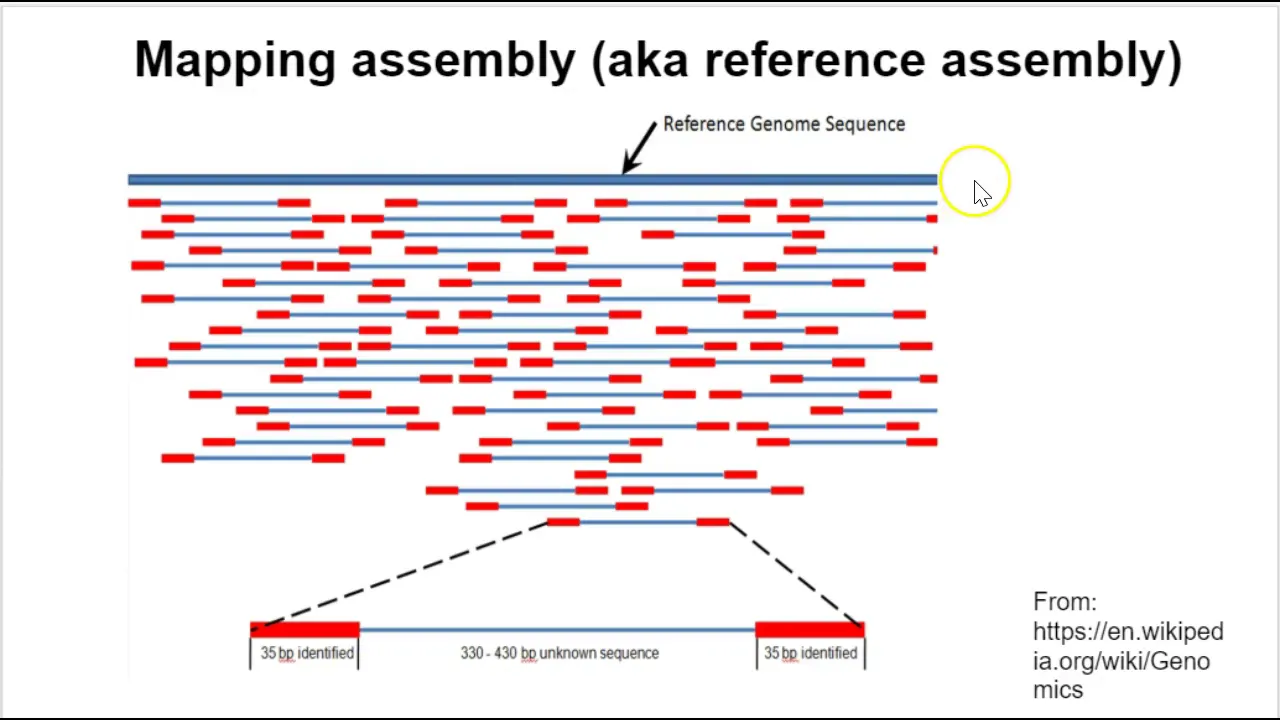
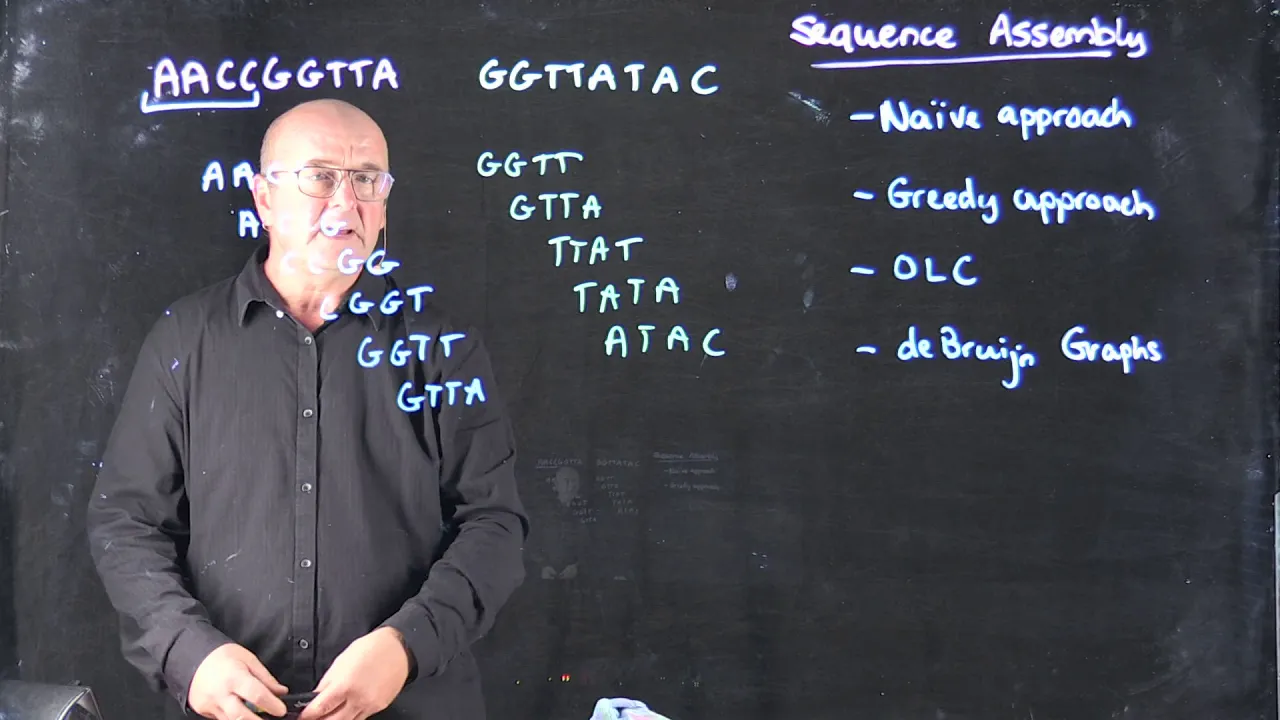
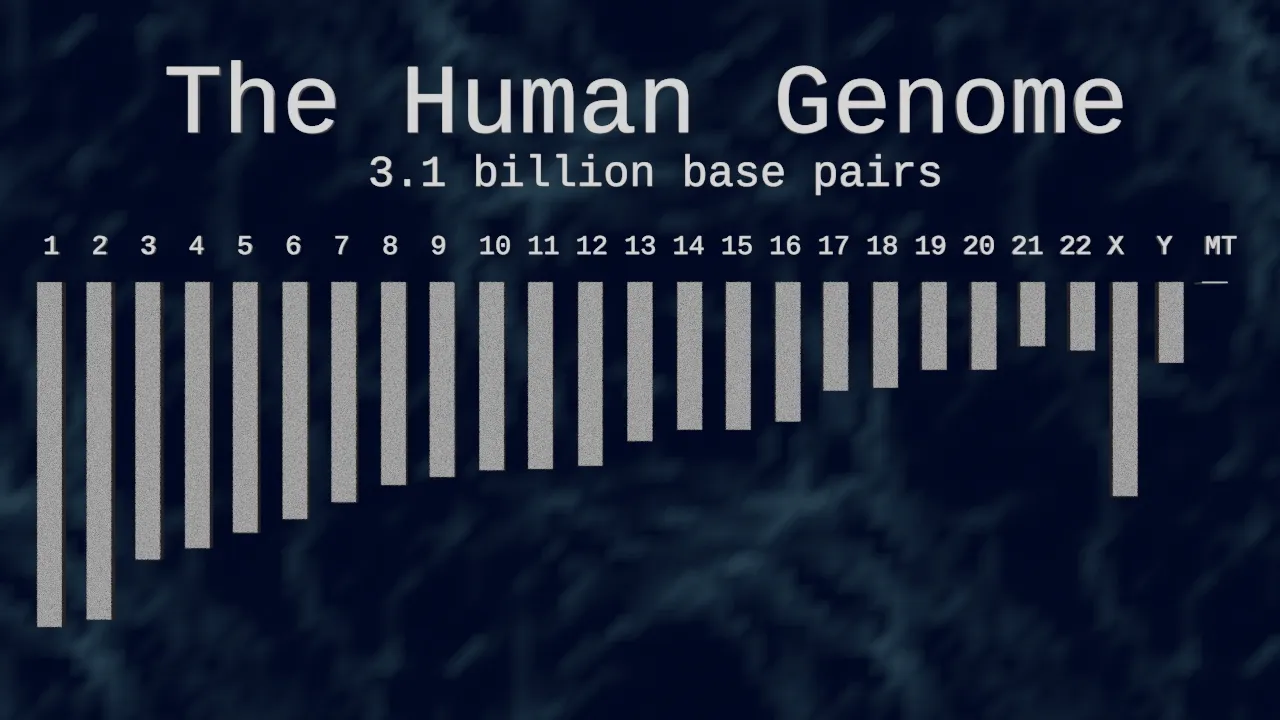


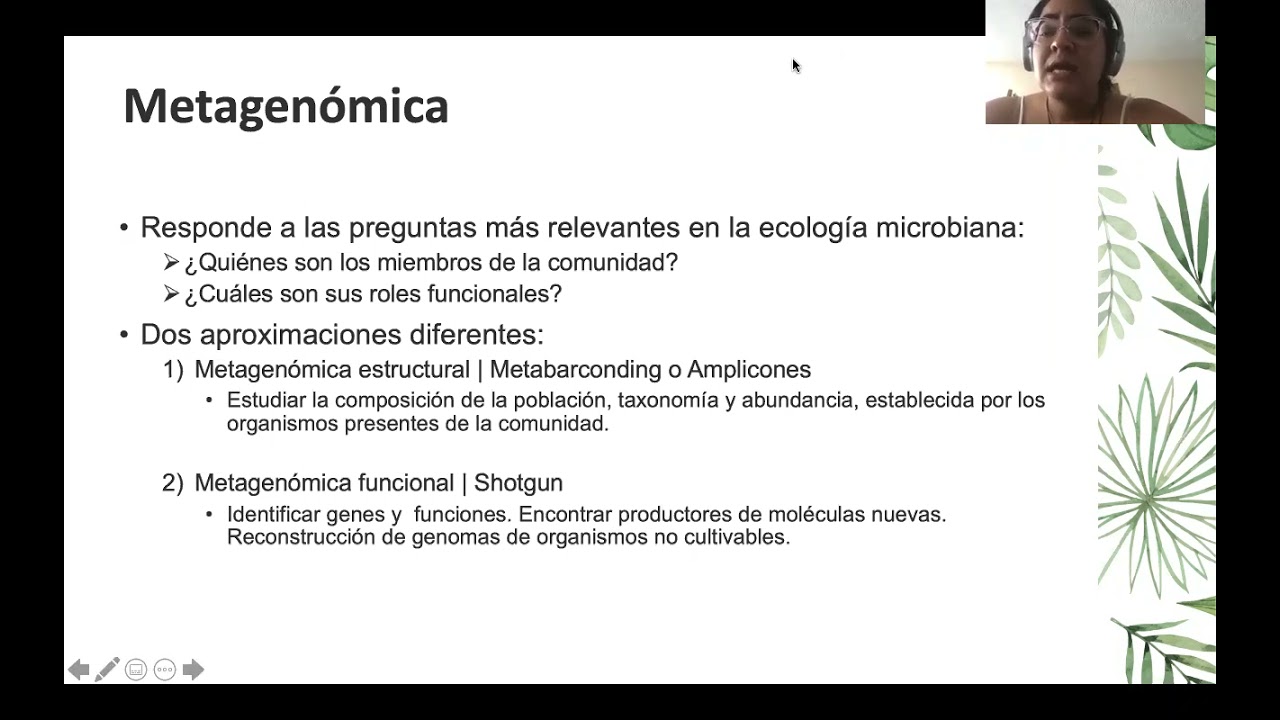

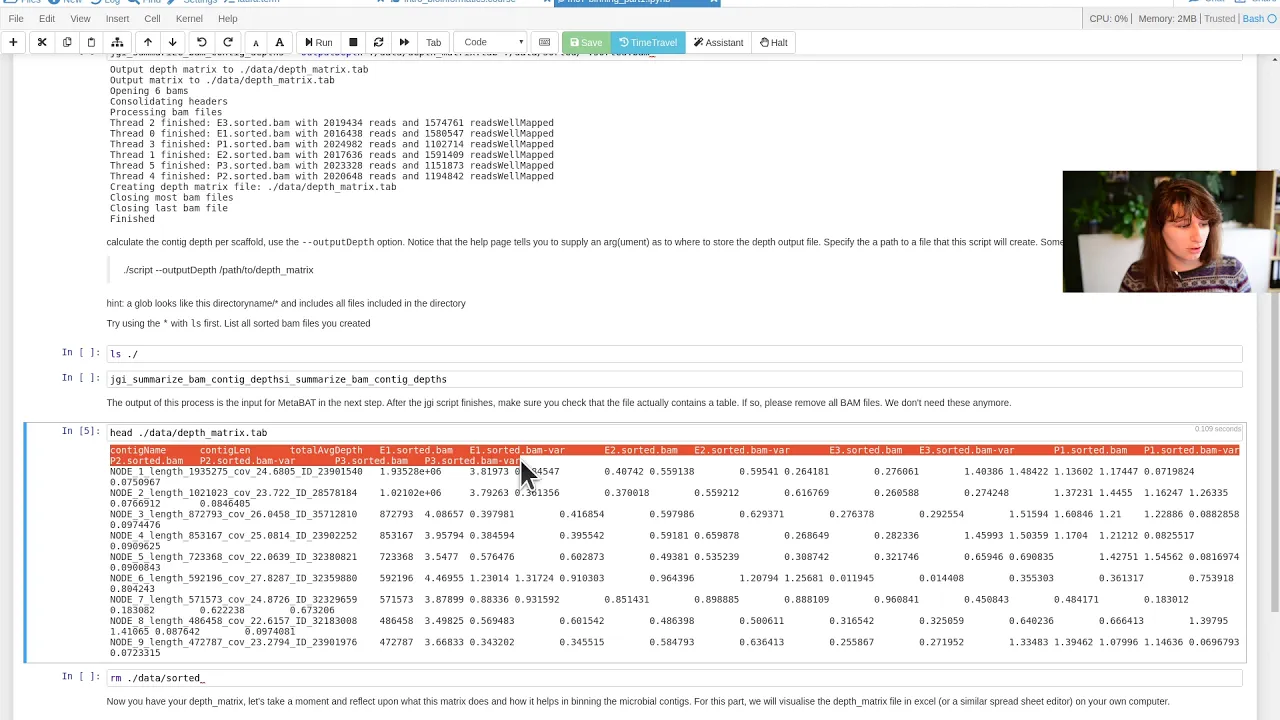

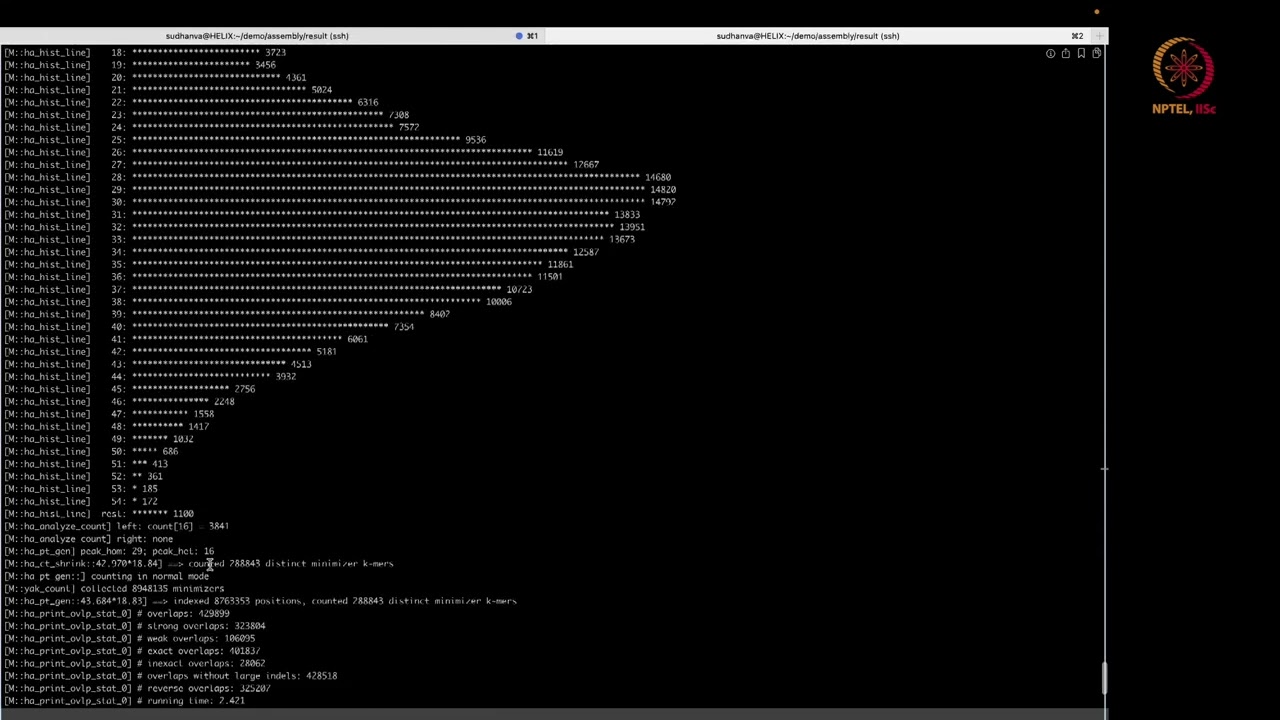






This tutorial demonstrates how to assemble metagenomic data using Megahit, covering the complete workflow from installing the software via GitHub binaries, downloading example data from Galaxy tutorials, executing the assembly command with parameters like k-mer sizes and thread allocation, and analyzing the output FASTA file to count assembled contigs. The process involves setting up a working directory, handling read files, configuring Python dependencies, and understanding key assembly parameters for successful metagenome reconstruction.
Metagenome Assembly with MEGAHIT: A Step-by-Step Tutorial
Added:Fundamental command-line (Linux/Unix) skills, including package management with Conda and basic shell scripting.
Understanding of Next-Generation Sequencing (NGS) concepts, particularly FASTQ file formats, read quality, and sequencing depth.
Core concepts of metagenomics, specifically how environmental DNA sequencing differs from traditional single-organism genomics.
Theoretical knowledge of de novo sequence assembly, including the concepts of contigs, scaffolds, and De Bruijn graph-based algorithms.
Metagenomic binning techniques to group assembled contigs into Metagenome-Assembled Genomes (MAGs) using tools like MetaBAT2 or MaxBin2.
Quality evaluation and validation of assembled genomes and bins using bioinformatics assessment tools like QUAST and CheckM.
Taxonomic profiling and functional annotation of metagenomic assemblies using pipelines such as Prokka, Kraken2, or eggNOG-mapper.
Downstream comparative metagenomics to analyze metabolic pathways, gene abundance, and microbial community ecology across different sample groups.
5K views101likes31:49Original Release: 2023-01-07
hello one two one two okay I think the audio is working now so we can proceed yeah however welcome back to the buy information School Channel in today's video I'm going to show you how you can assemble metagenomic data using using megahertz yeah so that's what we are going to do next so if you want to read more about Mega hits then I suggest you check the GitHub developers GitHub page and then once you do that you should be able to get the megahertz documentation I'll leave the link to that page in the description box so let me just check here first let's show that screen um so that you will see the guitar page I'm trying to set it up now so I will just give me a moment let me set that one up now so our shifts to the GitHub page now by this time you should be able to see it okay perfect so this is the GitHub page so I'll link the link to this page in the description box so that you can read more about this too so when we are here you can scroll down you'll find some notes about Mega hits how to install how to use megahertz Etc so just check this page and then you are going to get more information about it so that's what we are going to do so in this tutorial that's what we'll do these are the activities we are going to perform Let Me shift to the PowerPoint again our shifts there let's see so that's what we are going to do we are first going to install Mega hits and after that we are going to download the example data we'll use an example data to perform the assembly after that you are going to assemble the data and then we are going to explore the output for so these are the four activities that we are going to do so if you want to follow this tutorial then you need to make sure you have a line of some aqua system and it shows off python installed if you have Anaconda installed that's fine but you will not need it in this tutorial okay so once you have Linus or Mac OS and you have python you can install Mega hit for Linus you says you can install the binaries if my Mac OS user then you can install using anaconda or other other other modes of installation which are all described or indicated on the GitHub page of Mega hits so that's what you are going to do so without further Ado let's start the exercise so I'll go back to this slide we will start with the installation of Mega hits so let's start so that means I'll first go to the GitHub page I'll share that screen now we are going to the GitHub page for megahertz so I'll do that now okay so on this page we need to get the binaries I'm using a Linux system by the way so I need to get the binaries so I'll scroll down to this one here pre-built binaries that's what I'm going to use so there's already a link here that I can use so I'll just copy this link and then I'll send it to my terminal but if you want previous releases of Mega hits then you can just come to the releases section here when you click it you have access to reverse releases as well so we have source code we have binaries Etc so just check but you should be fine using this one here the one indicator here because normally this will be the latest version so I'll copy it again then I'll move to the terminal that's what I'm going to do now so let's move to the terminal let's check let's check foreign is to create a working directory that's what I'm going to do so I'm going to say make the meta genomics and then I'll CD into it and then I'm going to download the binaries so I'll see wgets and then I'll Supply the download link which is here so I will download the binaries now okay so it's been downloaded now so let's wait download is complete so let's check the file so let's do an LS and we are going to find this file here this is a turbo file so that means we need to extract the contents so I'll say ta svfz and then I will specify the name so everything has been extracted so let's check again so if you do an LS you are going to find this directory this directory has the megahertz binary so our LS into its I'll see this so the files can be found the bin directory so I'll just LS and then say bin and I'm going to find a further so this is megahertz the executable that's what we are going to use what I'm going to do now is to rename this directory because it's long so I'm going to rename it so that we can get a shorter name so to rename a directory we use MV and then I will specify their name and it also indicates the new name which is megahertz so it has my real name so do an LS and you're going to find it today by the way if you are new to the Linus environments then I'll suggest you watch my video on managing directories okay so this is a tutorial I made for beginners those who are starting to landline us so it shows you how to create how to rename how to remove files Etc so just check the description but you'll find it the link to that video there okay so now we have renamed it so we can call Mega history tests so here you can still do an LS into its a lesson to being and then you find your first day perfect so now what we are going to do is to test Mega hex I will just do it here let me just do this yeah so what I'm going to do is to test Mega heads so to test megahertz I'll say megahertz bin slash megahertz so that will run the megahertz executable for me Okay so let's proceed so when you execute the megahertz binaries it's likely we are going to find this message here okay so when you execute the megahertz binary it's likely you are going to find this message here so I'm using python okay my my environment using python3 so I don't have this name exactly the exact name for python I have it as python 3. so what I'll do is to Create a Sim link that will link to my python 3. so this mine mine is python three I'm using Ubuntu so I don't have python it's about half Python 3 that's version three so because Mega hits is looking for this name python and it does not fine that is why it tasks this error message being displayed from so it tells us that it cannot find the python but of course there's python which is python 3. so what I'll have to do is to create a Sim link or for Windows users you will see a shortcuts I'm just using that first Loosely here so what I'm going to do is to create a Sim link that will link the name chord python to this right here this original python 3. but okay so I'll create it so to create assembling you need an admin access okay I have an admin access on my system so I'll use a sudo command so I'll say sudo and then I'll say Ln dash s and then I'll indicate that part to My python 3.
so that would be slash USR slash bin slash python3 and then I'll also indicate the new name so that would be slash USR slash bin slash python I want it to be in the same directory as this one here so I'll create the same link so to create assembly you need that admin access Okay so I have already done that first and that is why I was not asked any password but if you are using it in your system it's likely you'll be asked the password so you just have to make sure you enter a password and then you'll be fine but if you are working on a remote server like a computer cluster then you need to contact your system admin and then the system admin will will configure it for all you can just use Anaconda to make things easy for you so with Anaconda you don't need any admin access you just have to install it straight away and then you can get mega head installed and I have Bluetooth tutorials that show how to install my guide so I'm going to upload those tutorials on Sunday or Monday so you can check those videos as to know how to set up Mega hits on a lineup system okay so I have done that so now I'm going to test Mega hits so to test megahertz I'll say megahertz slash bin slash Mega hits perfect so once I do it that way then everything will be displayed nicely for me so once I have this here that means that megahertz is working fine so now we have tested it and it's working so we can proceed now this clear the screen and then continue so now that we have mega hits working we have it downloaded and configured we will have to download the example data so the example data can be found on the Galaxy page there is one Galaxy tutorial on metagenomics so I'm using that particular tutorial I'll leave the link to that situation in the description box so let's go back to our browser so this is the page I'll leave the link to this page in description box so this is it's this is the metagenomics assembly tutorial so here I would encourage you to also read the notes here because it's important to have an idea of methodontics for a beginner but we are going to download the data so we will move down we will scroll down so when you are here you can just go to prepare analysis history and then data so when you click it this will send you to this particular section here which has some files here so in this tutorial we are going to use this one here this two ones here these are present reads we will use just one sample which is this one but you can try with the other ones too that is fine we are just playing around with megahertz so any of these samples is fine but I prefer to use this one here so I will need to download this files so to download if you're under browser you can just right click and then just click on open link and then you'll be asked to save it and then you can save it but if you are working on a remote server then it's advisable you copy the links and then download them using a batch script and that will even be much faster and more convenient so what I'll do is to get all these links just these two files because I'm dealing with paid entries so I'll copy them and then I'll move to the terminal so on the terminal I'll create a bar Scripts so I'll say Nano download data dot sh and then I'll just add my shebang line and then when I'm here I'll just Place both links I'm going to use wgets so I'll just BMW gets here that'll be the first thing to do and I also bring that here to download them so once I have them I'll just save changes and exits so now if I do an LS I'm going to find my scripts here so if you want to execute your batch script you can just type Bash and then specify the scripts but I prefer to use another method so to do that I'll need to First add the question right so I say CH mode plus X and then I'll specify the scripts and then after that I'll do an LS again just to make sure I have the script and then I'm going to execute the script to download the false so I'll say dot slash download data so this will download the files for me Okay so as the files have been downloaded let's check if you have messages I'll check if there are messages here that we can which I think we have some people watching so I don't know if they've sent messages or not so just check and then read some messages if they are available let's see okay I have four people watching that's that's okay okay so as is downloading I also like to say that I have some other methodomic tutorials and so I'll leave the links to those videos in the description box as well actually I'm going to leave that the link to the playlist rather so that you can get access to all the other videos and also I have another Channel called bioinformatics and data science Clips so so for those ones that will have short clips of the tutorials I make here so if you are looking for short short tutorials where you don't need to go through the entire tutorial here maybe you are looking for maybe a simple command like maybe some two sorts or maybe some tools let's say let's say BCF tools view or some tool sort of maybe um a mapping command or something like that you can just go to those clips and then watch them because those ones I just give the command straight without explaining them so that one is more like for the impatient uses those who already have the knowledge and just want the command to do their work then that channel will be good for them so go check that out the link to that channel social notification box and for those who are interested in machine learning stuff there's also another Channel called data science coach which you can get some python tutorials and just to learn machine learning so you can check the description box you'll find the link to that channel as well and those those who want to support on patreon uh you can share the description box I have my patreon channel the link is there you can go and support and also I always upload the script for the tutorials on patreon so you can just be a patron and then you can get access to all the scripts that I use for my YouTube channel perfect so let's go now the files have been downloaded so let's check them out so I'll do an LS first to see what I have so these are the files I have forward and a reverse so here the fourth is that with one the reverse is there with two okay so we are almost there I have the first year but I prefer to organize my files in a certain way like these are fast Q file these are the example data so I'll prefer to place them in a different directory so I'll say make that make that fast kill and then I'm going to move these files there the first Q first so I'll see and then star Dot fastq star okay and then I'll move them to First queue so if I do an LS they're fast and longer there they are in the first Q directory so basically this one here says we should move all files that's half the sports dots for skill and then have other names as well so we are basically dealing with these two first this and then this so I have them here so I'll do an a lesson to First queue and I'm going to find them there perfect so now we are ready we have the files okay we now have our first view first so what we are going to do next is to assemble this metal genomic data or metagenome data okay we are going to use Mega hits so what's Mega hits let me just come and get hit again slash Bing um okay I think I have to do it here let me do it here Mega hits slash bin slash megahertz this one here so this is the help command Okay so this will give you the usage the instructions here so in this tutorial we are going to call Mega hash and we are going to specify some options here we will use dash one to indicate their forward or they read 1-2 for the reverse or the V2 and then we'll also indicate these options so Dash that came in is used to specify the minimum camera size and then we also have that's just K Masters maximum camera size and we also have the K step for increment of camera size of each iteration so we are going to specify these options and then we're also going to indicate the outputs directory as well as the number of threads so we are using the command that was used or the options that were used in the Galaxy tutorial so when you go to the Galaxy tutorial when you go to the mega head section which is here we have 21 for minimum camera size maximum camera size is 91 and the increment of camera size of each iteration is 12. so we are going to use these options together with the number of threads the output directory and then the flux to specify the input files so let's go back to the terminal so under terminal I'll do this let's do one and let's let's do an lesson for skill so if you take a look at this files if you take a look at this files you'll see the names the names are long to me the names are very long okay so when we type on the terminal it's going to occupy Spacey everything here which sometimes to if you're not an advanced user you may end up maybe changing some of the text and order so we are going to assign these names to variables so let me show you how it's going to be done so I'll say with one I can also use forward or reverse whatever but I'll say with one equals and I'll say fast kill slash and then I'll give the name here will be read one and then 402 the same thing at this time it will be with two like this so now if I do an echo dollar with one I should get the name which is here Echo dollar with two Echo dollar two I should get this name so if you do the equal and you get these outputs then you are fine we can proceed so now we are going to assemble editor so to do that we'll call Mega hits so megahertz slash bin slash Mega hits okay this is the um binary and then we indicates dash one for forward and that would be dollar read one that's two that'll be dollar re2 and then we also have let me indicate that C or the number of threads so if you are using your normal laptop maybe you are limited in terms of Trades you can use it but you need to make sure that you have the eight course okay the genome assembly process is computationally expensive so usually it's advisable to use a high end piece you are better still use an HPC cluster where you have loss of RAM and then loss of course okay so you need to know if you use T that Dash T it's it may probably take you about an hour about an hour and a half okay so I tried it that's what um the how much or how long it took so if I want to use that C8 it's going to take you probably about an hour and a half so just take note of that so if you have more than eight calls to you can increase it maybe you have 30 or 38 so but just use it if you're using your normal laptop or better store just use an HPC cluster to save you all this sale inconveniences so that c has been done let's look at the other option we have dash dash gaming we are going to use 21 and then that's just k-max we are going to use 91 then there okay step we are going to use 12.
and then we also have to specify an output directory so that would be Dash o and then that would be let's say mega hits underscore results okay so this is the command that we are going to use okay so once you have this command then you can execute Mega hit so let's execute this now okay perfect so if you're executed then you will see this message here telling you that the genome assembly process has been started okay so once that's so once it has been started you can just indicate or you can just wait yeah so once that been started you can wait fast megahertz does its work okay so that's how it's going to be done but I have already executed this command on another environment so I will shift to that one so if the genome assembly is successful we are going to get this message here um let me show you here this what you are going to get because I have already done it so this is um the message that I got after time is successful so I'll shift here okay so let's proceed so I'll just click the screen and check the output files so the output files will be found here megahertz and the scores so let's listen to it and we are going to find the output files there so these are the output files so for this tutorial I am focusing on the final.concy.fa this has the assembled sequences so because it's a fast a file we can even check the number of contacts that were identified by Mega hits so I can just say grab first of all let me just do a head first megahertz underscore results final Dot content.fe just to see the first so these are the sequences so if I want to count the number of contexts let me just repeat again this is a first a file so you have your greater than symbol you have the names and then some information here and then the sequences so if I want to get a number of quantics or the number of sequences here then what I have to do is this let me just do an LS again I have to count the number of greater than symbols okay let me just do it again I have to count the number of this one because each line that begins with this indicates a sequence so I'll say I'll say grab and then I'll indicate that particular symbol here and then I'll specify the file which is here final Dot content.fe and then I'll count them so I'll just say wc-l so this will give me the number of contacts identified so you have 22871 I think is the same thing that was reported on the Galaxy page let's check when you scroll down how many consists are gonna identified for this sample when you check it should be the same or almost the same okay this um let's check okay I think mine is different so probably I use a different sample also uh let's check if I have that number there okay I think I have okay so there's four six eight this four seven two so two two eight seven one nine okay yeah I have it say the same number here and let's say okay yeah so I have context for this sample that's what we use so two two eight seven one nine and I had the same thing which is so that means that's particular and process so that activity is reproducible so which is good so these are the output fast so after you have performed your meta genome assembly there are a number of things you can do so um you can evaluates and then visualize the assemblies you can also identify the meta um genome assembled and genomes but in the next tutorial what I want to cover is the um evaluation or evaluating there assemblies as well as visualizing the assembly so to evaluate the assemblies you can use tools like meta class and to visualize you can use tools like bandage you can use those ones to kind of um like this because the evaluation is kind of like a QC to let you know the quality of the assemblies and then visualization will also help you to know if you will have complete bacterial sequences or not and also identify um occurrences such as long repeats and Etc but I'm going to cover the evaluation in the virtualization and that tutorial so just make sure to come back later to watch that so let's check the tools that can be used for the um evaluation so we have meta class which is here I will leave the link to this question was we also have bandage officialization which is here so you can check I will leave the link to this page so you can start reading about them so basically in this tutorial they perform the quality control where they evaluated assemblies using meta class and also visualizing bandage so I'm going to basically reproduce this tutorial and then I will let you know what time I will upload so this these are the things we are going to do next now let's look at another thing here before we go let's take a look at this situation what we did was to use a simple a single file okay I'm not single purpose what we did was to use a single sample so if I do an a lesson to First scale I have my first year so there's some a single sample okay one sample because we have with one with two now if you have lots of samples let's let me just do this uh I think it's not this one let me just share that one here it should be somewhere here um let me check I should have some fast care files here um yeah this one here perfect perfect so if I have a situation like this where I have several samples then it's going to be cumbersome trying to issue a command such as what we did here okay to issue a command like this for each of the samples so in that situation you have to use a script so I have prepared a script and also a tutorial okay a tutorial on how you can assemble metagenomics data if you are dealing with multiple samples and your strategy you can use and also give an example script so in that script I show you what to do how to create your own description so how to use the scripts that's I've I've written to assemble a metronomic data so if you have lots of samples then I will encourage you to watch that video I'll link I'll leave the link to that video in description so you can just watch that video get the script and you can use that to automatically get all your samples and then assemble them so that is something that you always have to do if you also have other samples which you want to assemble and there are issues you can always book a session with me or contact me and we can work something out so that'll be all for this tutorial let me get your comments if you have anything which you think can be added just put in the comment section and then let others also learn so thanks for watching and I'll see you in the next session
Up Next
11:33
FastQC Tutorial: Sequence Quality Control for High-Throughput Data
@BabrahamBioinf
201.9K views•2010-09-22

12:54
Triumph of Orthodoxy Icon: Byzantine Art & History Explained
@BenCallan
2.1K views•2024-08-06

9:49
FastAPI vs Flask vs Django: Choosing the Right Python Web Framework
@TechWithTim
302.5K views•2024-05-26

1:42
Game of Thrones Opening Credits: A Cinematic Analysis
@gameofthrones
46.3M views•2011-04-18
Related Study Plans & Knowledge Roadmaps
Structured learning paths in General & Interdisciplinary Studies
general-studies
Elevator Engineering: History, Physics & Cities
01From Hoists to Safety Brakes: The Dawn of Vertical Lift
02Hydraulic vs. Traction: The Engineering Physics of Elevators
03Modern Speed, Safety, and Algorithms
+ 2 more learning modules
12h5 modules
Explore Roadmap
general-studies
Rubber: Material Science, History & Geopolitics
01Origins of Natural Rubber & Mesoamerican History
02The Chemistry of Natural Rubber & Vulcanization
03The Geopolitics of the Rubber Boom & Colonization
+ 2 more learning modules
12h5 modules
Explore Roadmap
general-studies
Containerization: Evolution, Logistics & Trade
01Ancient Trade & Bulk Cargo: Amphorae to Barrels
02The Industrial Revolution & Cardboard Packaging
03The Containerization Revolution: Malcom McLean
+ 2 more learning modules
12h5 modules
Explore Roadmap
general-studies
Textile Tech: Evolution, Labor & Global Impact
01Pre-Industrial Textiles: Handloom & Cottage Industry
02Mechanization: The Spinning Jenny to the Power Loom
03The Factory System & Global Labor Transformation
+ 2 more learning modules
10h5 modules
Explore Roadmap