













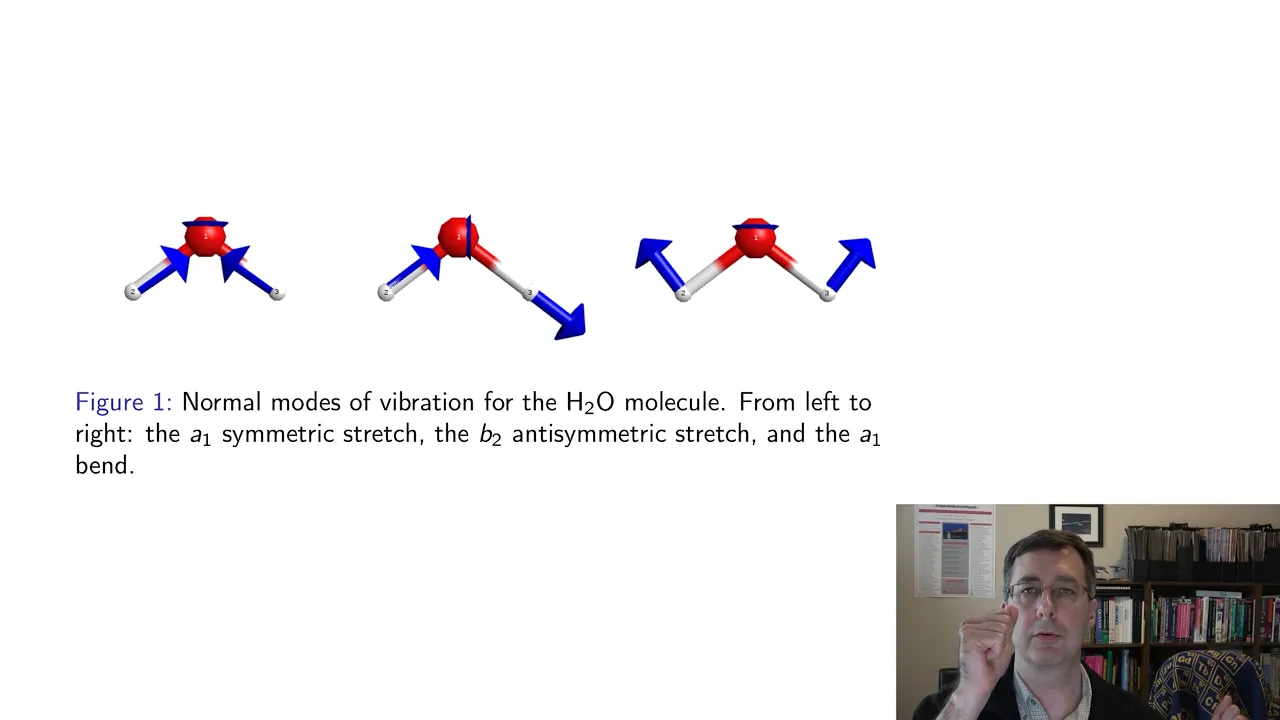
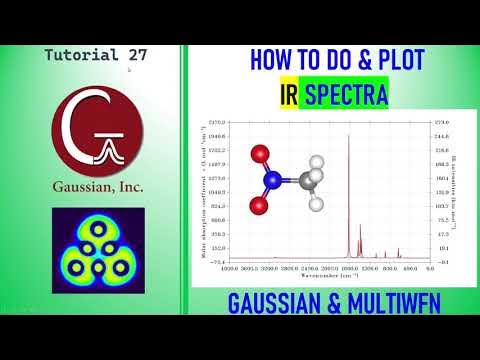


This tutorial demonstrates how to perform frequency calculations in ORCA using optimized molecular orbitals from previous geometry optimization runs to speed up computations, and how to analyze the output to identify imaginary frequencies (negative values indicating non-ground state geometry) and visualize vibrational modes using ORCA_PLTVIB to create XYZ trajectory files for visualization in Avogadro.
Computing and Analyzing Vibrational Frequencies in ORCA Using Avogadro
Added:Basic principles of molecular vibration, normal modes, and Infrared (IR) spectroscopy.
The concept of molecular geometry optimization and why it is a prerequisite for frequency calculations.
Familiarity with the ORCA quantum chemistry software interface, including basic input file preparation and running jobs.
Basic usage of Avogadro for molecular building, visualization, and generating input files.
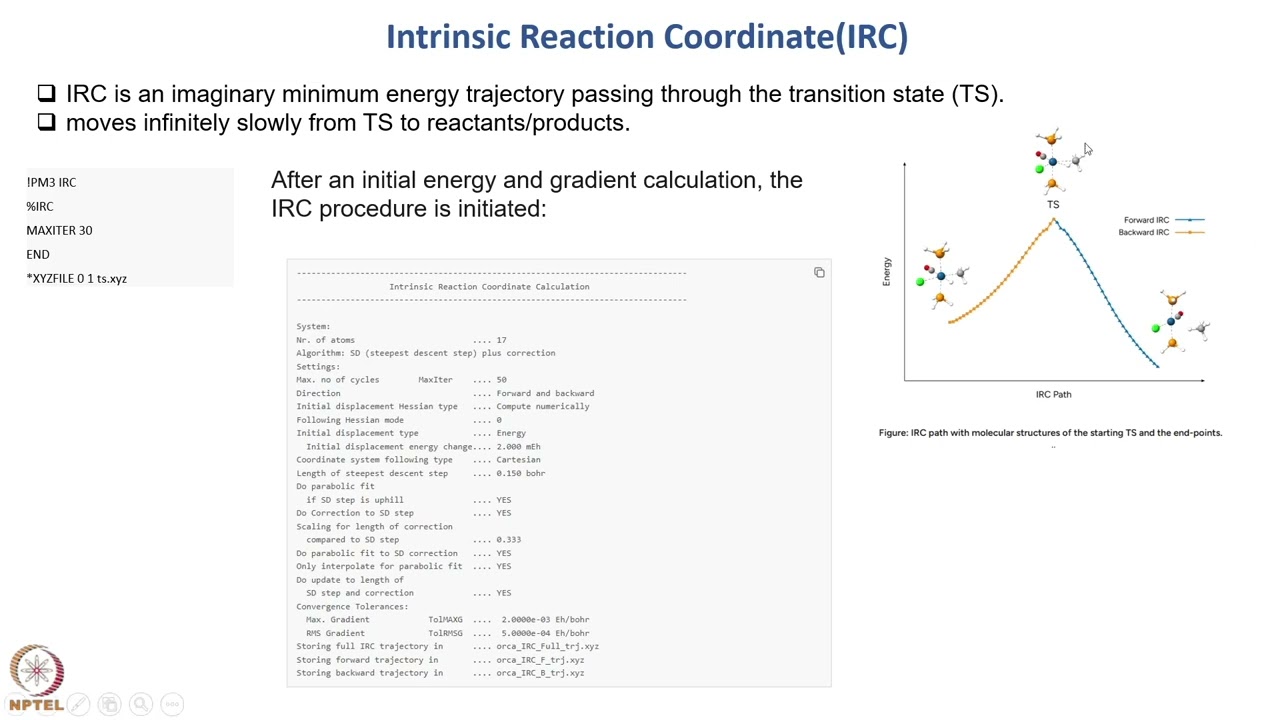
Locating and verifying transition states using single imaginary frequencies and Intrinsic Reaction Coordinate (IRC) calculations.
Calculating thermodynamic properties (enthalpy, entropy, and Gibbs free energy) from vibrational partition functions.
Applying empirical scaling factors to computed frequencies to accurately align with experimental IR spectra.
Simulating advanced vibrational spectra such as Raman scattering and Vibrational Circular Dichroism (VCD).
20.1K views182likes13:24Original Release: 2016-01-09
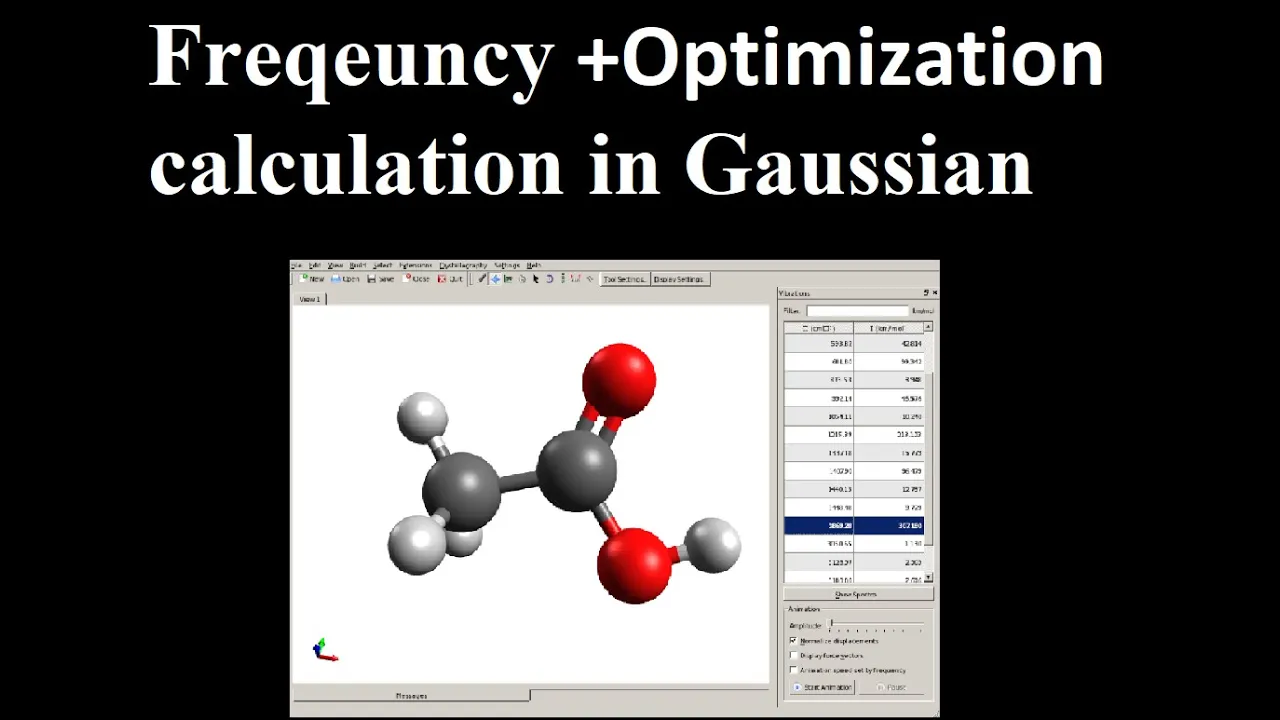
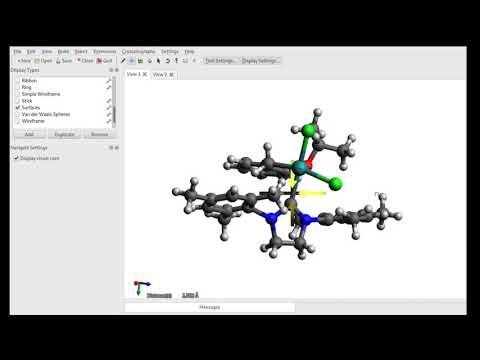
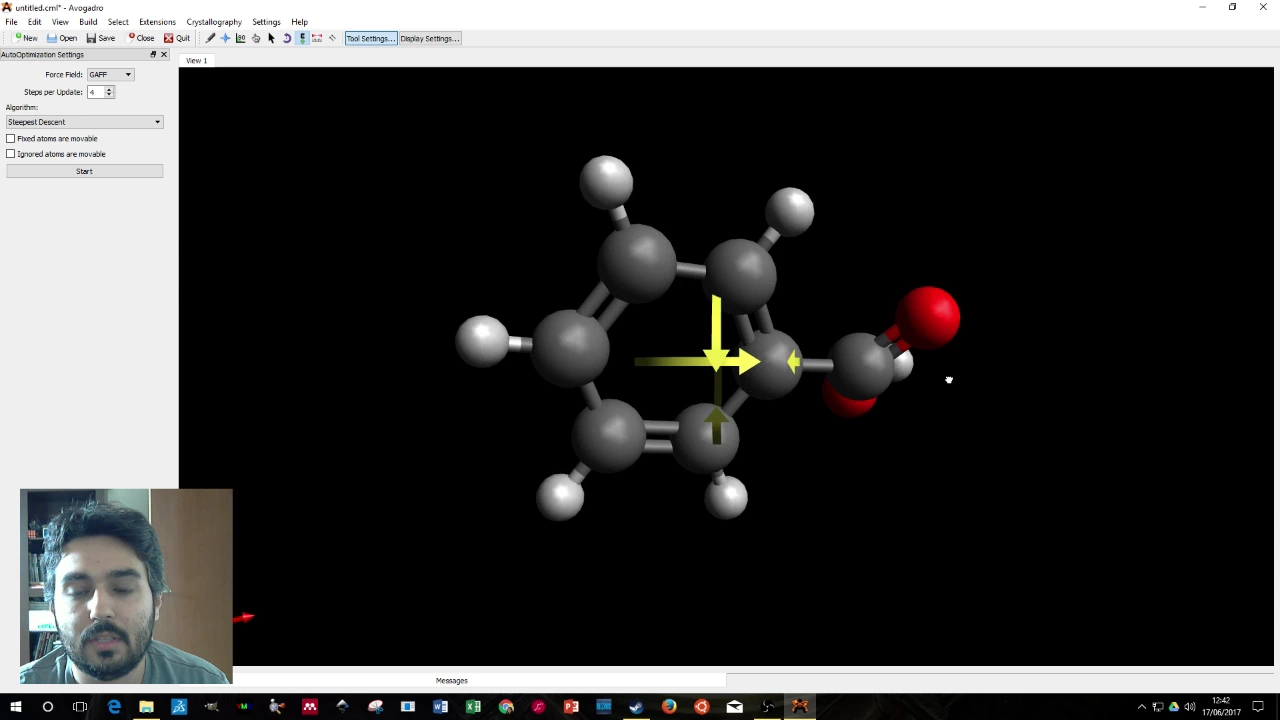
hey guys this tutorial is on how to compute and analyze frequencies in Orca so we have a lot to cover in this one so I'll try to keep it kind of dance but informational so the first thing that we will do is look at how can we use and opt in my structure from another calculation to do a frequency analysis on it but without recalculating everything from scratch the input keywords are as follows so for example if we take the penguin known that we have computed in our previous tutorial on geometry optimization we can create the input through extension or can generate input and just save click on generate and you will get your file saved somewhere and then we will add some key words corresponding to what we want to do so I'm keeping the the level of theory and the basis at default because it's not the point what I want to show you here is that if you go on to the orc input library website it's a very good page to read because it gives a lot of important information on how to successfully compute frequencies and do the thermochemistry so take a look at that and here they suggest that you always do not just frequencies but optimization and frequency in the same run but because we already optimized our geometry and we just want to know whether it's in ground state or not we don't want to redo all of these steps so we will take a shortcut and we will use this keyword am already and we will provide this file which stores all the information about the molecular orbitals from our previous run so this is done using this line over here and you would need to have the gpw file from our previous run in the same folder as the input file well as in the same folder where you would run your calculation so I need this file which contains the orbitals from before to be in the same folder as the calculation being run on this input file or we'll compute the frequencies so they have to be able to see each other that will lead to the program to converge the optimization in one cycle instead of I think we had seven steps and that's a great speed up also if you are able to do multi process calculations on your computer you can use these keywords over here to increase the number of processors on which your calculation will run if you just installed Orca the same way I showed you in the previous tutorial like Orca setup then unless you already had installed open MPI on your computer you will not be able to use this so you can go again here and click somewhere Oh setting up Orca here on the link on the Left panel and they will explain how to install and connect openmpi to worker so that you can do multi process calculations and that's a great speed up so if you can't do that then just don't write this keyword and your calculation will take longer of course but it will still run no problem okay so now you would open the command line and run the input as usual and we will look at the output from the calculation as text file first and then as ready so the input creates the output as follows so first it's always the same thing as before the first step is optimization so we can check whether or not our optimization was successful by searching the word hooray okay so here we go our up to my vision was successful therefore the frequencies were calculated to jump right away to the section where the frequencies are you can write or come a cm and search for that or just patient okay so I need Orca SDF 15 sorry but okay so here is where your frequencies will actually be calculated if you scroll a bit lower you will get the vibrational frequencies and notice here that our geometry was not in ground state because we have one imaginary frequency with a negative sign therefore we know that our geometry is not exactly where we want it to be so what can you do if you have an imaginary mode and you do not want one for this let's open our output in 3d because I want to show you the difference between what you get and I forgot you and when you get as a text file so here you will see that actually on the panel on the right you don't see any like zero frequencies or any negative frequency which is kind of more than a mistake but so you can't like visualize them right away so what can you do if you want to see what is the image imaginary mode corresponding to for this you can actually create a specific XYZ trajectory file per vibrational frequency or for all of them if you want it so let's open the command prompt and here I will navigate so I will use the full path to the orca folder under which there is a specific program card ok Orca underscore PLT viv so I have Orca in the sea folder oops I have to do see like this and slash fork underscore PLT web XE okay and I will use this sub program of worker to plot this frequency number six okay so then I need to provide the file on which the program has to operate so this file is carrying me in desktop work dogs and going on and it's called a penguin that opt Q dot out oh sorry that has so if you do the op they won't recognize it so you need to have this file over here which is automatically created when you do a frequency calculation it's with the dot has extension okay and then after the space you write the frequency number corresponding to the mode that you want to have so far as it will be six and now after a couple of seconds it will print out the vial and create a new file over here so I know it's taking so long okay so here the file is being recognized as a valid orca haitian file and it will put one vibration 6 and so now if you go back to your folder where everything is you will see that you have this new file appearing here as an XYZ file so now we can actually open it in Orca again okay my computer is doing it okay so let's try to open this Asian file okay and now if we want to see what is going on here we would go into extension animation and we will click on Play so now just gonna keep it going for a bit longer what happens here is that that means that this methyl group or these three are not exactly where they should be for wearing actual ground state so in order to get rid of this frequency you can kind of distort the geometry along this mode and reoptimize with a tighter conversion or a better basis like for example okay so that's for the unwanted imaginary frequency now what else can you do in Avogadro was here frequencies and how to visualize an IR spectrum so for this will open again the door out and now for example my favorite frequency where is it now it's funny penguin is dancing so it looks like this and you can click on start animation where you will see where the force vectors are if you are annoyed by the green little arrows you can unclick here force and they will disappear oh so you can show spectra yeah if you click here it will actually show you the big kind of wannabe IR so you can also click on advanced here and then play around with what it looks like rename it exported if you click on infrared spectra settings you can actually increase the width of the peaks if you prefer it this way they can change transmittance to absorbance if that's what you need and you can also use the scaling factor if you know what you're doing so obviously you can export it and save it as a picture or an as an SV it's CSV file ok so I think in this I'm done let's see yes we have already used to expose our tile work IPL TV alright so yeah I hope that was clear and useful and I'll see you next
Up Next

59:52
Driving Retail Velocity: Data-Driven Strategies for Emerging CPG Brands
@startupcpg
419 views•2025-04-24

12:54
Triumph of Orthodoxy Icon: Byzantine Art & History Explained
@BenCallan
2.1K views•2024-08-06

9:49
FastAPI vs Flask vs Django: Choosing the Right Python Web Framework
@TechWithTim
302.5K views•2024-05-26

1:42
Game of Thrones Opening Credits: A Cinematic Analysis
@gameofthrones
46.3M views•2011-04-18
Related Study Plans & Knowledge Roadmaps
Structured learning paths in General & Interdisciplinary Studies
general-studies
Elevator Engineering: History, Physics & Cities
01From Hoists to Safety Brakes: The Dawn of Vertical Lift
02Hydraulic vs. Traction: The Engineering Physics of Elevators
03Modern Speed, Safety, and Algorithms
+ 2 more learning modules
12h5 modules
Explore Roadmap
general-studies
Rubber: Material Science, History & Geopolitics
01Origins of Natural Rubber & Mesoamerican History
02The Chemistry of Natural Rubber & Vulcanization
03The Geopolitics of the Rubber Boom & Colonization
+ 2 more learning modules
12h5 modules
Explore Roadmap
general-studies
Containerization: Evolution, Logistics & Trade
01Ancient Trade & Bulk Cargo: Amphorae to Barrels
02The Industrial Revolution & Cardboard Packaging
03The Containerization Revolution: Malcom McLean
+ 2 more learning modules
12h5 modules
Explore Roadmap
general-studies
Textile Tech: Evolution, Labor & Global Impact
01Pre-Industrial Textiles: Handloom & Cottage Industry
02Mechanization: The Spinning Jenny to the Power Loom
03The Factory System & Global Labor Transformation
+ 2 more learning modules
10h5 modules
Explore Roadmap