





![[ BIOLOGÍA FREE ] - EL NUCLEO CELULAR | Citología II 🌿👉😍](https://i.ytimg.com/vi/kF_lCW7pf0k/sddefault.jpg?v=61c0af9a)


















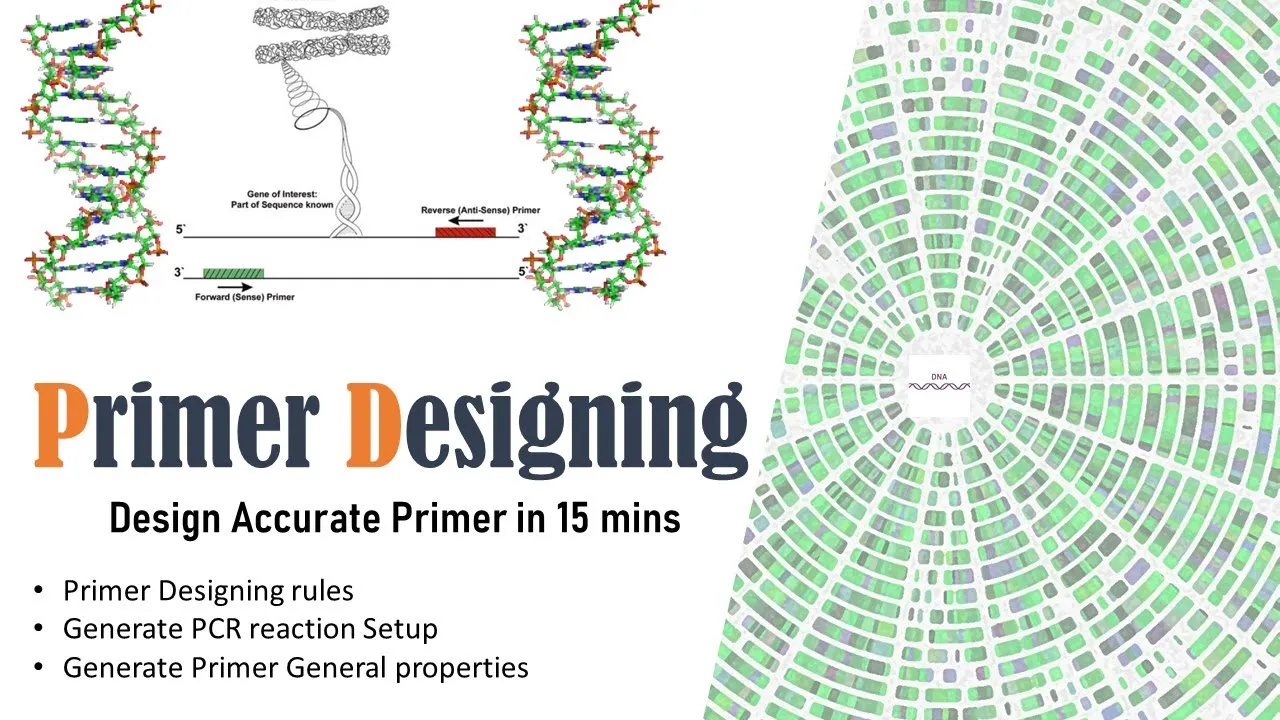





This tutorial demonstrates how to navigate NCBI's bioinformatics databases and tools for genomic research, covering how to search for nucleotide and protein sequences using the search box with database selection, interpret GenBank records including accession numbers and FASTA format sequences, analyze gene variants using the Variation Viewer with filters for clinical significance and variant types, and understand gene-protein relationships through gene records and interaction data.
NCBI Bioinformatics Tools & Databases: A Beginner's Guide | Genomic Research Tutorial
Added:The Central Dogma of Molecular Biology: Understanding the flow of genetic information from DNA (nucleotides) to RNA to proteins (amino acids).
Basic genomic architecture: Familiarity with gene components such as exons, introns, promoters, and untranslated regions (UTRs).
Concepts of genetic variation: A foundational understanding of mutations, single nucleotide polymorphisms (SNPs), and insertions/deletions (indels).
Basic database principles: Familiarity with how digital biological databases organize and reference data using unique identifiers and accession numbers.
Sequence Alignment with BLAST: Learning how to compare query sequences against NCBI databases to identify homologous genes and evolutionary relationships.
Clinical Interpretation of Variants: Utilizing specialized databases like ClinVar and dbSNP to assess the medical and phenotypic significance of genetic variants.
Primer Design: Using retrieved gene sequences to design PCR primers using NCBI's Primer-BLAST tool for laboratory experiments.
Programmatic Access (Entrez Direct): Transitioning from the web interface to command-line tools to automate large-scale data retrieval and mining from NCBI databases.
115.2K views2Klikes11:23Original Release: 2021-10-06
Hi, this is Svenja Lohner from Science Buddies, and this video is an introduction to you how to use the NCBI’s bioinformatic tools and databases for your genomic research.
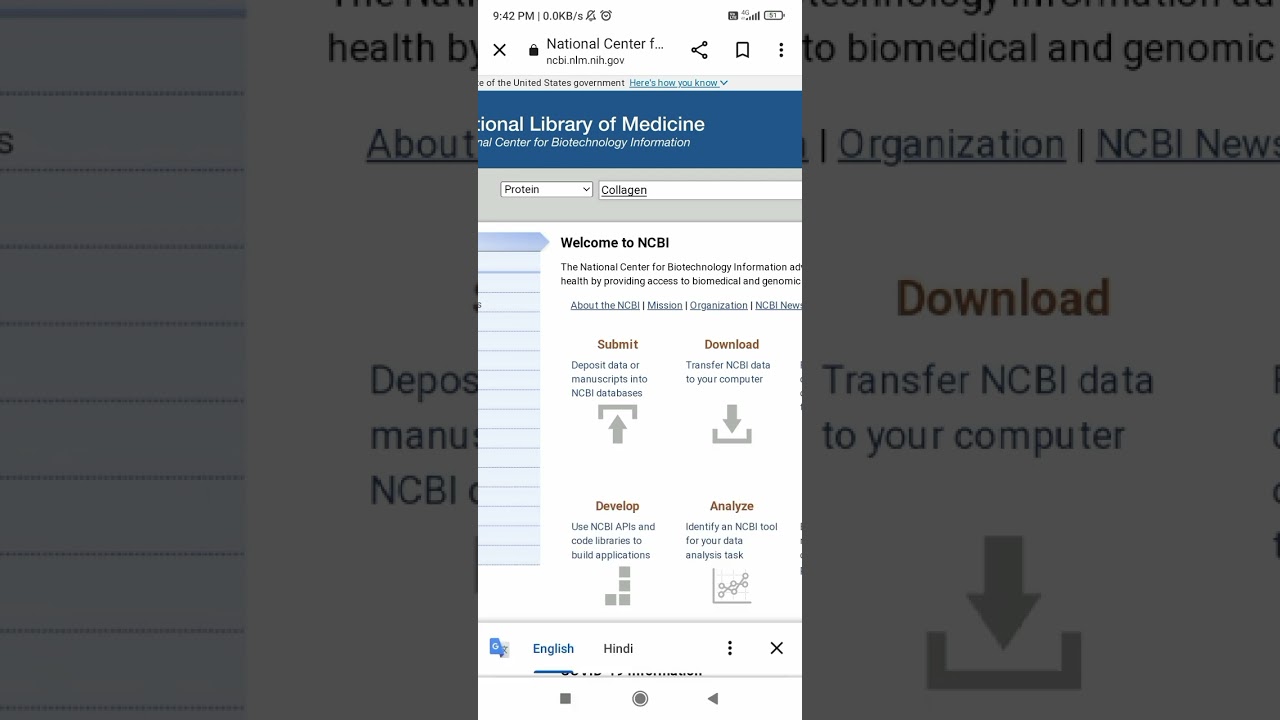
The NCBI, or The National Center for Biotechnology Information provides access to several databases with biochemical and genetic information as well as bioinformatic tools.
I will show you how to navigate some of these databases to learn more about specific genes and proteins.
We will also take a closer look at how to analyze gene variants and their mutations.
Let’s start on the main NCBI website.
To get there, navigate to www.ncbi.nlm.nih.gov in your web browser or just type “NCBI” in your web browser and then click on the NCBI website link.
On the left side of the website, you will find a detailed list of resources that you have access to.
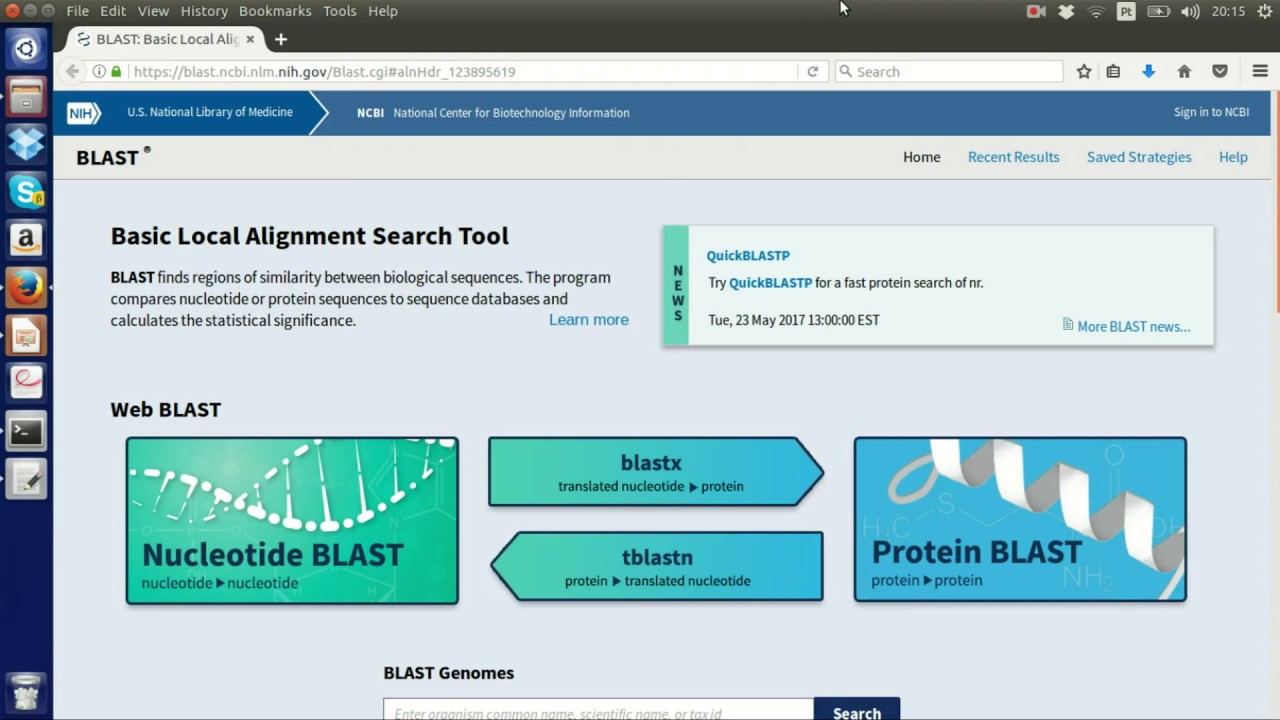
On the right site, some of the most popular resources are listed such as the BLAST tool, which I have a different video tutorial about.
You can find the link to this tutorial in the description below.
In the center of the page, you can find information on how to submit or download data.
You can also find links to explore NCBI’s help documents and research projects.
If you are interested in specific genes or proteins, you need to use the search box at the top of the page.
To the left of the search box is a drop-down menu with a list of all the databases that are available for your search.
Depending on what you are searching for, you want to choose, “Gene”, “Protein”, or “Nucleotide” from the list.
Type in the name of a specific protein or gene and then click search.
We will search for the nucleotide sequence of the human CFTR gene, which is linked to a genetic disease called cystic fibrosis.
The resulting list includes all the records that matched your search term in the selected database.
For each item on the list, you can see its name, what organism it is from, the number of nucleotides, and its accession number.
The accession number is a unique identifier given to a specific sequence in a database.
On the left side of your search result page, you can filter your results based on species, molecule type, such as mRNA or genomic DNA, source database, and more.
On the right side you see the results by taxon.
Another way to refine your search is by clicking on the advanced search link underneath the search box.
In the search builder you can narrow down your search, for example by entering a specific organism or looking for a specific search term.
A simpler way to do the same thing is to go back out to the original search box.
There you can add your specific search terms or organisms into the search box together with your protein or gene name.
Note, that some of the database entries are partial sequences.
You want to select the full, or complete sequence for your research.
It might take a while to look through all the results until you find the right one.
Once you have found it, click on it to get to the GenBank record for that sequence.
The GenBank record has a wealth of information on your sequence, including its accession number, the names of the researchers who submitted the sequence, the date of submission, and much more.
In the features section you can find information about genes and gene products as well as regions of biological significance within the sequence including their location.
At the end of the page, you will see the actual nucleotide sequence.
Most programs that analyze nucleotide or protein sequences require them to be in a certain format.
The most common format is called FASTA.
In this format, nucleotides or amino acids of a sequence are represented using single-letter codes.
At the top of the page, click on the FASTA link below the sequence’s accession number to view your sequence in FASTA format.
You can now copy and paste the FASTA sequence if you need to transfer it into another bioinformatics tool such as BLAST.
You can also download the FASTA file by clicking on “Send to”, check “file”, and then click on the “create file” button.
Under “Analyze this sequence” on the right, you have the option to analyze the sequence using other bioinformatic tools.
For example, clicking on “Run BLAST” brings you to the BLAST homepage where you can compare the sequence to many other sequences in the database.
You can watch Science Buddies’ BLAST tutorial to find out more about how BLAST works.
Further down the page, under Related Information, you can get more information on your nucleotide sequence.
For example, clicking on Genes brings you to a page with related genes in the gene database.
We will talk about the Gene page in more detail later in this video.
If you search for a protein, you follow the same steps as before but select the protein database for your search.
Let’s go ahead and search for the human CFTR protein and navigate to its corresponding GenBank page.
The page includes similar information as for the nucleotide sequence.
In the features section you will find detailed information on specific sites within the protein, such as phosphorylation or transmembrane regions.
CDS stands for “coding DNA sequence” and is the portion of the gene that codes for the protein.
Some GenBank entries, for example mitochondrial DNA sequences, contain several coding regions.
Each one encodes for a different gene.
At the end of the page, the protein sequence is displayed as a string of letters similar to the nucleotide sequence.
You can get the FASTA sequence of the protein by clicking the FASTA link underneath the accession number at the top.
Download the sequence by clicking Send to, select File, and then click on “Create file” as you did for the nucleotide sequence.
Again, you can analyze the sequence with other bioinformatics tools by clicking on the corresponding links under “Analyze this sequence” on the right -- and under “Related information” you can get to the nucleotide entry for your protein.
Depending on your sequence, you will either be taken directly to the corresponding nucleotide GenBank record, or you will be directed to a list of several nucleotide sequences that all correspond to your protein.
The “Gene” link will bring you to the GenBank records of related genes.
Let’s go ahead and look at the gene record for human CFTR.
As you can see, a gene record provides a lot of information on a specific gene and consists of several subsections.
We will only cover some of them in this tutorial.
The summary section contains general information on that gene such as its gene symbol, organism source, and a summary paragraph that describes the gene’s function and relevance.
The Genomic Context section reports the location of the gene on the chromosome.
For some genes there is an expression section that shows a graph with the expression data for the gene in different tissue samples.
I won’t go into the details of the graph in this video.
Just know that the graph is a good starting point for assessing the expression of this gene in the body.
The higher a bar is in the graph, the higher the expression levels for that gene in the corresponding tissue sample.
In the Interaction section, you will find a list of proteins that have been shown to interact with your gene.
This might be relevant if you want to assess the potential effects a drug has on a certain gene or understand how the function of other genes can affect the function of your gene.
On the right side of the page, you will again find a Related Information section.
Here you can go to the related nucleotide or protein entries.
Further down the list, you will see a Variation Viewer link that brings you to a page with related variants of that gene.
A gene variant is a different version of the gene resulting from mutations.
You can also get to the Variation Viewer from the Variation Section on the Gene page.
Looking at the variants of a specific gene can be especially useful for genes that are associated with a genetic disease such as the CFTR gene.
In the Variation Viewer you can view and search variations of a specific gene.
In the top left you can search for specific genes.
Next to the search section is the sequence viewer and the chromosome overview.
Underneath that is the variation data for your gene.
The panel on the right is the table of variants.
Each row in this table represents a different variant of your gene.
The left panel has filters that you can use to restrict your table to variants of specific interest.
For example, you can filter based on Most severe clinical significance.
Clicking the pathogenic box will only show variants that result in a genetic disorder or disease.
You can also filter based on variant type.
A single nucleotide variant, or SNP, varies from the original gene sequence by only a single nucleotide.
The variant table provides the following information.
The Variant ID, the genomic location of the variant, the variant type, and the molecular consequences for the variation.
Missense or nonsense variants are some possibilities listed there.
You can also find the number of publications associated with the variant and links to those publications.
If you want to find out more about a specific variant, click on the small arrow next to the Variant ID.
In the drop-down section you can find information about the transcript change that is present in the variant and its resulting change within the protein.
In this variant, for example, the nucleotide in location 1, an adenine has changed to a guanin.
This results in an amino acid change from methionine to valine.
Clicking on the Variant ID brings you to the reference SNP report for that variant.
In the Variant Details tab, in the Gene section, you can look up the base change for that variant in the amino acid[codon] column.
This information should match the protein change you found in the Variation Viewer before.
Below the gene section, you will see a display of the genomic region including all recorded SNPs for that section of the sequence.
The blue bar shows the location of the mutated nucleotide for your selected variant.
Now that you know how to search for nucleotide and protein sequences or genes and gene variants on the NCBI website you should be well equipped to get started on your own genomics research question!
To get ideas for genetics or bioinformatics science projects that use the NCBI website, or thousands of other science and engineering projects, visit us online at www.sciencebuddies.org.
Up Next

8:41
UCSC Genome Browser Basics: Tutorial 1 for Genetics Research
@samallon9492
99K views•2014-09-05

12:54
Triumph of Orthodoxy Icon: Byzantine Art & History Explained
@BenCallan
2.1K views•2024-08-06
13:27
Build an Arduino-Powered Underwater ROV: Engineering Project
@Science.Buddies
98.3K views•2023-05-24

1:42
Game of Thrones Opening Credits: A Cinematic Analysis
@gameofthrones
46.3M views•2011-04-18
Related Study Plans & Knowledge Roadmaps
Structured learning paths in General & Interdisciplinary Studies
general-studies
Elevator Engineering: History, Physics & Cities
01From Hoists to Safety Brakes: The Dawn of Vertical Lift
02Hydraulic vs. Traction: The Engineering Physics of Elevators
03Modern Speed, Safety, and Algorithms
+ 2 more learning modules
12h5 modules
Explore Roadmap
general-studies
Rubber: Material Science, History & Geopolitics
01Origins of Natural Rubber & Mesoamerican History
02The Chemistry of Natural Rubber & Vulcanization
03The Geopolitics of the Rubber Boom & Colonization
+ 2 more learning modules
12h5 modules
Explore Roadmap
general-studies
Containerization: Evolution, Logistics & Trade
01Ancient Trade & Bulk Cargo: Amphorae to Barrels
02The Industrial Revolution & Cardboard Packaging
03The Containerization Revolution: Malcom McLean
+ 2 more learning modules
12h5 modules
Explore Roadmap
general-studies
Textile Tech: Evolution, Labor & Global Impact
01Pre-Industrial Textiles: Handloom & Cottage Industry
02Mechanization: The Spinning Jenny to the Power Loom
03The Factory System & Global Labor Transformation
+ 2 more learning modules
10h5 modules
Explore Roadmap