

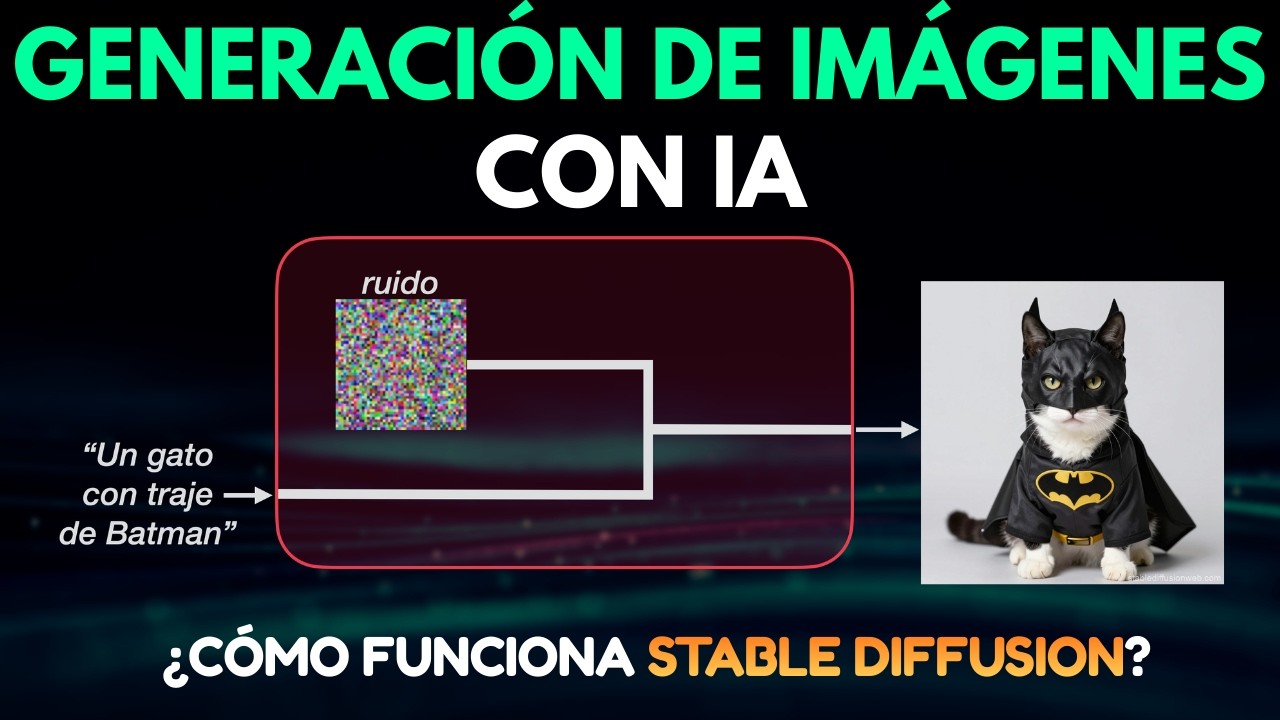














Fine-tuning Stable Diffusion on custom datasets involves preparing image-caption pairs, uploading them to Hugging Face, cloning the diffusers repository, setting up a virtual environment with dependencies, configuring accelerate for multi-GPU training, exporting the base model and dataset, running the fine-tuning command with specified parameters (such as training steps and caption column), and finally uploading the trained model to Hugging Face for inference. The process requires proper data formatting, computational resources, and understanding of model parameters to achieve effective customization.
Fine-Tuning Stable Diffusion for Text-to-Image Generation
Added:Basic understanding of Latent Diffusion Models (LDMs) and how they generate images from noise.
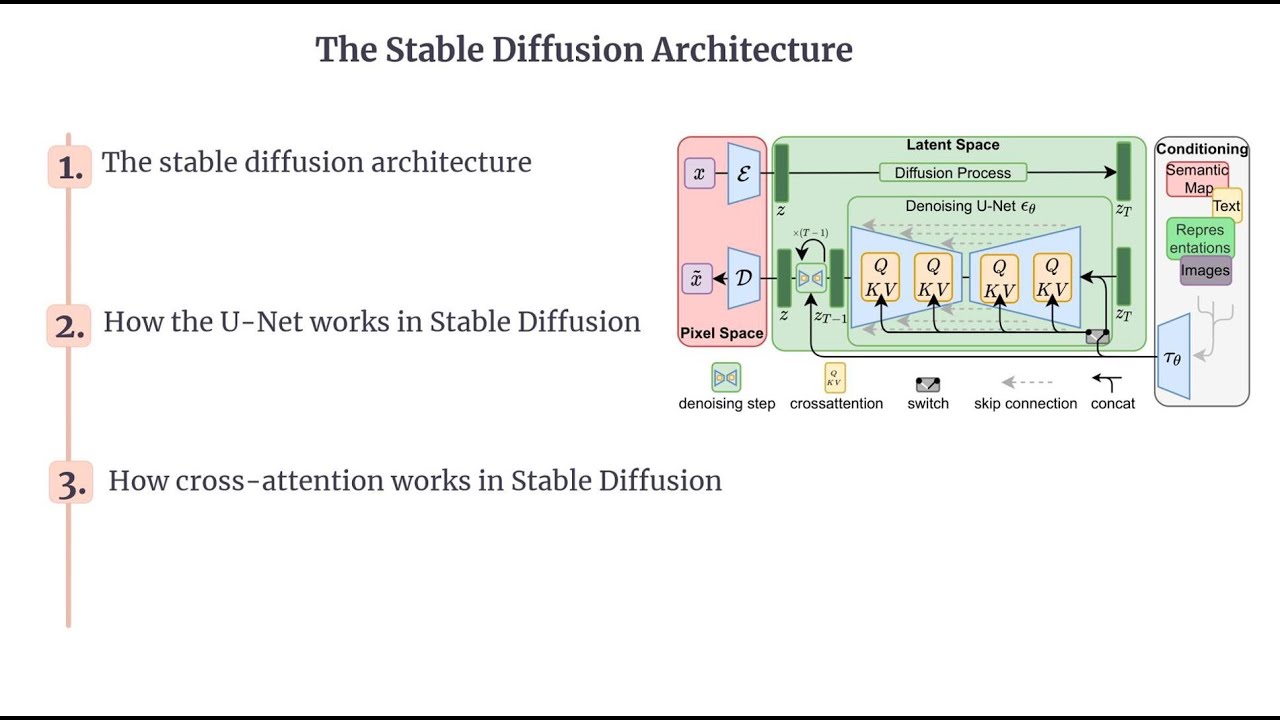
Familiarity with the architecture of Stable Diffusion, specifically the role of the Autoencoder (VAE), U-Net, and Text Encoder (CLIP).
Fundamental concepts of deep learning training, including loss functions, learning rates, optimizers (e.g., AdamW), and overfitting.
Proficiency in Python and basic experience with deep learning libraries like PyTorch and Hugging Face Diffusers.
Parameter-Efficient Fine-Tuning (PEFT) techniques such as LoRA (Low-Rank Adaptation), DreamBooth, and Textual Inversion.
Implementing spatial conditioning and control structures using ControlNet or T2I-Adapter.
Quantitative evaluation of text-to-image models using metrics like FID (Fréchet Inception Distance) and CLIP Score.
Optimization of inference pipelines for production, including quantization, distillation, and deploying model checkpoints.
767 views14likes16:19Original Release: 2024-09-23
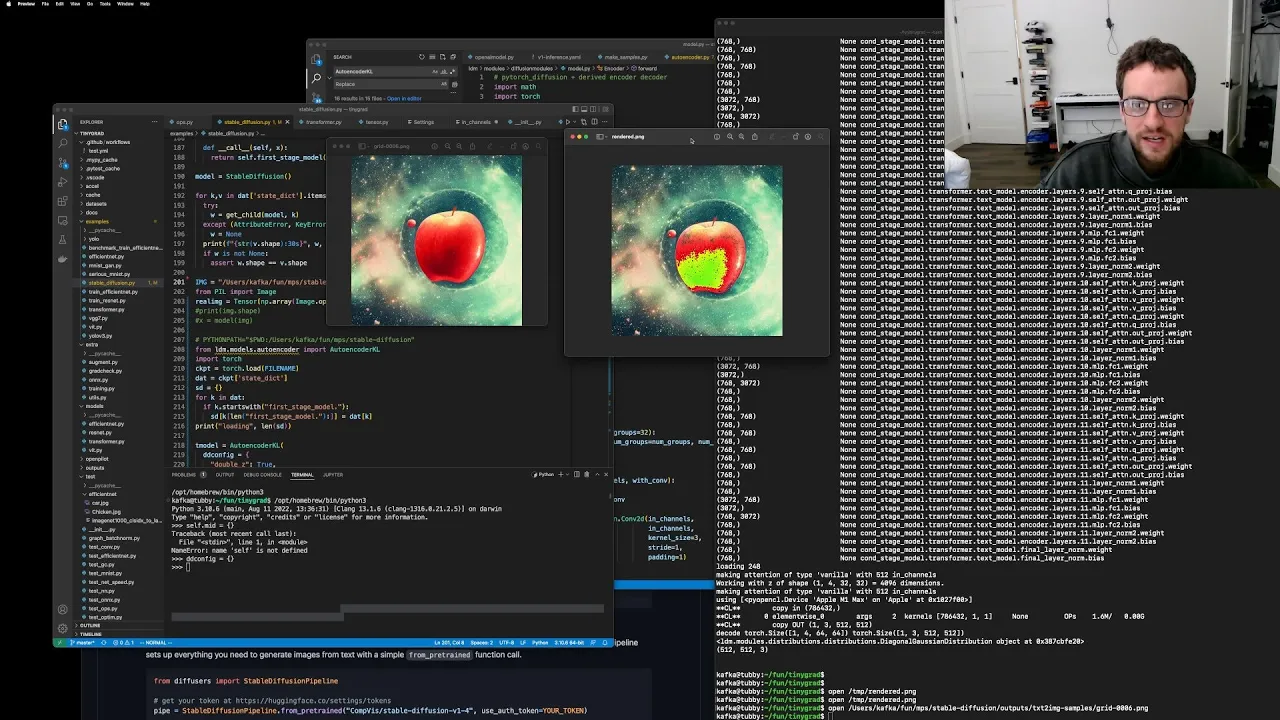
hello guys I hope you are doing well so today we will we will find tune stable diffusion on our custom data so our data will be like images and their captions so I have a data set I created so here you can see uh there are some images and we have a metadata for it like this one I will open it so here you can see we have images and their respective caption okay like this one this one this one okay so these are the part of the images and the resp to caption so these are our images so it can be your own images so we will find tune a stable diffusion model on this data set so it should be in a folder like uh this one EMG so first of all you have to upload your data set to the hugging face so you you have sure you you have your uh hugging face account so here you have to create a data set and load a data set here uh so it's simple you have to click here on your account and then you have to create a new data set set and then name your data set after that uh you have to upload your all of your images and uh the metad data file inside the data set like I have I created this data set so here you can see we have images and their respective caption here or or I will I can show you in the files so here's the image file inside this we have all the images and the metadata file as well so you have to name it metadata okay after that if we have uh if we successfully upload the data set to the hugging pH so now we have to do we have to I will go to the any dis so it will be easy okay so here first of all you have to create a a folder like I created this stable diffusion or SD fine tuning sorry I am following this uh stable diffusion F tuning text to image so I'm following this hugging face blog so first of all you have to I will just click on it this one and it will be open here okay so here you can see so first of all you have to clone this Repository so so after cloning it like this and you have to just write uh get clone and then past this and you have to just run it so it will be clone but I already clone it so next step you have to enter this directory like uh CD uh this one and then you have to create a virtual en it I I will name it uh sdnv and a python version I will be using 3.11 so after entering uh enter it so it will create the in environment will be created and then so I already create it so now I will just uh activate it so here you can see uh the virtual is activated after that you have to install some dependencies uh like uh this one you have to uh copy this and you have to install this dependency after that uh you have to install the requirement. txt which uh here it is so you have to install this but before installing this we have to uh navigate to the specific directory like we can see uh we have a lot of folders here we have dream Boo as well uh and uh but we will be using the text to image uh this one so naig get to text to image after that we can see here the requirement. txt file uh we are using just a simple uh we will be finding a simple model so we are not uh finding fine tuning it with the Laura or Flex so we will using we will be finding with just simple one okay so for that you have to install this rexd file for that uh after running it so all the requirements will be installed but I already installed it so uh after installing all the requirements so uh now uh we will uh we will use this command accelerate and and then for that just copy this one I I I will be also using the default parameters inside accelerate so for that and inside this config file so I I will be using so after using this uh entering this it will be initiated so after that you have to log to the uh hugging face account I already logined uh but for that uh you have to just copy this command and then paste it here you will be uh it will ask for the uh hugging face token for that you will uh you have to go to your SEC settings uh inside access tokens you have to create your uh access token if you don't have and then uh after creating you have to just past it there and then after doing this uh now we are ready to uh for fine tuning so but before you have to uh export the model name and the uh data set name for this tutorial we will be using the verion 1.4 this the default one so just copy this command and then uh same with the data set I already did it so that's why I'm not doing it again uh so for data set you have just copy this and we will be using our own data set so uh paste it here and then come again to the uh to your loaded data set to the hugging phase and then just go here and then copy the name of the data set and then go again here and paste it here and when entering so it will be exported after that now we will be using this command okay this one and then past it here and then past here so here you can see I just copy that command and paste it here uh I remove the back slashes here uh and you can see I uh due to the computation uh resources I have I I change it this thing uh from four to eight I also uh add push to uh Hub so the model will be uploaded to hugging F uh directly and then uh I also mentioned the caping column is equal to addition additional feature it is uh the column inside uh inside uh this file if you remember uh here this is a column name for the caption so I gave this as well okay so after running it uh your training will be uh initiated so I already uh I already run it so here uh you can see it's running here I will show you uh this command I if you can see uh here you can see I run the same command here and then the training is continue uh so it total is 15,000 steps so now it's 4% completed and it depend upon your uh computation power uh so here I have two RTX 6000 so it's utilizing almost full but uh still it's it's training so now it's only 4% uh steps are completed out of 15,000 so we will waiting for for the end to complete okay so here uh you can see it was uh we were training it for 15,000 uh EPO but it was too much that's why I interrupted in between and I started again with uh just 1,000 steps so it's complete it's 1,000 steps you can see here uh let me show you okay so it's completed uh 1,000 steps so after that it I didn't provide it uh validation promt so it give me an uh it's completed but it give me an error in in validation in validation prompt here that I didn't give it uh so after that okay I will show you uh I come it back here so I will show you this is a folder in which uh these checkpoints are saved and we have a model index adjacent file as well log files and unit tokenizer and text encoder all of these folders after training so after that I also uh create two other files here I will show you one one is this one uh this is uh in this one I uh write a script for to upload this uh model to the uh to my hugging F so through this I I upload this model to my hug Quest you can see here so it's all uploaded it's 100% after that after uploading this so I will show you uh here you can see okay here you so so here you can see uh after uploading is 22 minutes ago so here you can see it's it's totally uploaded here okay so you can use this model like a diffuser model so just copy this and then you can you'll be able to use this model but this was just for a demo you can see this a demo because our data set was just 100 uh samples so it's not that much big so now I also create one other uh file this one uh this inference Pi file so here I'm using the uh local model which which is in the uh output this output folder local demo folder and I'm just inferencing with a prompt like I just gave it this prompt for now and then also the in Step um I put it 500 you can put it to 50 or just 100 it will be work it will work so it's for random uh name generation for the output uh image and then it's it is store in a inference output folder so here you can see we have after running it I just run it here I will show you I run a lot of uh inferences here you can see uh this one this one this one this one and it's a latest one is this one you can see the 500 one so it store in this at this path so here you can see after after opening it you can see we have a lot of uh some of them is not good like you can see the eyes is not good uh the face is not good so here uh is a little bit okay but not perfect and some this one it's like somehow a cartoonish or some BL and then this one is not not good at all and this one is also there is some not details in the face because we have just a few samples uh of finding data so and also the captions were not too good if we can see we can see here these are the captions for the image so these are not this video so actually the purpose of this video is just to show you how to find tune of stable diffusion with uh images and their particular captions and uh in this demo we used if you can see here uh in this demo we used uh we just Trend it with a uh with uh 1,000 steps and uh if I can show you here is and let me show you the model uh so we uh we use a very uh best uh stable diffusion version like 1.4 so now a current one is uh stable diffusion 3 I will also make a video on it as well but it this video is just for uh to show you a fine tuning it's not a this uh this St this fine tuning is not a dream Booth it's it is for it is uh text to image for so in this uh particular tutorial we have image and their particular caption okay so so that's all for this video so thank you so much and see you in next video
Up Next

91:45
The Woman in White Audiobook by Wilkie Collins Part 1
@Audio-Books
51.5K views•2013-04-07

12:54
Triumph of Orthodoxy Icon: Byzantine Art & History Explained
@BenCallan
2.1K views•2024-08-06

9:49
FastAPI vs Flask vs Django: Choosing the Right Python Web Framework
@TechWithTim
302.5K views•2024-05-26

1:42
Game of Thrones Opening Credits: A Cinematic Analysis
@gameofthrones
46.3M views•2011-04-18
Related Study Plans & Knowledge Roadmaps
Structured learning paths in General & Interdisciplinary Studies
general-studies
Elevator Engineering: History, Physics & Cities
01From Hoists to Safety Brakes: The Dawn of Vertical Lift
02Hydraulic vs. Traction: The Engineering Physics of Elevators
03Modern Speed, Safety, and Algorithms
+ 2 more learning modules
12h5 modules
Explore Roadmap
general-studies
Rubber: Material Science, History & Geopolitics
01Origins of Natural Rubber & Mesoamerican History
02The Chemistry of Natural Rubber & Vulcanization
03The Geopolitics of the Rubber Boom & Colonization
+ 2 more learning modules
12h5 modules
Explore Roadmap
general-studies
Containerization: Evolution, Logistics & Trade
01Ancient Trade & Bulk Cargo: Amphorae to Barrels
02The Industrial Revolution & Cardboard Packaging
03The Containerization Revolution: Malcom McLean
+ 2 more learning modules
12h5 modules
Explore Roadmap
general-studies
Textile Tech: Evolution, Labor & Global Impact
01Pre-Industrial Textiles: Handloom & Cottage Industry
02Mechanization: The Spinning Jenny to the Power Loom
03The Factory System & Global Labor Transformation
+ 2 more learning modules
10h5 modules
Explore Roadmap