VR Digital Twins: Unity, ROS & Teleoperation
Learning Goal: Create a real-time digital twin of a robotic workspace in Unity, teleoperating a physical robotic manipulator using a Virtual Reality (VR) headset and controller tracking.
Prerequisites
- Hardware: VR Headset (Meta Quest 2/3/Pro, Valve Index, or HTC Vive) compatible with SteamVR/OpenXR, and a mid-tier development PC with a dedicated GPU.
- Software: Unity Hub (LTS version 2022.3 or newer), ROS2 (Humble Hawksbill recommended, running on Ubuntu 22.04 LTS or via WSL2).
- Experience: Basic familiarity with object-oriented programming concepts (C# or C++), physical coordinates (XYZ/Euler angles), and terminal command-line operations.
Estimated Study Time
- Total Study Time: ~60 Hours (including hands-on lab environment setup, code compilation, and debugging).
Module 1: Unity 3D Foundations & C# Scripting
This module establishes the foundational skills required to navigate the Unity 3D engine, write interactive C# scripts, and manipulate physical properties of objects. You will transition from basic engine installation to writing custom components that govern the behaviors of 3D virtual objects.
Recommended Videos

- Why this video: Code Monkey provides the absolute best step-by-step introduction to establishing a clean development environment. It avoids common initial pitfalls by demonstrating how to use Unity Hub to download the proper Long-Term Support (LTS) versions, customize project directories, and configure basic layouts.
- Knowledge Checkpoint:
- Download and configure Unity Hub with an LTS editor version.
- Customize the Unity UI layout to optimize 3D development space (Scene, Game, Hierarchy, Project, and Inspector panels).
- Instantiate primitive 3D game objects and modify their Transform parameters (Position, Rotation, Scale).

- Why this video: This video introduces object-oriented programming within Unity. It details how C# scripts interact with GameObjects to change behaviors programmatically, serving as the primer for the custom data parsing you will perform in later modules.
- Knowledge Checkpoint:
- Create a custom C# script and attach it to a virtual GameObject.
- Differentiate between the execution of the
Start()andUpdate()lifecycle methods. - Write C# code to find and manipulate components dynamically at runtime (e.g., changing renderer parameters).
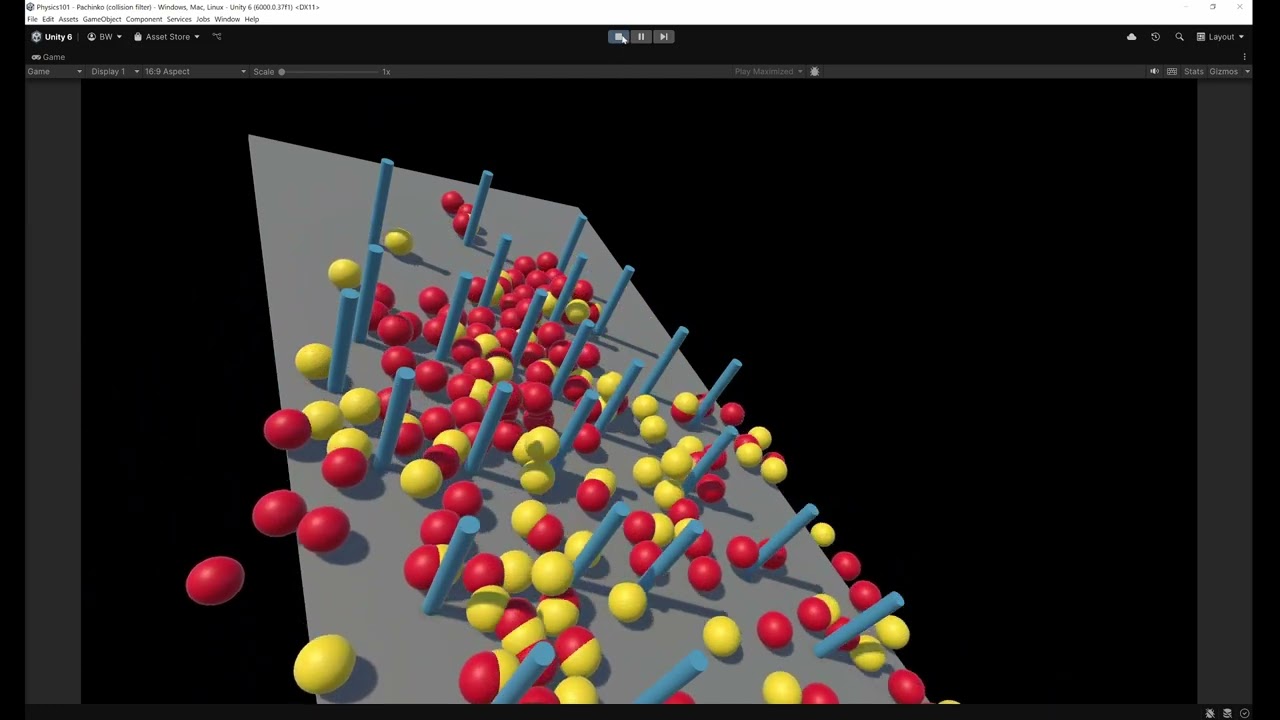
- Why this video: Establishing a digital twin requires a deep understanding of collision bounds, mass properties, and rigid dynamics. This video presents a comprehensive walkthrough of the Unity Physics engine components, showcasing how physical entities interact within virtual environments.
- Knowledge Checkpoint:
- Distinguish between static and kinematic Rigidbodies.
- Implement Colliders (Box, Sphere, Capsule) and customize physical properties like friction and bounciness.
- Explain how the physics update rate (
FixedUpdate) differs from the rendering update rate (Update).
Module 2: Robotics, Kinematics & ROS Basics
To sync virtual environments with physical hardware, you must first master how robotic arms calculate spatial positions (kinematics) and format joint configurations (URDF files). This module also introduces the standard middleware framework of the robotics industry: Robot Operating System 2 (ROS2).
Recommended Videos
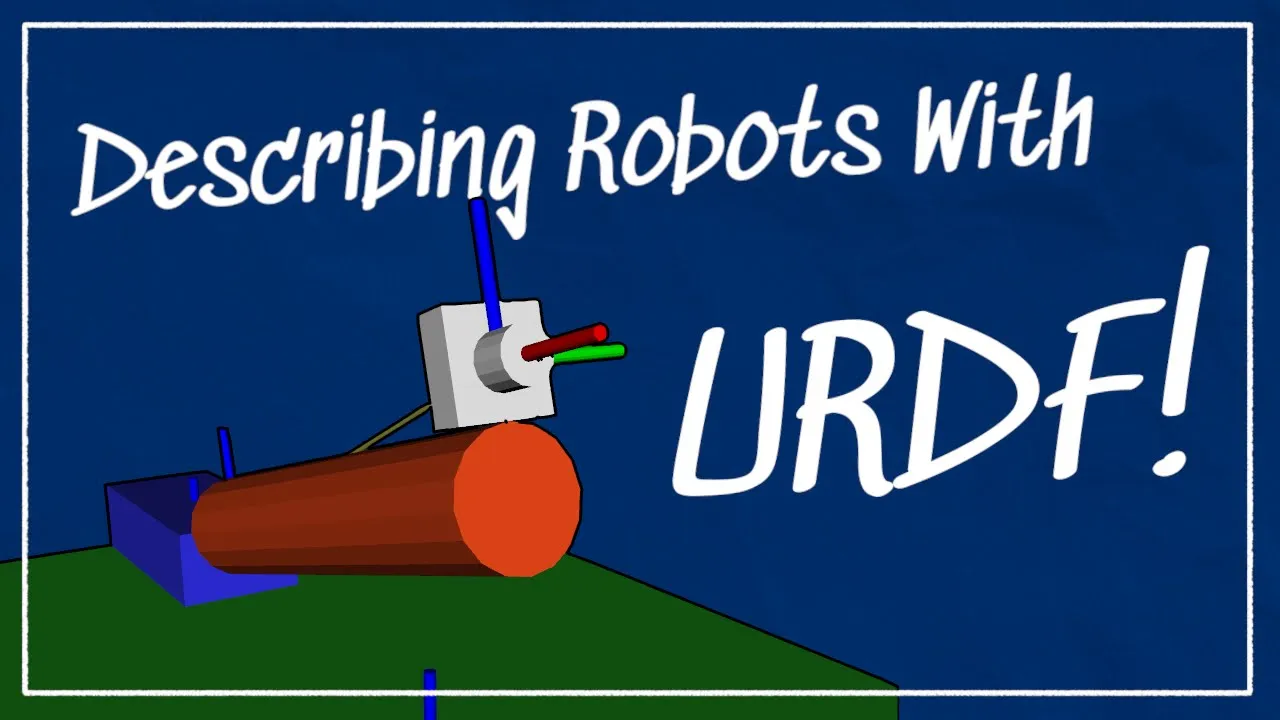
- Why this video: This highly visual tutorial unpacks the XML schema behind Unified Robot Description Format (URDF) files. Understanding links, joints, reference frames, and visual versus collision limits is vital before importing physical robot configurations into Unity.
- Knowledge Checkpoint:
- Identify and define the structural difference between "links" and "joints" in a URDF.
- Configure rotational axes and limit constraints (continuous, revolute, prismatic, fixed) within a robot description.
- Interpret parent-child relationship structures and offset transformations in 3D space.

- Why this video: Delivered by world-class academic experts, this Stanford lecture outlines Denavit-Hartenberg (DH) parameters. DH parameters provide the standardized mathematical framework used to calculate forward kinematics for robotic chains.
- Knowledge Checkpoint:
- Define the four classic Denavit-Hartenberg parameters: link length, link twist, joint offset, and joint angle.
- Establish local coordinate frames systematically at each link boundary.
- Set up transformation matrices to calculate end-effector positions given a set of joint angles.
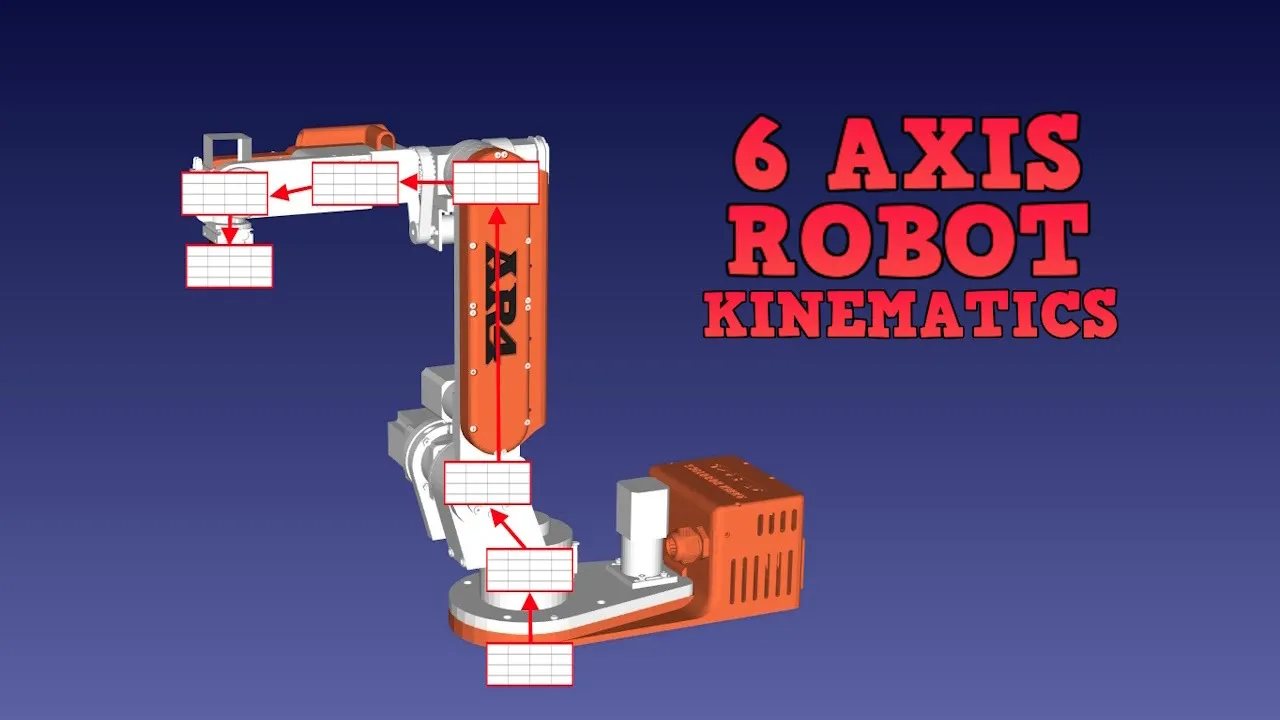
- Why this video: This in-depth tutorial bridges the mathematical theory of multi-axis joint states with a real-world physical manipulator. It teaches you how to map the kinematic formulas to hardware drives, making it easier to troubleshoot coordination errors in physical and digital twins.
- Knowledge Checkpoint:
- Contrast Forward Kinematics (calculating end position from joint inputs) with Inverse Kinematics (calculating joint inputs from desired end position).
- Apply rotational limits of a 6-axis manipulator using hardware-mapped constraints.
- Perform transformation calculations that convert joystick/controller movements into coordinate changes.
- Why this video: This practical crash-course guides you through installing ROS2, creating robust local workspaces, and compiling packages using colcon. This setup forms the core networking system on the robot control PC.
- Knowledge Checkpoint:
- Construct a clean ROS2 workspace file directory structure (specifically configuring
src,install, andbuildfolders). - Compile nodes and workspace dependencies reliably with
colcon build. - Source the underlying terminal shell setup scripts to expose executable packages to local nodes.
- Construct a clean ROS2 workspace file directory structure (specifically configuring
Module 3: VR Development in Unity with XR Interaction
To manipulate a robot via VR, you must map physical movements to virtual coordinate systems. This module focuses on establishing modern Action-Based input configurations using the XR Interaction Toolkit.
Recommended Videos
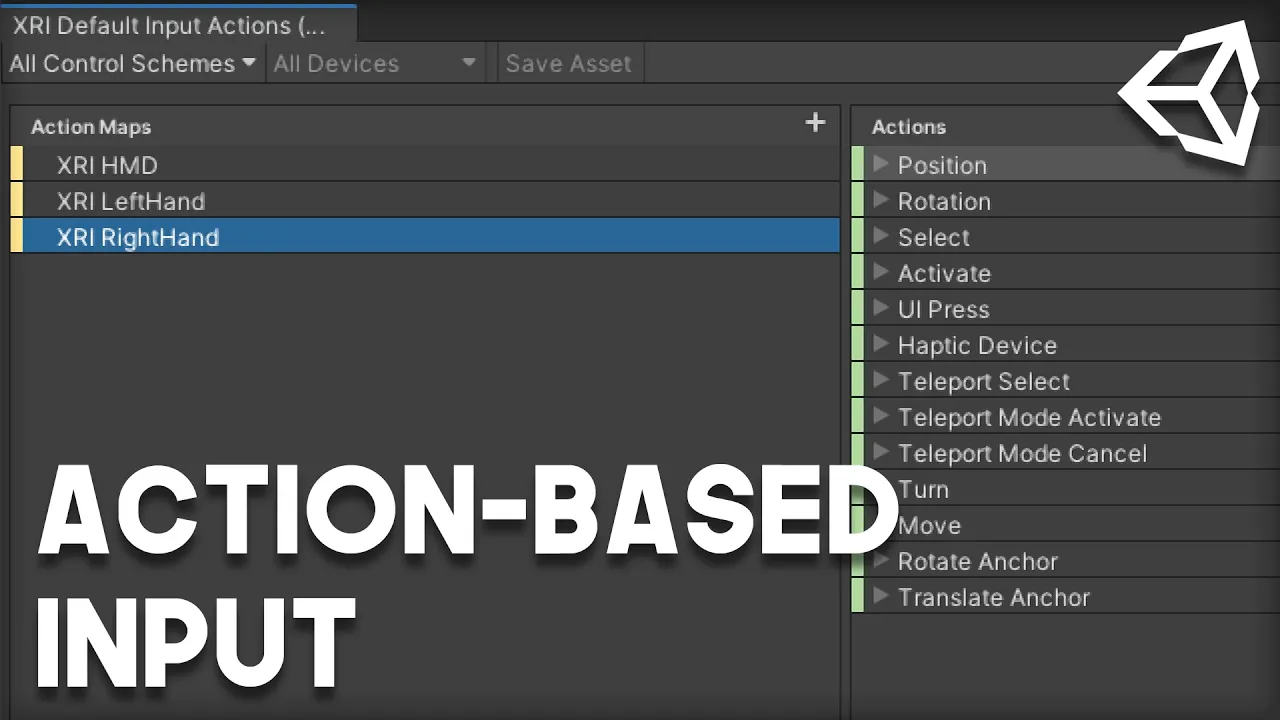
- Why this video: This video replaces outdated device-specific controller drivers by demonstrating how to configure modern Action-Based input architectures. You will learn to map input data cleanly, ensuring your software works across different VR headsets.
- Knowledge Checkpoint:
- Transition a project to use Unity’s input package manager and map hardware bindings.
- Bind abstract "Actions" (such as buttons and joystick movements) to physical VR hardware controllers.
- Configure standard profiles to process input data.
- Why this video: This tutorial focuses on 6-Degrees-of-Freedom (6DoF) spatial tracking. You will learn to use the Tracked Pose Driver script to track your VR controller's position and rotation, which you can then pass along to your robot's end effector.
- Knowledge Checkpoint:
- Configure an XR Origin object inside a 3D scene to represent your player's tracking boundaries.
- Implement a
Tracked Pose Driverscript to track the spatial position and orientation of hands. - Resolve coordinate-offset mismatches between your physical hand tracking and your virtual tracking space.
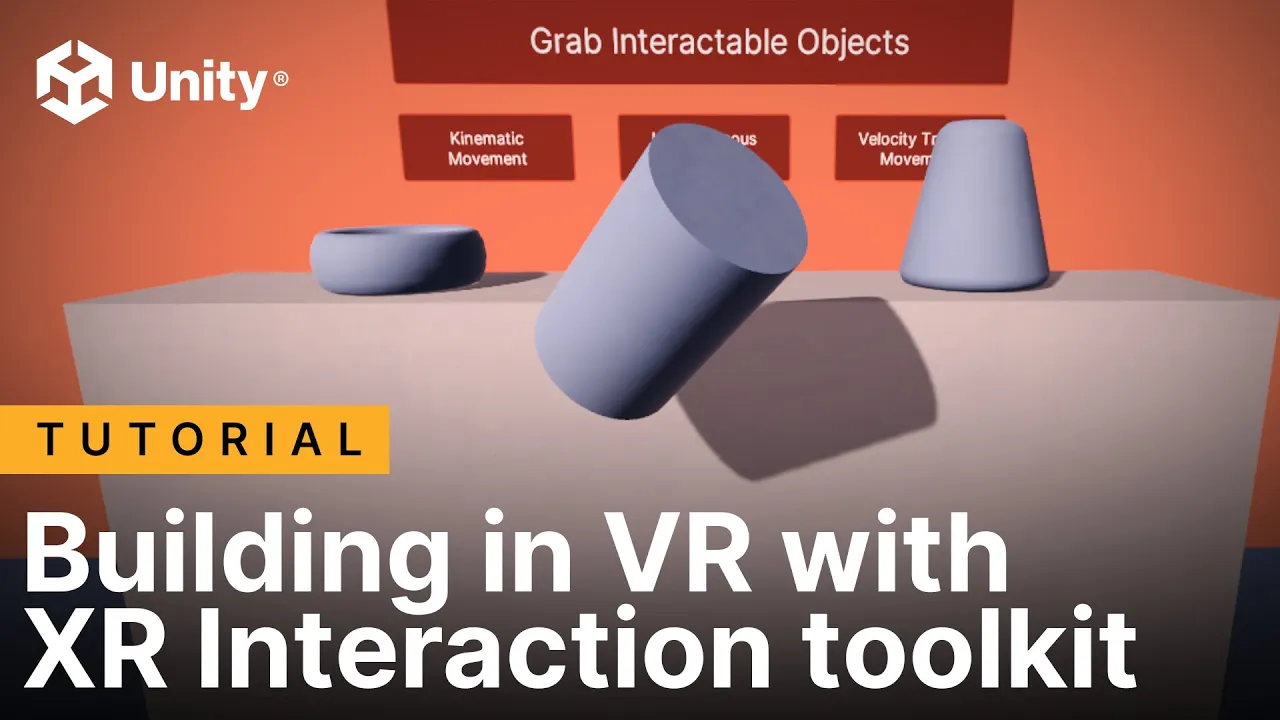
- Why this video: This walk-through, created by Unity's core team, demonstrates how to build 3D virtual work environments. It covers adding physical grabbable points, defining collision layers, and constructing a stable virtual test-bench.
- Knowledge Checkpoint:
- Construct an interactive 3D virtual room with static surfaces and colliders.
- Attach
XR Grab Interactablescripts to allow grabbing objects in the scene. - Map velocity-tracking properties to make picking up and placing objects feel natural in VR.
Module 4: Bridging Unity and ROS (Digital Twin Setup)
Connecting Unity with ROS requires a reliable network layer to share data back and forth. In this module, you will set up a ROS-TCP-Connector bridge and import URDF files into Unity to create matching, synchronized digital models.
Recommended Videos
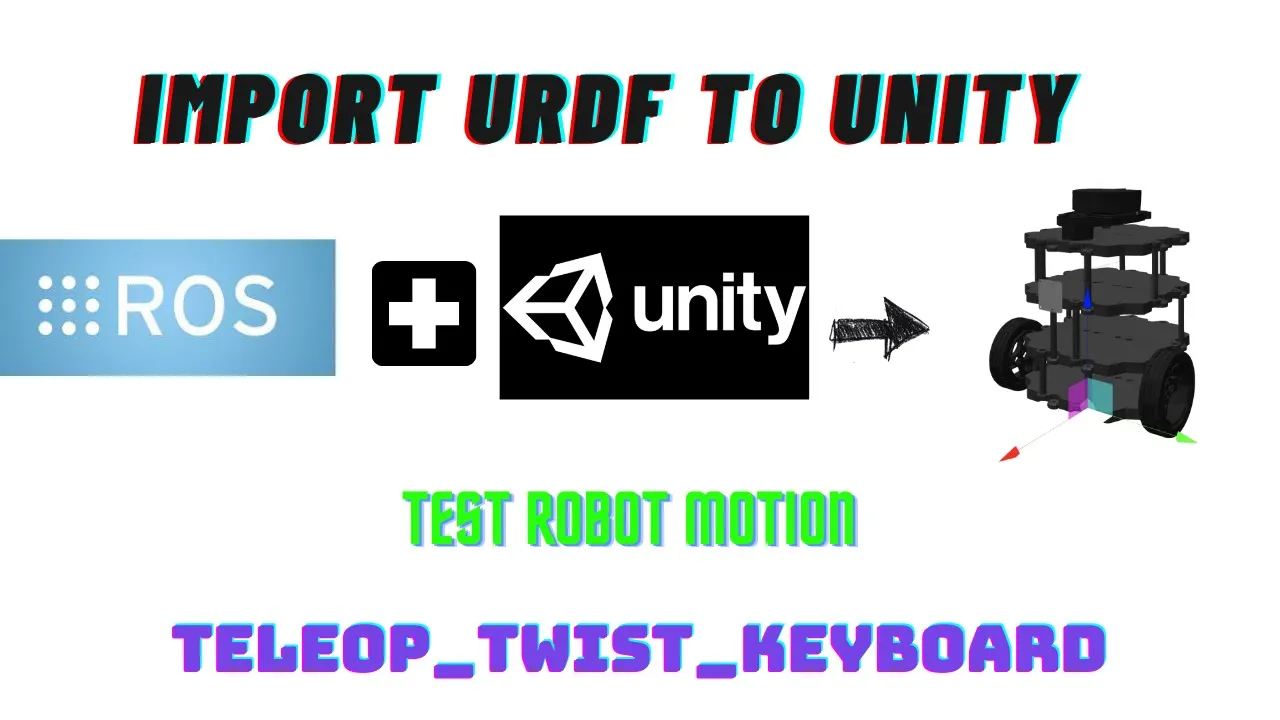
- Why this video: This video demonstrates the URDF importer workflow in Unity. It guides you through transforming flat XML files into a hierarchy of linked game objects, complete with Articulation Bodies that mimic the joint physics of real robots.
- Knowledge Checkpoint:
- Install the
URDF Importerpackage via Unity's Package Manager. - Convert a robot's URDF description into a functional Unity prefab.
- Map physical joints to ArticulationBody components, ensuring joint limits and physics behave realistically.
- Install the

- Why this video: This video provides a step-by-step demonstration of syncing a virtual Franka Emika arm in Unity with a ROS back-end. It details how to set up the TCP network bridge, helping you visualize the workflow for your own digital twin.
- Knowledge Checkpoint:
- Explain the layout of a digital twin architecture (physical controller -> ROS drivers -> network bridge -> Unity engine).
- Establish communication pipelines between Unity and ROS using IP addresses and ports.
- Synchronize real-time joint angles so the virtual arm accurately mimics the physical hardware.
- Why this video: Although tailored for MR devices, this tutorial covers the basic network settings needed to run Unity Robotics Hub packages. It illustrates how to import the ROS-TCP-Connector and deploy robust communication bridges under varying network conditions.
- Knowledge Checkpoint:
- Import the standard ROS-TCP-Connector asset package into a Unity environment.
- Test network connectivity by running ping tests and sending basic test payloads between environments.
- Resolve firewall, network access, and IP-binding errors on both local and virtual network adapters.
Module 5: Real-Time VR Teleoperation of Robots
Note: Since step-by-step videos on complete VR-to-robot integration are limited, this module supplements the available video pool with detailed guides on writing your own integration scripts. Here, you will connect your hand tracking to an Inverse Kinematics engine and publish real-time control messages to ROS.
Recommended Videos

- Why this video: This video introduces the configuration steps for the popular BioIK plugin in Unity. While the video is brief and recorded in Japanese, its visual walkthrough makes it easy to understand how to add targets, assign joint limits, and calculate smooth joint movements.
- Knowledge Checkpoint:
- Configure the BioIK solver component on the root of your virtual robotic arm model.
- Assign tracking goals to the end-effector transform of the robot.
- Define weights and constraints on specific joints to avoid self-collisions and erratic behavior.
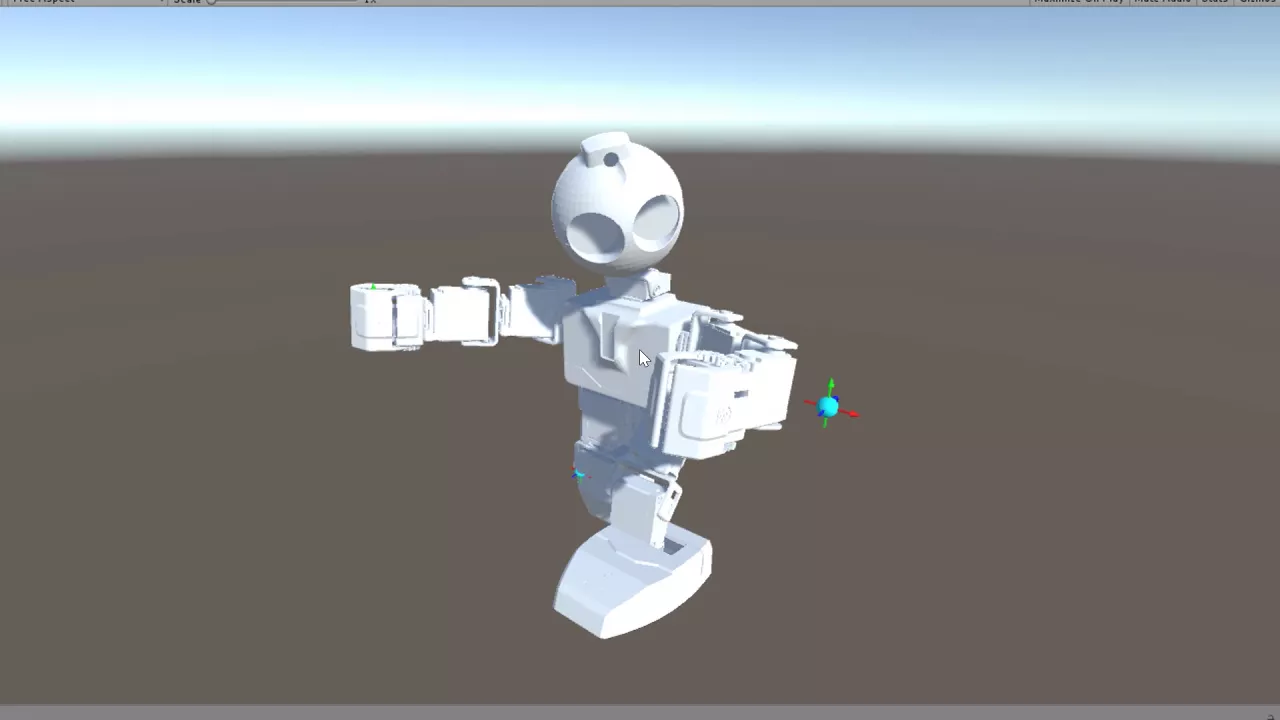
- Why this video: This demonstration shows how virtual controller targets map to joint systems via BioIK. It illustrates how calculating target weightings keeps movements stable and matches natural joint limits.
- Knowledge Checkpoint:
- Set up interactive handle gizmos that link VR controllers directly to BioIK tracking targets.
- Configure joint weightings so the robot moves naturally without reaching impossible or unstable poses.
- Handle kinematic singularities gracefully when target tracking points go out of the physical robot's reach.

- Why this video: This video serves as an inspiring proof-of-concept, demonstrating a Quest 2 VR headset teleoperating a UR5 robot arm in real time. It illustrates the target frame tracking you will implement programmatically in your own system.
- Knowledge Checkpoint:
- Connect a live physical robot manipulator to a real-time virtual environment.
- Map human hand gestures (such as trigger squeezing or grip buttons) to open and close robotic end-effectors.
- Implement safety bounds that stop the physical arm if the lag or distance between the real and virtual robots grows too large.
Step-by-Step Programming Guide: Mapping and Publishing Poses
To bridge the gap in pre-made tools, use the template below to build a custom C# script. This script maps your VR controller's position to your robot's end effector, calculates inverse kinematics, and publishes those joint states directly to ROS2:
using UnityEngine; using Unity.Robotics.ROSTCPConnector; using RosMessageTypes.Sensor; // Assumes ROS sensor_msgs/JointState is generated
public class VRRobotTeleopPublisher : MonoBehaviour { [Header("Network Configuration")] public string rosTopicName = "/joint_commands";
[Header("VR Hand & IK Targets")]
public Transform vrControllerTransform;
public Transform ikTargetTransform;

[Header("Robot Root Joint")]
public ArticulationBody baseJoint;

private ROSConnection rosConnection;
private double lastPublishTime;
public double publishFrequency = 0.05; // 20 Hz updates

void Start()
{
    // Get the active ROS connection instance
    rosConnection = ROSConnection.GetOrCreateInstance();
    rosConnection.RegisterPublisher<JointStateMsg>(rosTopicName);
}

void Update()
{
    if (vrControllerTransform != null && ikTargetTransform != null)
    {
        // Sync the Inverse Kinematics target position to our physical VR controller pose
        ikTargetTransform.position = vrControllerTransform.position;
        ikTargetTransform.rotation = vrControllerTransform.rotation;
    }

    // Limit data throughput to avoid flooding our network link
    if (Time.time - lastPublishTime >= publishFrequency)
    {
        PublishJointStates();
        lastPublishTime = Time.time;
    }
}

void PublishJointStates()
{
    if (baseJoint == null) return;

    // Collect all active joint states from our virtual robot hierarchy
    ArticulationBody[] joints = baseJoint.GetComponentsInChildren<ArticulationBody>();

    JointStateMsg msg = new JointStateMsg();
    msg.header.stamp = new RosMessageTypes.Std.HeaderMsg().stamp; // Timestamp message

    int jointCount = joints.Length - 1; // Exclude root base joint if static
    msg.name = new string[jointCount];
    msg.position = new double[jointCount];

    int index = 0;
    for (int i = 0; i < joints.Length; i++)
    {
        // Process revolute or prismatic joints with active degrees of freedom
        if (joints[i] != baseJoint)
        {
            msg.name[index] = joints[i].name;
            // Capture the current radian/metric position calculated by our Unity IK solver
            msg.position[index] = joints[i].jointPosition[0];
            index++;
        }
    }

    // Send payload across the network to ROS
    rosConnection.Publish(rosTopicName, msg);
}
}
Course Map
This flowchart shows how modules depend on each other and outlines your learning path to build a complete digital twin system:
Key People Index
- Dr. Oussama Khatib (Professor of Computer Science, Stanford University): Leading authority in spatial manipulator safety controls, real-time trajectory tracking, and the mathematical implementation of DH coordinate frames.
- James Bruton (Robotics Designer & Educator): Renowned for building open-source quadruped platforms and robotic actuators, and popularizing geometric kinematics calculations for developers.
- Code Monkey (Hugo Dahl) (Educator): Popularized game engine architecture patterns and clear setup strategies for working with the Unity C# environment.
Final Self-Assessment
Complete this comprehensive checklist to verify that your digital twin and teleoperation system is fully functional:
- Engine Setup: Install Unity LTS alongside a functional ROS2 Humble installation (on Linux or WSL2).
- Geometry Import: Successfully import a custom multi-axis URDF configuration file into Unity as a jointed ArticulationBody asset hierarchy.
- Spatial Tracking: Run a Unity project that tracks the 6DoF movement of VR controllers relative to your active XR Origin camera rig.
- Network Bridge: Confirm the ROS-TCP-Connector establishes active socket connections between the virtual Unity client and the host ROS2 environment.
- Kinematics Setup: Set up an Inverse Kinematics solver (such as BioIK or customized scripts) to translate VR controller tracking points into matching joint angles.
- Telemetry Loop: Create and compile a custom C# publishing script that packages local ArticulationBody positions into valid ROS message structures (
sensor_msgs/JointState). - Bidirectional Sync: Verify that physical joint movements on your robot are reflected in real time on the digital twin, and virtual movements translate back to the physical arm.
- Safety Boundaries: Implement physical safety limits that immediately lock down the arm if it loses its network connection, detects self-collisions, or exceeds speed limits.